6 Best Law Practice Management Software in 2026! (Tested All Of Them)
Most times, it has little to do with actually knowing the law and more about keeping track of clients, sending invoices, and going through document after document.
The advice of Rebecca Woods, an attorney with over two decades of experience in commercial and construction litigation, is that you 'lifehack' your way out of this.
She says, 'Embrace the way that tools, technology, and innovative approaches can better your legal practice.'

And she's right.
You didn't go to law school to work on spreadsheets and send emails; you went to practice law.
Finding the best law practice software is a great way to use technology to manage your clients, billing, scheduling, and more.
Then you can focus on what you love: practicing law.
In this article, I'll share my picks for the best law practice management software in 2026. I've spent 10 days testing each one thoroughly, exploring their features, pricing, pros, and cons.
I'll also give you a guide to help you choose the right tool.
Let's check them out.
Top Law Practice Management Software Compared
| Tools | Features | Ease of use | Personal rating | Starting price | Best for |
|---|---|---|---|---|---|
| Clio |
| Easy | 4.5/5 stars | $49/user/month | Large firms seeking a platform to manage many legal cases at the same time with billing options |
| Zencal |
| Very easy | 4.5/5 stars | From $4/monthly, billed annually | Solo lawyers and small law firm owners seeking a simple solution to manage scheduling, billing, appointments, and clients. |
| Leanlaw |
| Medium | 4/5 stars | $55/user/month | Small and mid-sized firms seeking software to handle legal billing and track time & expenses. |
| Practicepanther |
| Very easy | 4/5 stars | $49/user/month | Medium-sized and large law firms looking for an all-in-one software to manage cases, contacts, track time, and handle billing & invoicing. |
| Cosmolex |
| Easy | 4/5 stars | $109/user/month, billed annually | Mid-sized firms seeking to automate legal workflow, track firm and personal activities. |
| Rocket Matter |
| Easy | 4/5 stars | $49/user/month, billed annually | Small and mid-sized firms who want to manage legal projects and track their productivity. |
Start your 14-day free trial and automate your scheduling today.
6 Best Law Practice Management Software
1. Clio Manage - Best for Legal case management
| Personal rating: 4.5/5 stars |
|---|
| I particularly loved that you can attach a task directly to a case, allowing you to easily keep track of what you need to do. |
I'm starting this list of the best law practice management with Clio Manage. I recommend this to law firm owners and legal teams that handle multiple cases and need strong task and client management.
Here is what I liked when using it.

You can create and manage legal cases using a feature called Matters.
You select the client, add a description of the case, choose the responsible solicitor, and the originating solicitor. Simple as that.
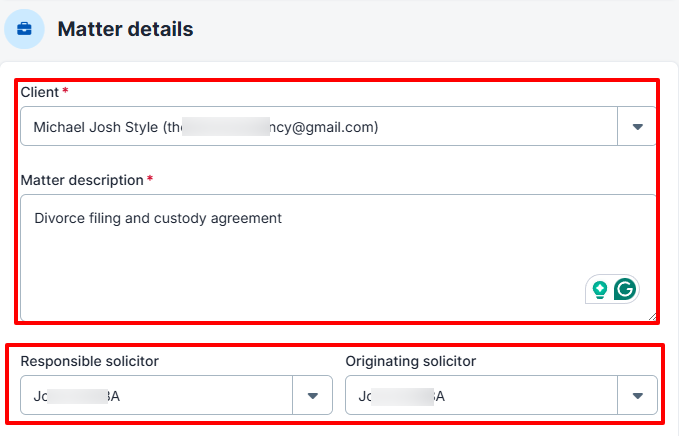
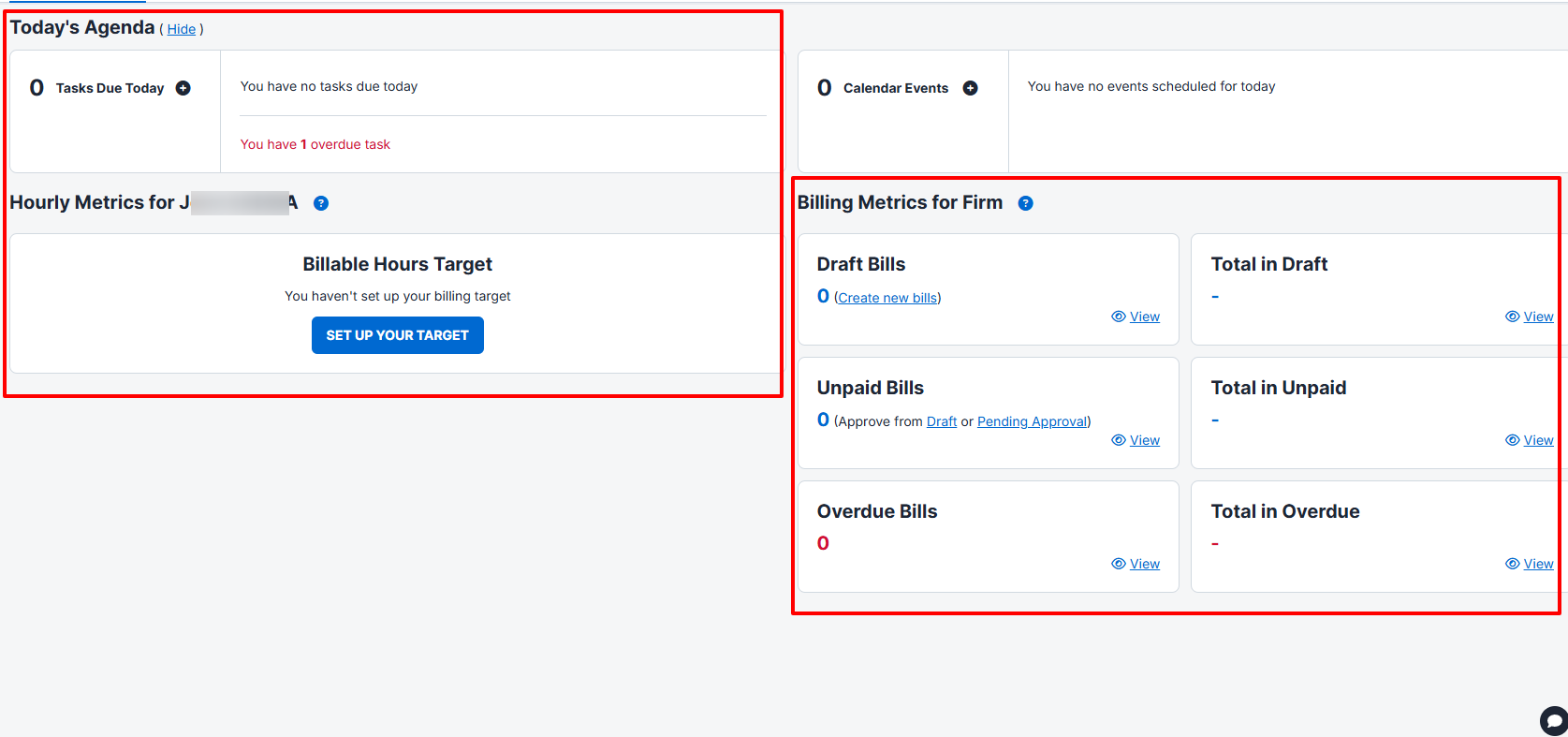
With its dashboard, I view all my daily agenda and hourly metrics. I also see who has paid and who owes my firm. I love it.
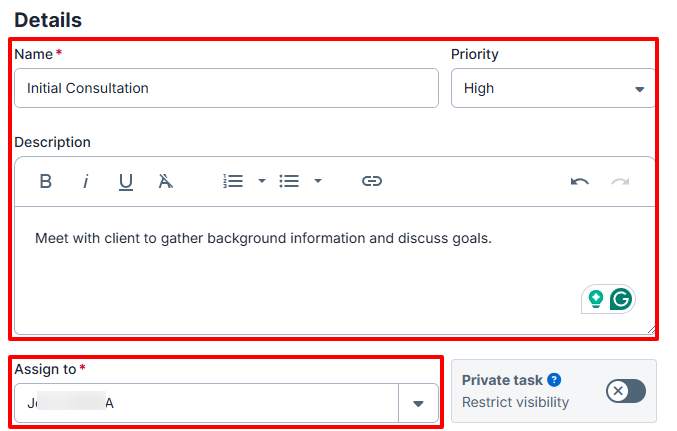
That's not all! To work as a real team, I can assign myself a task. For instance, if we have to meet a new client to discuss their case, I can assign a task to myself or another lawyer.
It gives me the vibe of using an Asana for lawyers.
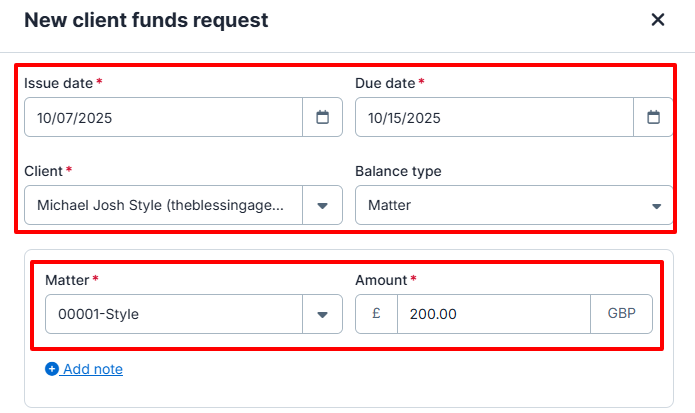
And when it's time to charge a client (we all love that), I create an invoice with the client's details and fee. This makes life so easy for me.
Now I loved using Clio a lot. Let me make your experience so unique that you'd think you were watching a tutorial video on YouTube.
I talked about something earlier: Matter. As a lawyer, you definitely understand the term. It's simply 'cases.'
Let's say a client called our office to schedule a meeting. They shared a few details, and the coordinator wants to assign it to a lawyer.
The first action is to locate "Matters" on the sidebar.
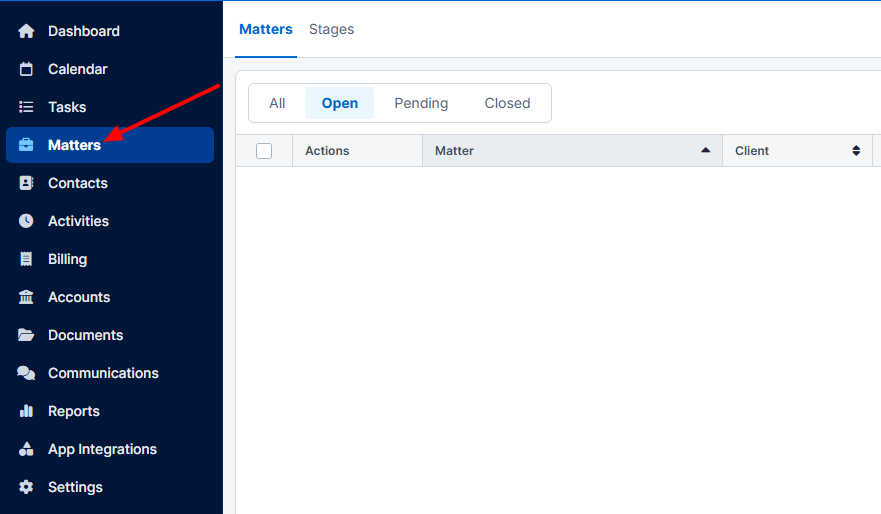
There were two options: I could either start from scratch or use a template.
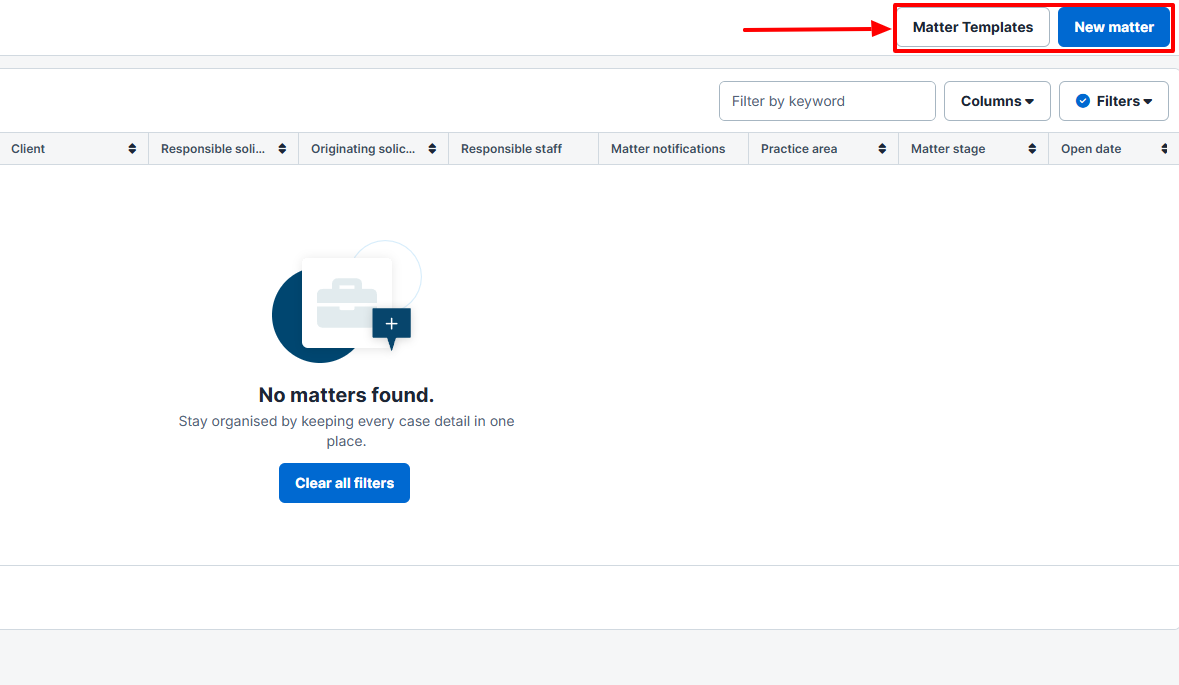
Let's create one from scratch so that you can see the process. I entered the client's name and added a description of the case. I then selected the responsible solicitor and the originating solicitor.
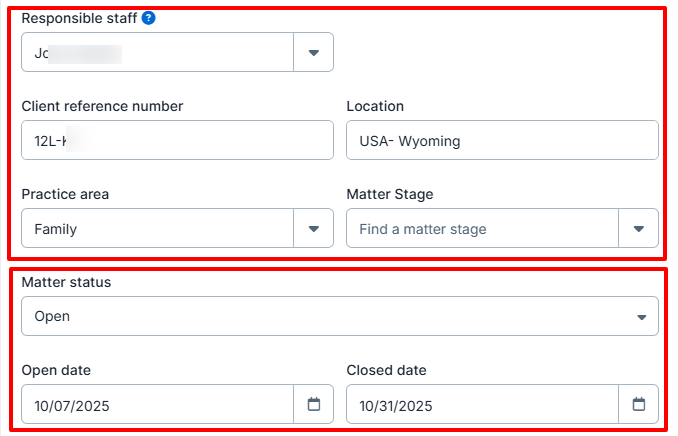
The next thing was to select the responsible staff and enter the client's details. Since it's a new case, I set the status to Open.
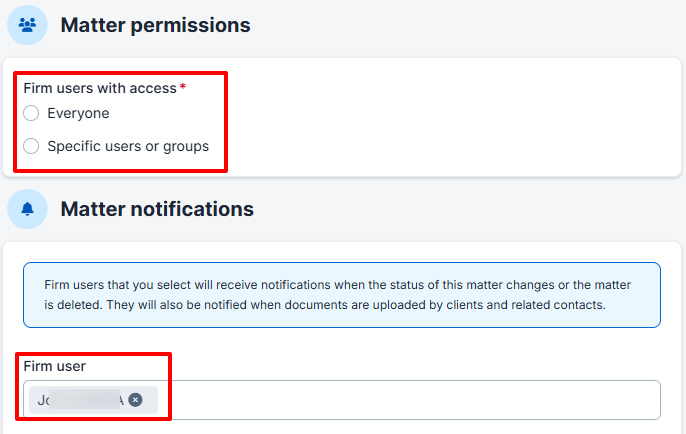
Now, some cases are so sensitive that you want to keep them private. (Whispering... Or maybe there is a spy in your firm)... just kidding.
But you get the point. You can allow everyone to view the case or only allow certain people.
It's time to choose the billing method. I will charge this client hourly, but of course, I can use a custom one (daily + hourly, for instance).
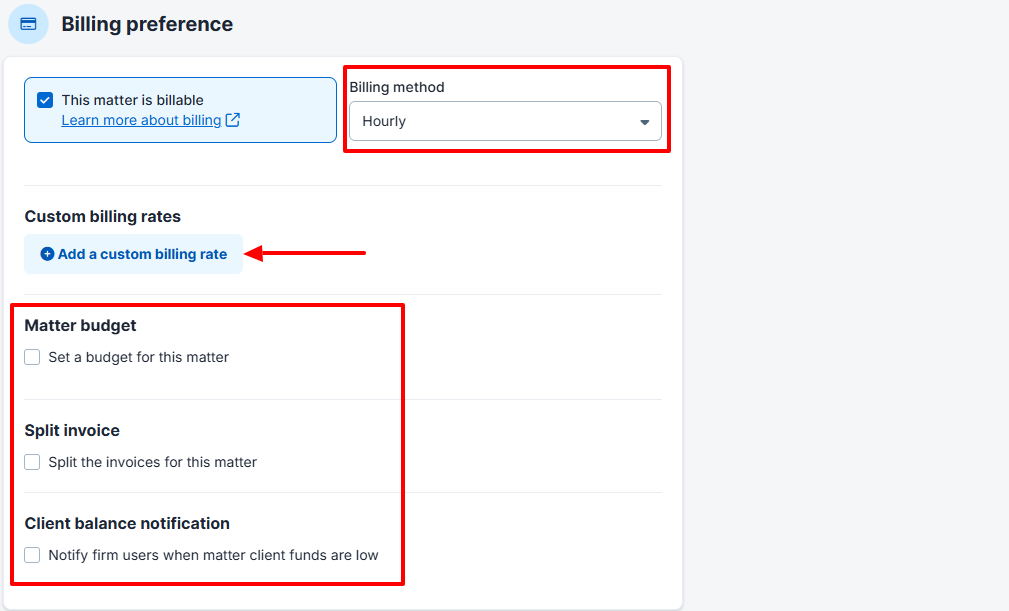
And that is it. You've just created your new legal case! You can see financial information at the top and details of the matter below.
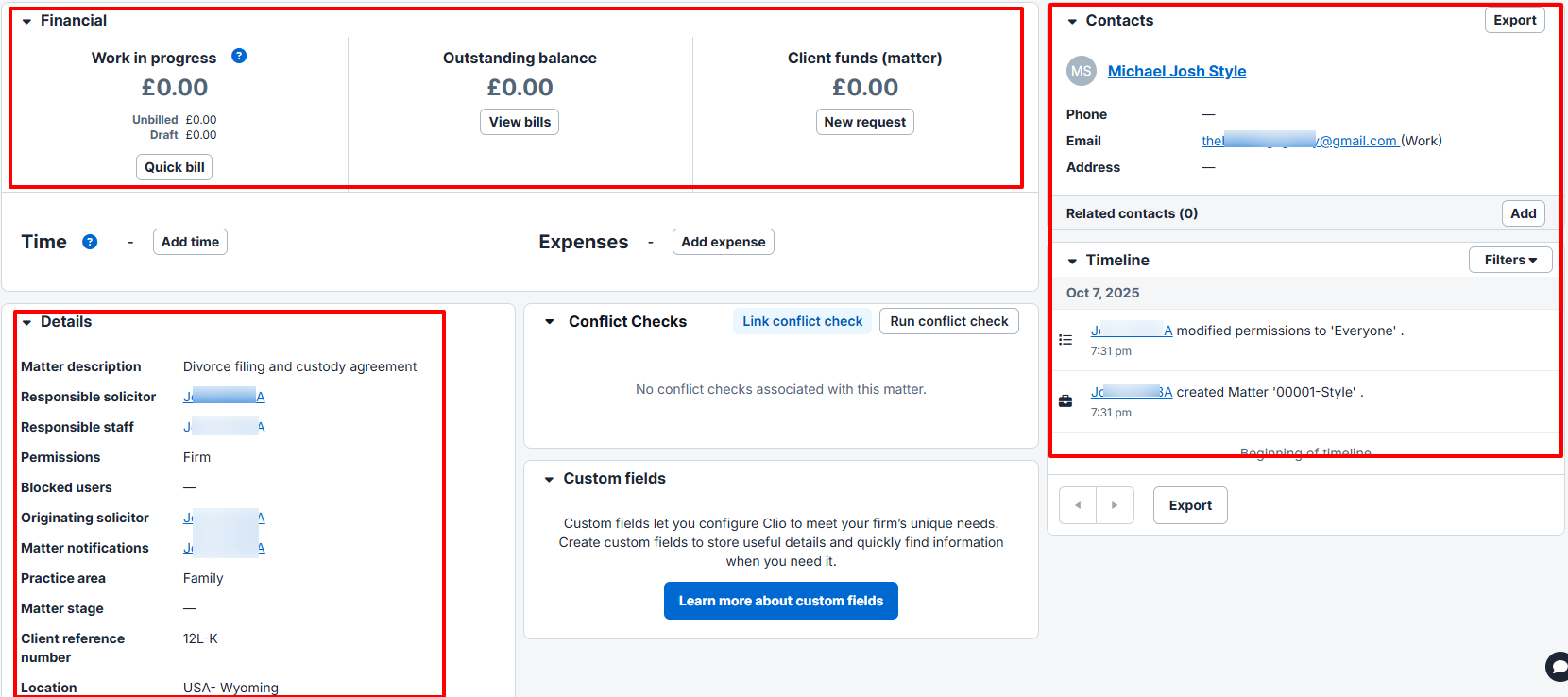
Two more things convinced me to add Clio to my list of popular law practice management software.
What I loved about Clio Manage
1 . Tasks
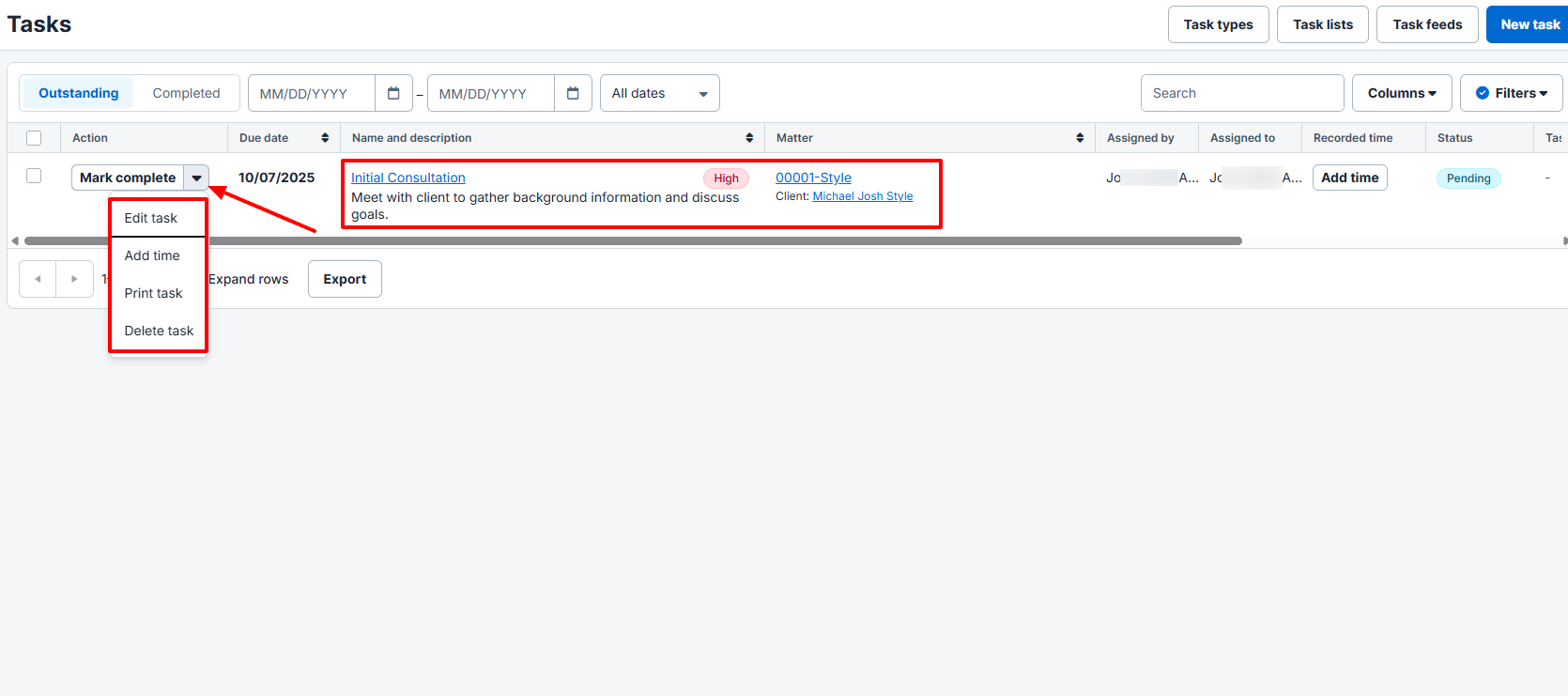
Now, I created a case. To help me prepare well for the court day, Clio added a task feature. I know that some people prefer to-do apps, but I liked managing my tasks inside the legal platform.
On the sidebar, click "Tasks" and go to New task.
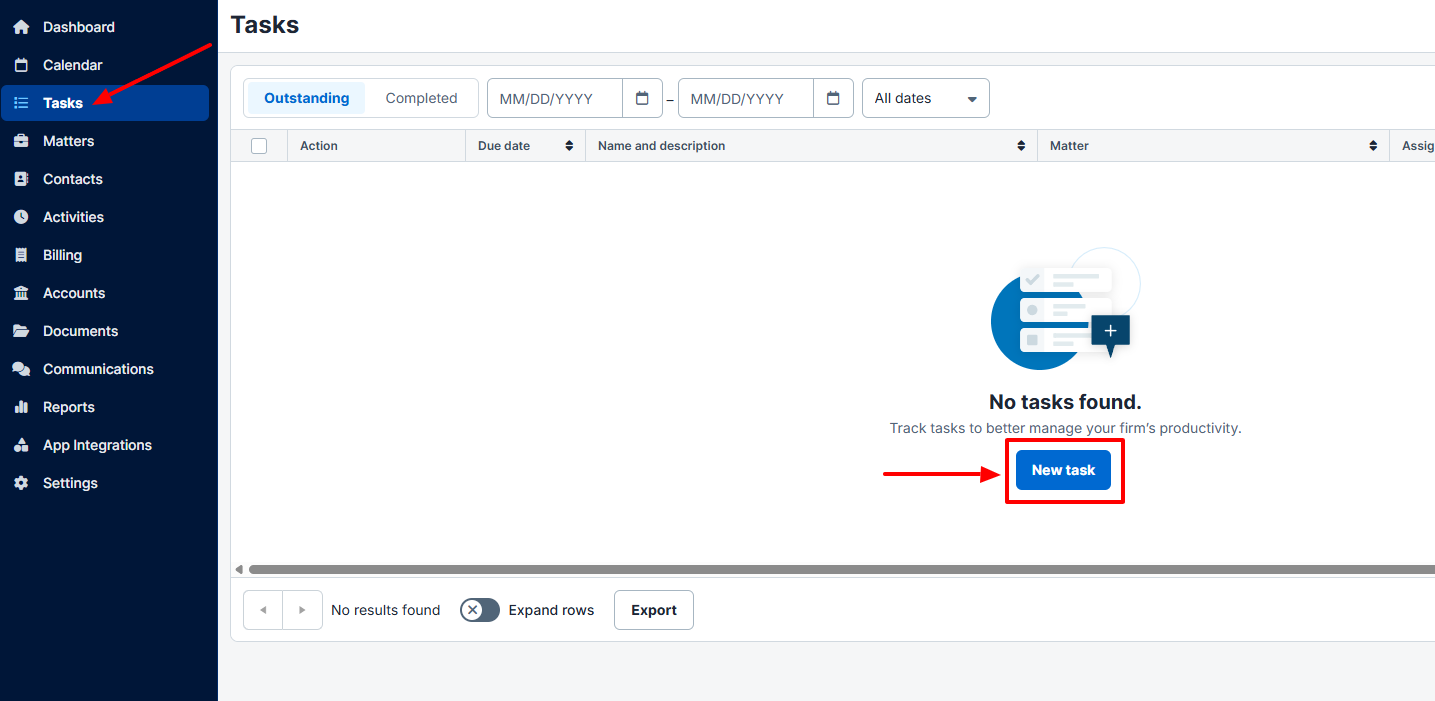
Add a task name, set a priority, and assign it to yourself. Of course, I could also assign it to someone else in the firm.
Here is when I deeply fell in love with the Task feature. I can tie a task to a 'Matter.' This is perfect because I can see the impact it will have on the case.
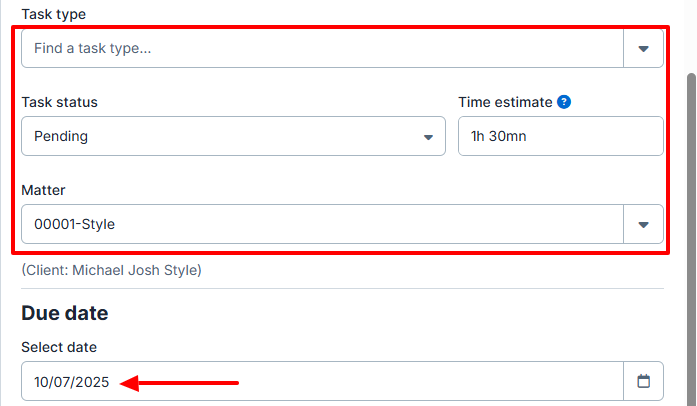
And if you want to edit, delete, or print the task, you can do so.
2 . Billing
It's now time to bill your clients. To avoid a situation where you don't get the payment, you can collect a deposit up front.
Go to "Billing", then "New client funds request."
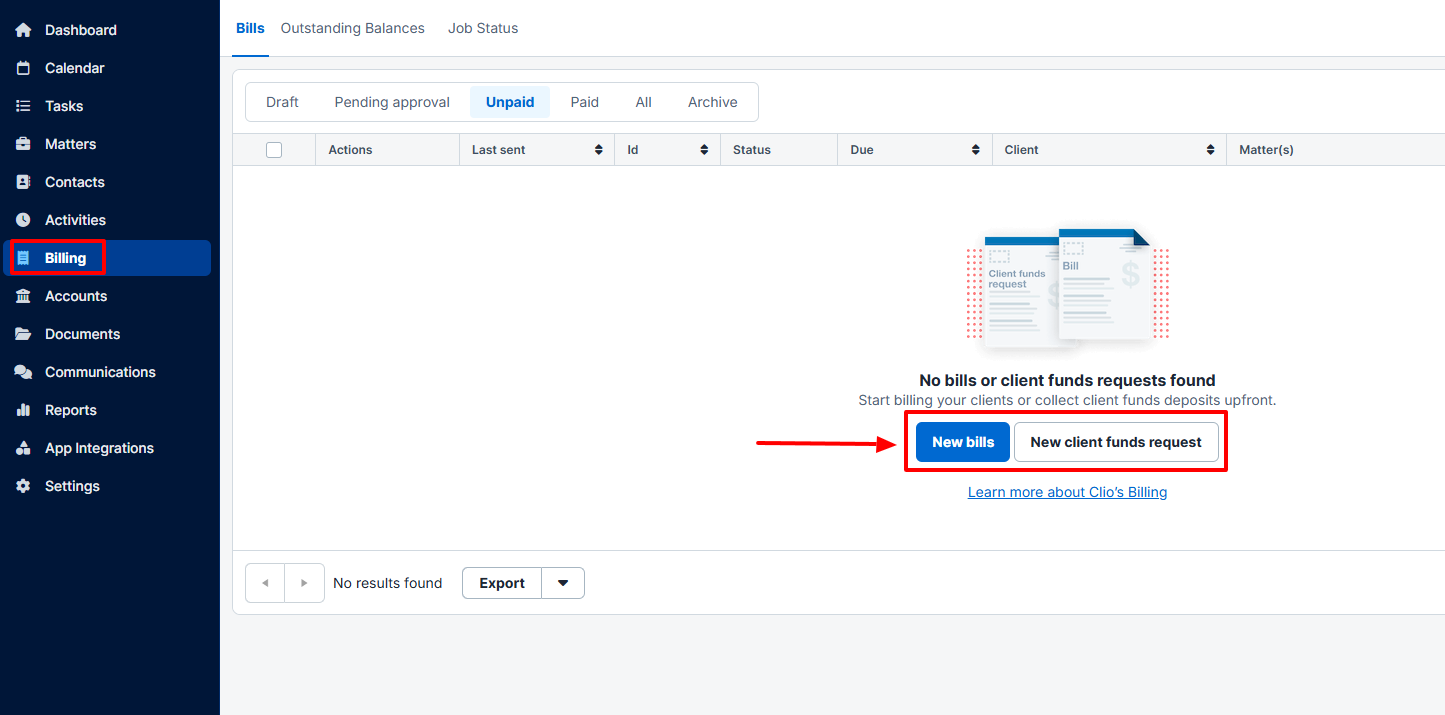
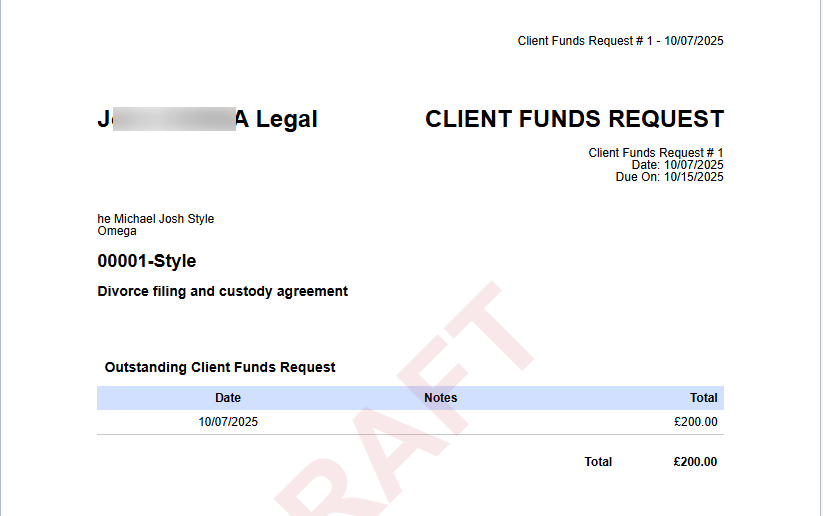
Enter the issue date, due date, etc. Then select the matter, and add your price.
This is what it will look like.
What I loved vs What I struggled with
| What I Loved | What I struggled with |
|---|---|
| ✅ Offers a chat feature you can use to communicate with clients directly inside Clio via a secure client portal. ✅ Has Clio for Gmail, which adds a side panel to your inbox so you can save emails, attachments, and time entries directly to Clio without switching tabs. ✅ Clio integrates with tools like QuickBooks, Xero, Box, Calendly, and Microsoft Teams ✅ The clean interface helps you find Matters, Calendars, Tasks, and Contacts easily. | ❌️ The base plan starts at $49/user/month, which can feel expensive for solo lawyers or small firms that only need basic tools. ❌️ Some useful features (like advanced document automation, budgeting, and court calendaring) are locked behind higher plans, which may not be ideal for smaller practices. |
Best for
- Clio is best for large firms that want to manage many legal cases and assign tasks, with billing options.
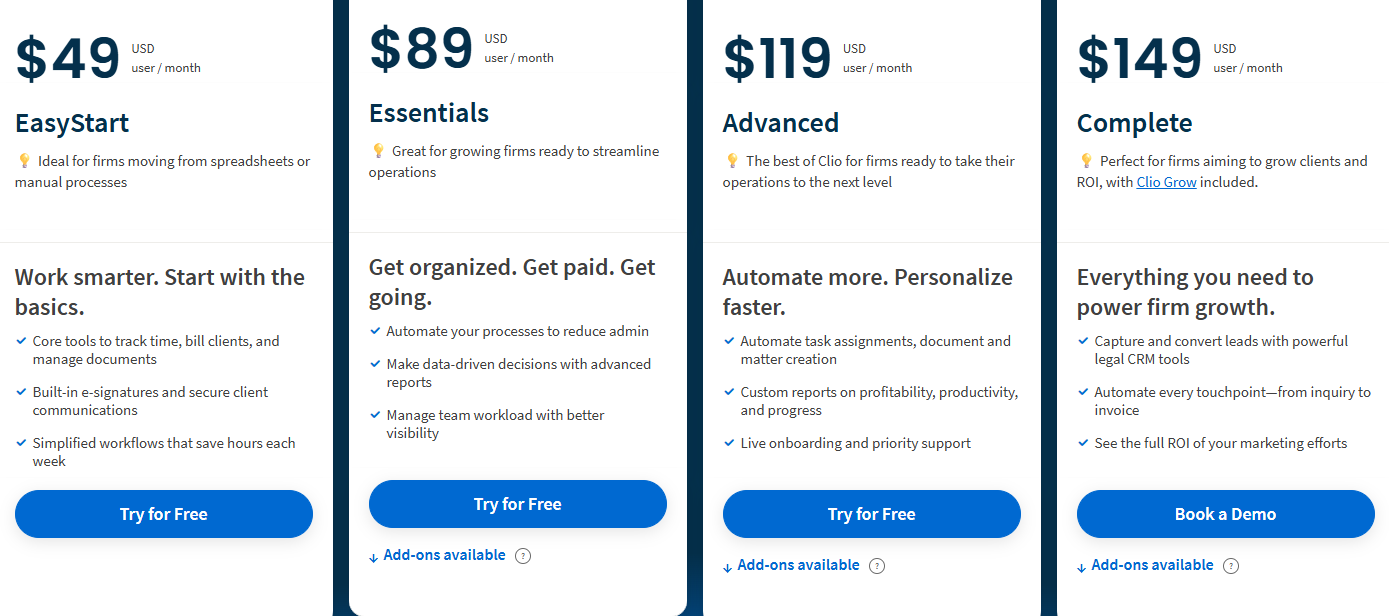
Pricing
- EasyStart: $49/ user/ month
- Essentials: $89/ user/ month
- Advanced: $119/ user/ month
- Complete: $149/ user/ month
2. Zencal - Best for appointment scheduling and client management
| Personal rating: 4.5/5 stars |
|---|
| One of my favorite things about Zencal is how easy it is to set up booking pages. It's also simple to set payment and availability options so you never double-book or miss a client. |
I strongly recommend Zencal to individual lawyers and small law firms that handle frequent client meetings and paid consultations.
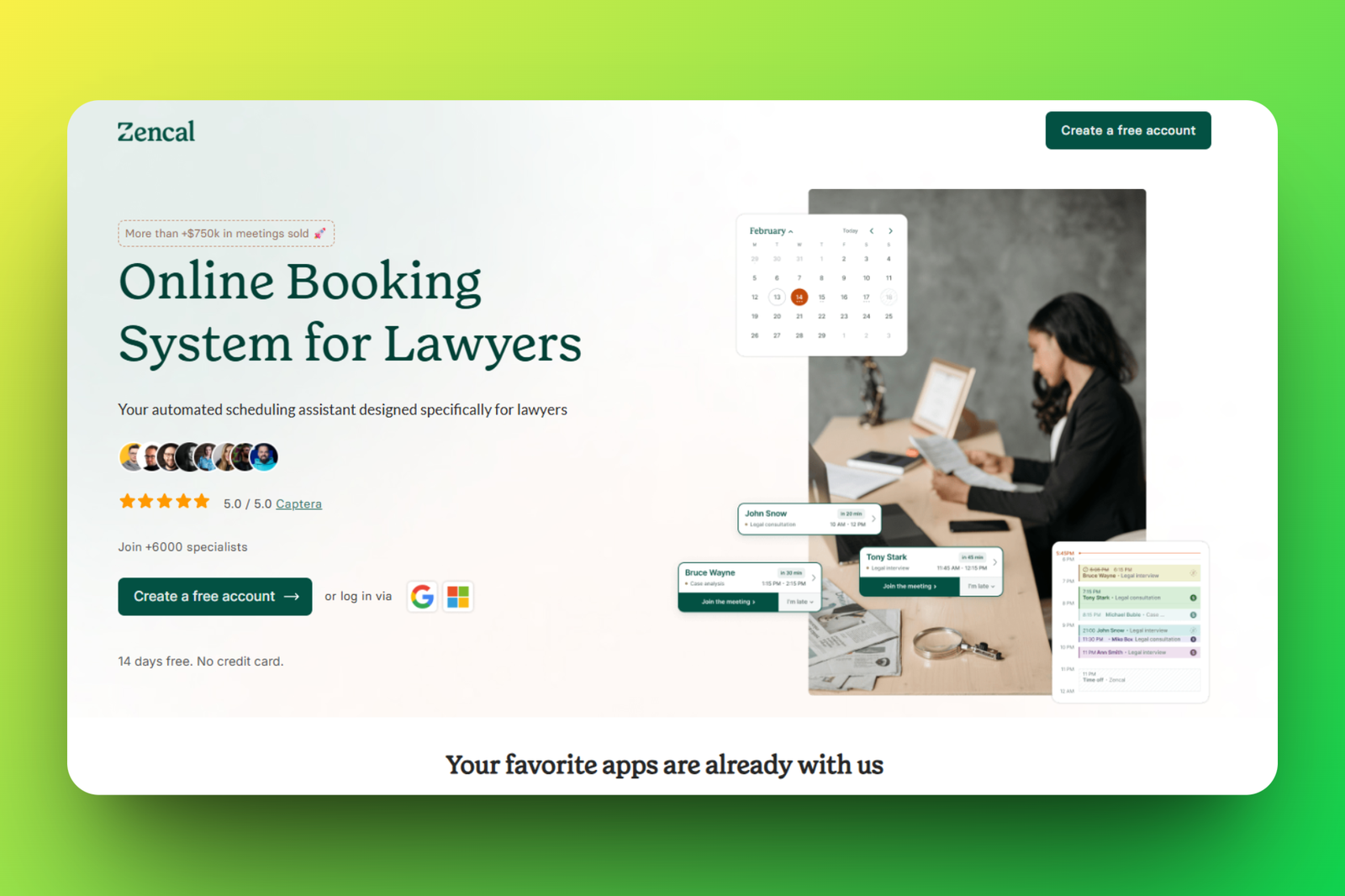
I'm not saying this because I'm the co-founder of Zencal. It's because real lawyers use it to book appointments with clients and manage data and payments.
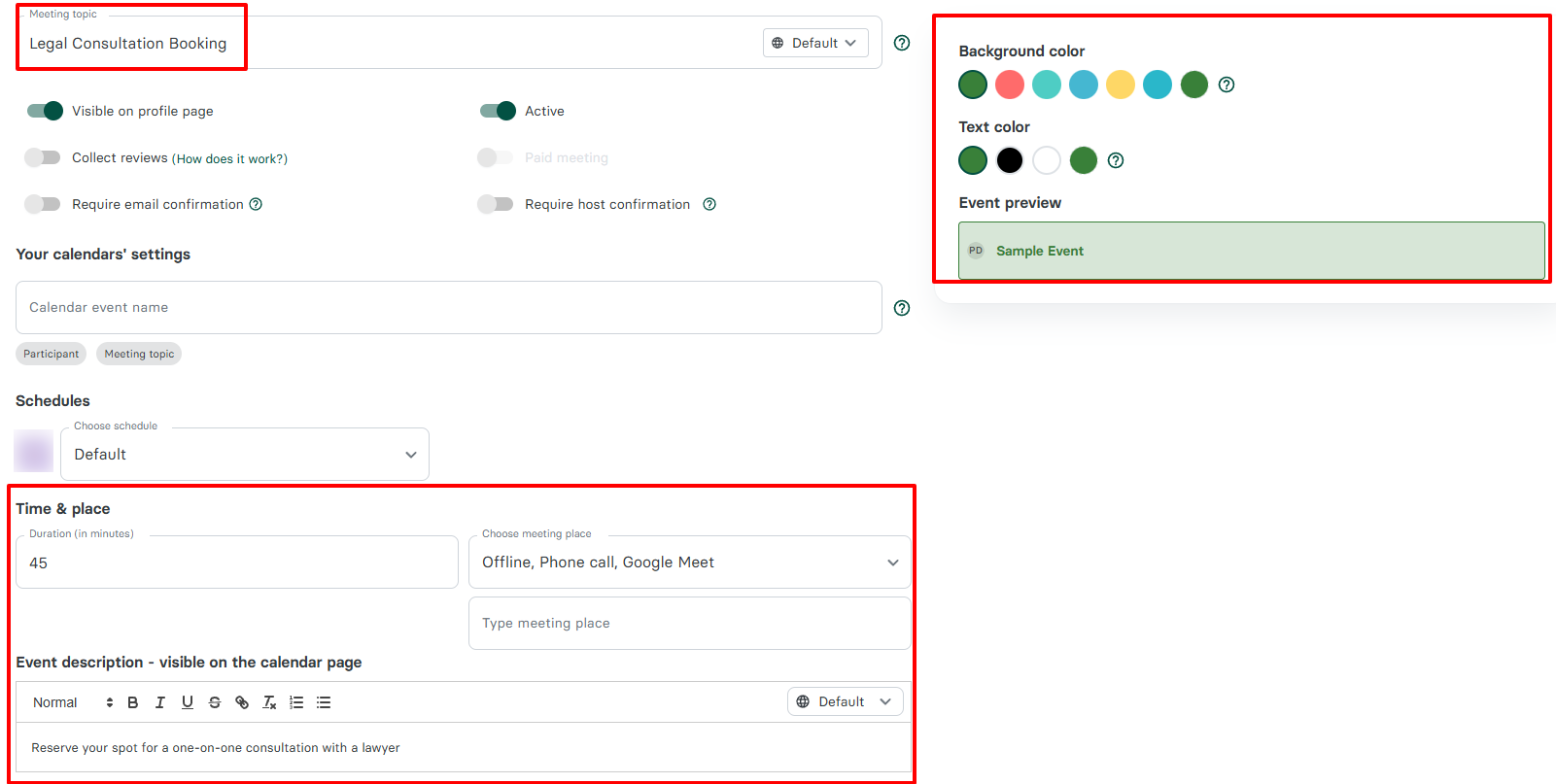
Take booking pages, for example. You name the page, add the meeting duration, and enter the meeting place.
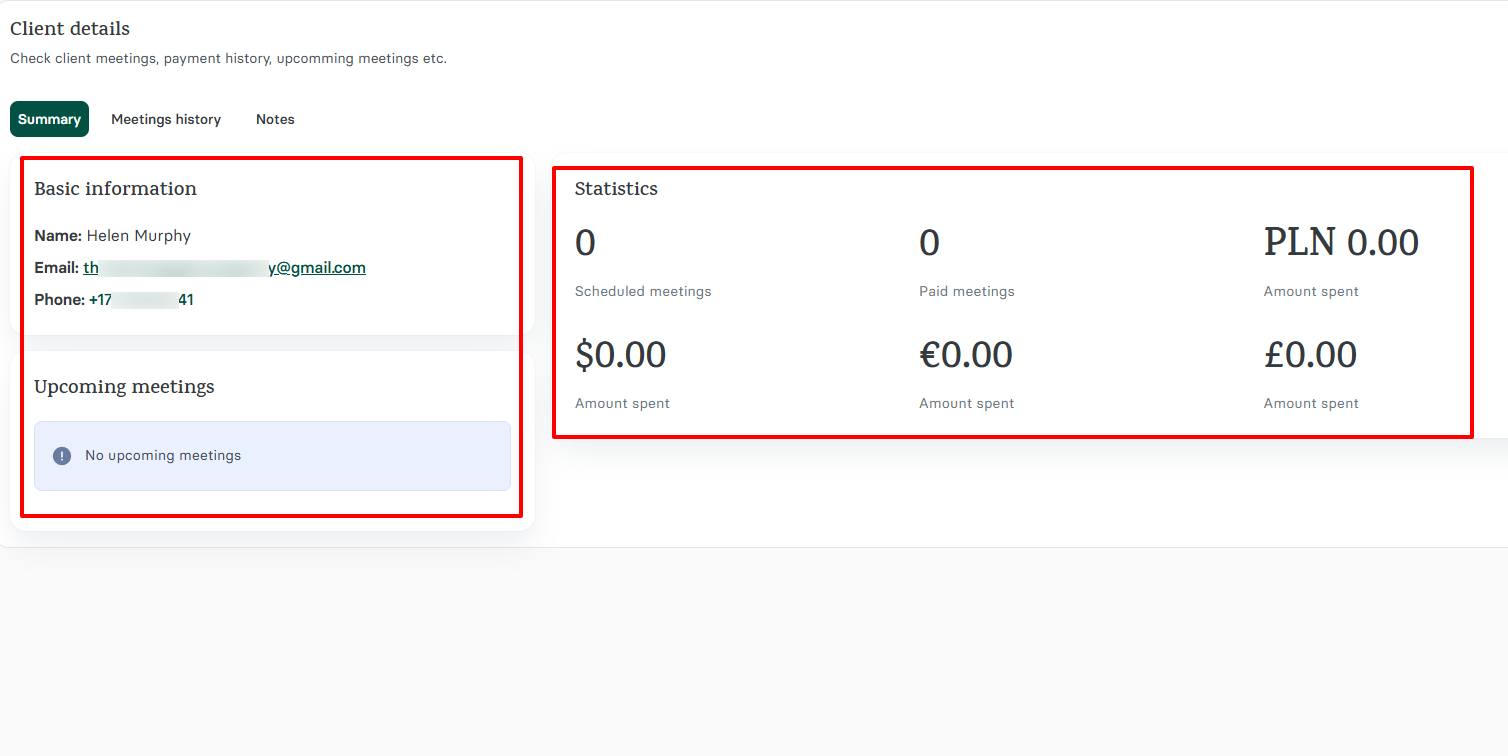
Under your client's data, you can see the upcoming and past appointments. And if you offer paid meetings, you'll also see the amount of money they spent.
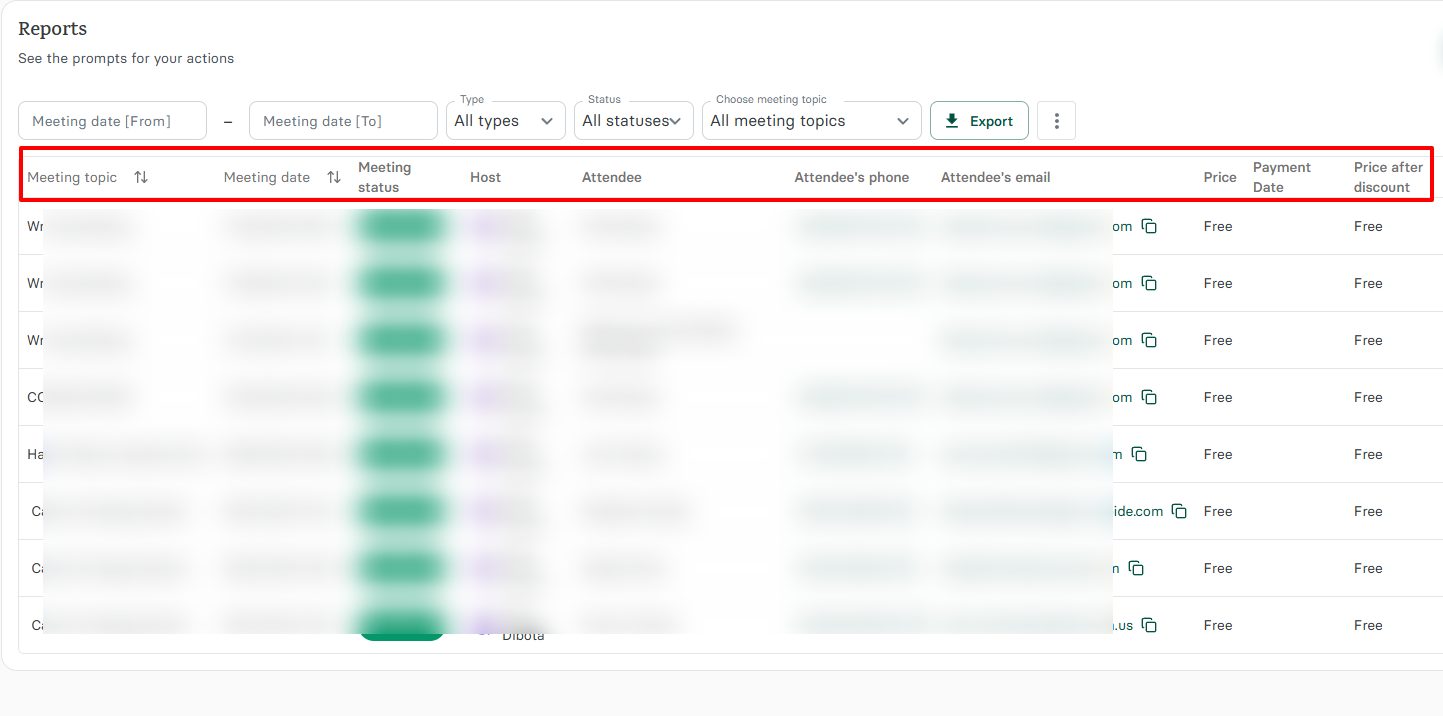
Now, reports are everything for lawyers. You can see appointment dates, statuses, hosts, and attendees. Of course, we also show you your clients' information and how much they paid for your services.
But if you've read my posts before, you know that I like surprises.
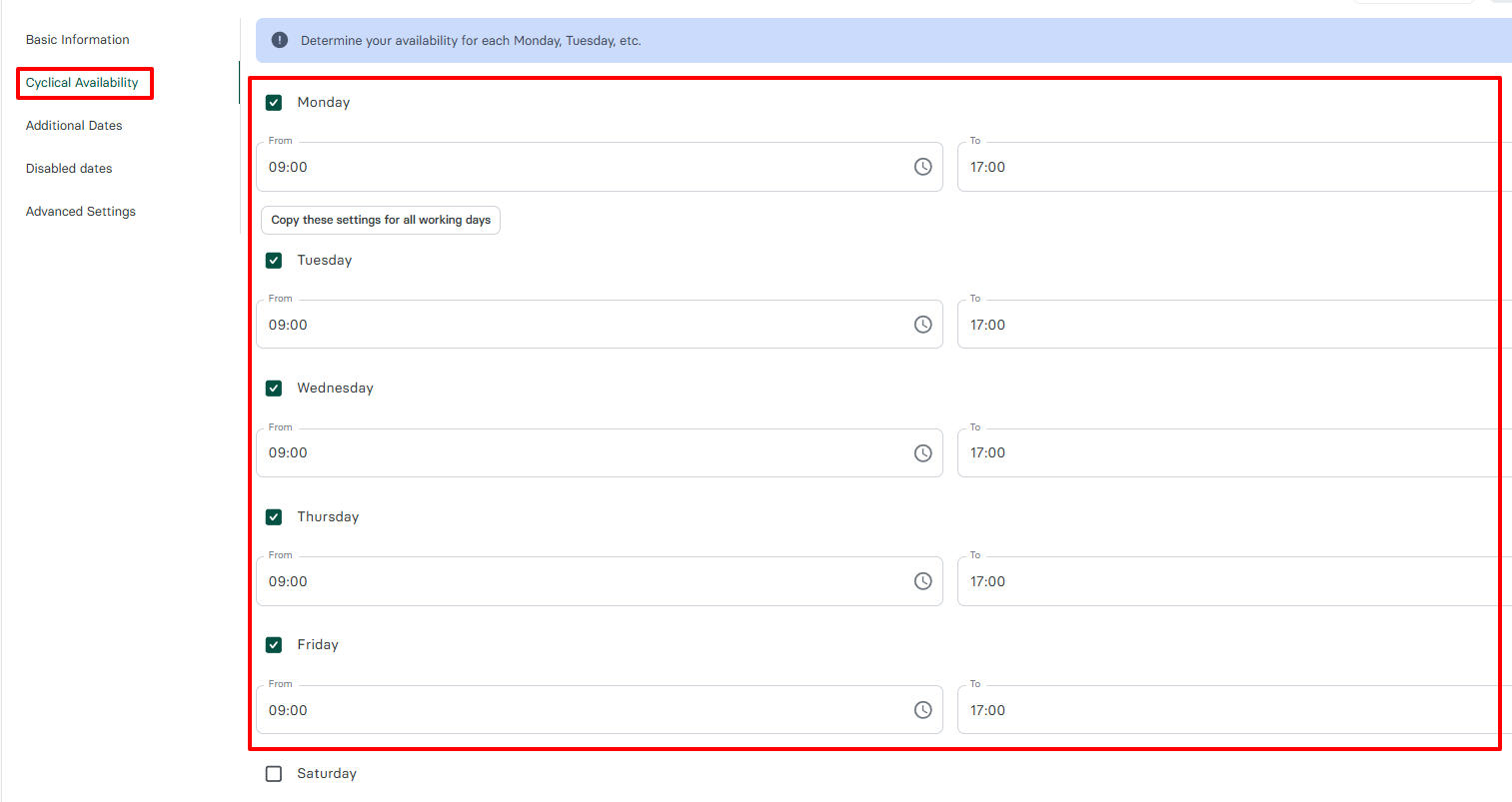
We let you customize your availability however you like. Not going to court on Tuesday? Simply uncheck that day in Zencal, and clients won't see it.
Or do you only accept appointments in the morning? You can do that inside Zencal.
As a lawyer, the worst thing that could happen is to promise an appointment to two clients at the same time. And when the time comes, you have to find an excuse and lie so you don't lose their trust.
Now imagine working in a firm where your assistant manages your schedule, and they book two meetings at the same time. You end one meeting and quickly go to another one.
No time to eat or relax. You'll be fuming.
That's the reason why lawyers and legal firms are turning to appointment scheduling tools like Zencal. You create a booking page, and when someone books a meeting, it appears in your calendar.
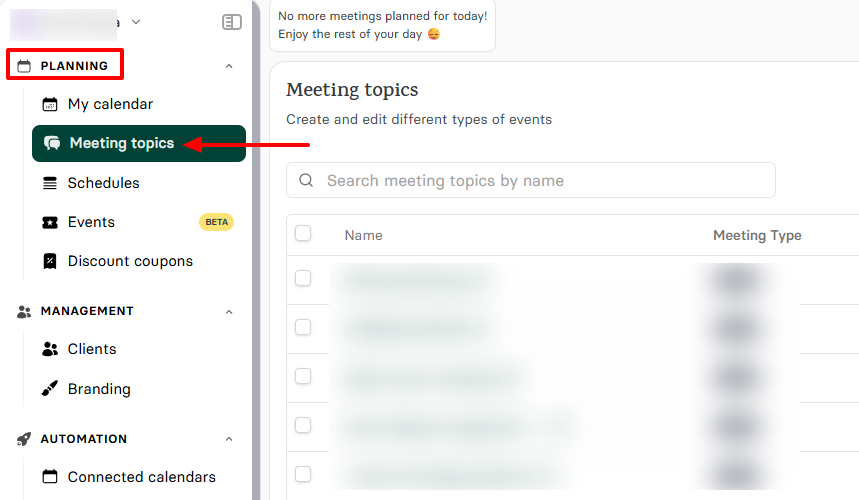
The process is simple on Zencal. Go to "Meeting topics"
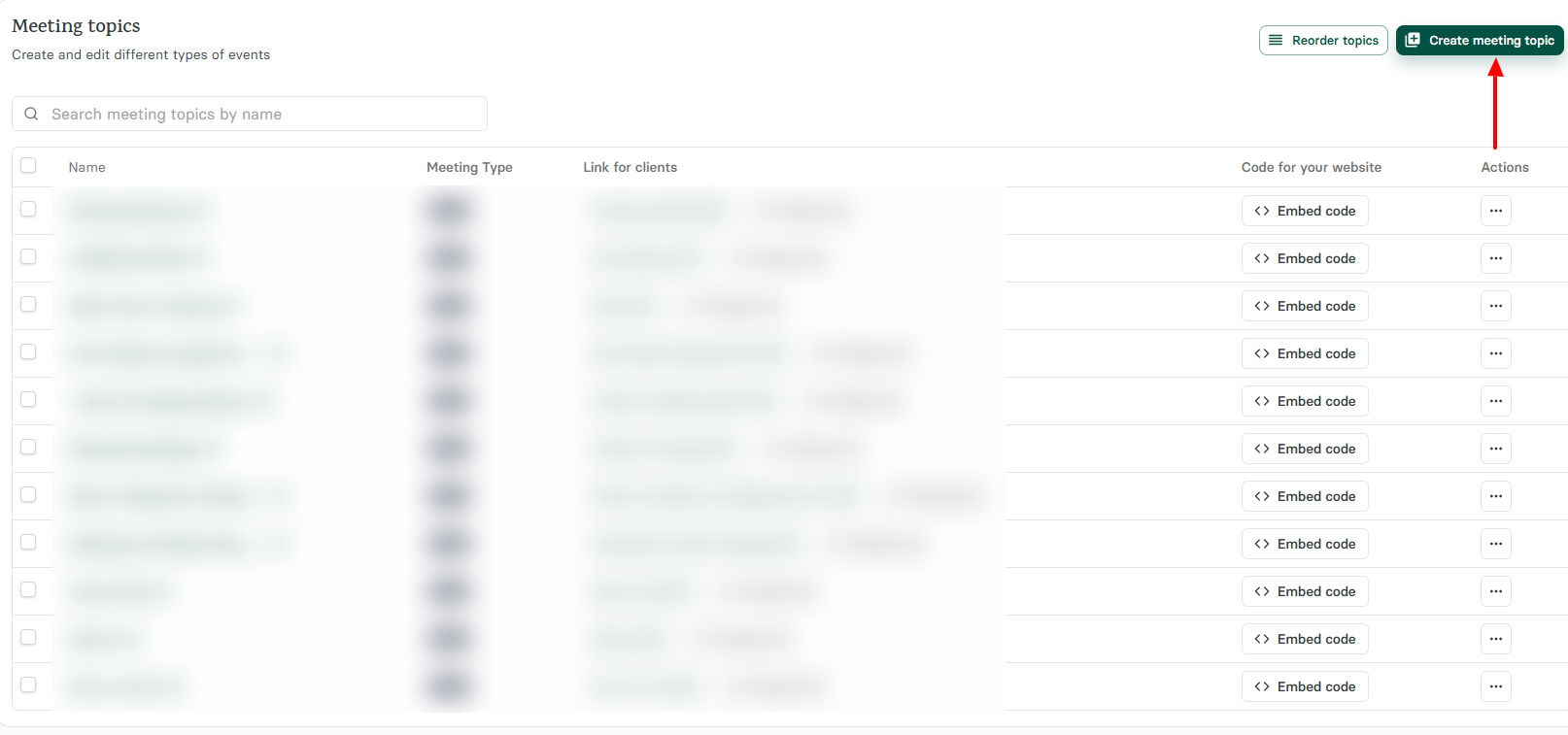
On the right side of the interface, click "Create meeting topic".
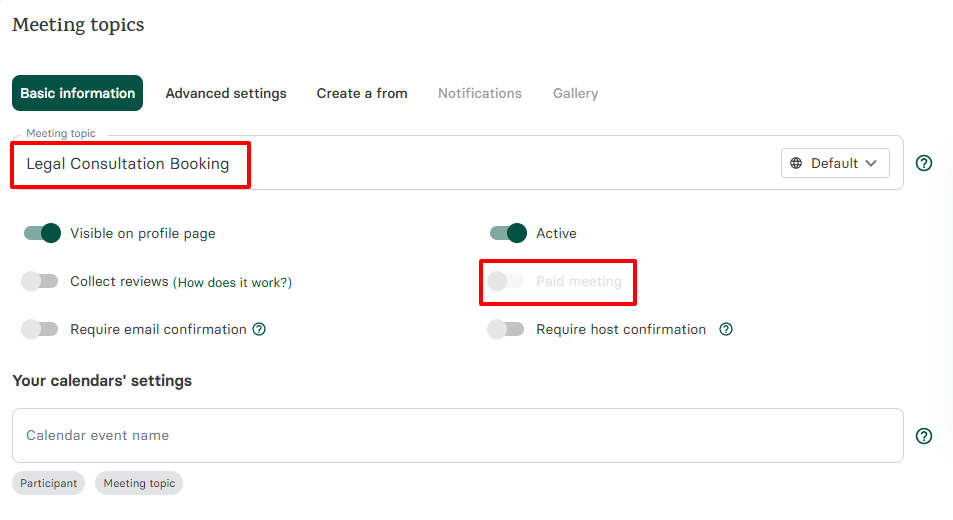
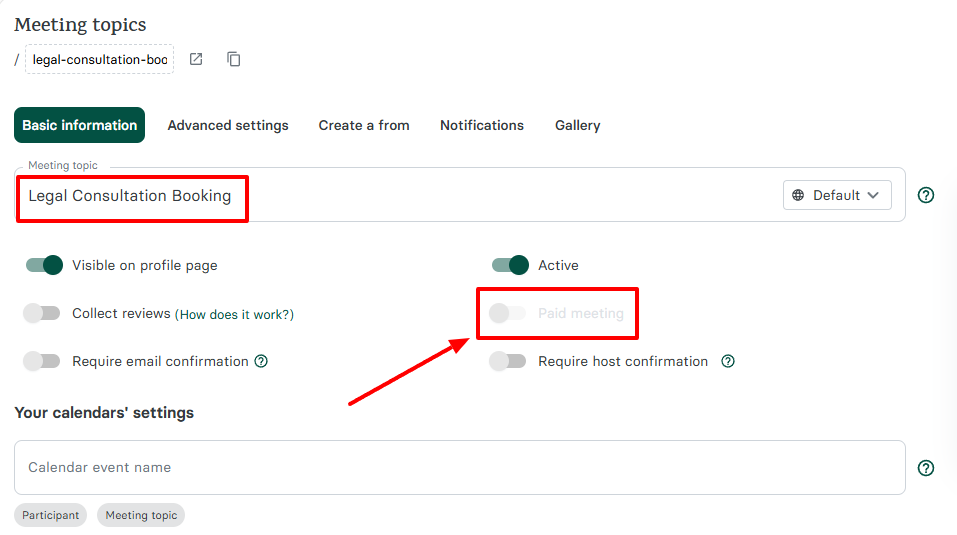
Now, give your meeting a name. You can also turn on the "paid meeting" button. This way, clients can make a payment when booking.
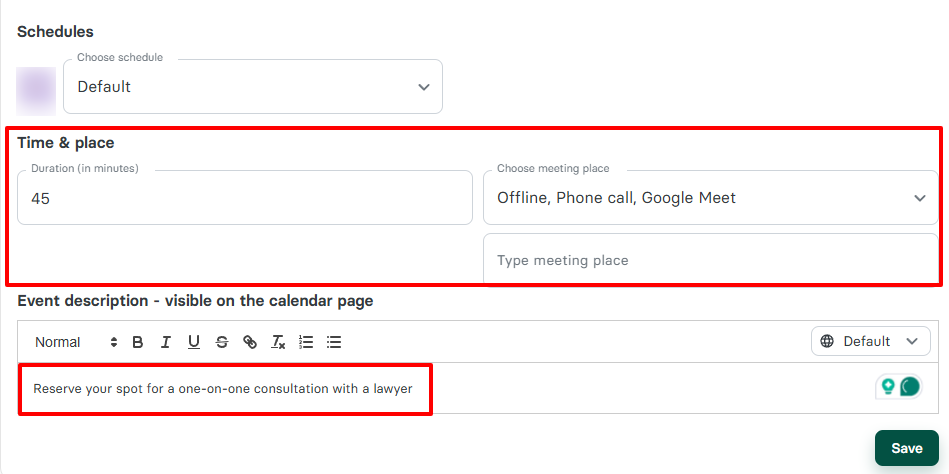
You will specify your meeting duration and location. Then add a meeting description that clients will see on the booking page.
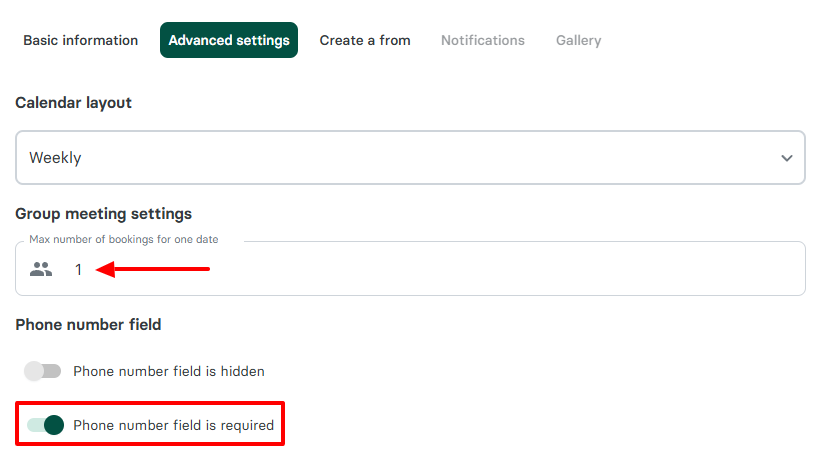
Moving on, you can choose the maximum number of bookings for one date, and make the phone number field required for bookers.
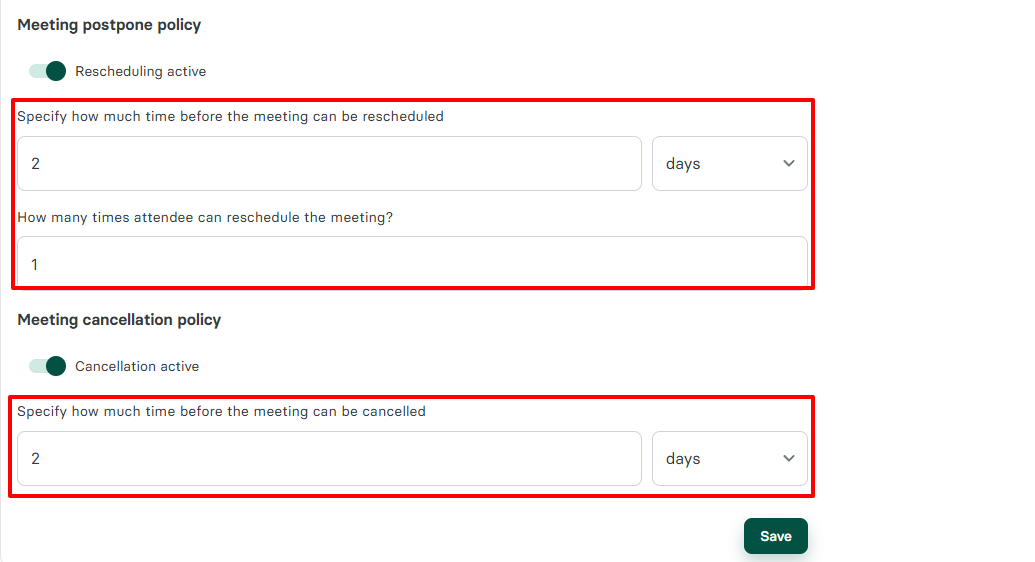
Another great setting is the Meeting Postpone & Cancellation policy.
You can specify how much time before a meeting can be rescheduled or cancelled. You can also mention how many times attendees can reschedule the meeting.
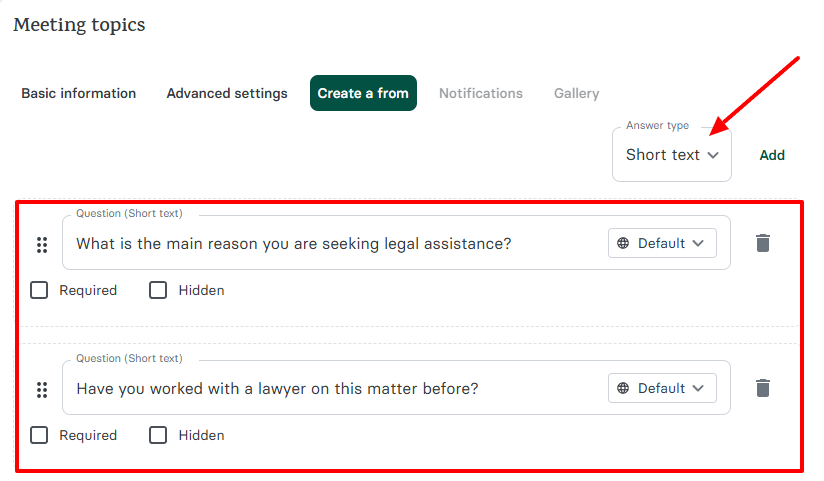
Zencal allows you to create a form to ask your clients questions during the booking process. You simply select your preferred answer type and enter the questions you want clients to answer.
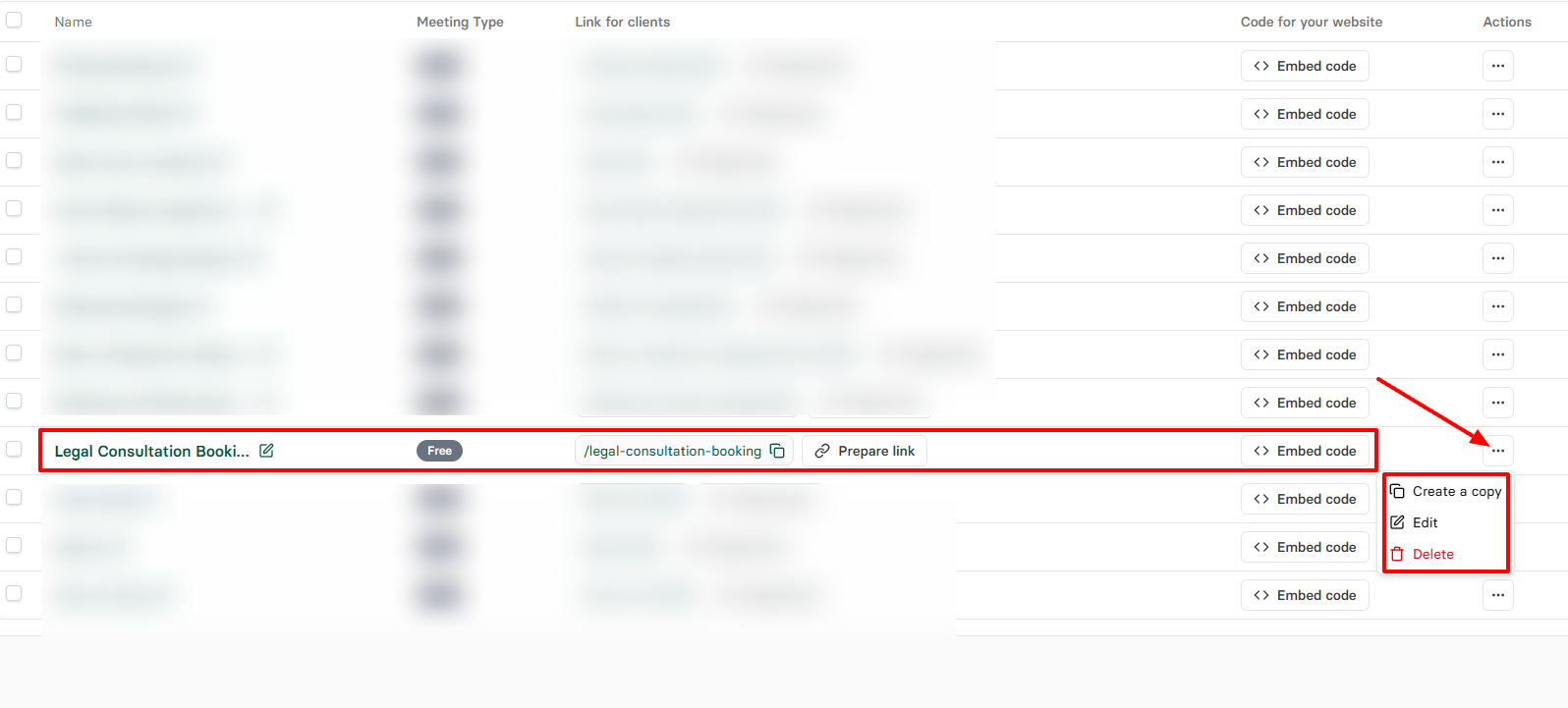
Your booking page is ready! You can copy or embed the link. And if you click on the three-dot menu, you can create a copy of the meeting, edit it, or delete it.
This is what your booking page will look like in case you've followed the process.
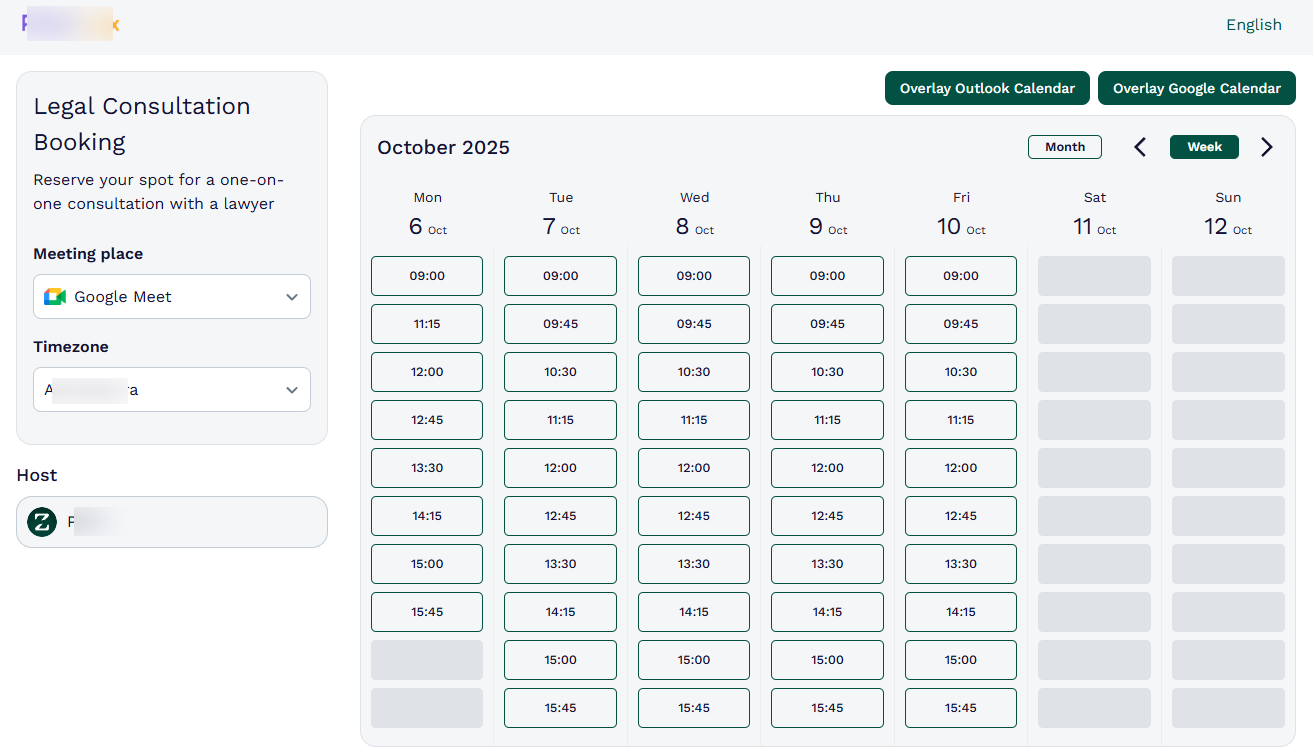
This is what makes Zencal one of the best meeting scheduler software in 2026. But that is not the only feature we offer.
What I loved about Zencal
1 . Clients
Without cases, law firms won't generate income. However, cases can't exist without clients because they are the ones bringing them. That is why the Client management feature is central to every law practice management software. It helps you add clients, manage them, and track their payments.
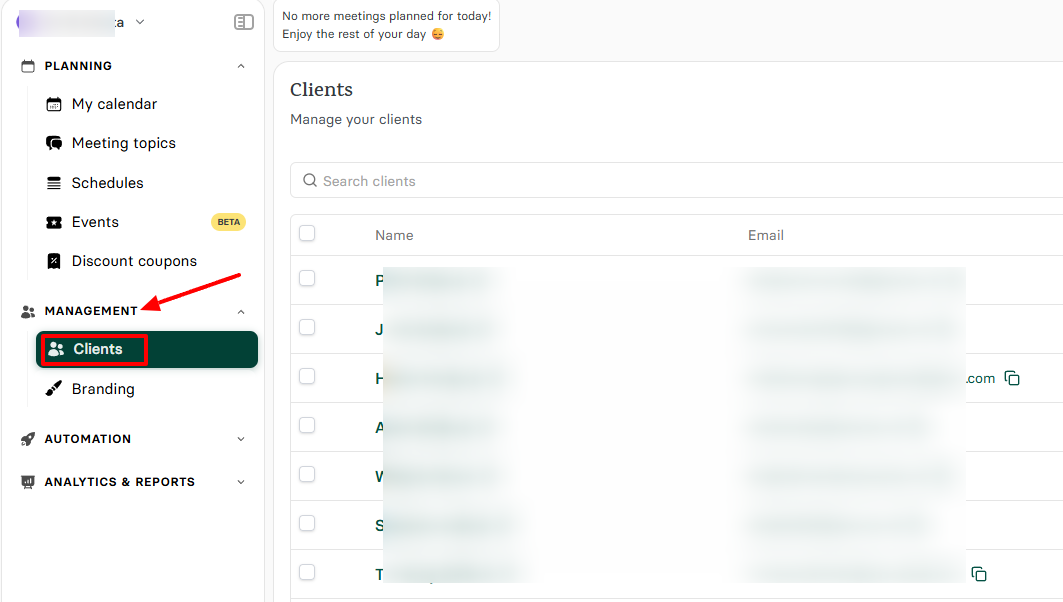
Find this feature under Management on the sidebar.
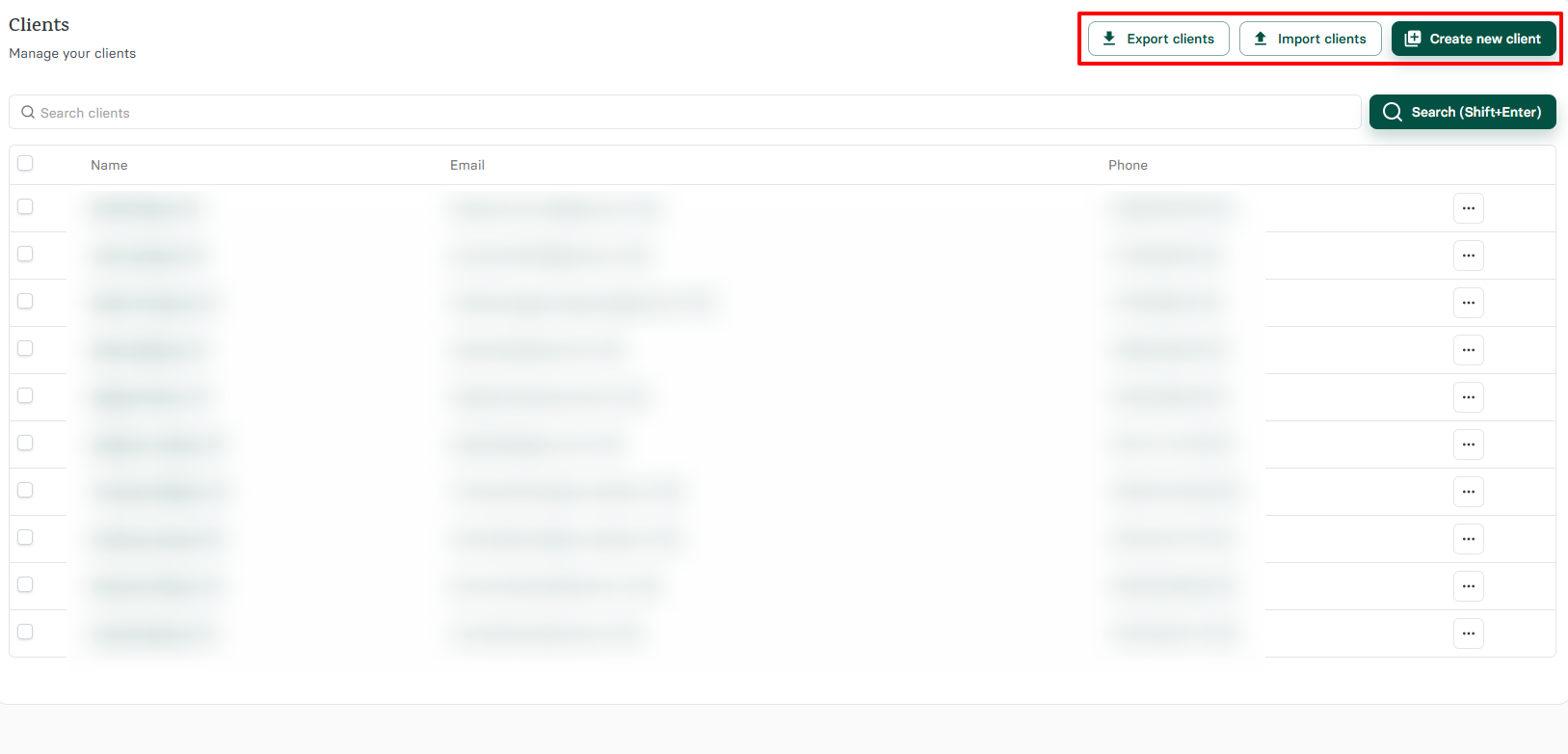
Zencal gives you three options: export, import, or create a new client.
Now, let's say you want to add a new client to the platform. The process is simple: enter their first & last name, email address, phone number, select a time zone, and their preferred language.
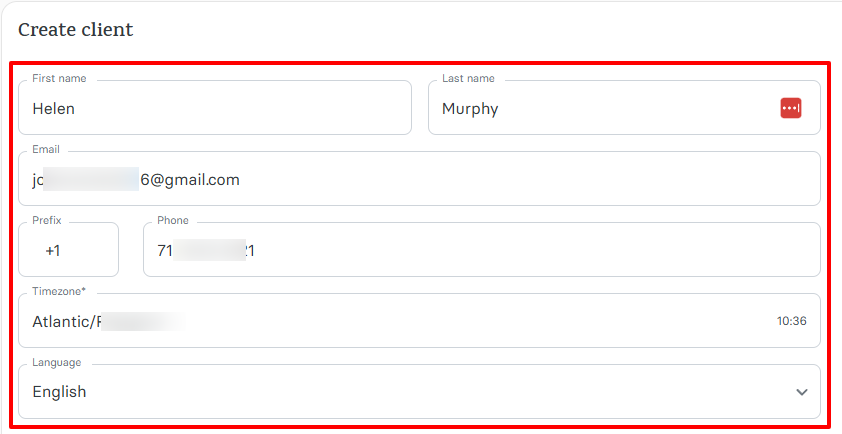
Adding a client is not the only action you can take. If you click the three-dot menu, you can either edit or delete them.
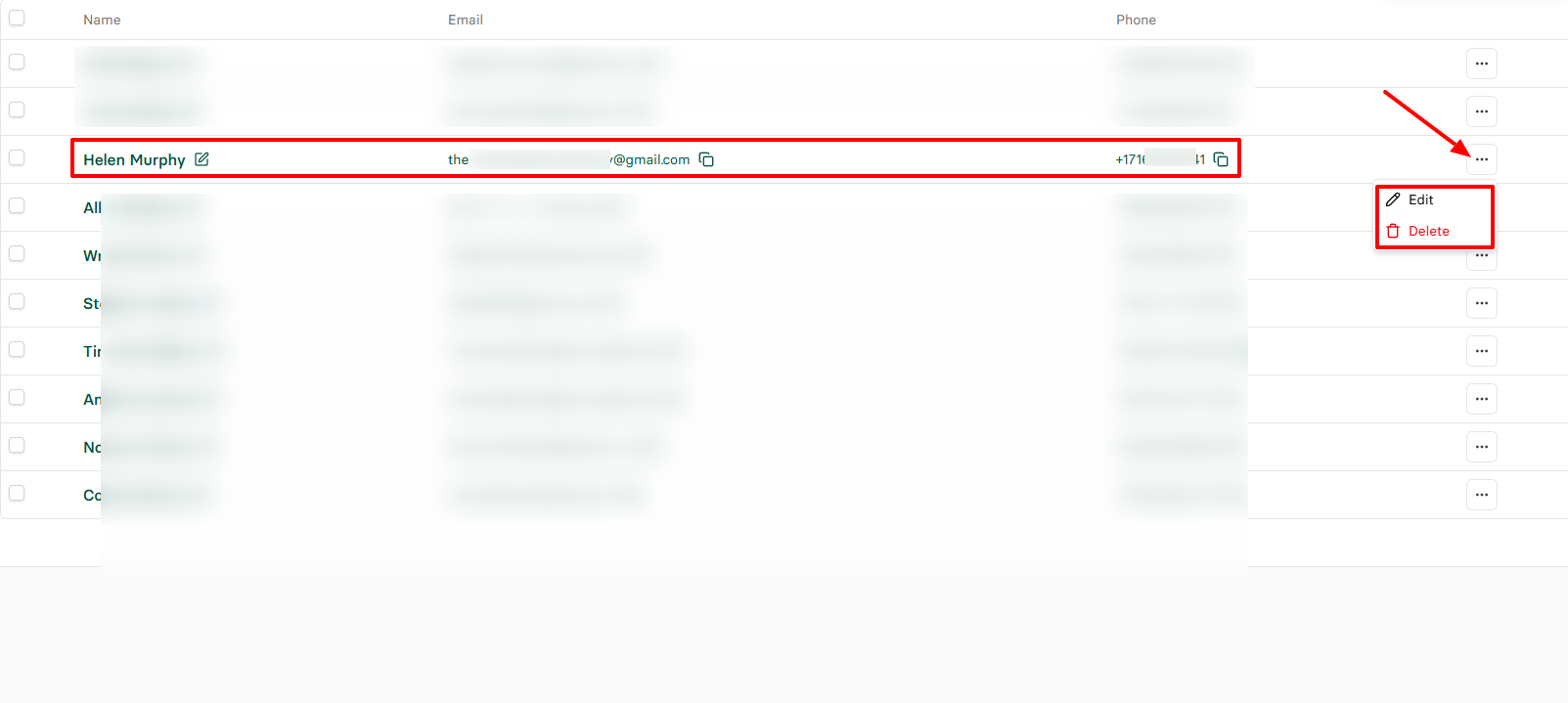
Another interesting thing is this: if you click on a client's name, you can access their basic information, meeting history, and notes.
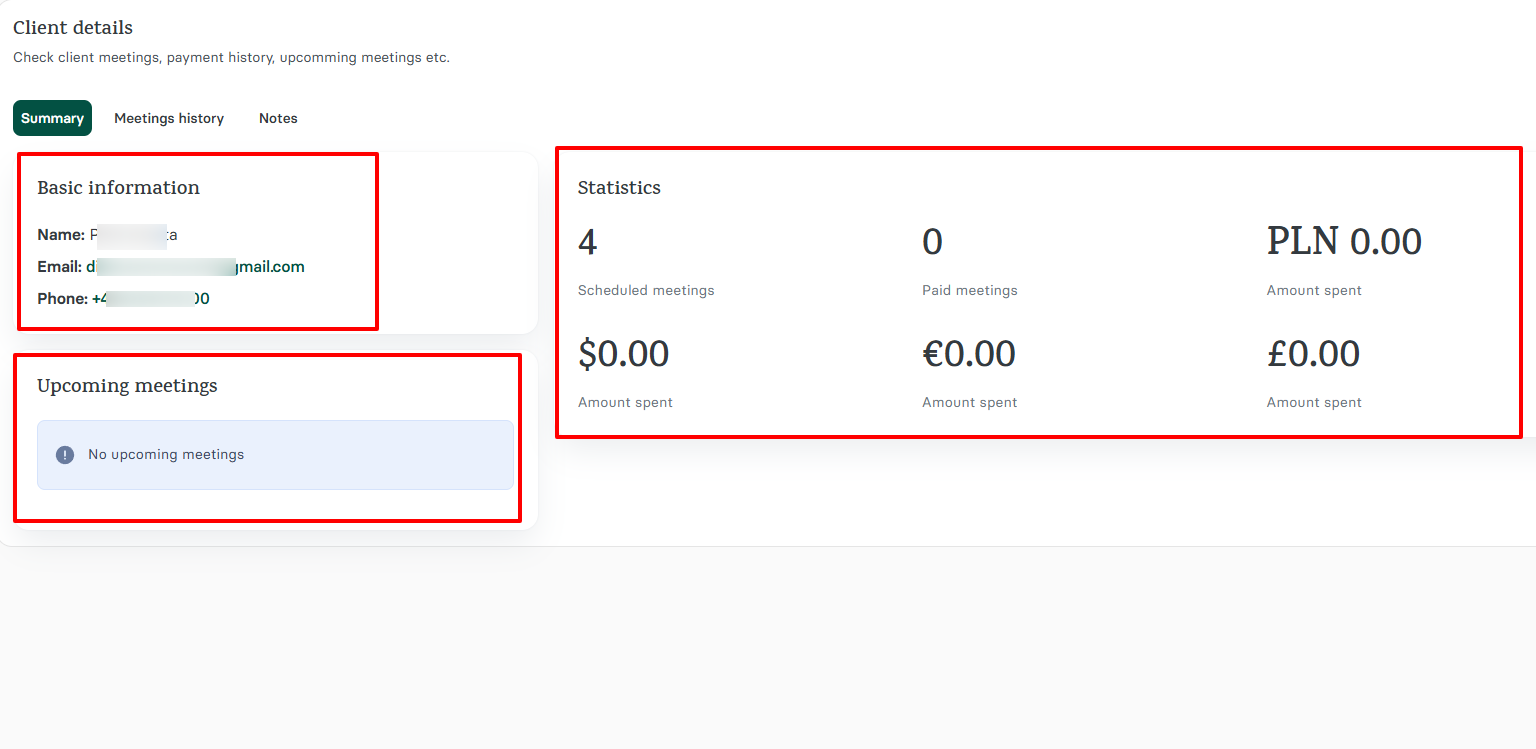
It also displays statistics such as the number of scheduled meetings, paid meetings, and the amount spent in dollars ($), euros (€), and pounds sterling (£).
2 . Schedules
Lawyers cannot play with their availability. They must attend to so many people on different days and times. However, if clients don't know when you are available, it'll be difficult for them to schedule appointments.
With this feature, you can set your working days and hours, and customize your overall availability.
Under Planning, select "Schedules"
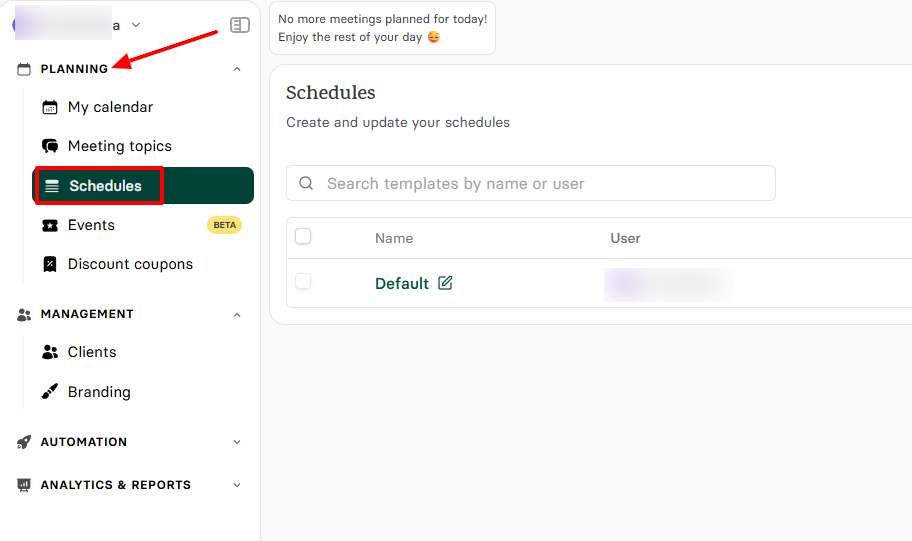
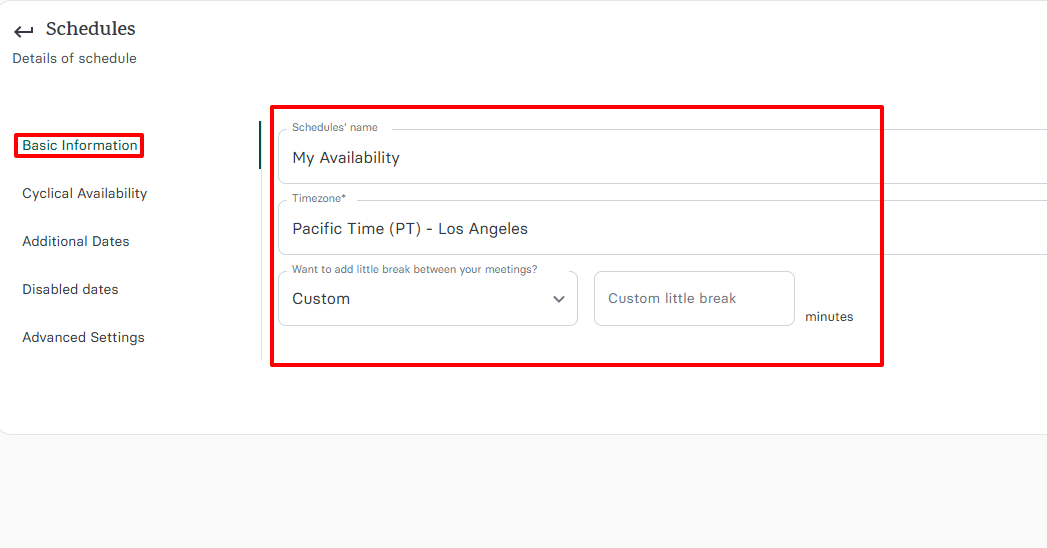
You can name your schedule, choose your preferred timezone, and choose whether or not you want to add a little break between your meetings.
It's now time to select your working days of the week and specify the exact working times for each day.
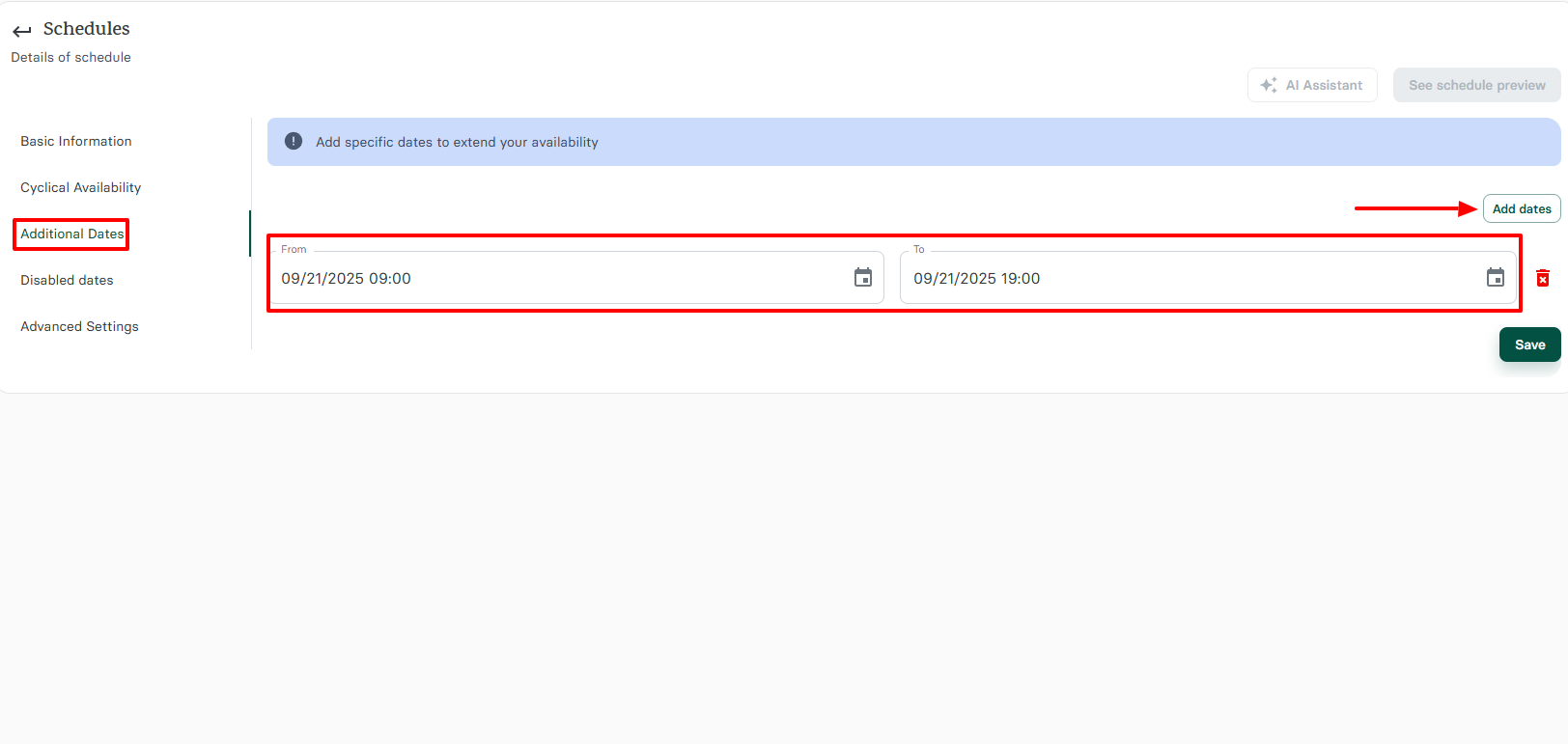
There might be a specific date you'd want to extend your availability. Simply add that exact date and time under "Additional dates".
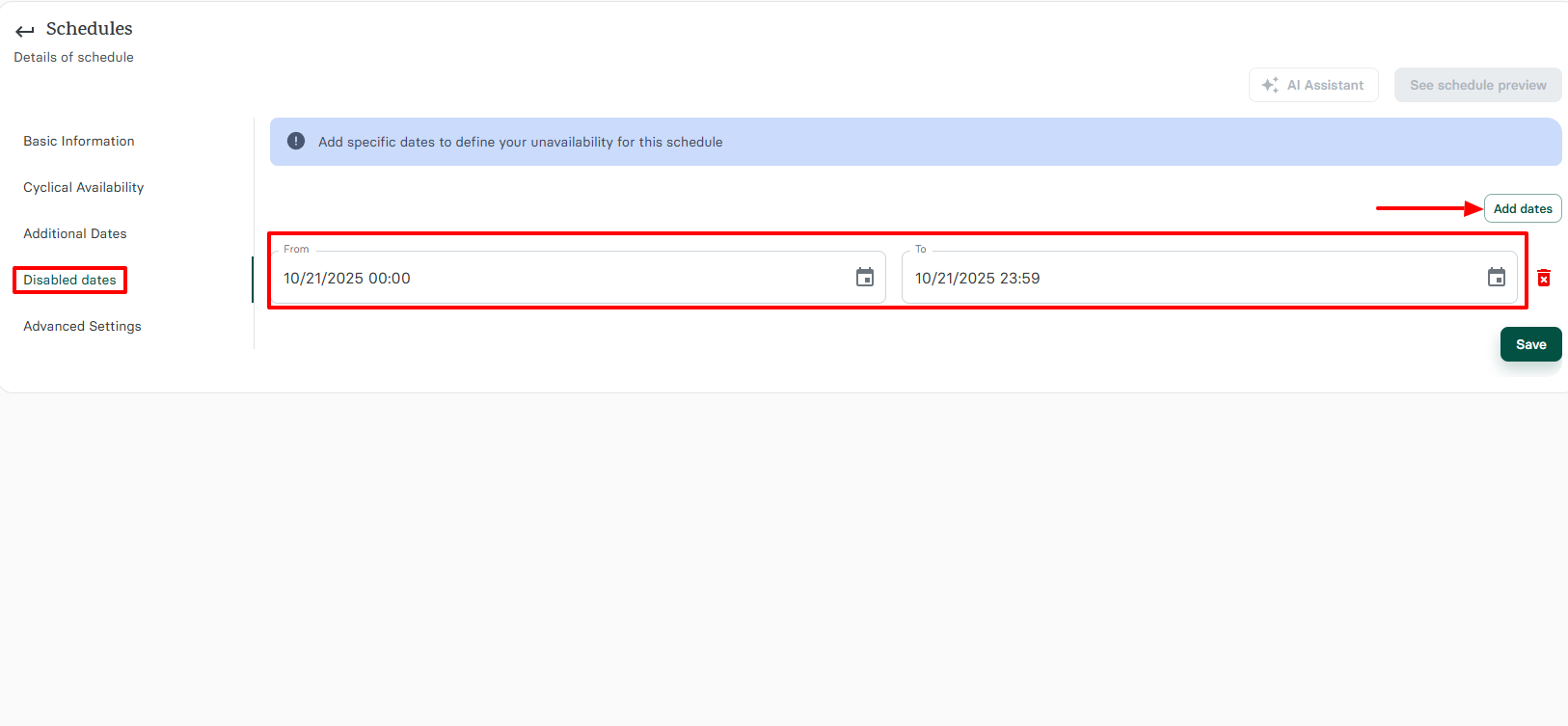
But in case there's a special date you know you won't be available for whatever reason, the platform lets you specify it as well. This way, clients will never book on that date.
What I Loved and What I Struggled With
| What I Loved | What I Struggled With |
|---|---|
| ✅ Has a simple interface where you can find all the features on the left. ✅ Its low-priced plans include premium features like payments, client management, and calendar integrations that other tools charge extra for. ✅ Allows you to send alerts using Webhooks so clients never forget their meetings. ✅ Integrates with popular tools like Stripe, PayPal, Google Calendar, Outlook, Zoom, Teams, Google Meet, and Xero | ❌ New Events feature is great, but still in beta |
Best for
- Zencal is best for solo lawyers and small law firms who want to manage scheduling, billing, appointments, and clients.
Pricing
- Basic: $4/ monthly, billed annually
- Pro: $10/ monthly, billed annually
- Team: $20$/ monthly, billed annually

3. Leanlaw - Best for Legal billing
| Personal rating: 4/5 stars |
|---|
| I loved LeanLaw because it makes it easy to track time, record expenses, and create invoices all in one simple place. |
I'll now discuss LeanLaw, the next best law practice management software in this list.
I recommend LeanLaw to law firms that usually have several lawyers working on the same case. Its QuickBooks integration helps combine multiple lawyers' time entries and expenses into a single, organized invoice.
This way, you can save time spent on manual billing work and prevent payment errors.

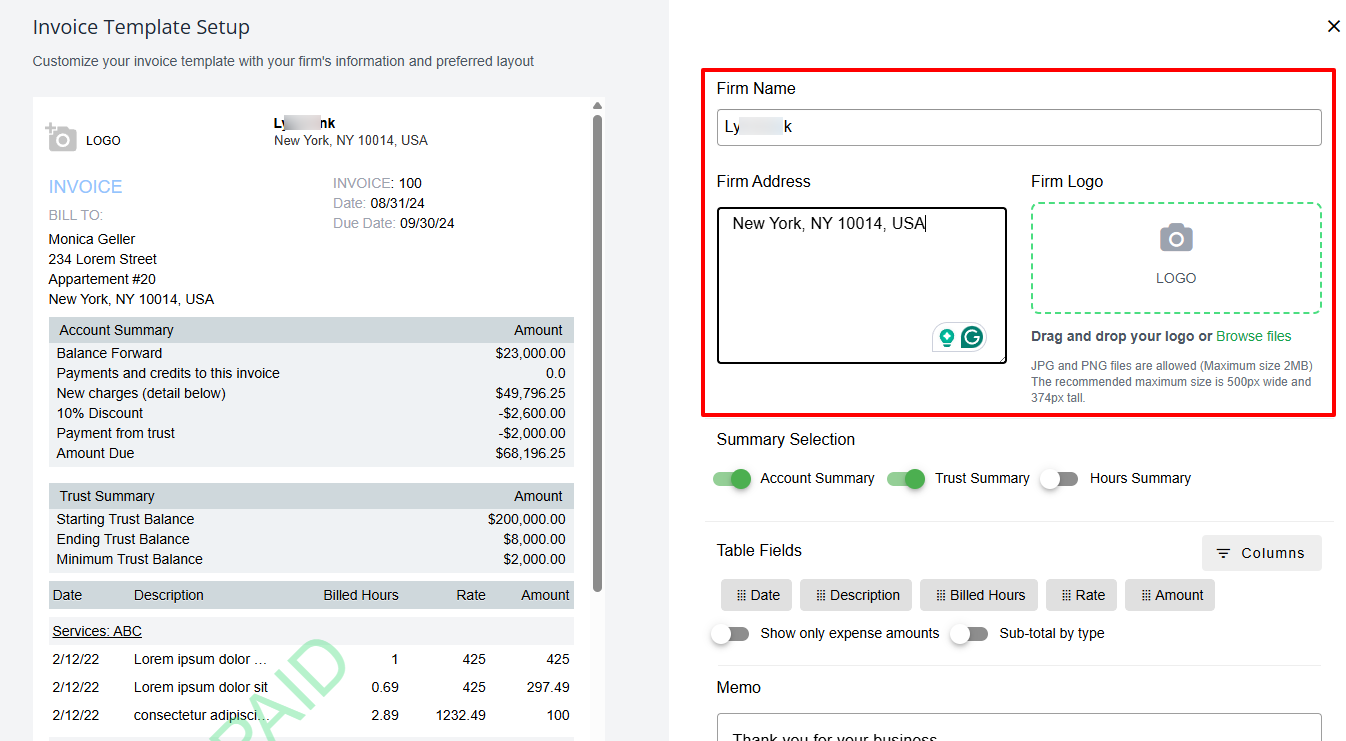
With the Billing feature, you can create and set up your invoice. You will select the client and matter, specify the bill, and add the memo. Then, you will add your firm name, address, and logo.
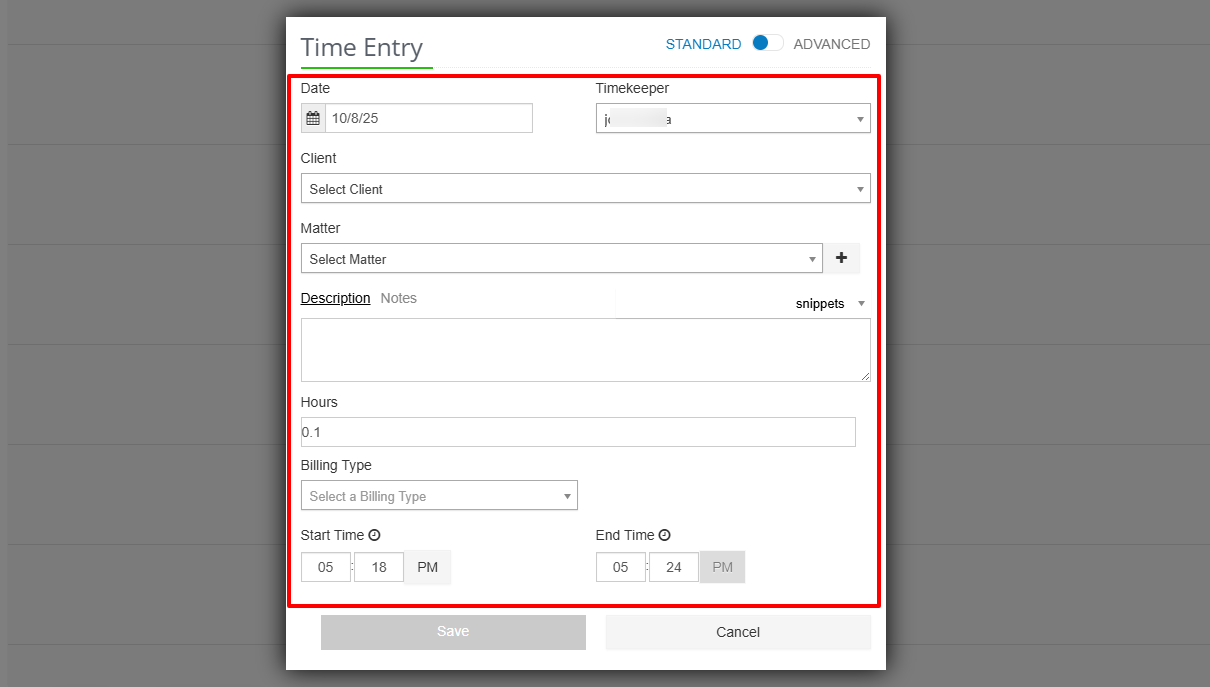
Using its Calendar, I can create my events by selecting a date, client, matter, timekeeper, and adding a description. I can also choose the billing type and specify the start & end times.
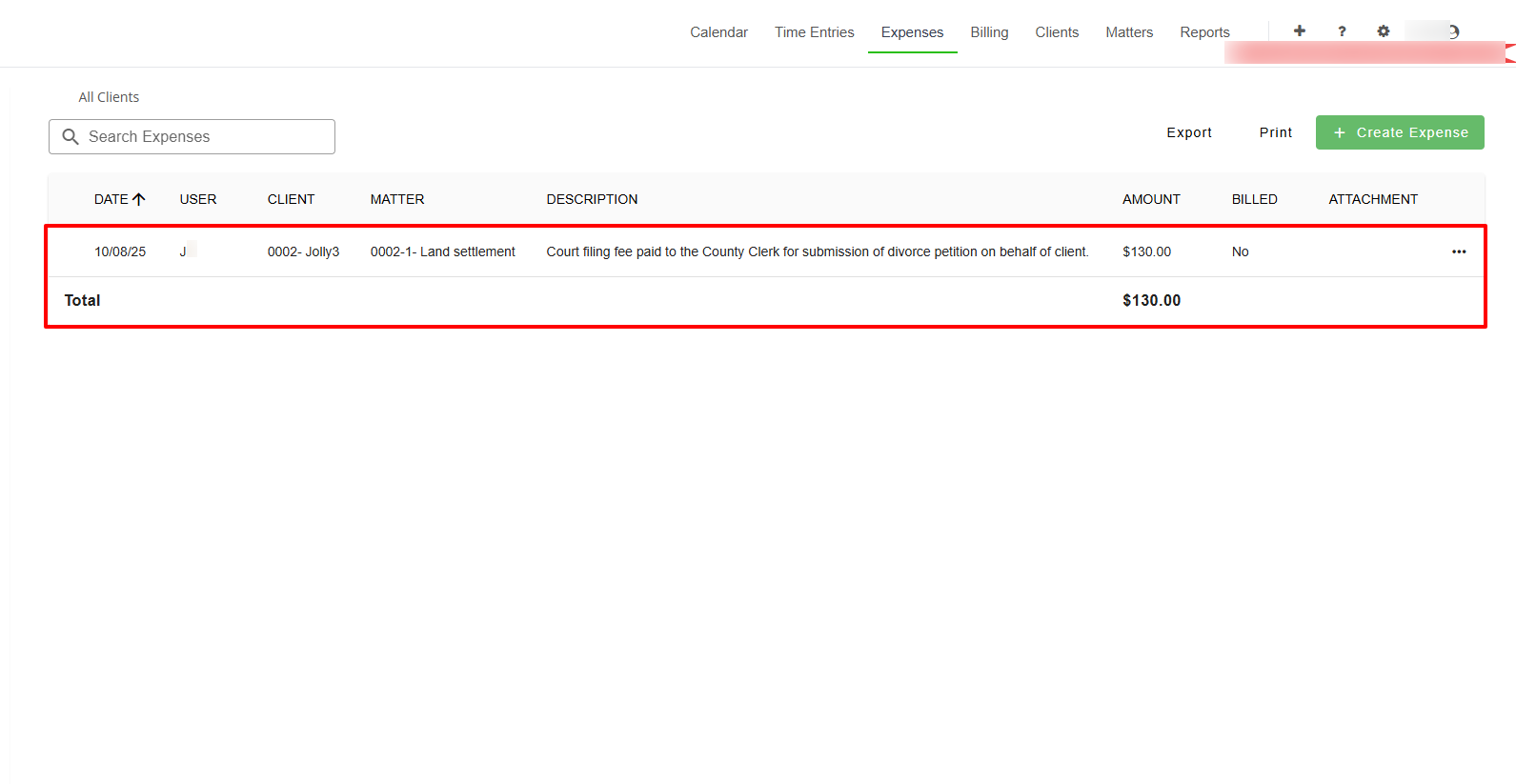
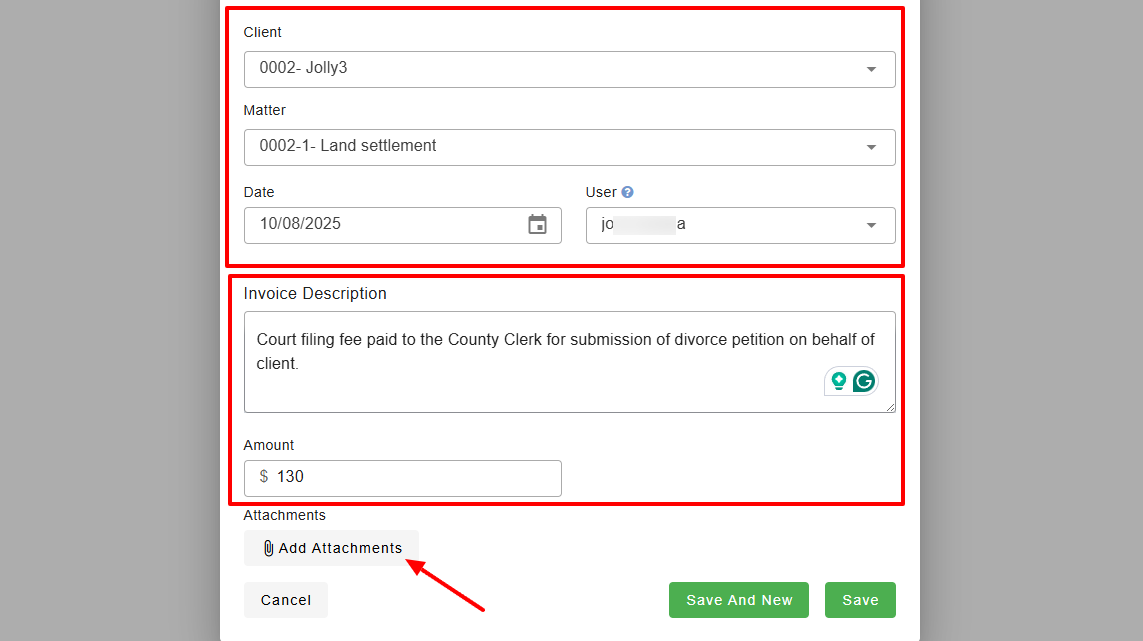
What's more, it comes with the Expenses feature. To create an expense, you add the client, matter, select the date, and the user. Then you enter an invoice description and amount.
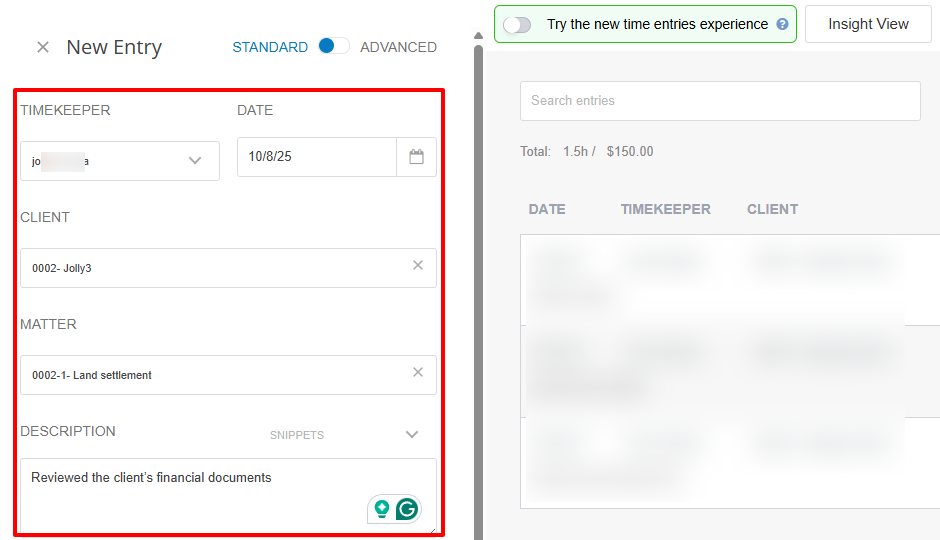
Last but not least, I can create an entry(expense, fixed fee, or time) when I choose a timekeeper and date. I will add a description, my client, and the matter. I can also set a timer and specify the hour.
LeanLaw helps law firms manage legal billing. I am going to show you how to create and send invoices.
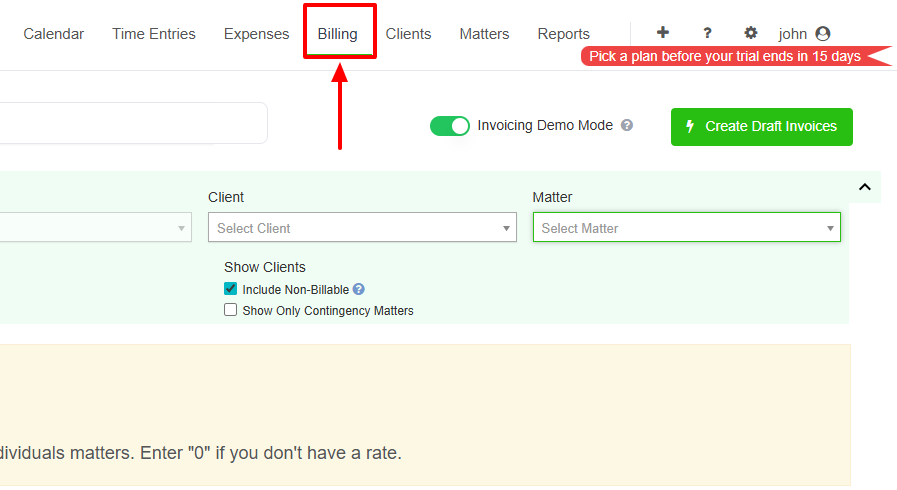
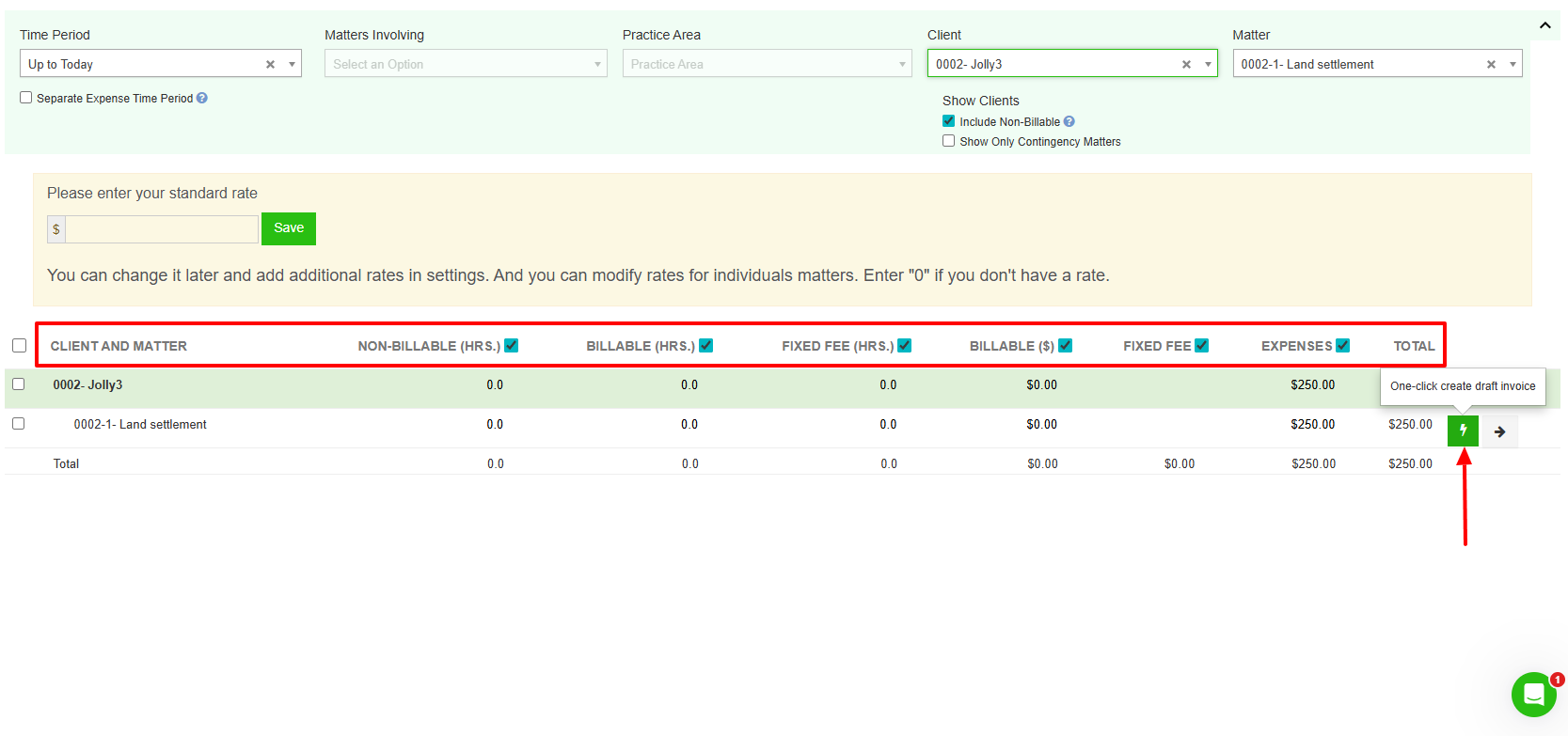
Go to "Billing" in the top bar menu.
Before billing, I first have to select the time period, the matter's invoicing, and the client.
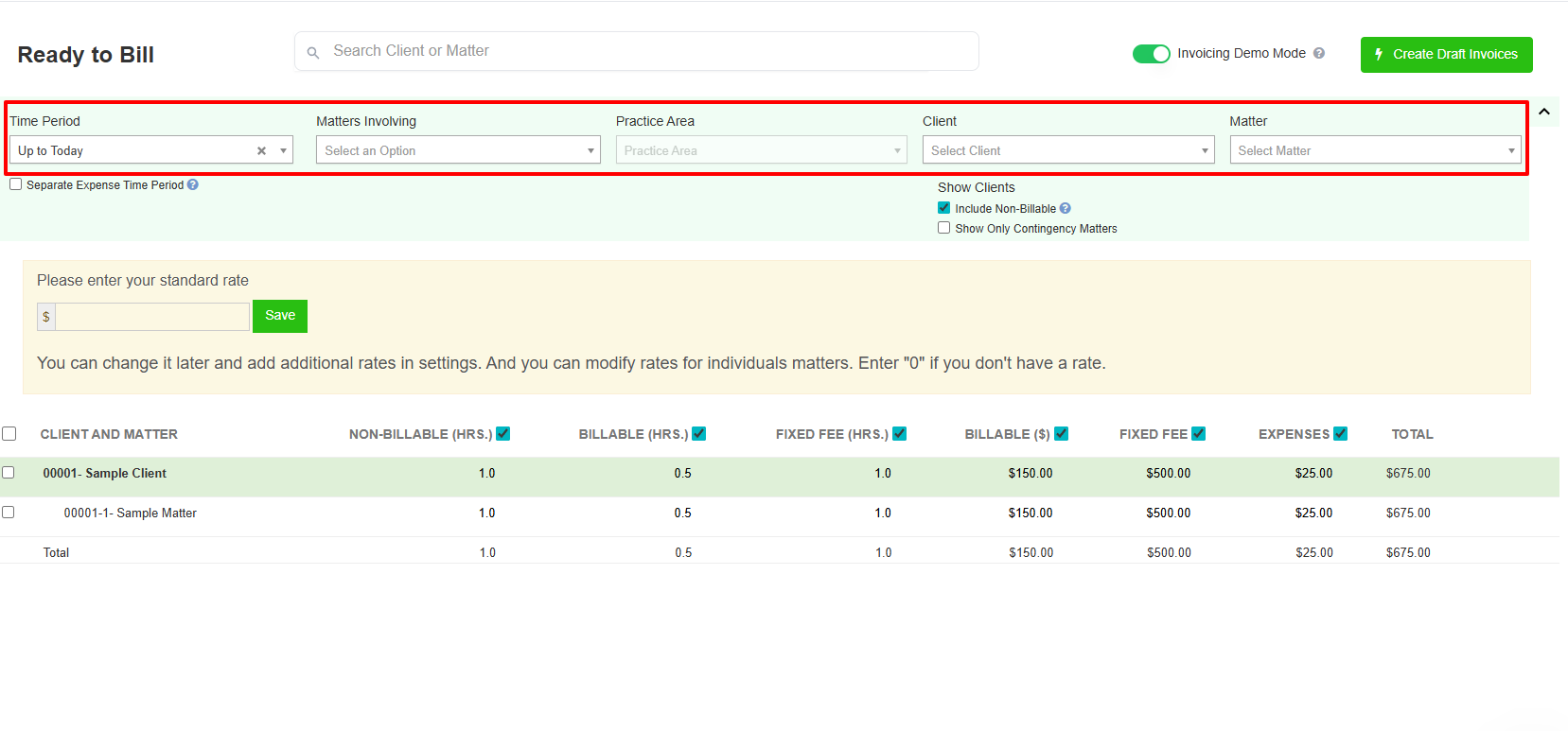
The client & matter will pop up with details like non-billable hours, billable hours, fixed fee, expenses, and total. I will click on "create draft invoice".
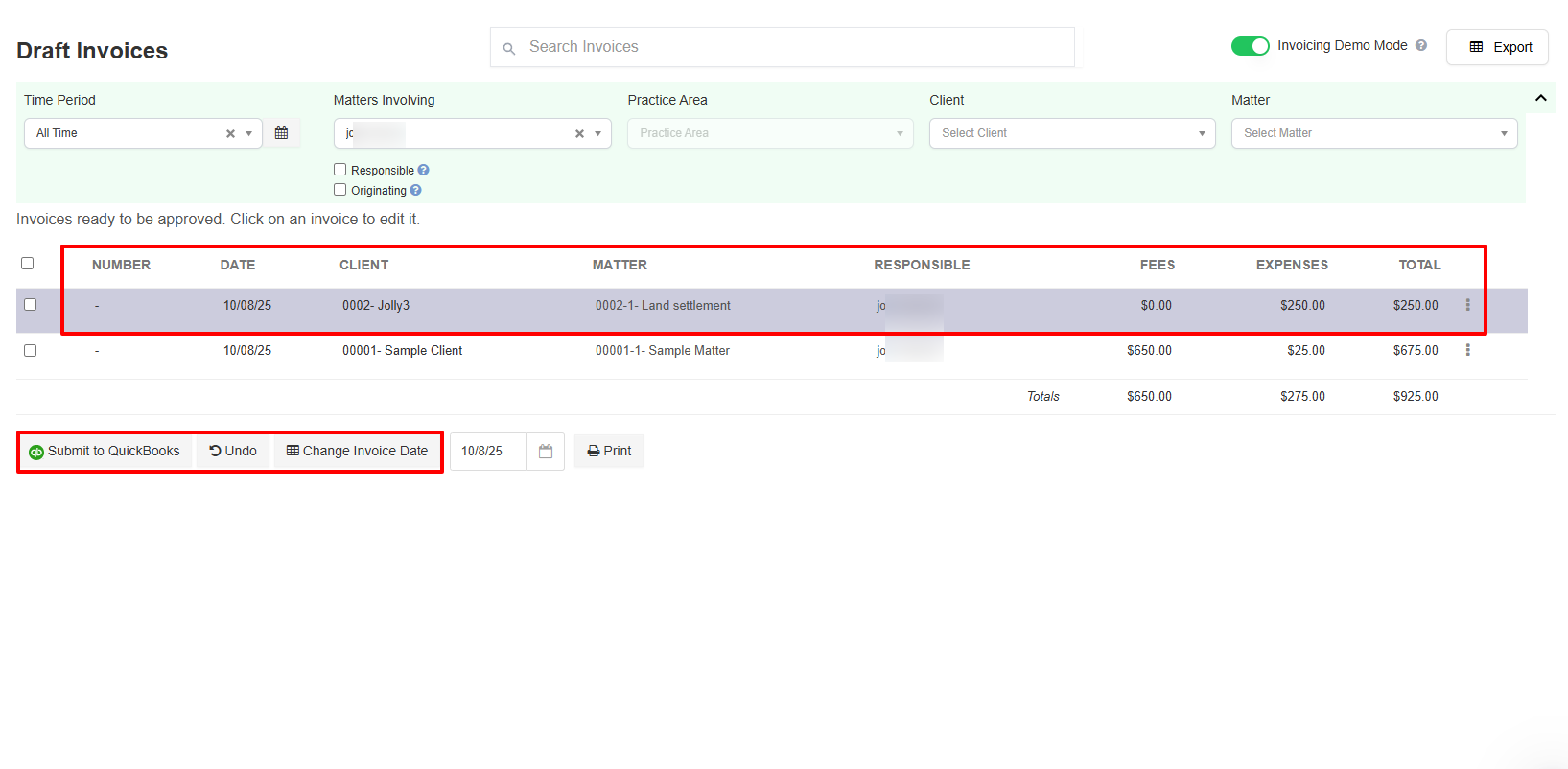
The draft invoice has been created. You can see the number, date, client, matter, and who is responsible. It also shows the fees, expenses, and total.
Below, you can submit to QuickBooks, undo actions, or change the invoice date.
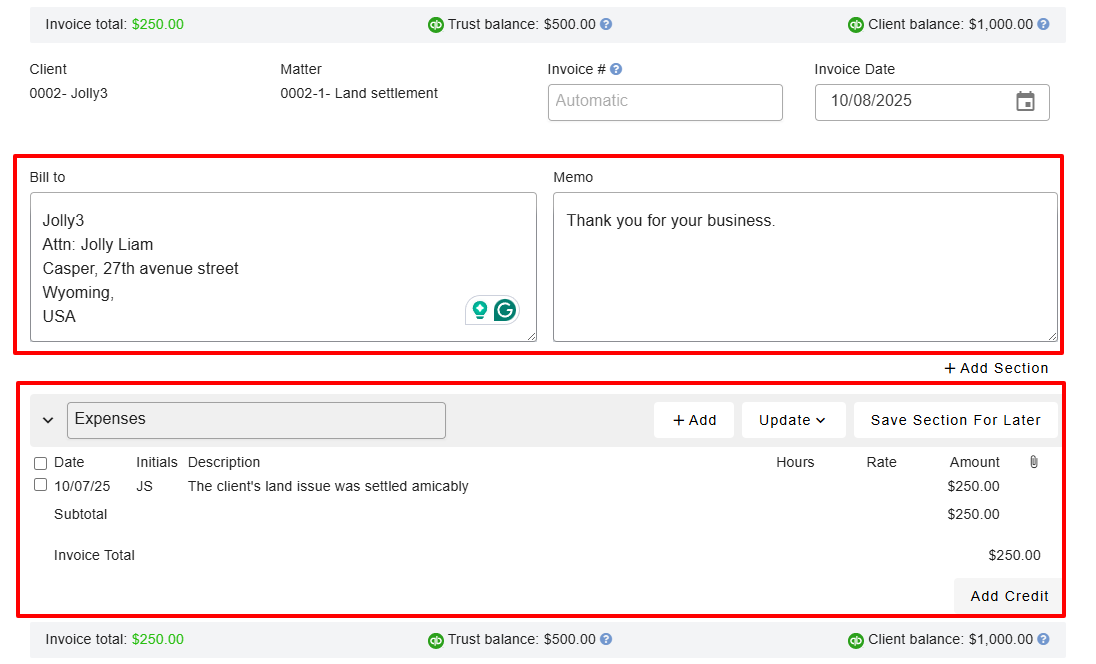
By clicking on the draft invoice, you can still modify the information in the billing section, such as the recipient's details and the memo. You can also check and adjust the billing details. You can also add credit.
Now, you will specify your firm name, address, and add your firm logo.
That's it! This is an example of your invoice.

What I loved about LeanLaw
1 . Time entries
A lawyer or a team member in the firm must stay organized. With the Time entries feature, they can record the exact time they spend working on a specific task or matter. This is important, especially knowing lawyers often bill by the hour.
Let's see how to use it.
Go straight to "Time entries" in the top bar menu.
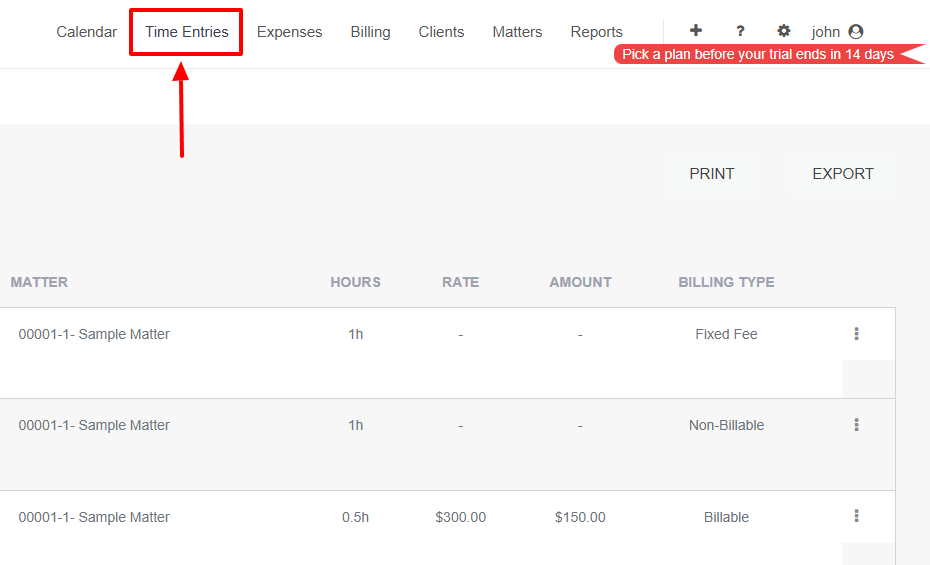
Select the timekeeper, add the date, client, matter, and description.
You can also add a note, choose the billing type, then specify the start & end time of the entry.
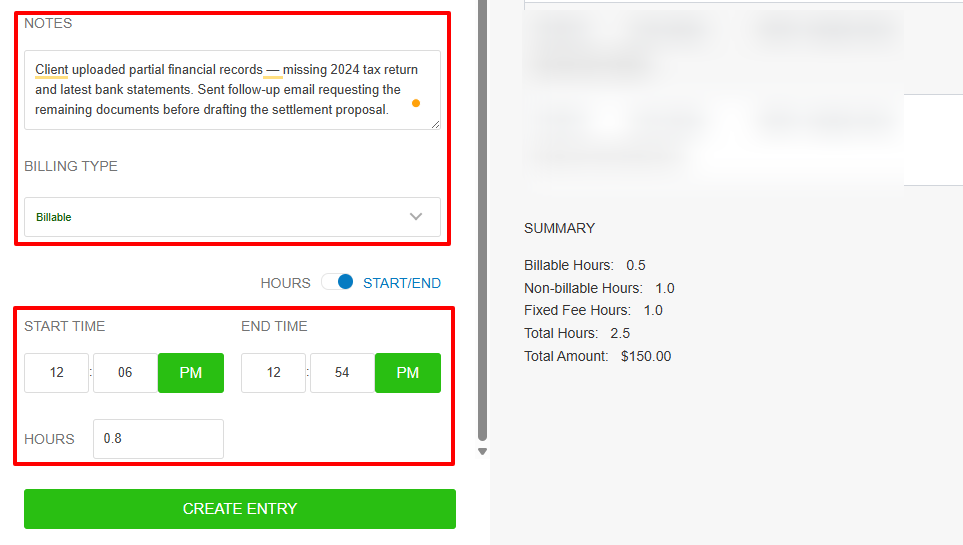
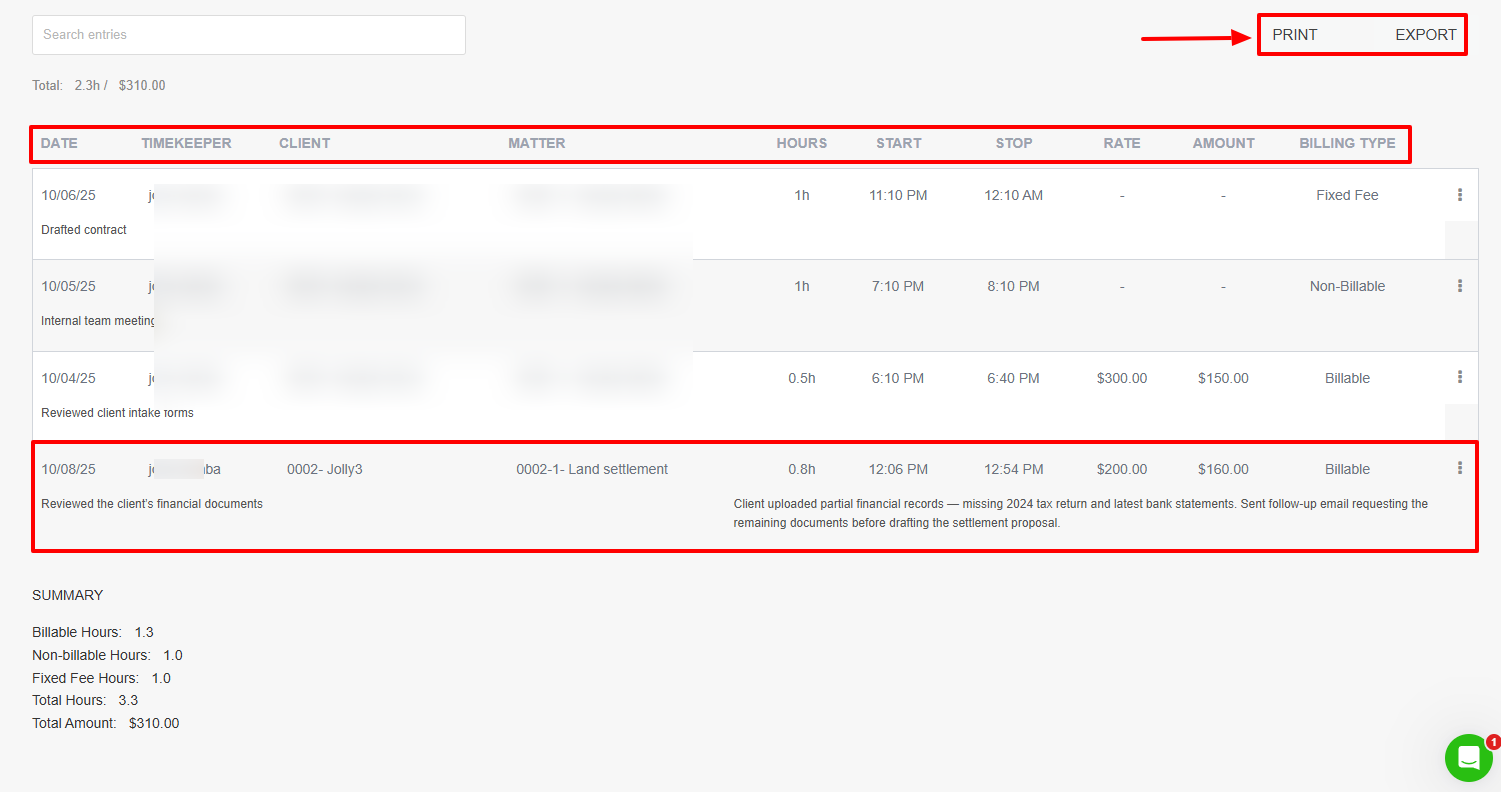
Once it is created, you'll see all the details you've previously entered. You can also print or export this entry.
2 . Expenses
Sometimes, you can get overwhelmed with so much work that you forget some of the services you've rendered. If you try to tell your client verbally what you've done, it might lead to confusion.
With the Expense feature, the client can clearly see what the expense was for and it helps ensure full reimbursement.
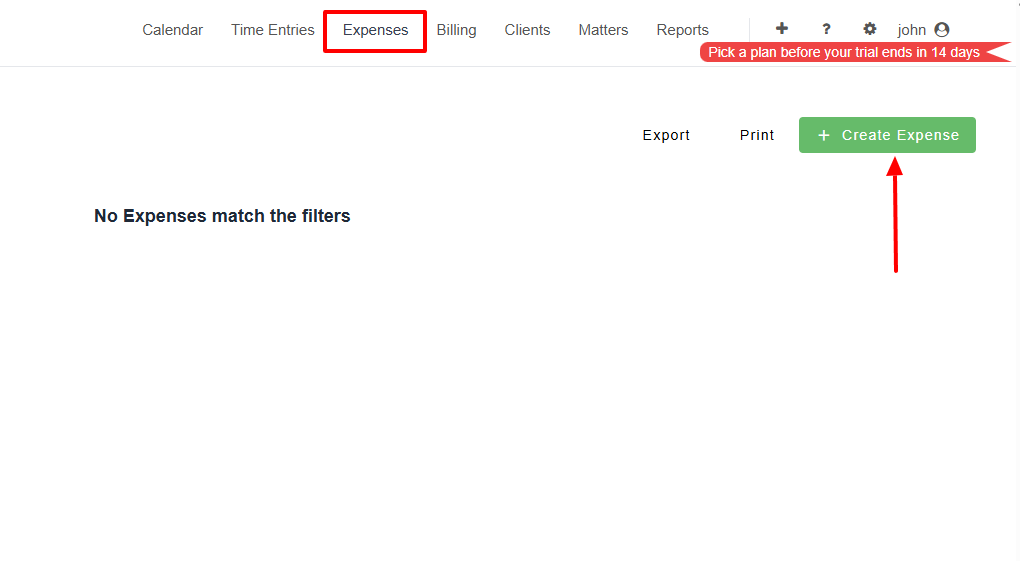
Still in the top bar menu, click "Expenses", then "Create Expense".
Select the client, matter, and user, then add the date. You will also enter a clear invoice description and specify the amount. It's also possible to add attachments.
Once your expense is ready, you can export it or print it.
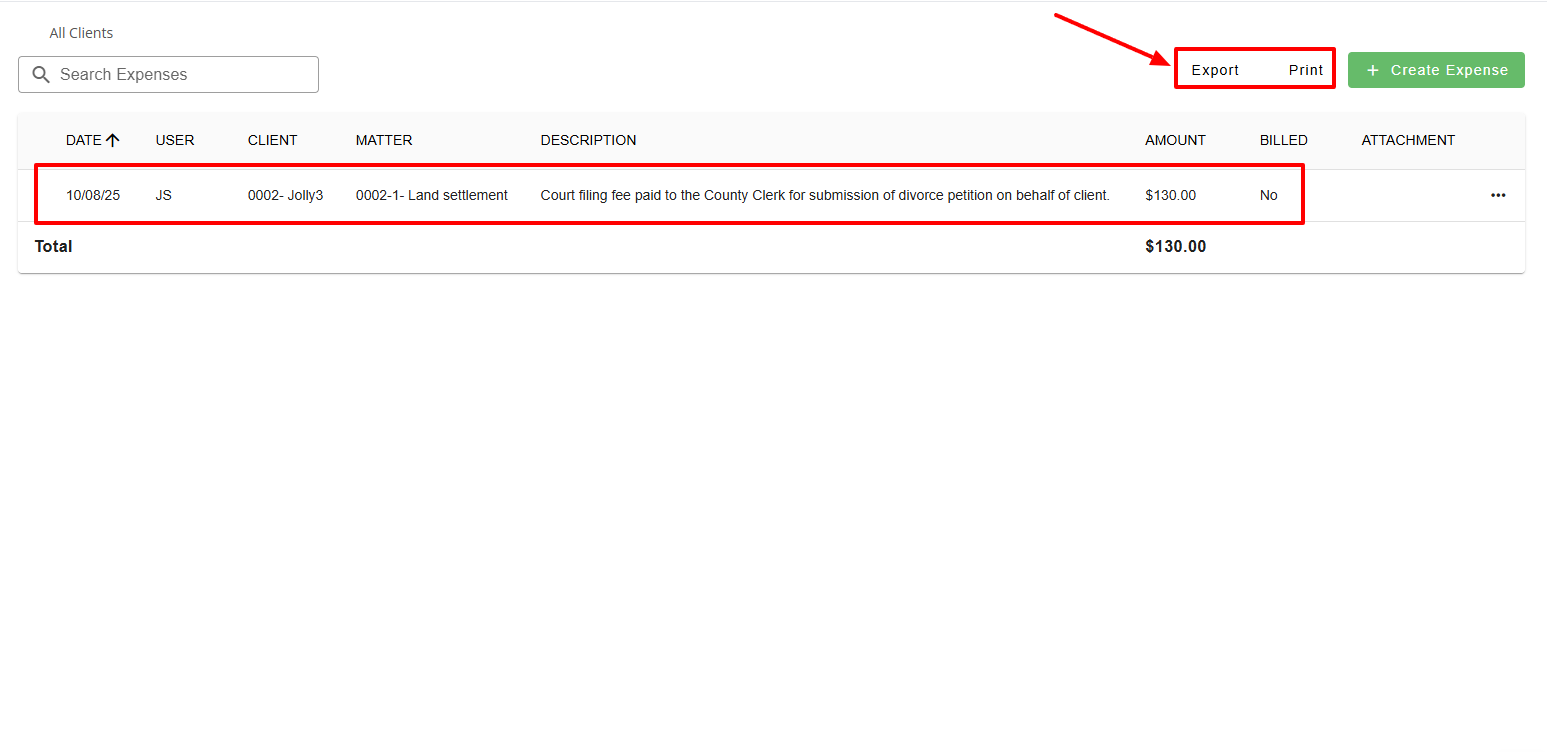
What I Liked vs What I didn't like
| What I Like | What I didn't like |
|---|---|
| ✅ Allows your team to create and share short notes or codes for easier communication. ✅ Comes with IOS and Android apps ✅ You can control what each team member can access or edit, such as time entries, expense records, invoices, and client files. | ❌ Some features, like setting up time entries or linking expenses to invoices, can feel a bit confusing at first. |
Best for
- Small and mid-sized firms seeking software to handle legal billing and track time & expenses.
Pricing
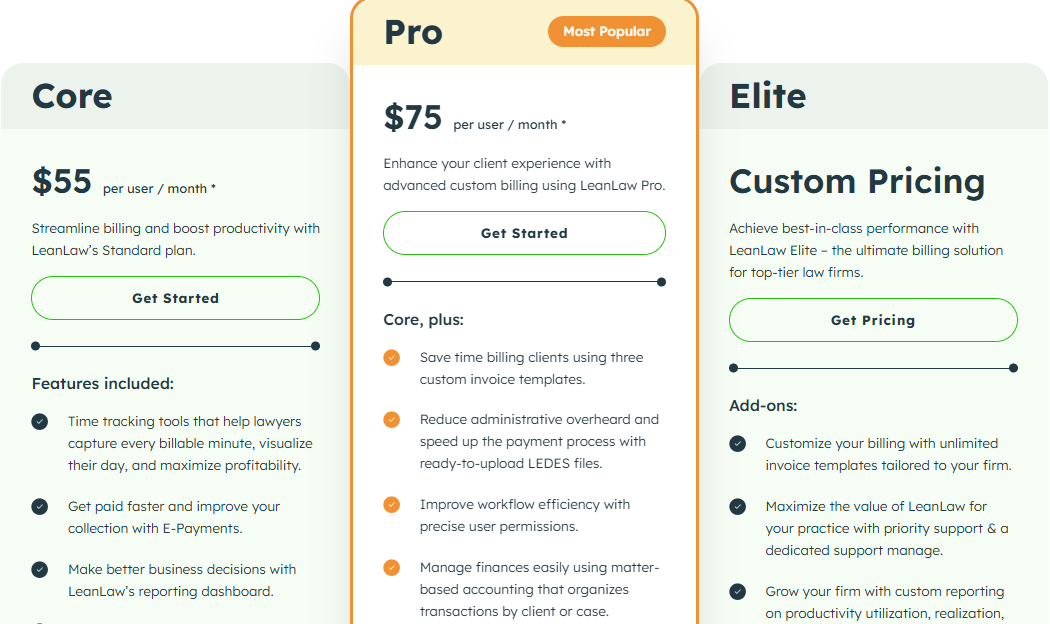
- Core: $55/ per user/ month
- Pro: $75/ per user/ month
- Elite: Custom pricing
4. Practicepanther - Best for medium-sized and large law firms
| Personal rating: 4/5 stars |
|---|
| I love how Practicepanther makes it easy to create, organize, and manage legal cases. Features for adding contacts, setting billing rates, assigning attorneys, and tracking deadlines are well laid out. |
Our next best law practice management software is Practicepanther.
I recommend PracticePanther to law firms that handle complex caseloads, as its custom tagging system lets you label and filter matters, contacts, and activities.
You can instantly generate reports by attorney, case type, or client source, giving your team control and insight into the firm's performance.
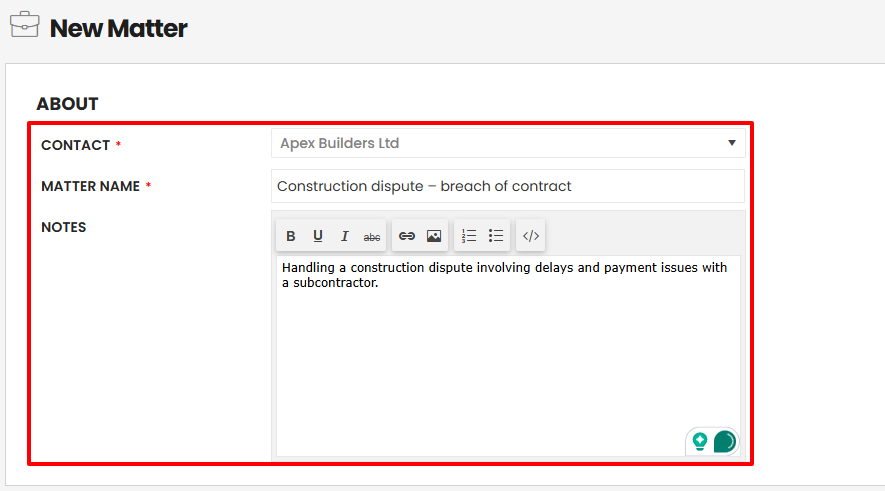
It allows you to add your legal cases using the Matter feature. To do so, add the contact, matter name, and a few notes related to the matter.
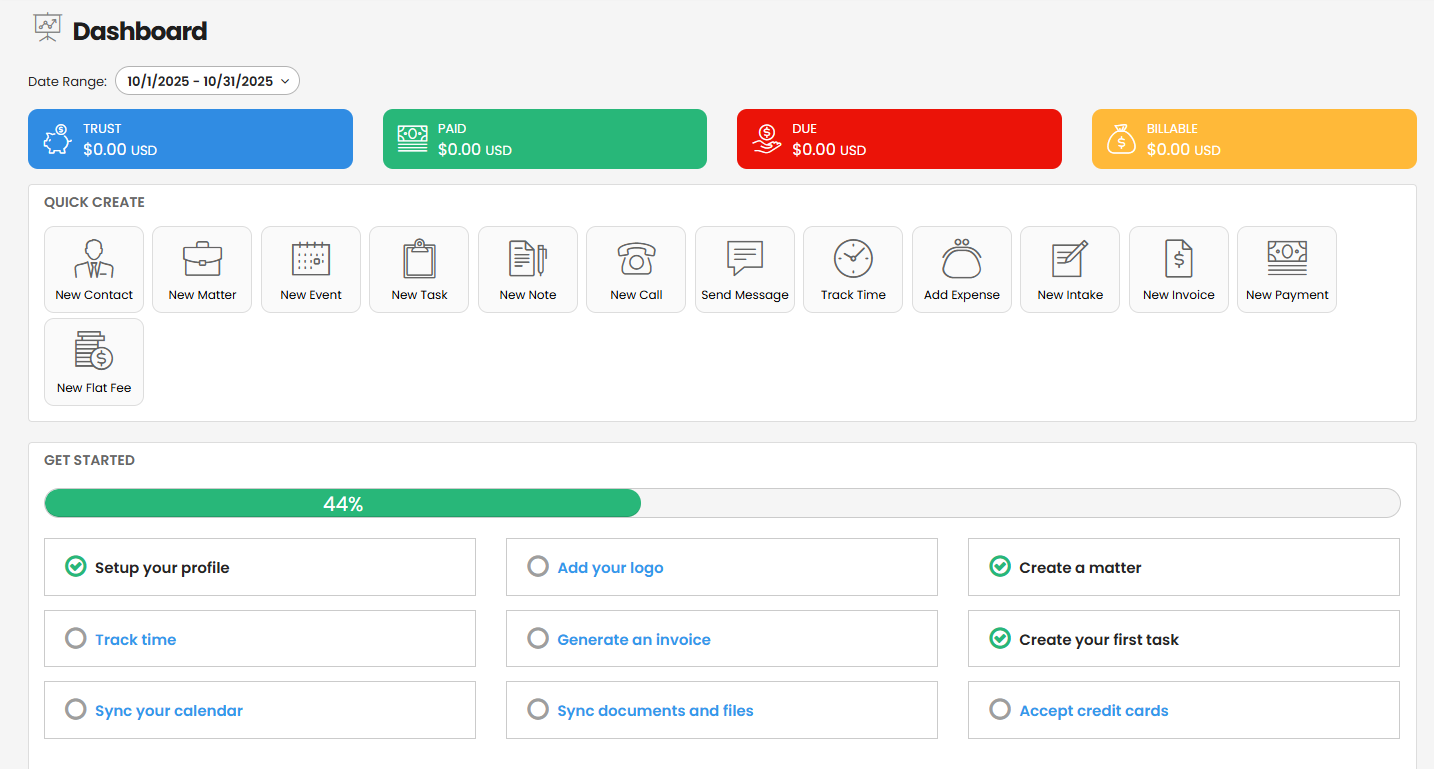
The Home dashboard displays the amount of money in my trust account, what has been paid, what is due, and what is billable.
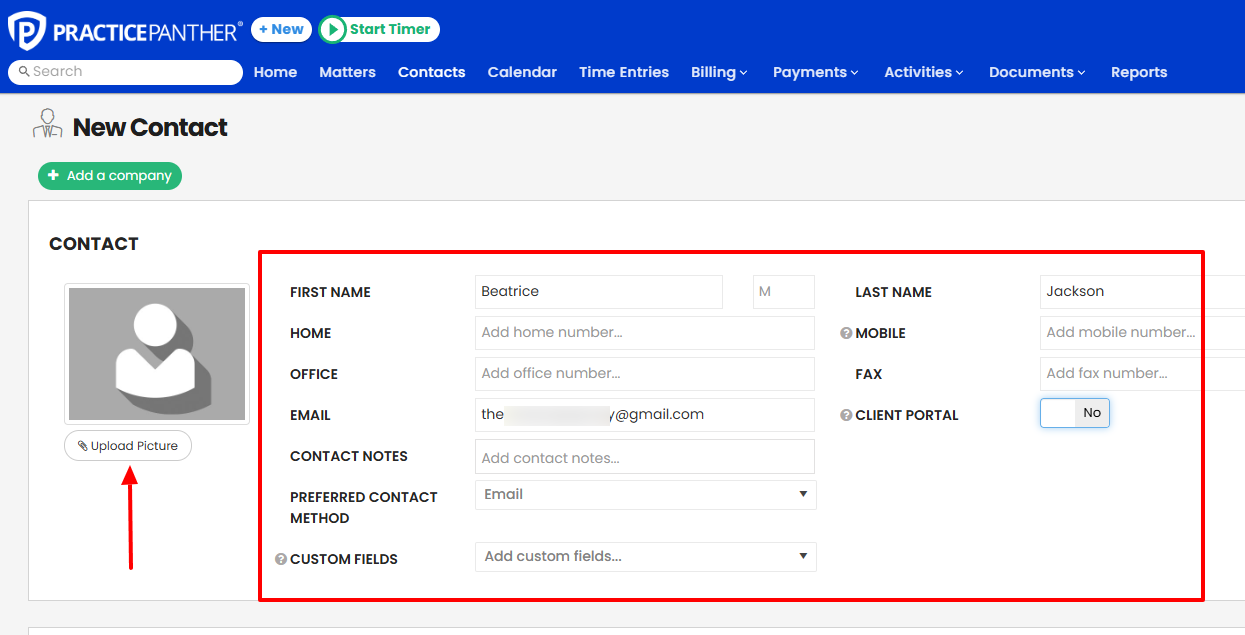
Also, I can add a contact to the platform by uploading their picture, adding their first & last name, home & office address, contact notes, and mobile.
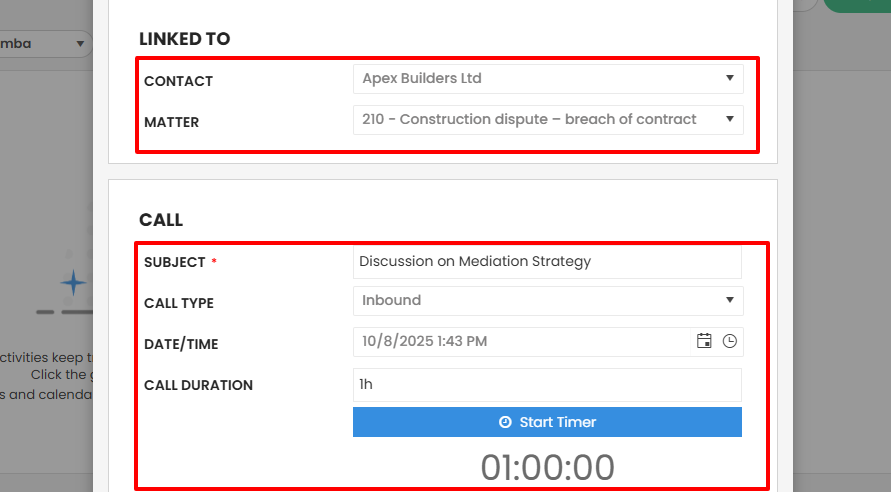
That's not all! I can schedule a call with a client. I will simply select the client and the matter. Then, I add a subject, choose a call type, select a date & time, and set the call duration.
Now, without much ado, we'll use Practicepanther to add a legal case and manage it.
Go to "Matters", then click "New".
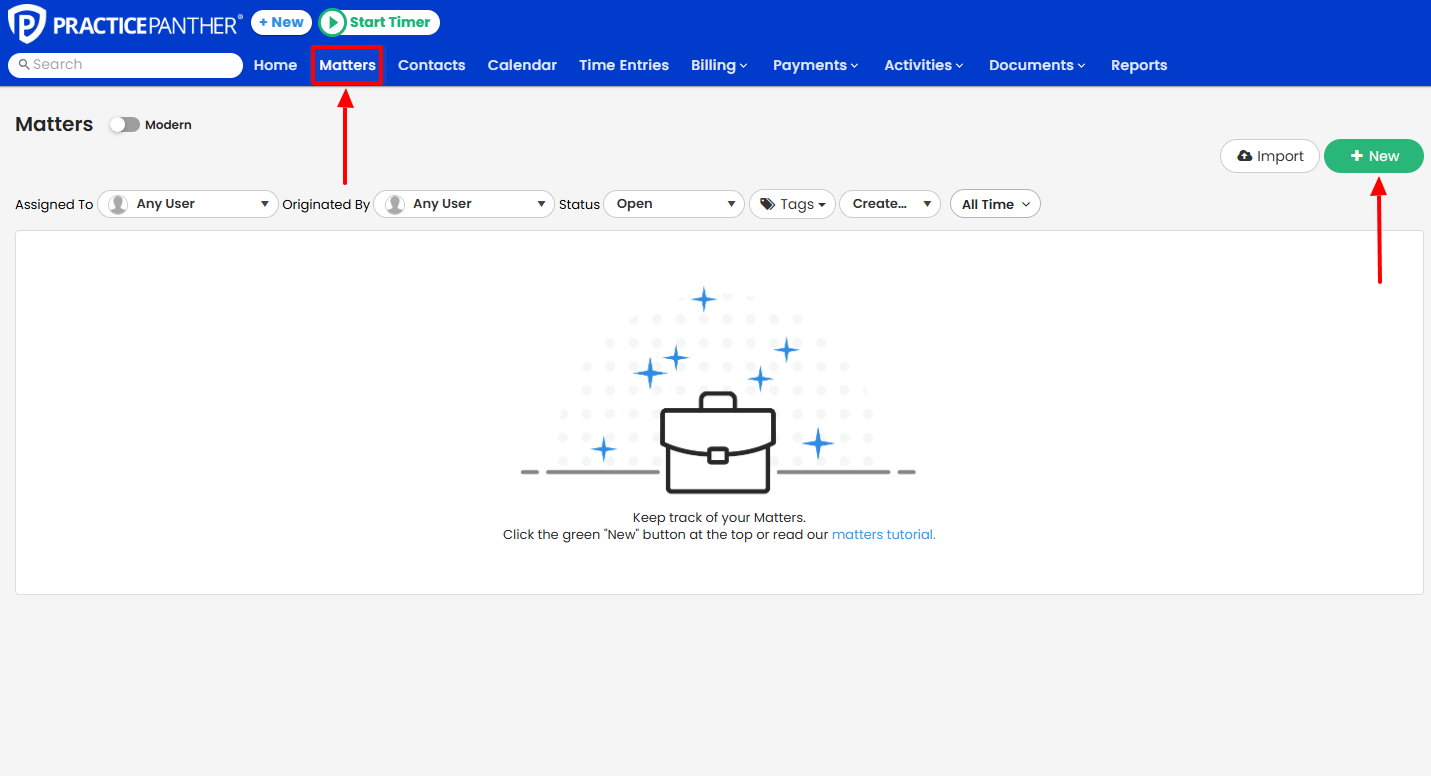
Enter the contact, matter name, and a few notes.
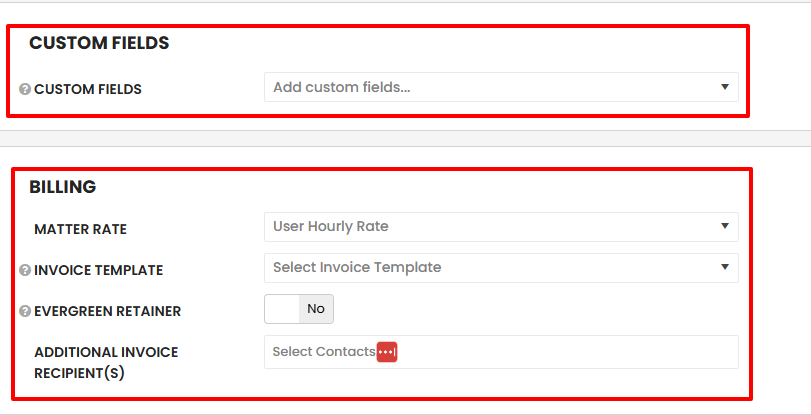
You can add custom fields.
Under Billing, you can specify your matter rate, select an invoice template, and add additional invoice recipient(s).
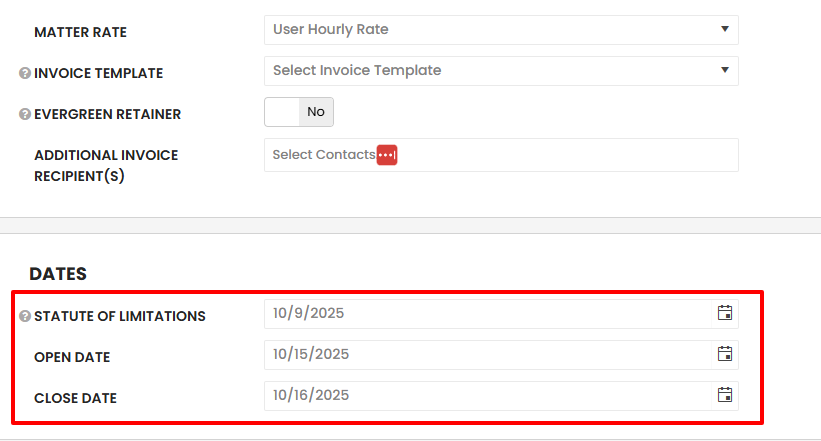
Under Dates, you can select the statute of limitations date, the open date, and the close date.
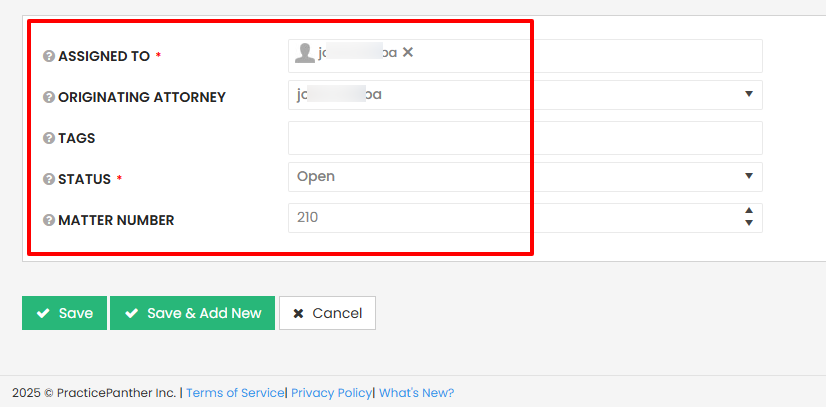
Add the assignee, originating attorney, tags, status, and matter number.
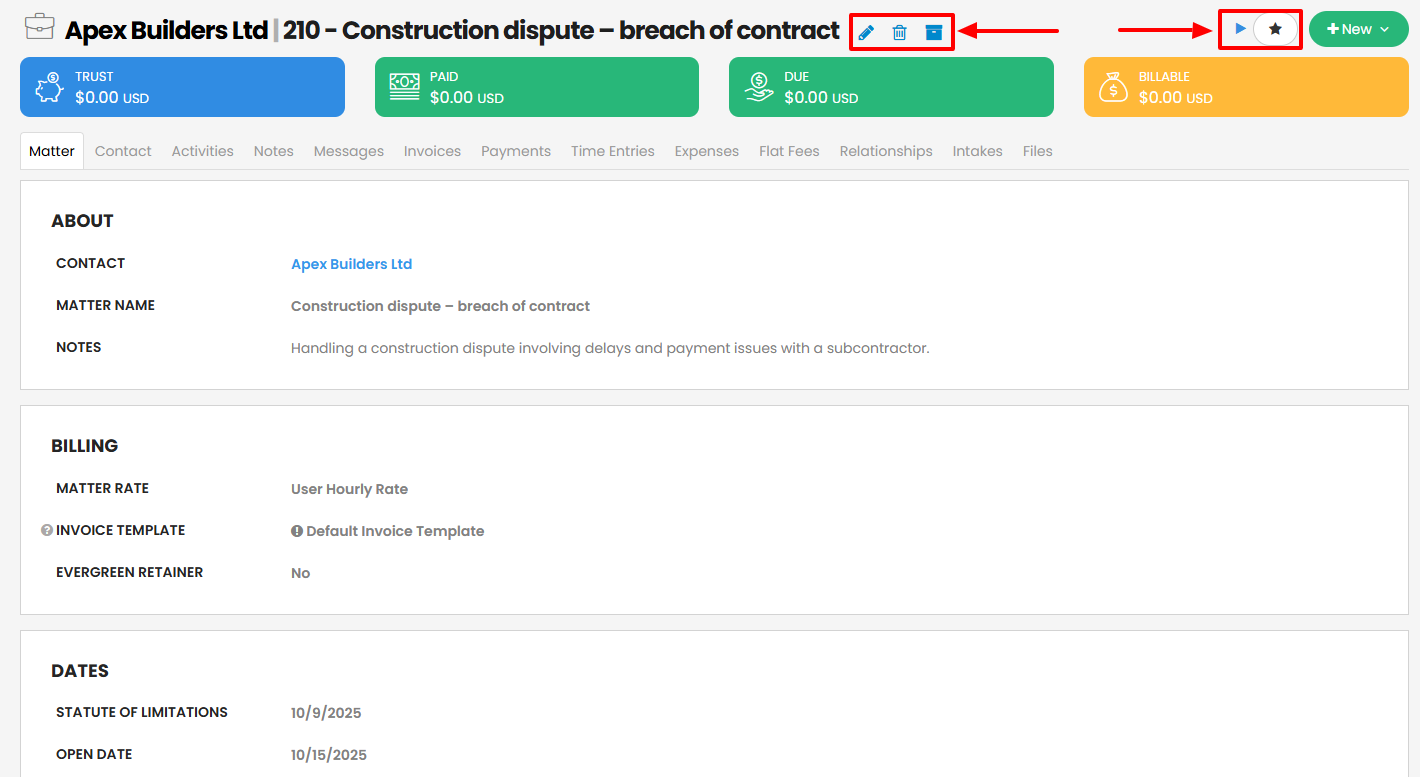
The matter is ready! You can edit or delete it. You also have the option to start a timer on the matter.
Aside from creating matters, there are other features Practicepanther offers.
What I loved about Practicepanther
1 . Contacts
Law firms will close down without clients. The entire industry revolves around them. That's why you need a client database to ensure your business stays afloat.
To add a client, you will click "Contacts", then 'New".
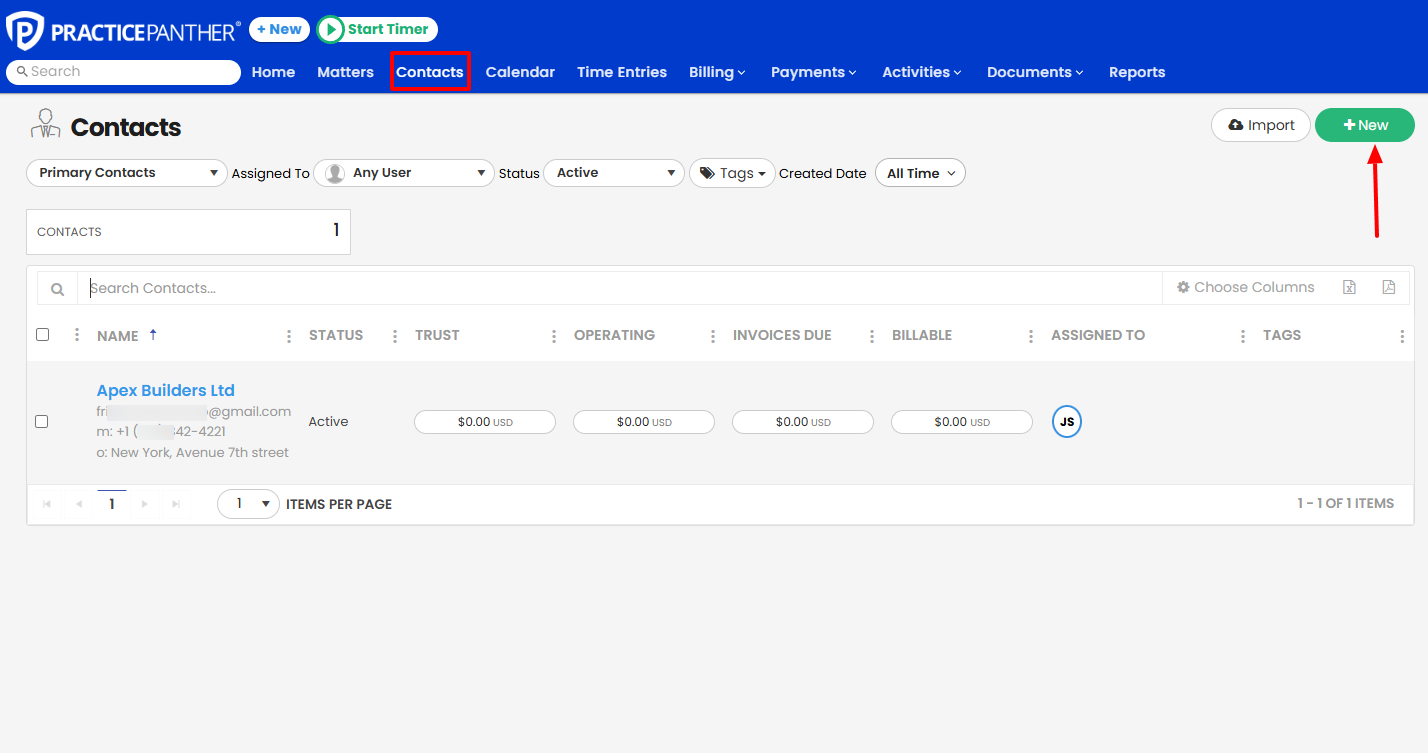
You can upload their picture, add their first & last name, home & office number, email, and contact notes.
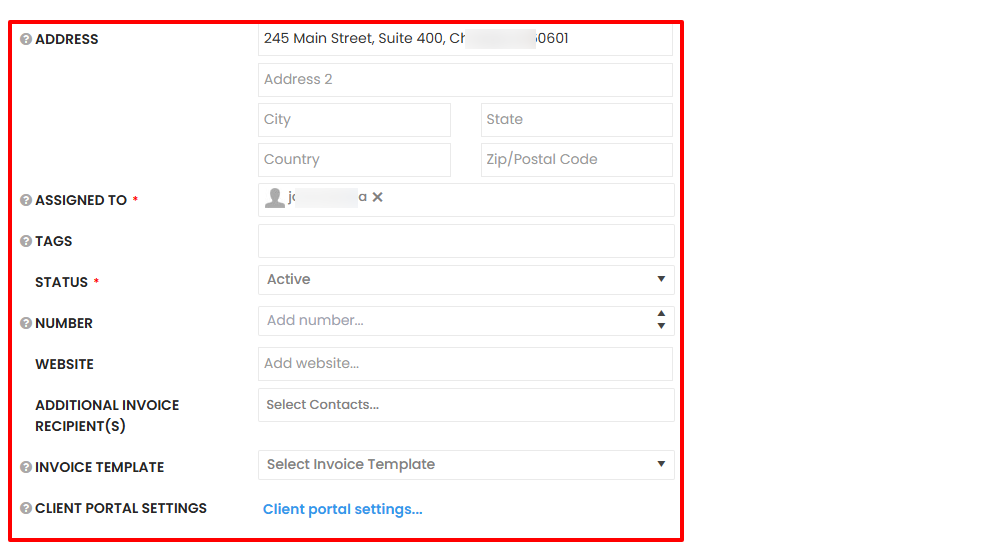
You can add their address, choose an assignee, select a status, an invoice template, and add a website.
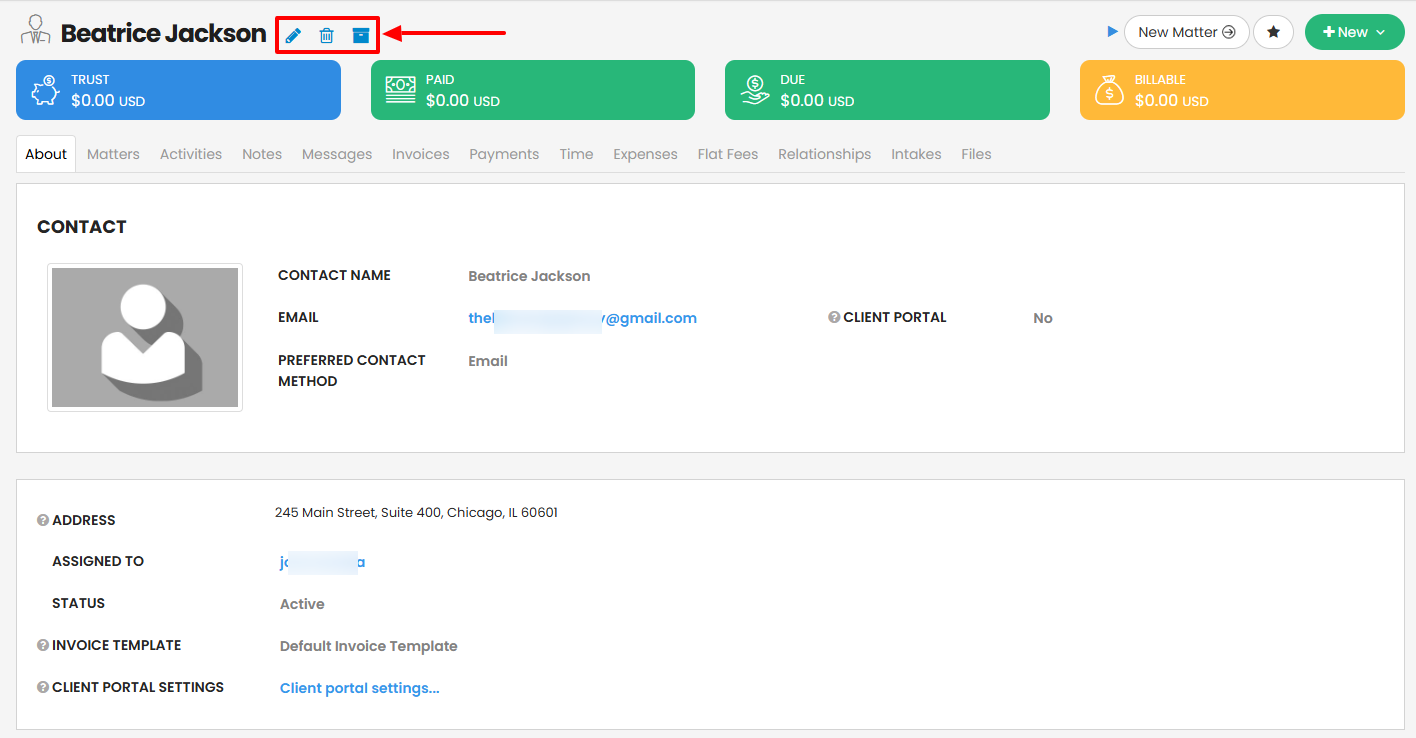
Your contact is ready! You can still edit or delete it.
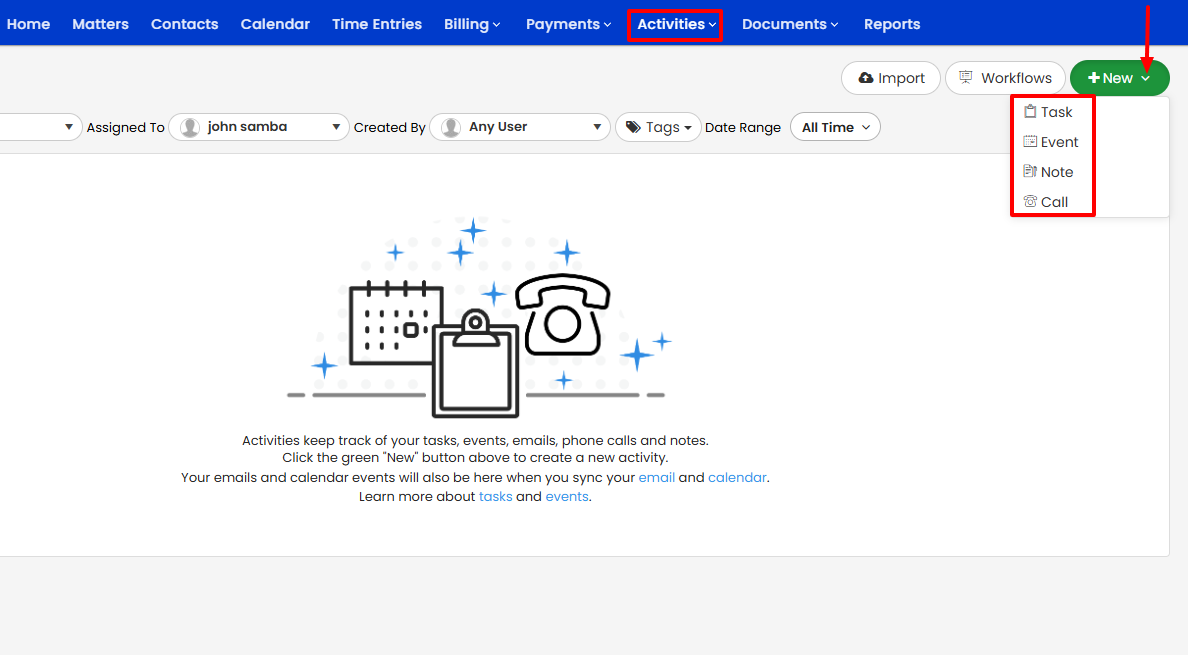
2 . Activities
Every law firm has a set of activities that it performs. It can be creating tasks, events, notes, or even calls. The point is, lawyers are always busy, and this is what helps them generate income.
Of all the activities, I want us to focus on the "Call" activity.
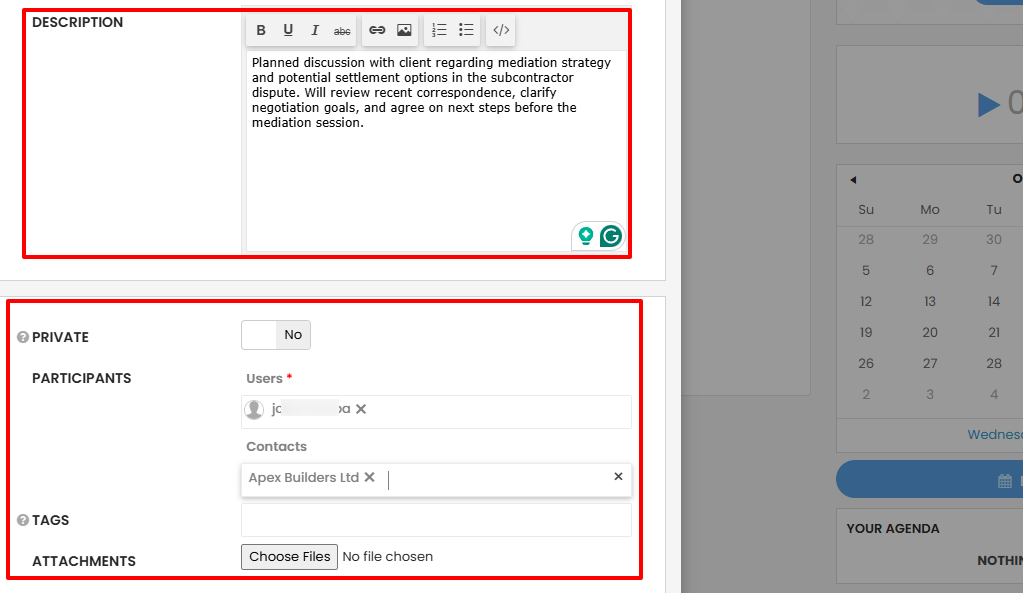
You can choose who the call will be linked to by specifying the contact and the matter. Then, for the call, you can add a subject, choose the call type, date & time, and duration. You can also start a timer for recording the length of the call.
Below, you can add a description of the call, decide to make it private, add participants, tags, and attachments.
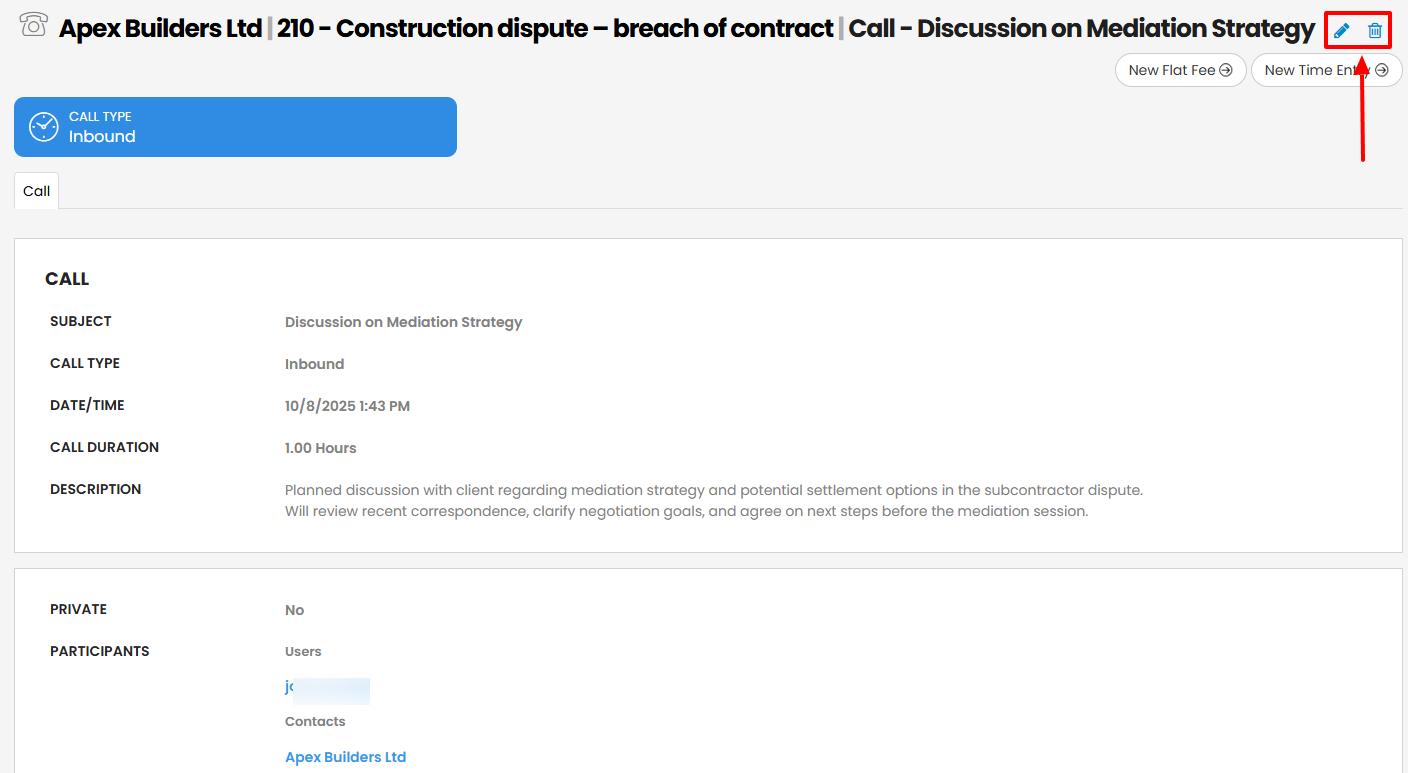
The Call activity is ready! You can still edit or delete it.
What I Liked vs What I didn't like
| What I Like | What I didn't like |
|---|---|
| ✅ Comes with IOS & Android mobile apps ✅ Lets you create, edit, and track every legal matter with detailed fields for billing, deadlines, and attorney assignments. ✅ The timer and automatic billing features makes it easy to log billable hours and generate invoices quickly. | ❌ The interface is too crowded with features and information ❌ |
Best for
- Medium-sized and large law firms looking for an all-in-one software to manage cases, contacts, track time, and handle billing & invoicing.
Pricing
- Solo: $49/per user/month
- Essential: $69/per user/month
- Business: $89/per user/month
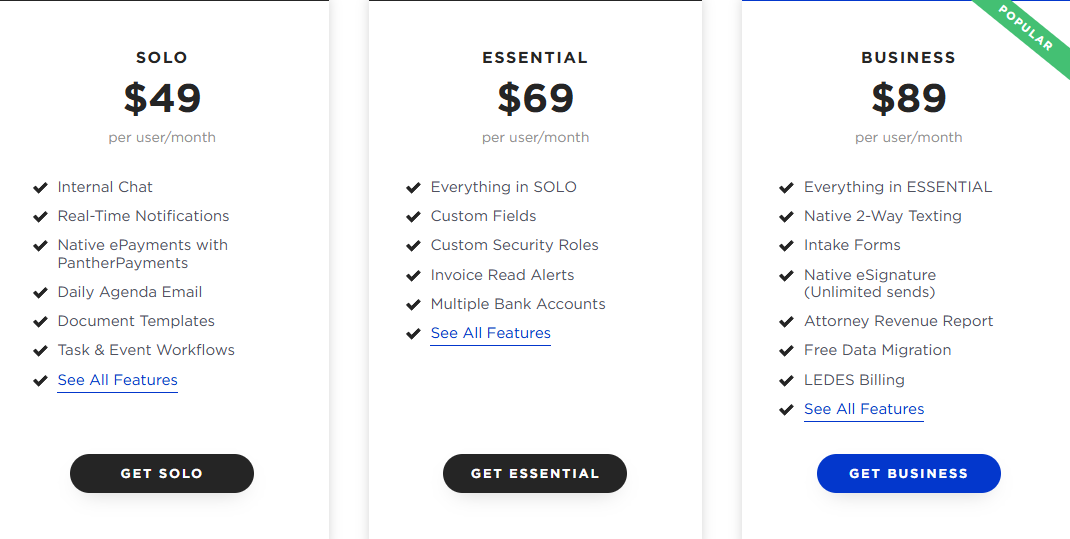
5. Cosmolex - Best for Legal workflow automation
| Personal rating: 4/5 stars |
|---|
| I love how Cosmolex lets you automate tasks like tracking billable hours, and linking related documents, notes, and time entries to a specific case. You don't have to enter the same information across different files repeatedly. |
We will continue with Cosmolex, the next best law practice management software.
I'd recommend this tool to large law firms managing multiple clients. The automation feature lets you create intake forms and collect sensitive data from clients related to their cases.

When you create an Intake form, you can name it and add a description, so clients know what the form is about. You can also add custom fields.
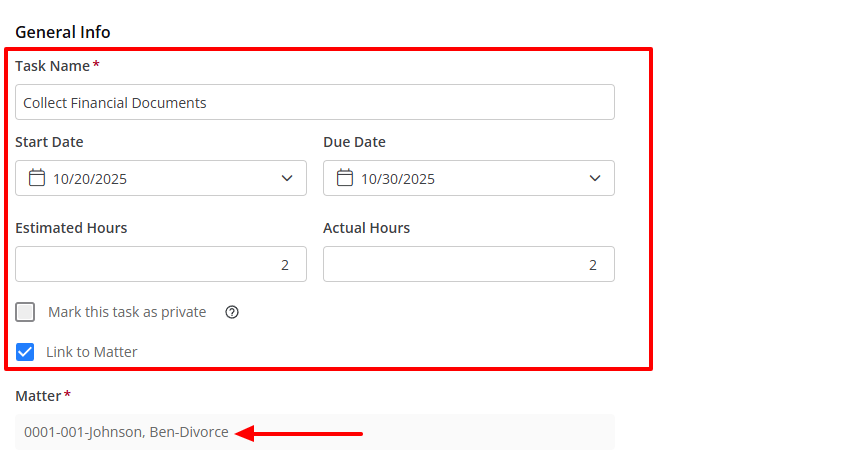
That's not all. Creating your first task is simple. All you need is to add the task name, the start date & due date. You can then add estimated hours and actual hours, link it to a matter, and select the matter.
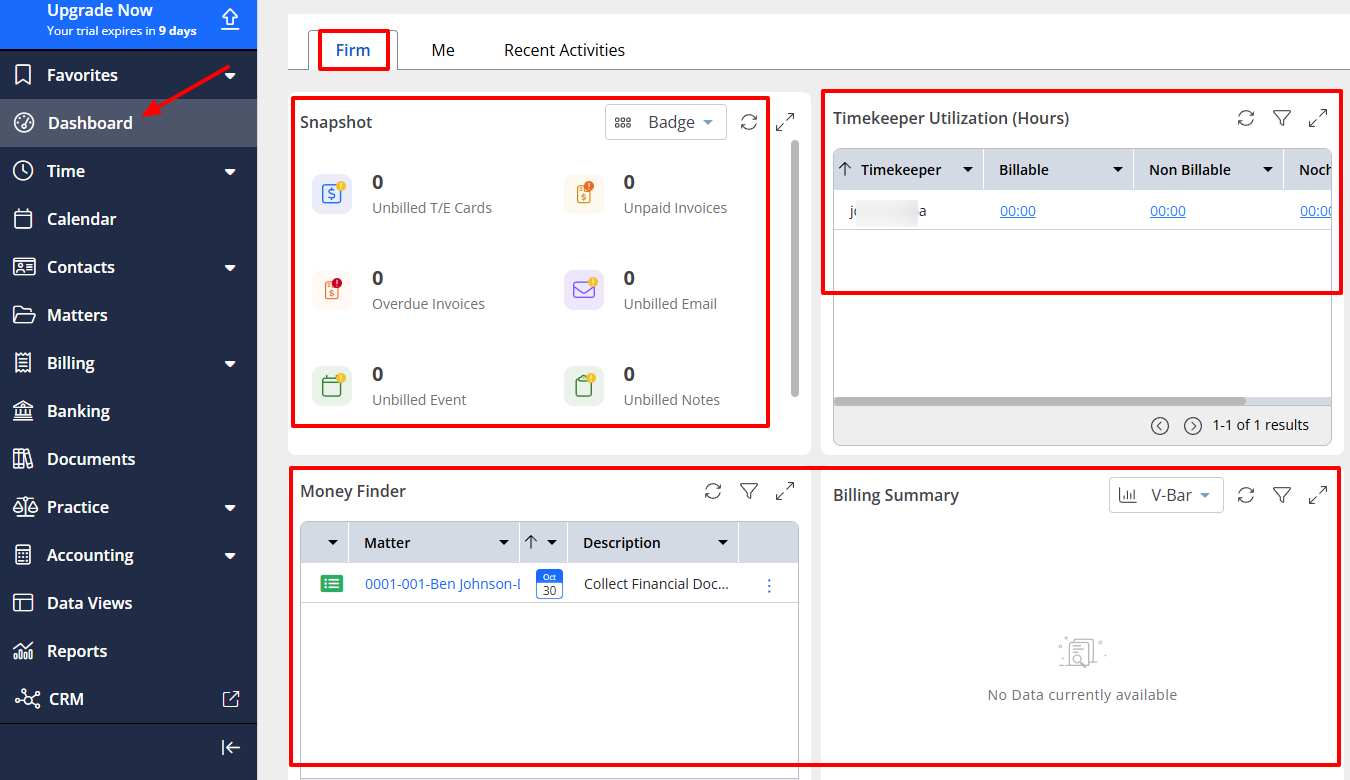
Cosmolex's Dashboard displays the number of overdue invoices, unbilled events, emails, and notes. It also shows your billing summary and the timekeeper utilization in hours.
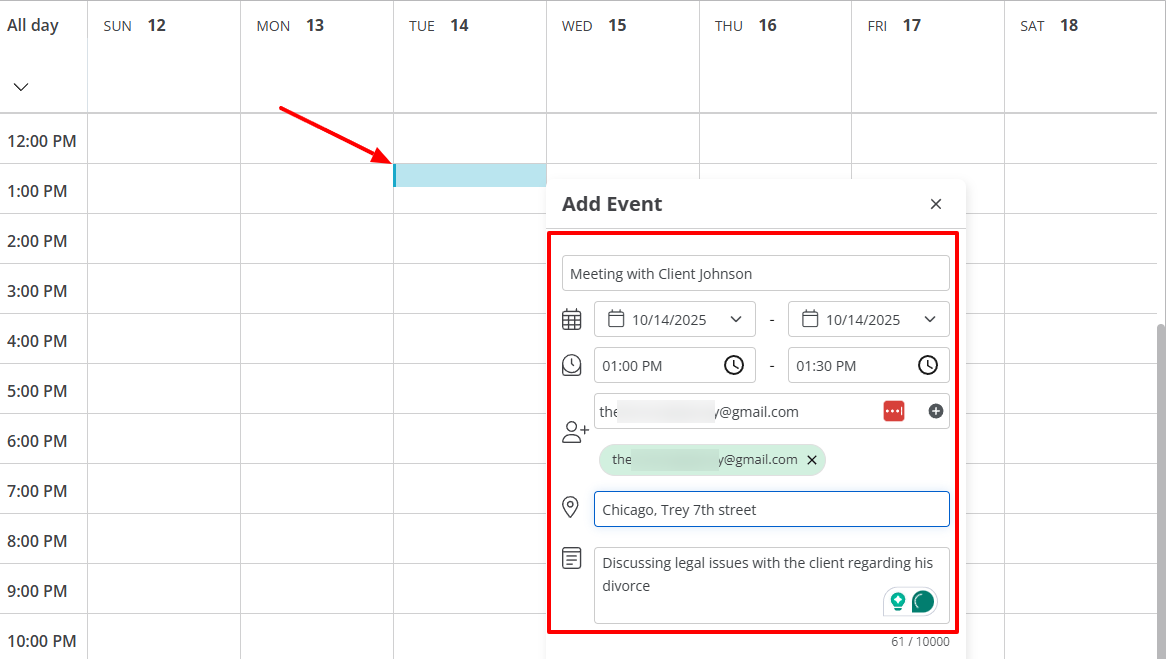
Moreover, it also comes with a Calendar that lets me create events. I can name the event, select a start & end date and time, enter the attendees' email, meeting place, and add a few notes.
Now let's discuss automating with Cosmolex. We will create an intake form that will allows you to automate data collection from clients.
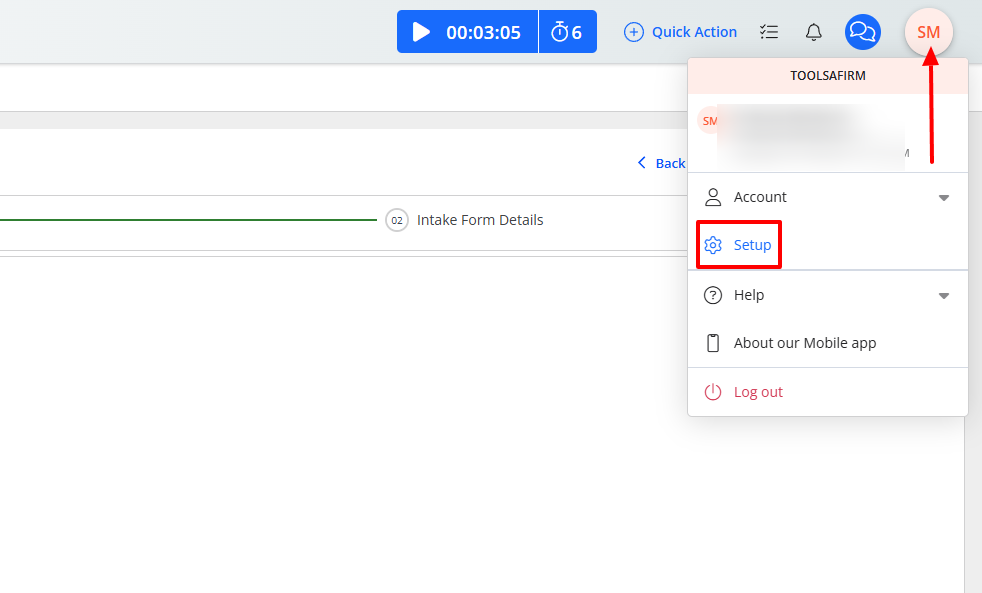
But to do so on Cosmolex, you first need to go to your own profile and click "Setup".
Under Setup, I'll go to "Form Templates", then click "Add"
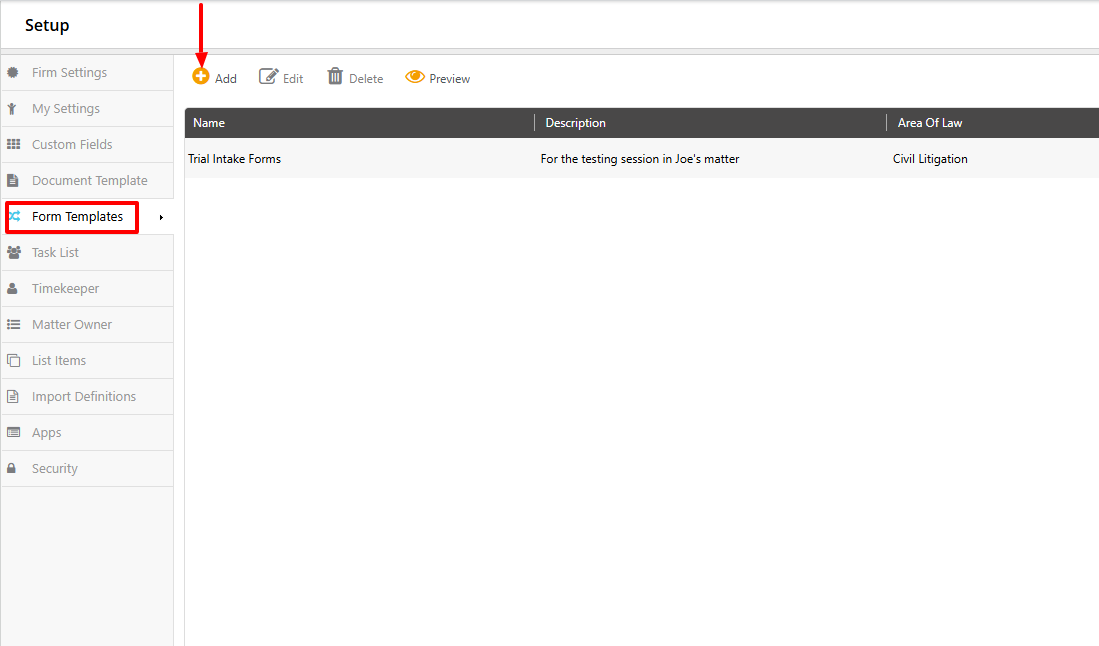
I will add my title and description. Remember this is what your clients will see on the intake form, so make it very clear in a way they know exactly what you are asking.
Below, I will select "Custom Fields" and click the dropdown menu to select the values I want.
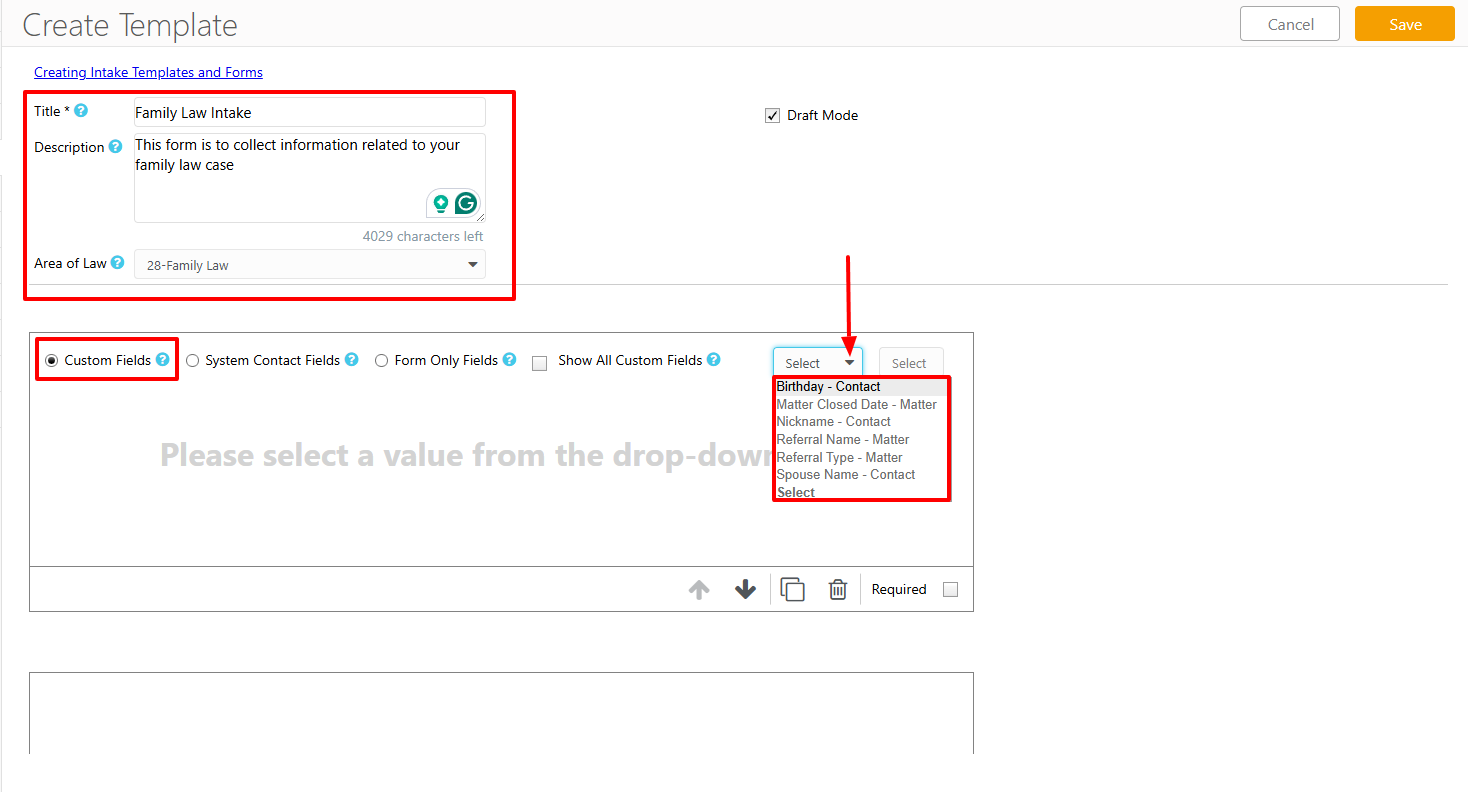
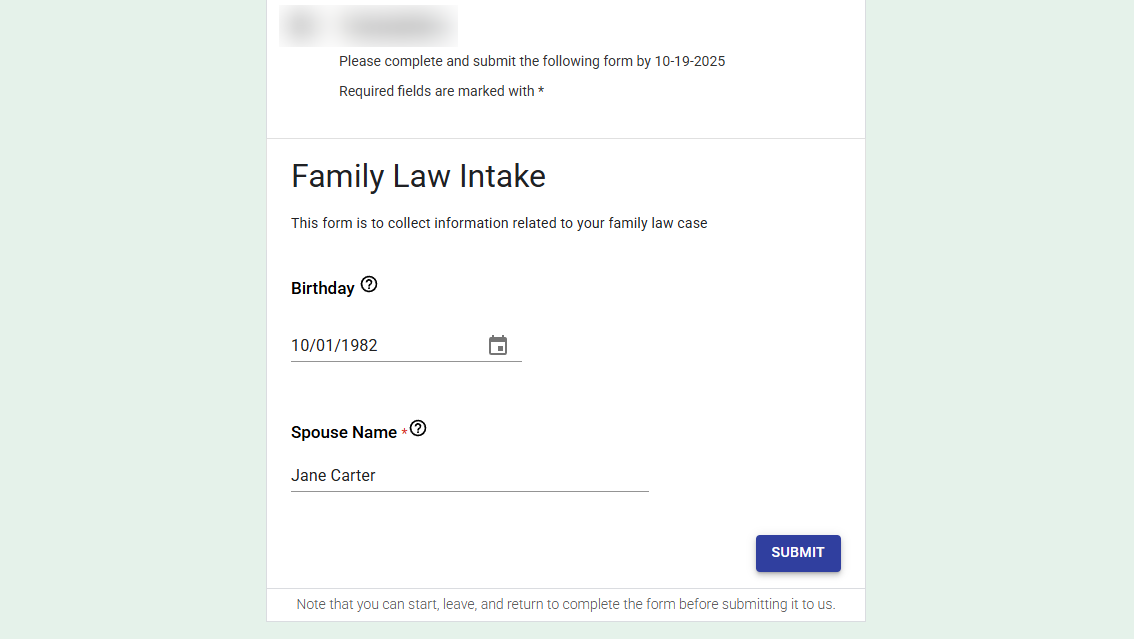
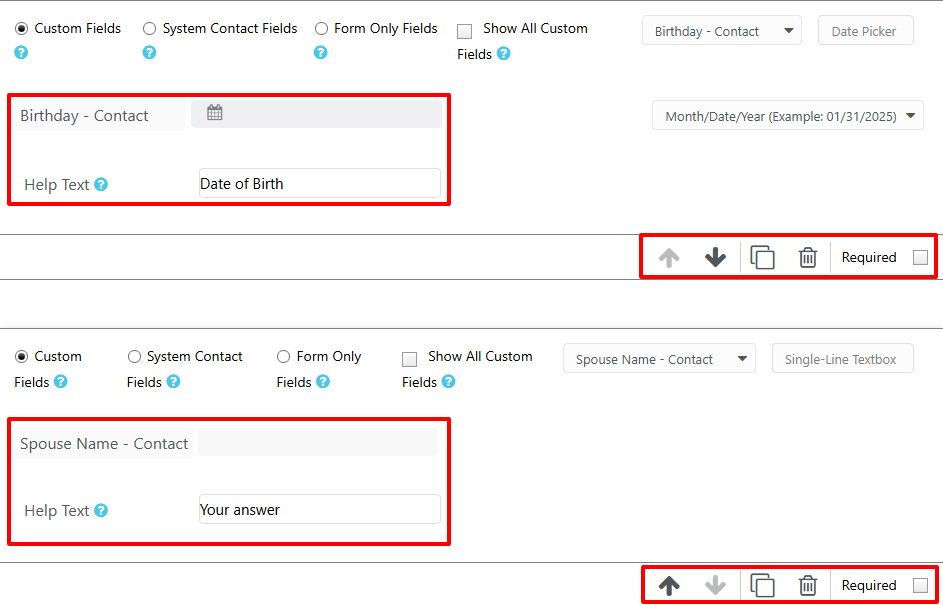
For this tutorial, I selected "Birthday" and "Spouse name". There is a menu on the right side that lets me change the position of my questions, copy, and delete. I can also make the field 'required' in case I really want clients to answer a particular question.
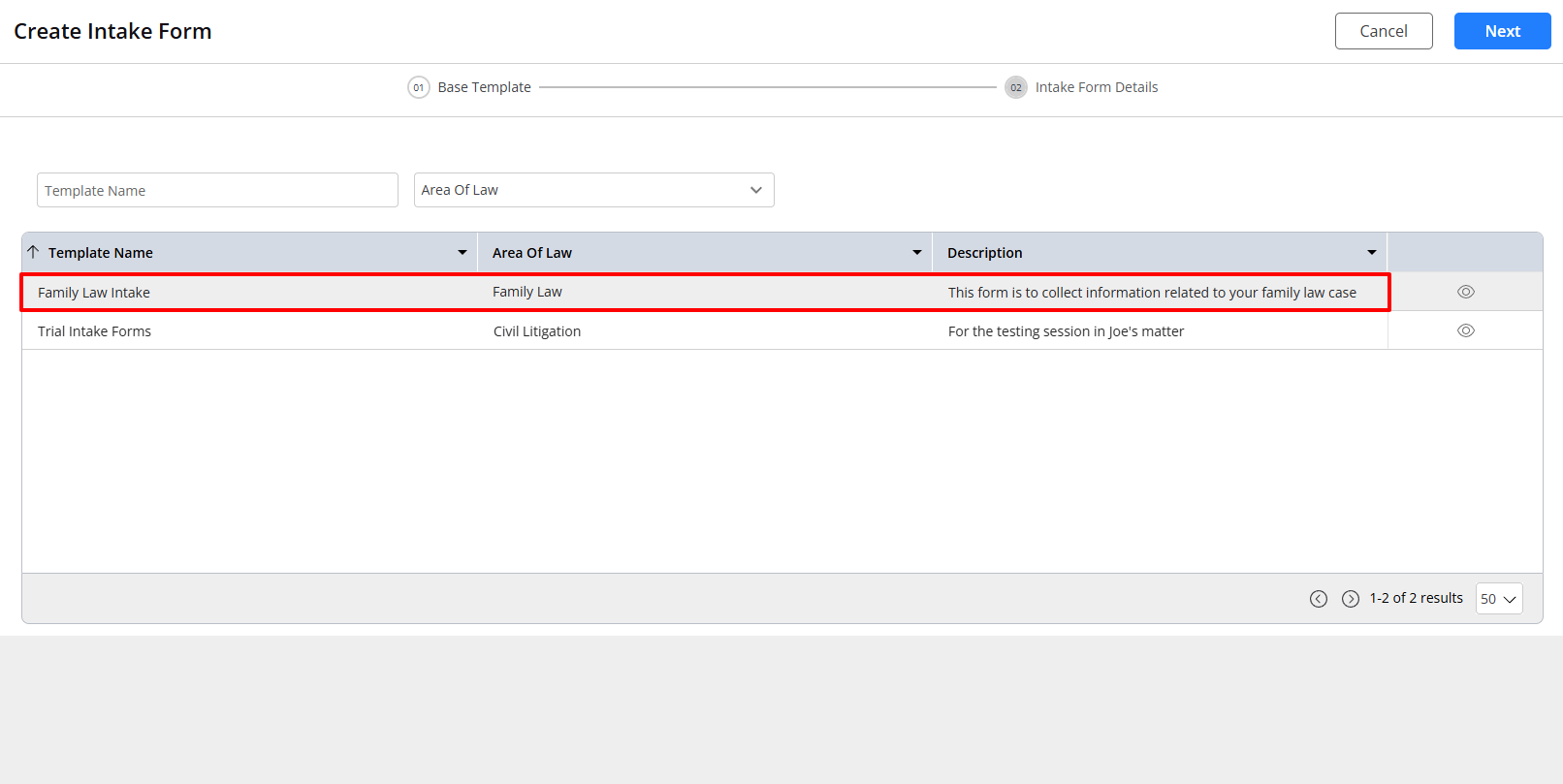
Now, we are done with the setup. Go back to your interface, click "Practice", and go to "Intake Forms".

I will click "Create Intake form".
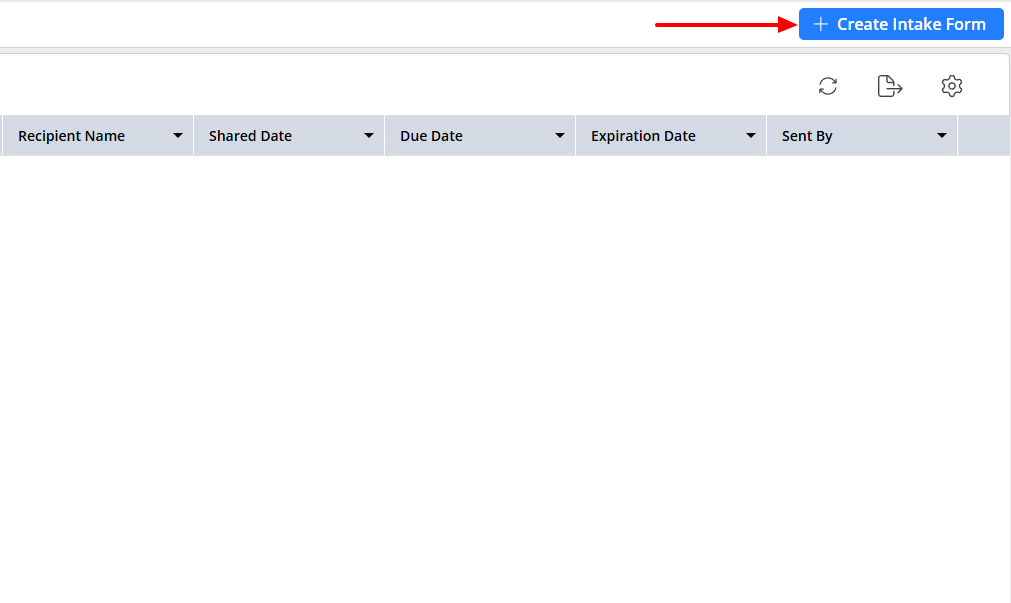
You remember the template we created in the setup? This is what we will choose here.
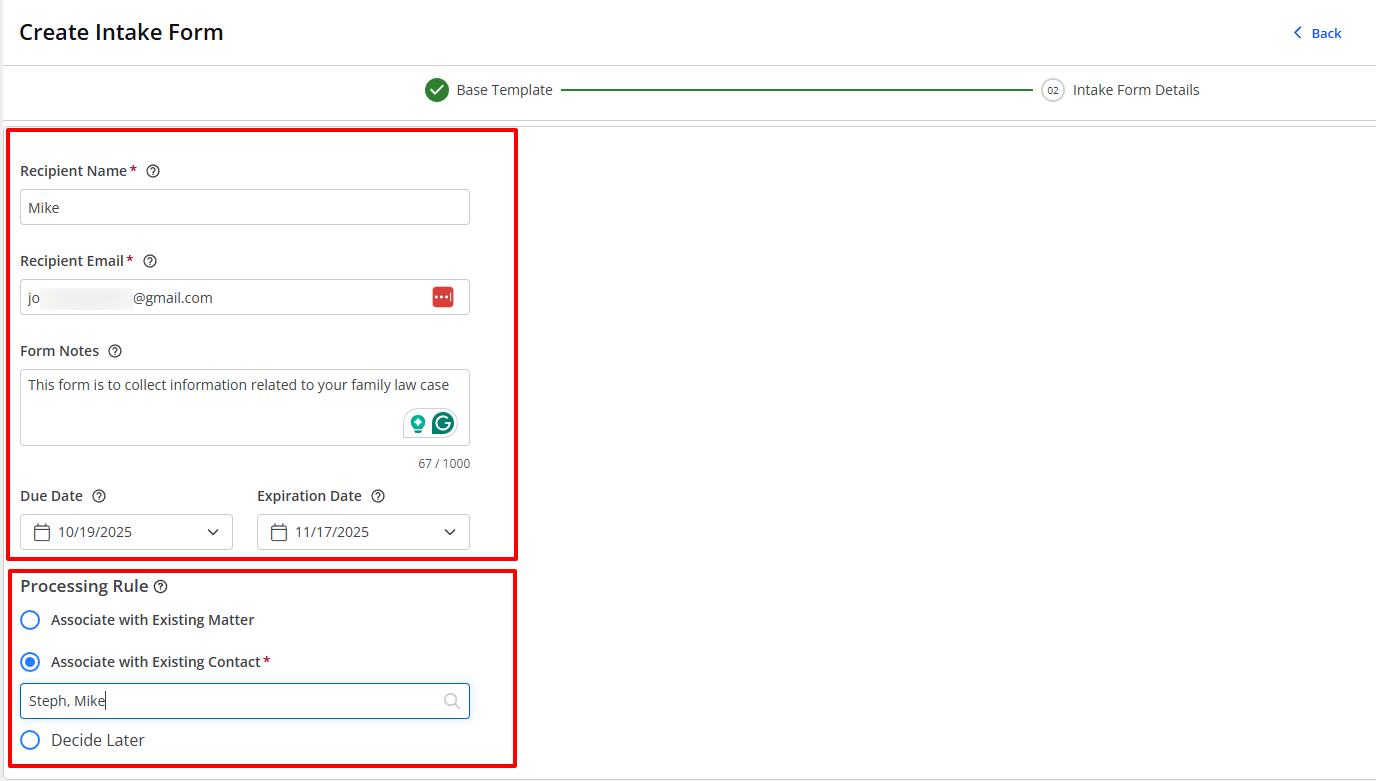
I will add the recipient name, email, notes, and select a due date & expiration date.
I found it amazing that I can associate this intake form with an existing matter or contact.
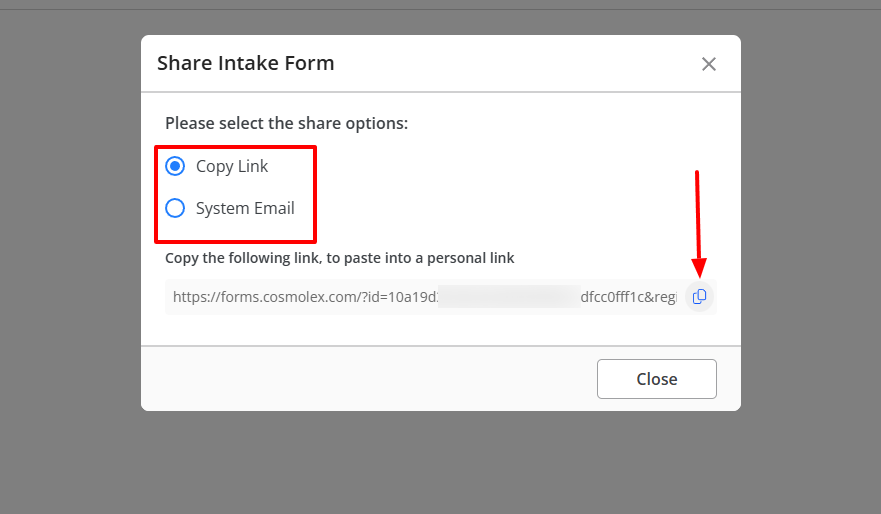
That's it! I can now select my share options: Copy email or System email.
This is what the client will see.
After the client fills and submits the intake form, the date is automatically recorded on your end. No need for manual data input.
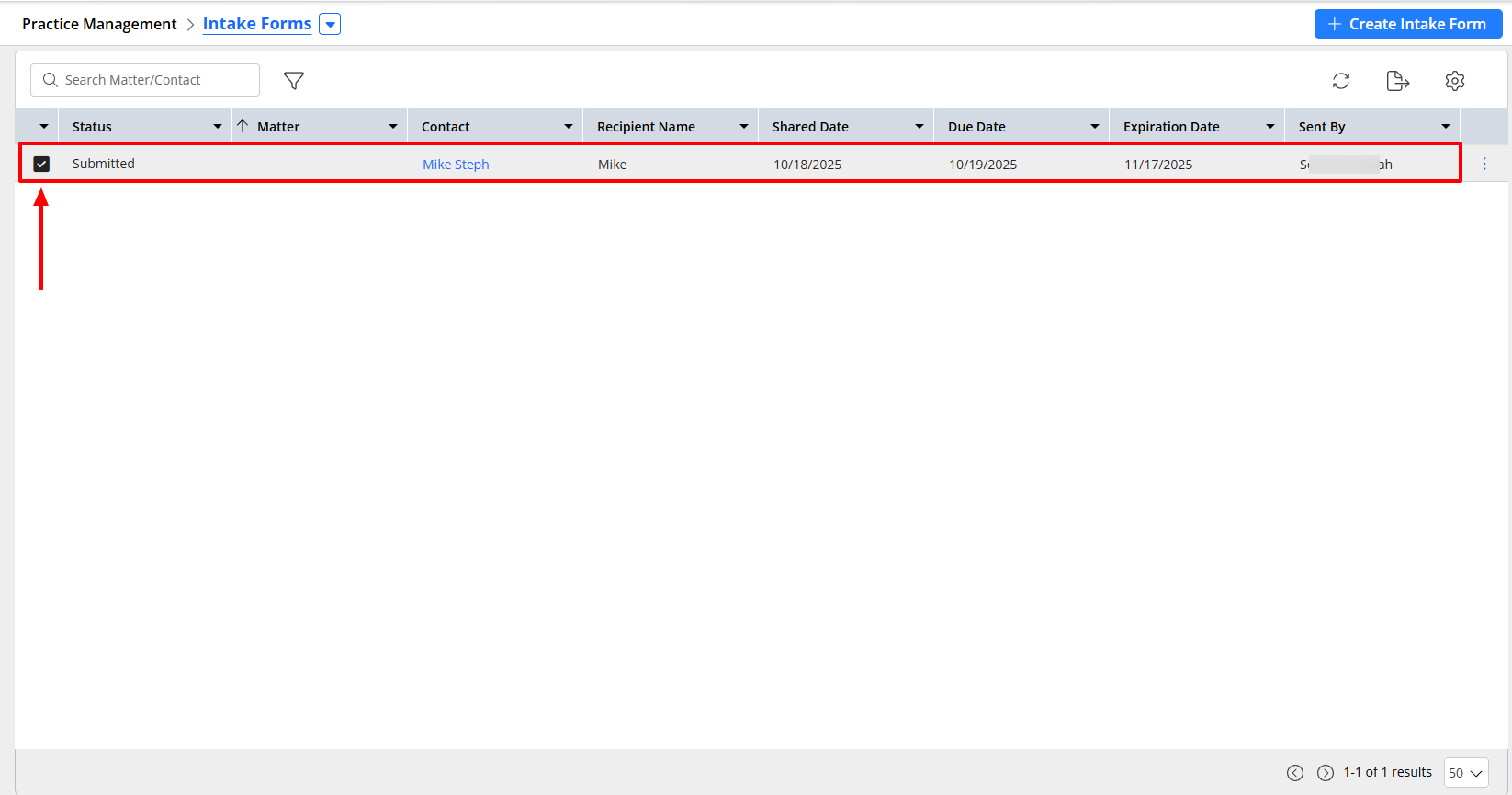
Because I wanted to be sure I made the right choice by adding Cosmolex to this article, I went further and tested two other features.
What I loved about Cosmolex
1 . Tasks
This is the feature that allows lawyers to organize their workload, meet deadlines, and track case-related activities efficiently. I will give you a practical example.
Under Practice, go to 'Task'.
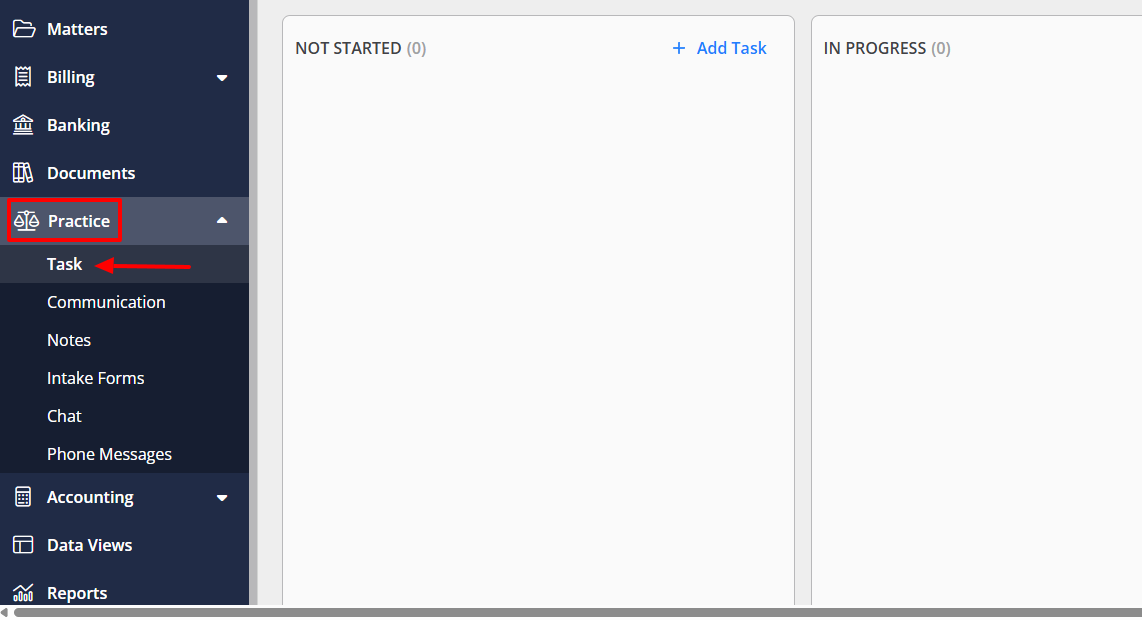
Add the task name, select the start & due date, specify the estimated hours, and the actual hours. You can then mark this task as private, link to a matter, and select the preferred matter.
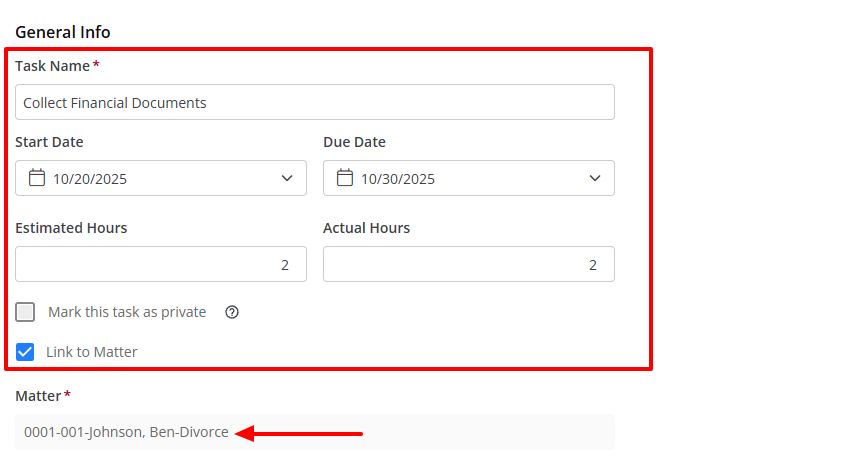
Choose the billing status and primary assignee. You can also choose the notification type with the number of days, add a reminder, and a description of the task.
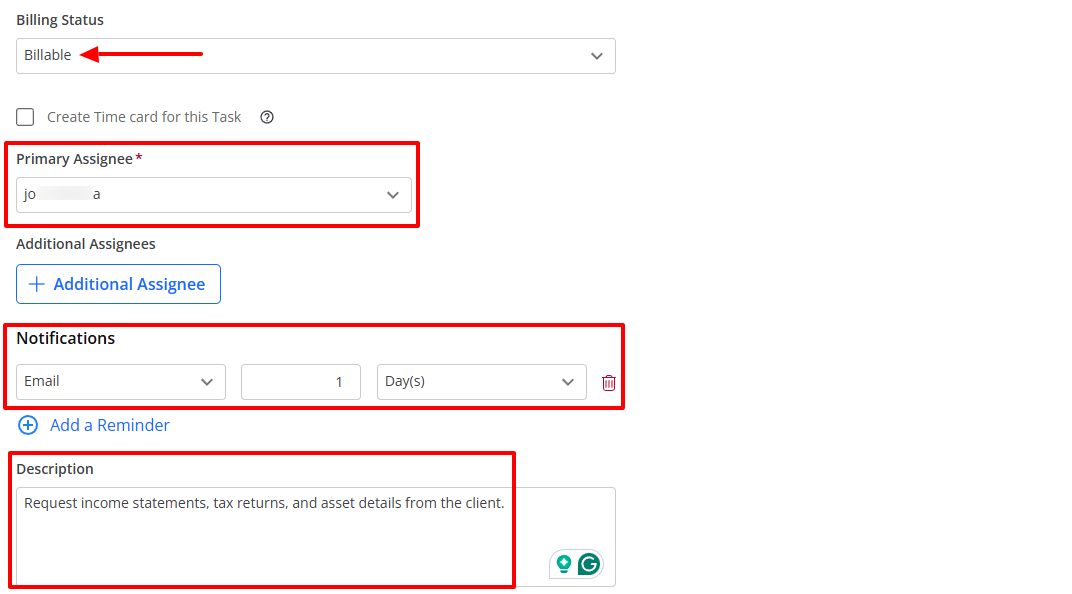
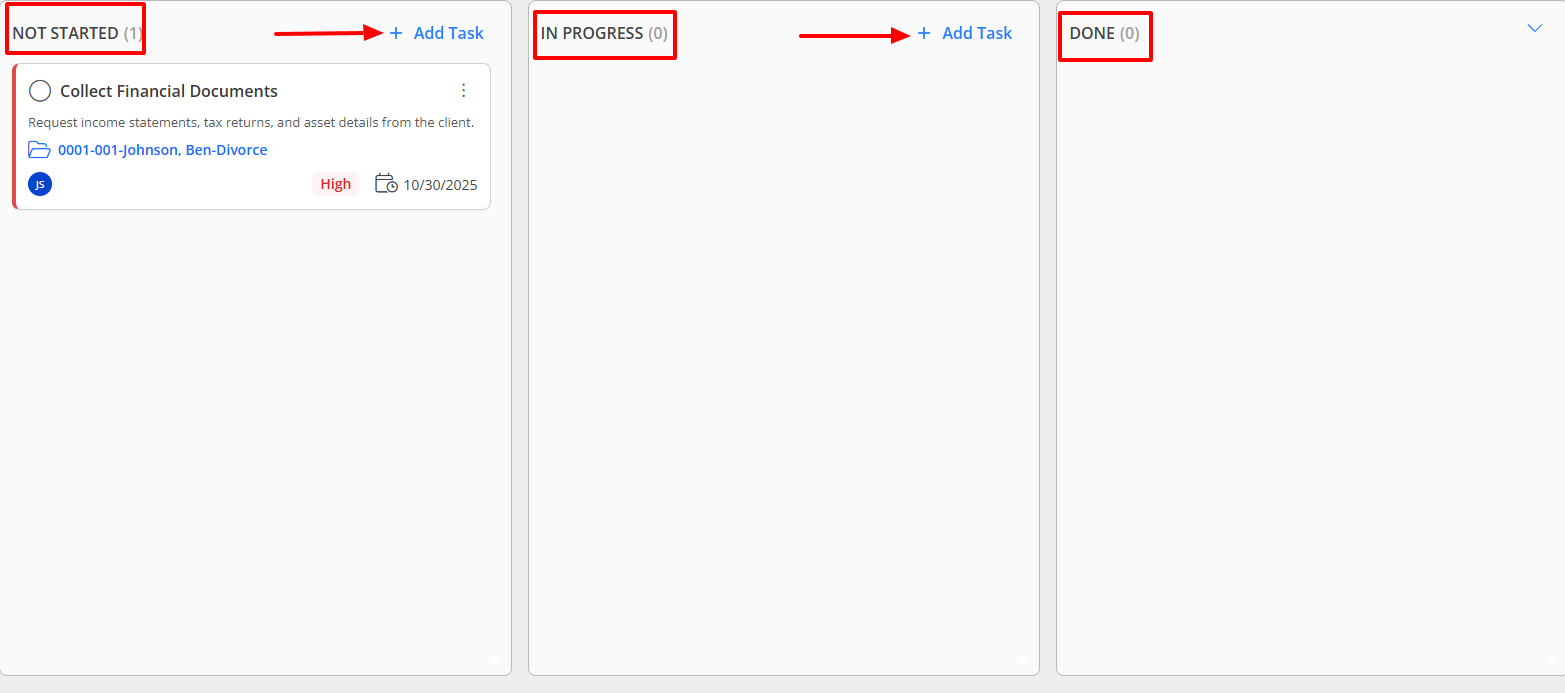
Under Task options, you can select the priority level, choose a color, and turn on the email notification button.
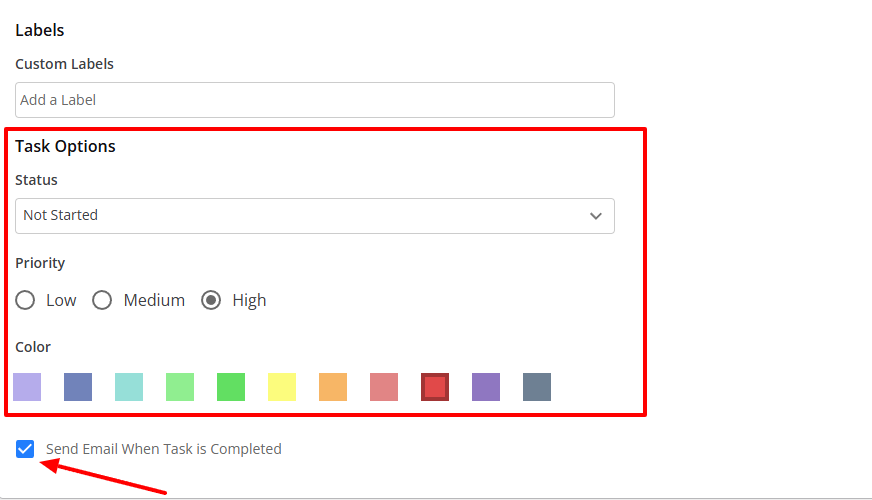
You can see different dashboards showing different stages of the task: "Not started", "In progress", and "Done". You can still add more tasks under the first two.
2 . Calendar
Clients call all the time. You have a busy schedule and sometimes might forget which client called and why. To make sure you always remember, you can use the Calendar.
Here's a practical example.
On the sidebar, click "Calendar".
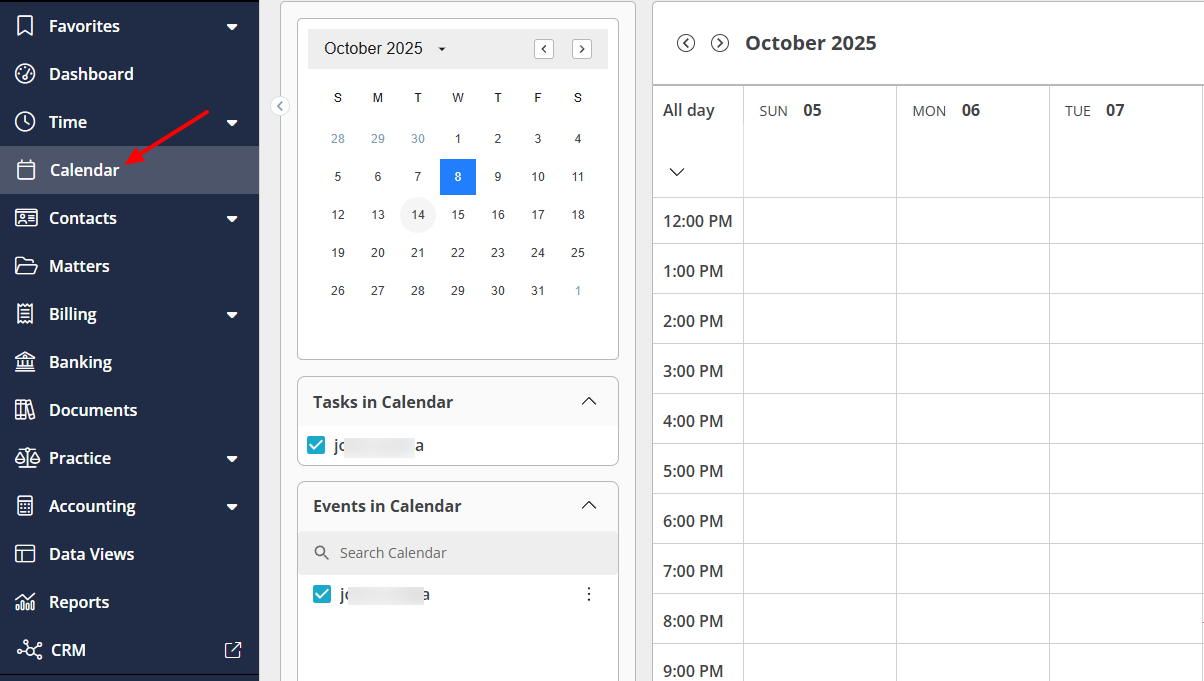
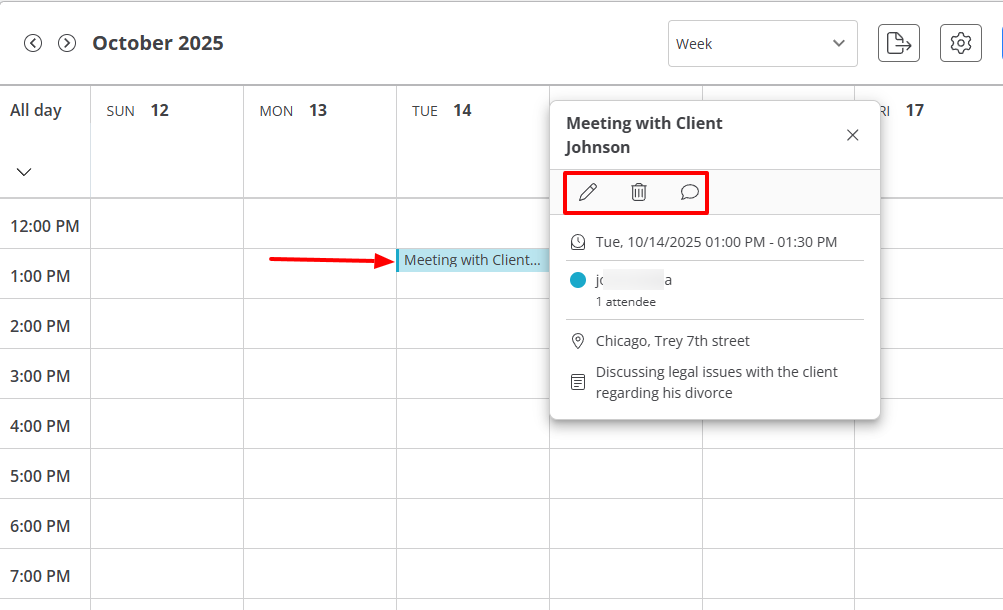
Select your preferred date in the calendar and add your event. Name it, choose the start & end date and time, add the attendee's email, meeting location, and description.
That's it! It will appear in the calendar. You can still edit or delete it, or even add comments.
What I Liked vs What I didn't like
| What I Like | What I didn't like |
|---|---|
| ✅ Allows you to connect your firm's bank to the app ✅Allows you to chat with clients inside the platform via SMS. Clients will use their portal to receive messages and reply. ✅ Sends calendar reminders so you never forget important client calls. ✅ Builds client intake forms using templates, saving time when onboarding new clients. | ❌ The cost of the platform is high compared to other platforms. Its first tier costs almost double the average price ❌Took some time to figure out how some features, like intake forms, work. It's hidden in the setup. |
Best for
- Mid-sized and large firms seeking to automate legal workflow, track firm and personal activities.
Pricing
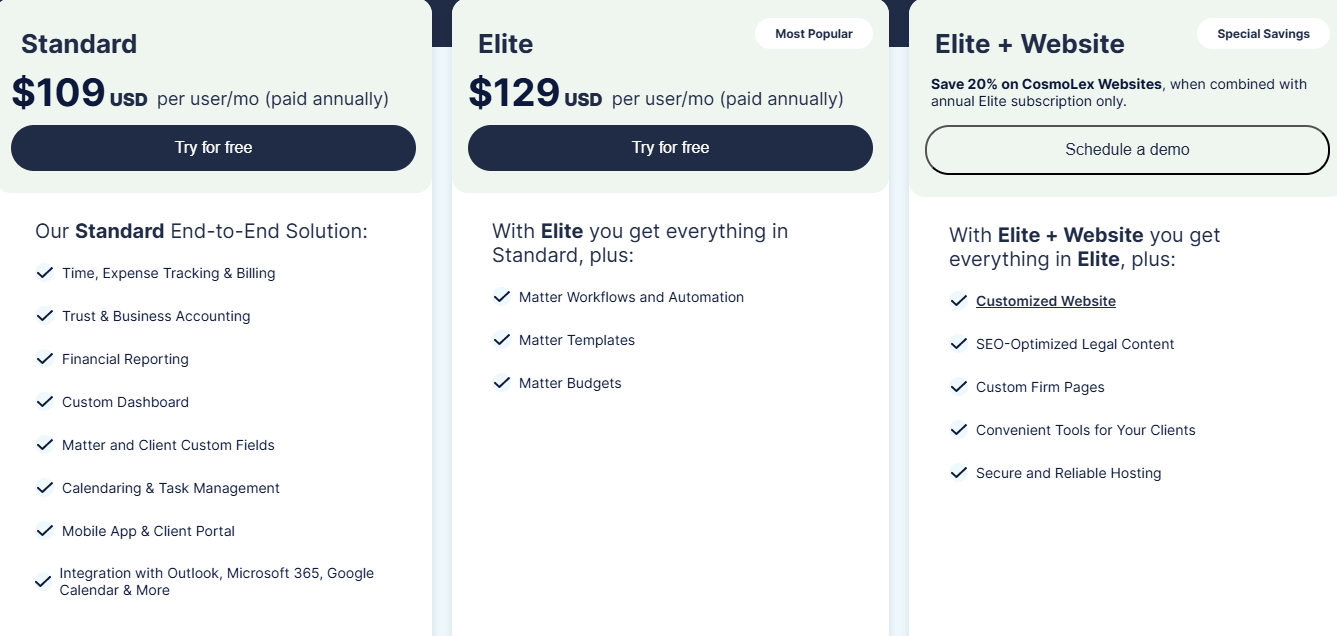
- Standard: $109/per user/month, billed annually
- Elite: $129/per user/ month, billed annually
- Elite +Website: Custom pricing
6. Rocket Matter - Best for Legal Project Management and Productivity
| Personal rating: 4/5 stars |
|---|
| I loved how Rocket Matter made it easy to manage legal projects using visual boards and workflow statuses. I could track which cases were open, in progress, or closed. |
Rocket Matter comes next in the list of the best law practice management software.
I'd recommend Rocket Matter to law firms that manage multiple client matters. Its project boards, timesheets, and document-sharing tools make it easier to track each case's progress and stay updated.
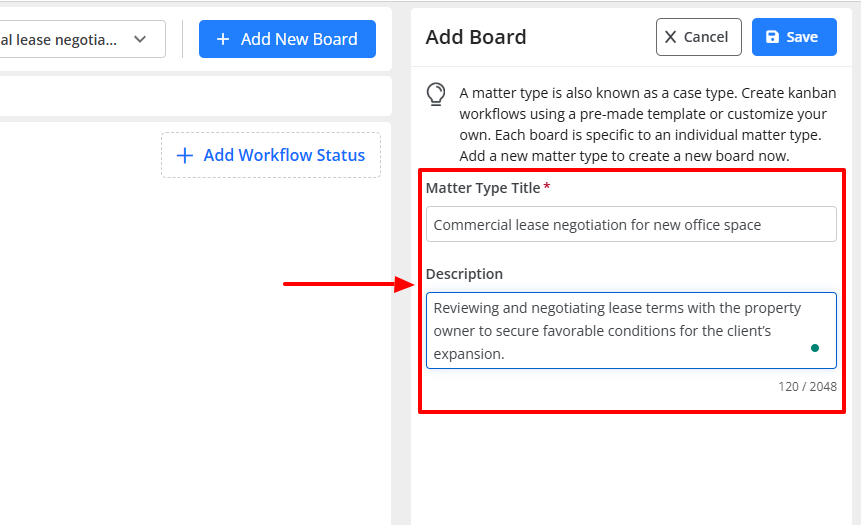
You can manage legal projects by creating boards. To do it, you will add a matter type title and a clear description. Then you can assign each board to your preferred matter.
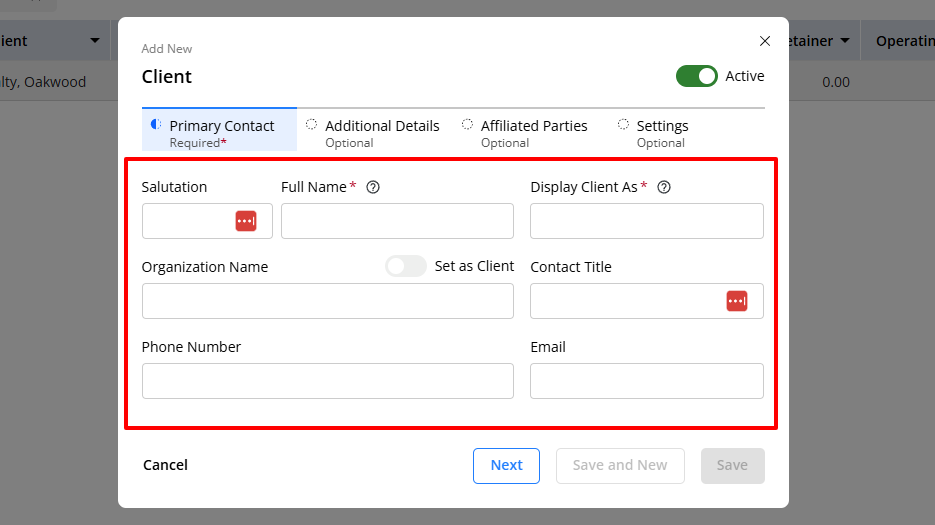
Now, its Contacts feature allows me to add clients by entering a salutation, full name, organization name, contact title, email, and phone number.
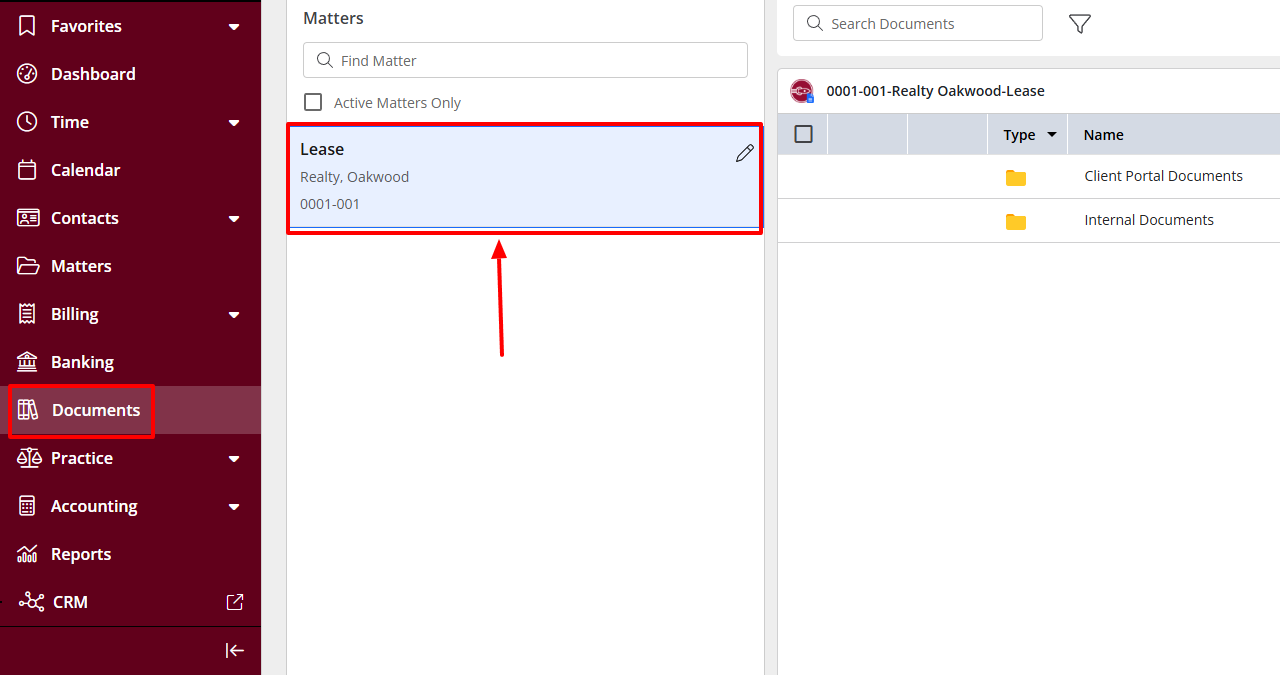
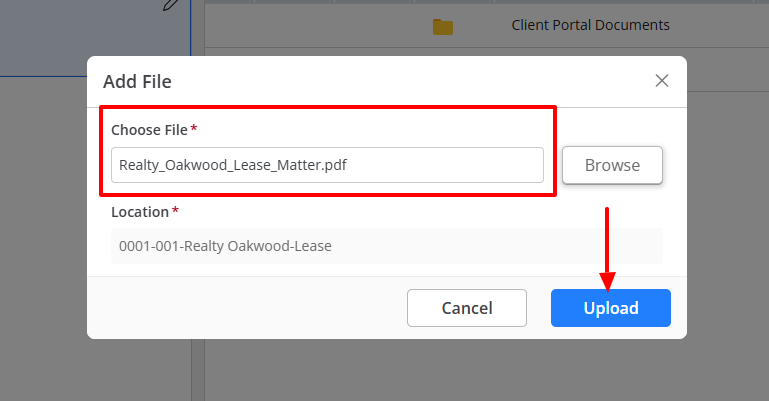
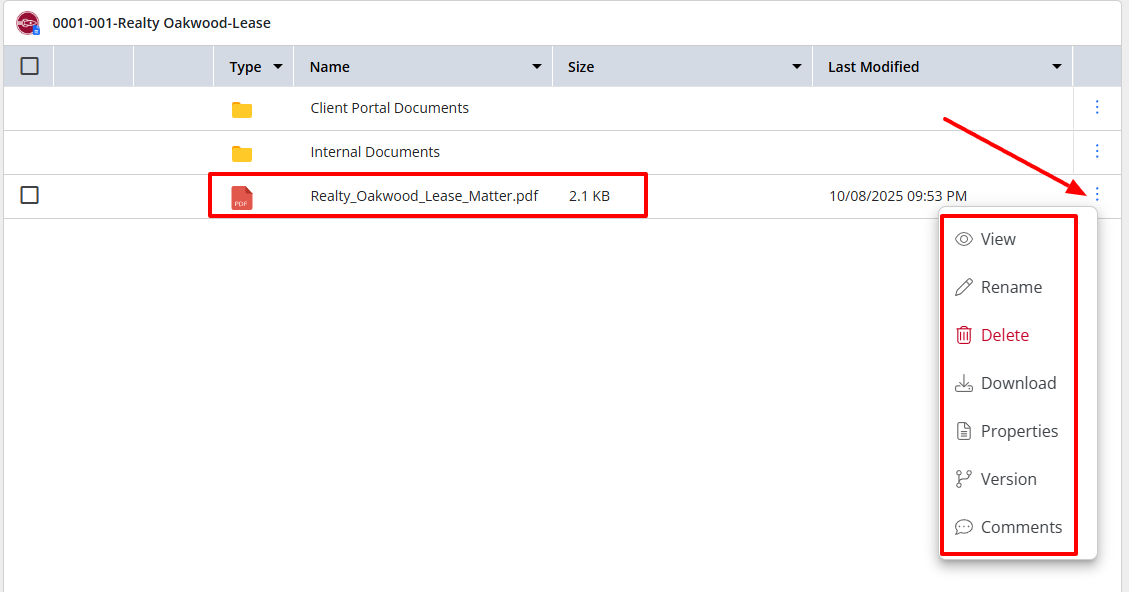
With the Documents feature, I can select my preferred matter, then upload a file or folder. The platform lets me view, rename, delete, or download the file. I can also add comments and see properties.
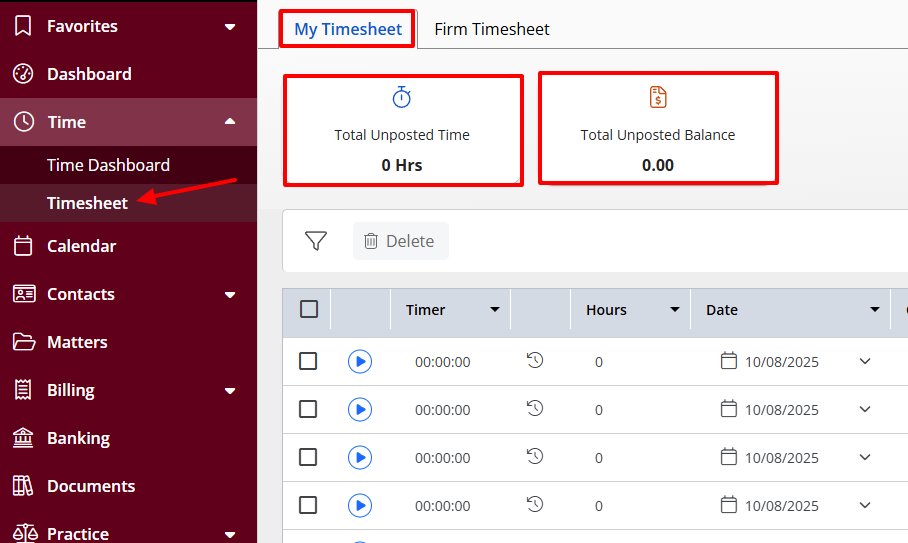
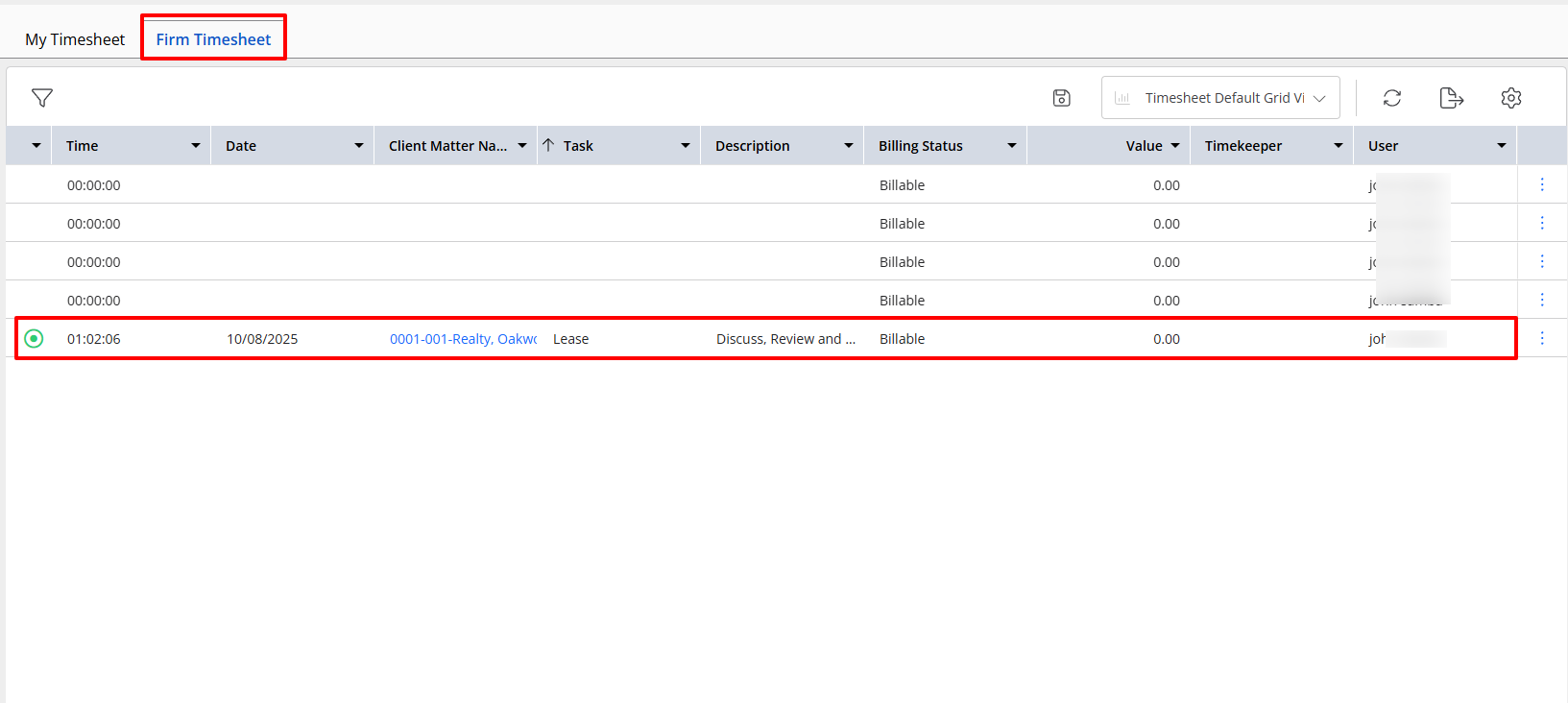
There is also the Time feature that shows my timesheet and the firm's timesheet. You can see the total unposted time and total unposted balance. I can also see the time I spend on a client matter and task. It also shows the billing status, value, timekeeper, and user.
This is the last tool we will review. We are going to quickly look at how to manage a legal project.
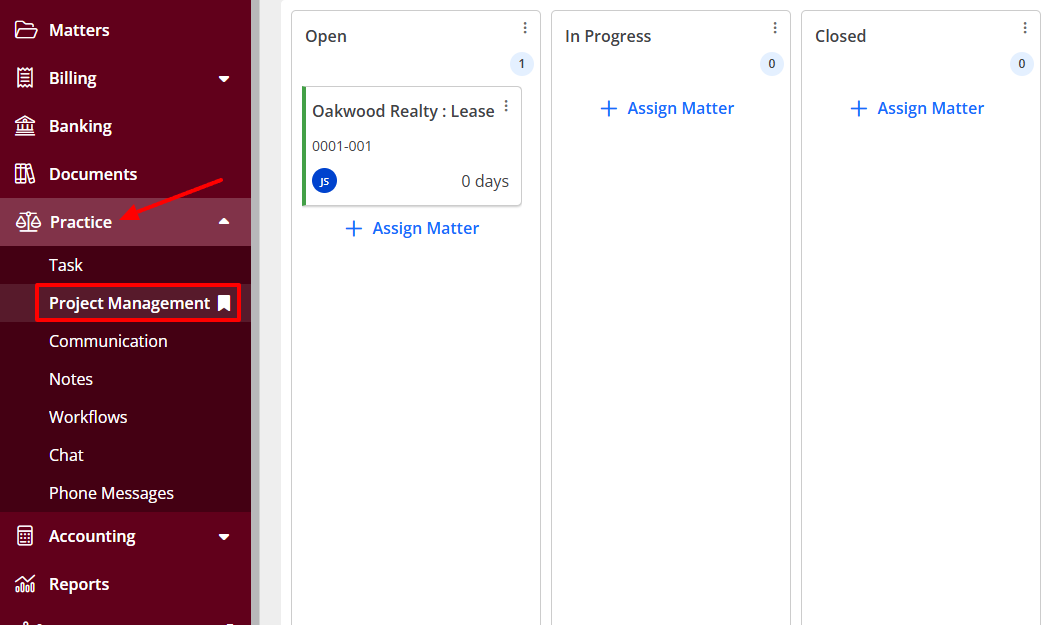
Under Practice, click "Project management".
Go to "Add New Board"
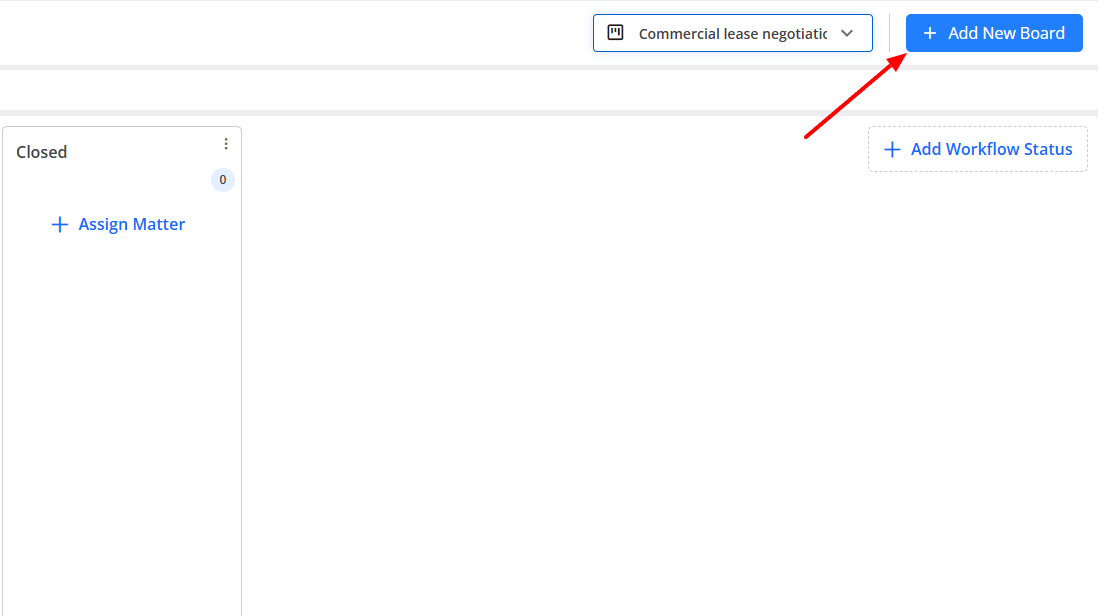
You will add a matter type title and description.
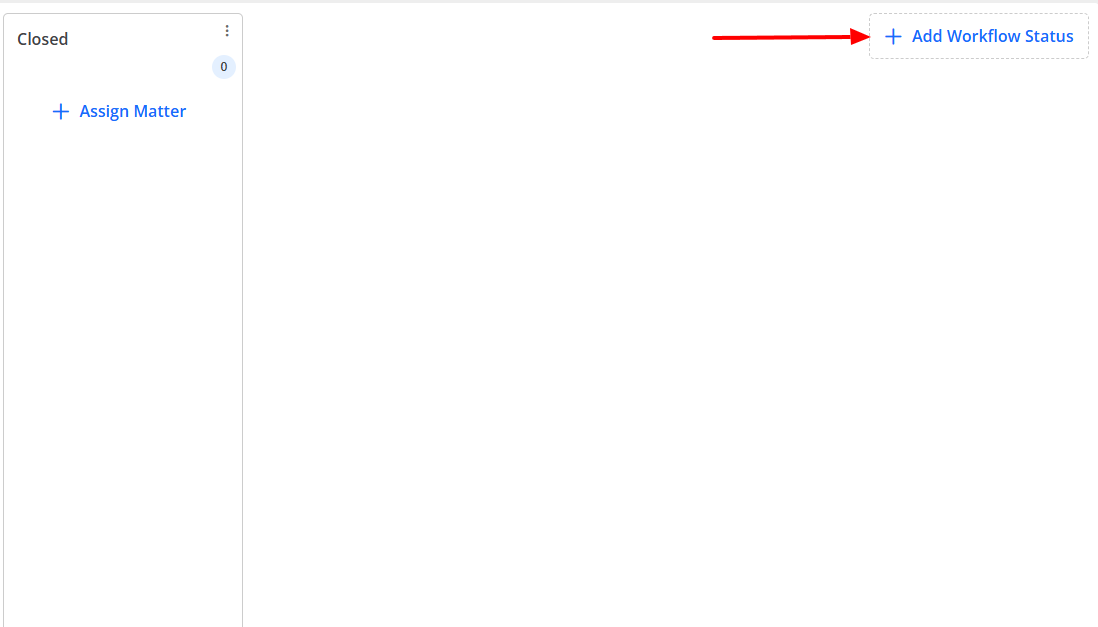
You can see all the different workflow statuses: Open, In progress, and Closed.
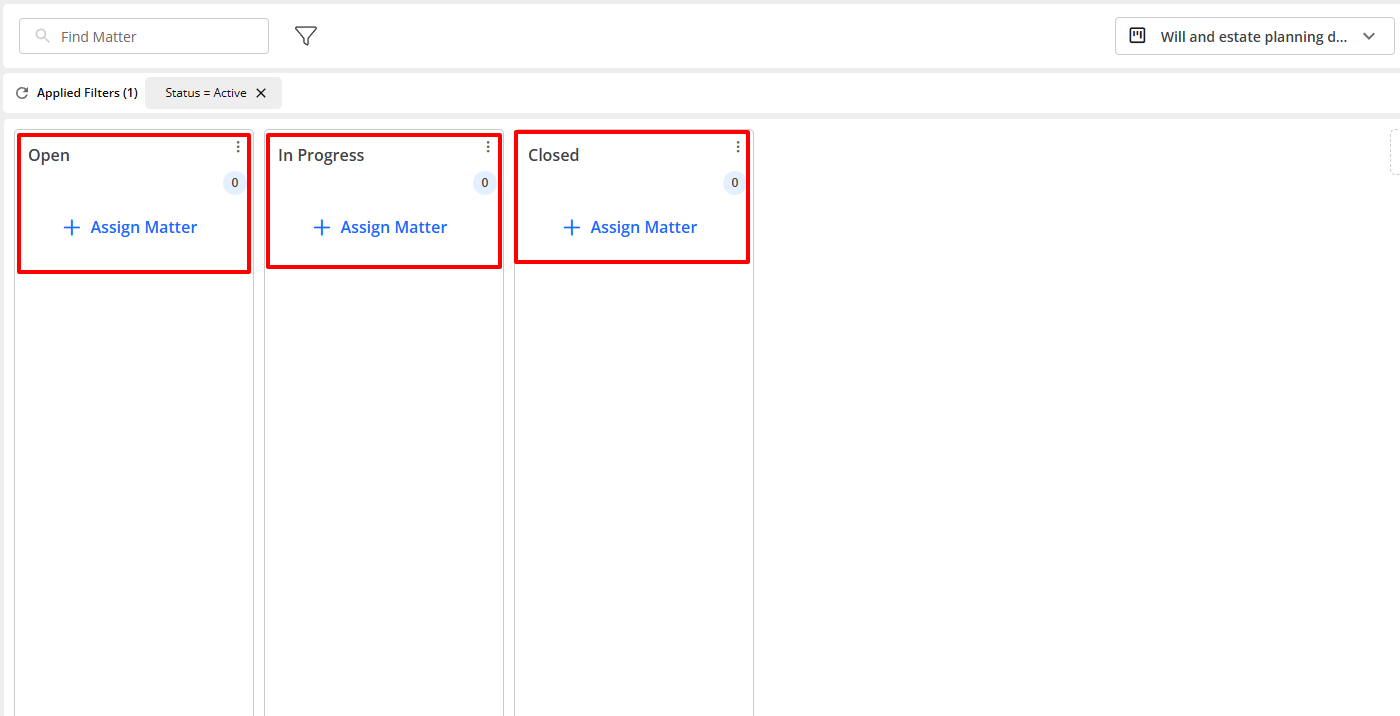
In case you want to add another one, simply click "Add Workflow Status".
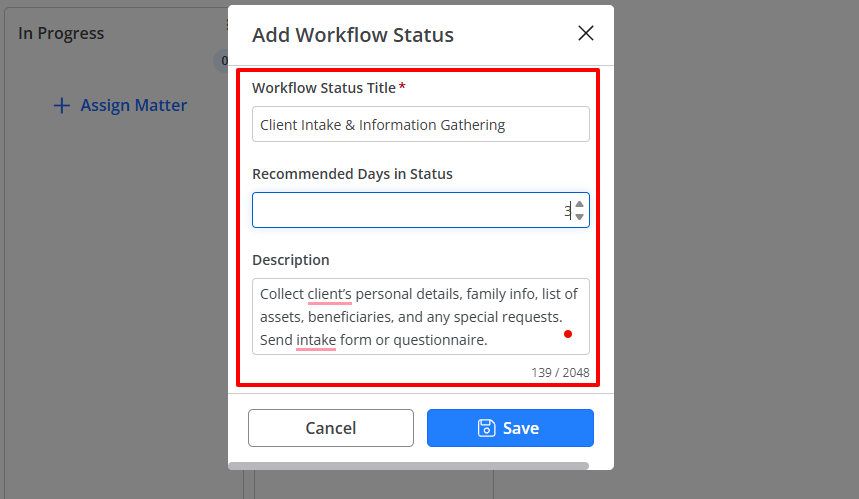
Enter the workflow status title, the recommended days in status, and a description.
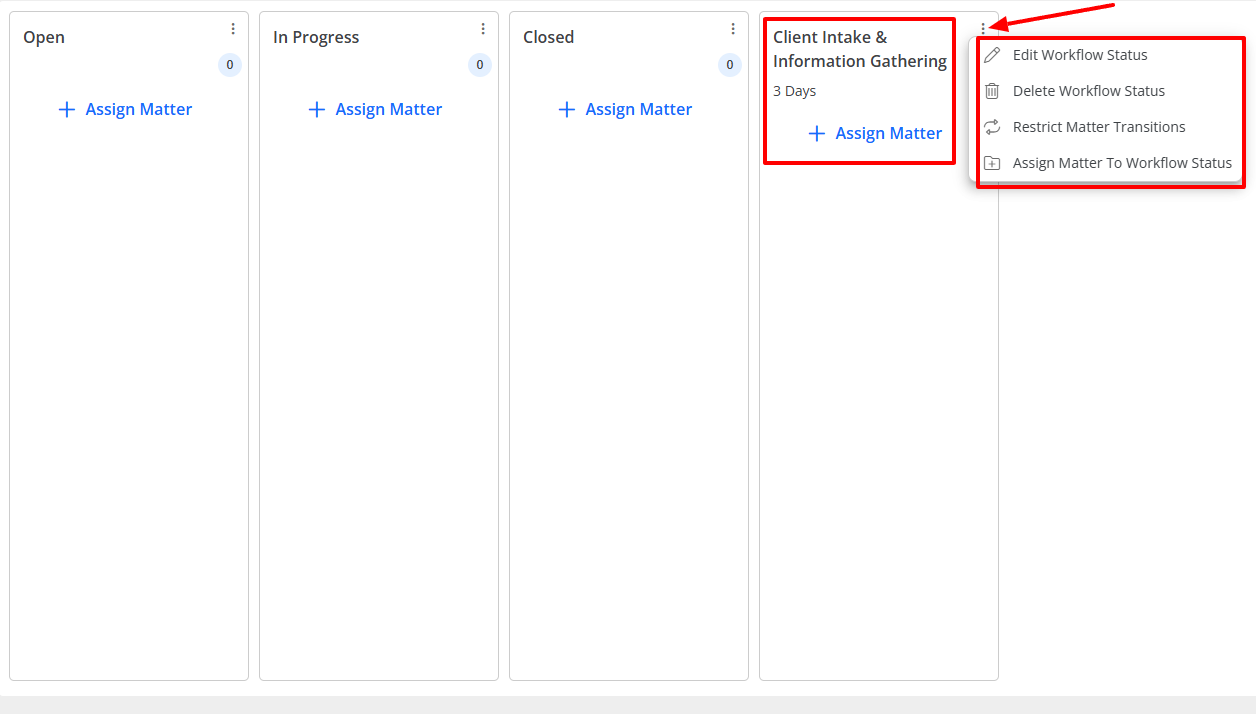
Your new workflow status is ready! You can edit it, delete it, restrict matter transitions, and assign matter to workflow status.
What I loved about Rocket Matter
1 . Documents
Lawyers or team members must all be on the same page when dealing with cases. They need to have access to the same level of information to avoid wasting time or making mistakes.
The Documents feature allows you to upload and classify your sensitive documents in the software.
After clicking "Documents" on the sidebar, select your preferred matter.
On the right side of the interface, go to "Add". You can choose a file or a folder.
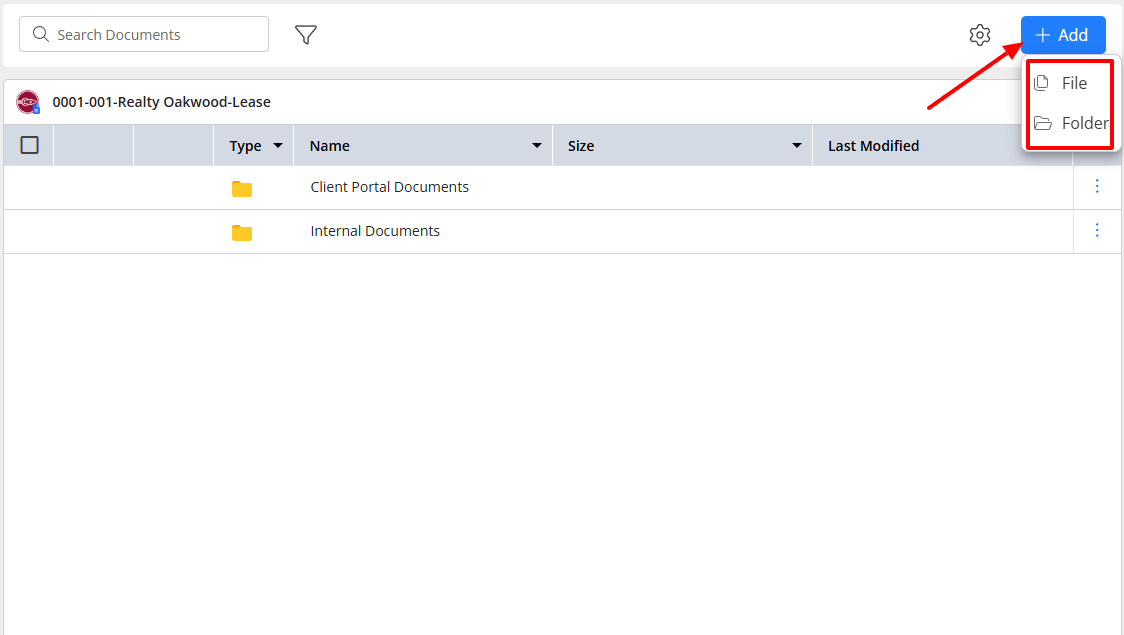
You will then upload the file.
That's it! You can view it, rename it, delete it, or download it. You can also add comments, see properties, and view the version.
2 . Timesheet
Both your firm and you must know the exact time you spend on client matters and tasks. It helps you track your performance and meet deadlines.
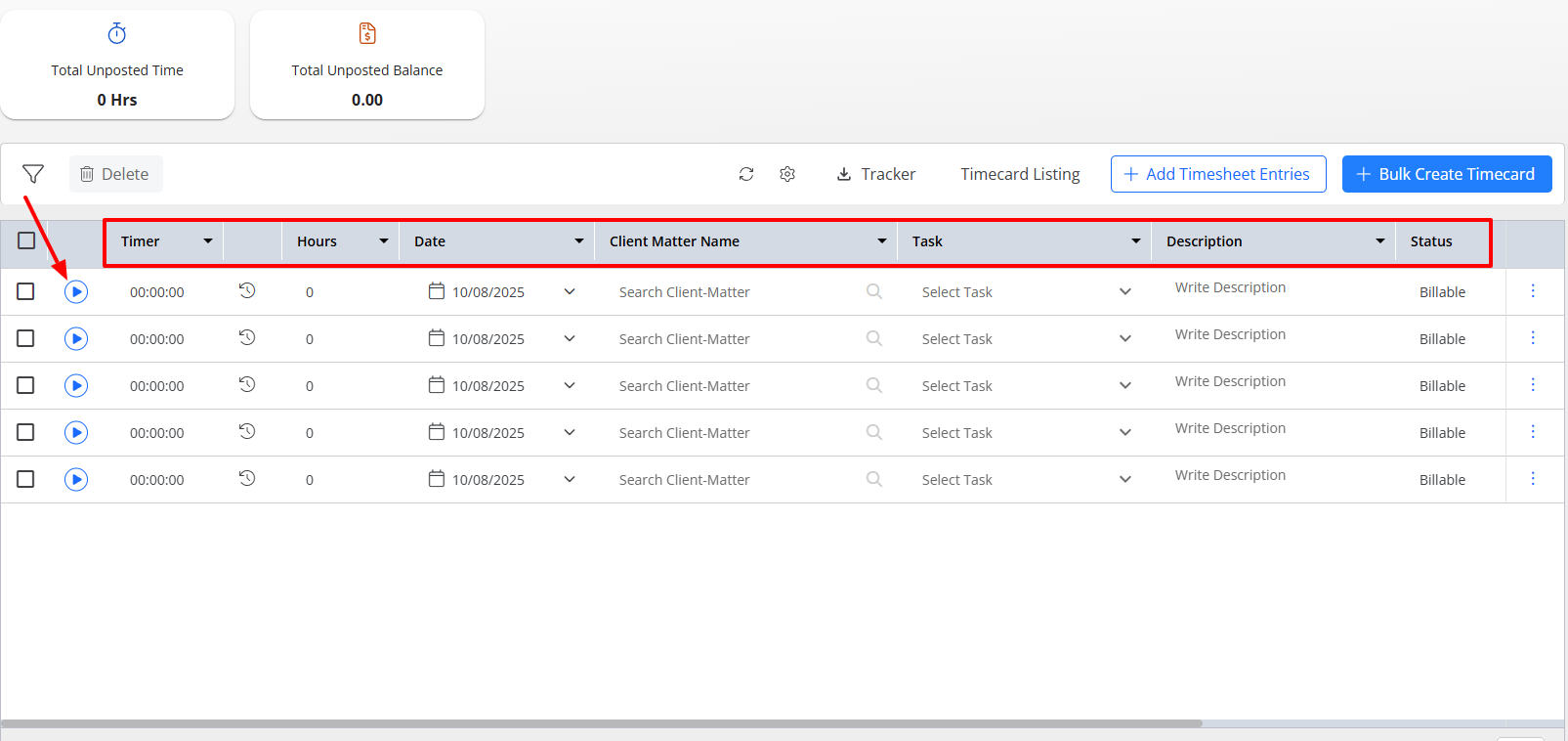
My Timesheet displays my total unposted time and total unposted balance.
I can set the timer, select a date, hour, client matter, and task. I can also write a description and choose a status.
The Firm timesheet also shows the time I spend on a client matter and task. It also shows the billing status, value, timekeeper, and user.
What I Loved vs What I Struggled With
| What I Loved | What I struggled with |
|---|---|
| ✅ Integrates with platforms such as QuickBooks. ✅ Your firm's employees can track time inside the tool. You can also view it from the dashboard. ✅ Integrates with tools like Outlook, QuickBooks Online, Dropbox, Google Calendar, and Zapier. ✅ Allows you to organize matters into clear stages like Open, In Progress, and Closed, making it easy to see your progress. ✅ Shows total billable hours, client matters, and firm-wide time entries in a single view. | ❌ Might require some time to understand some features, such as Project management and Workflows. |
Best for
- Small and mid-sized firms that want to manage legal projects and track their productivity.
Pricing
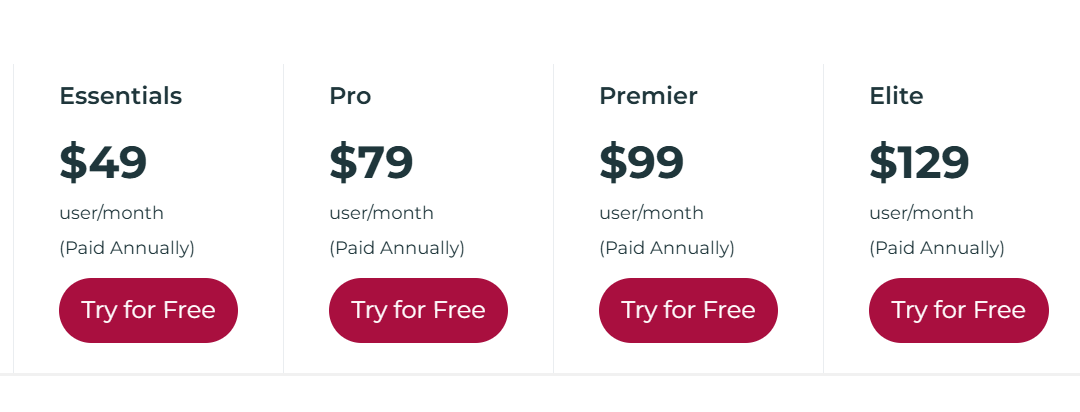
- Essentials: $49/user/month, billed annually
- Pro: $79/user/month, billed annually
- Premier: $99/user/month, billed annually
- Elite: $129/user/month, billed annually
Start your 14-day free trial and automate your scheduling today.
What is Law Practice Management Software?
Law practice management software is any digital platform that helps law firms and lawyers organize and run their daily operations more effectively. Such operations include scheduling, managing clients, tracking deadlines, and billing, among others.
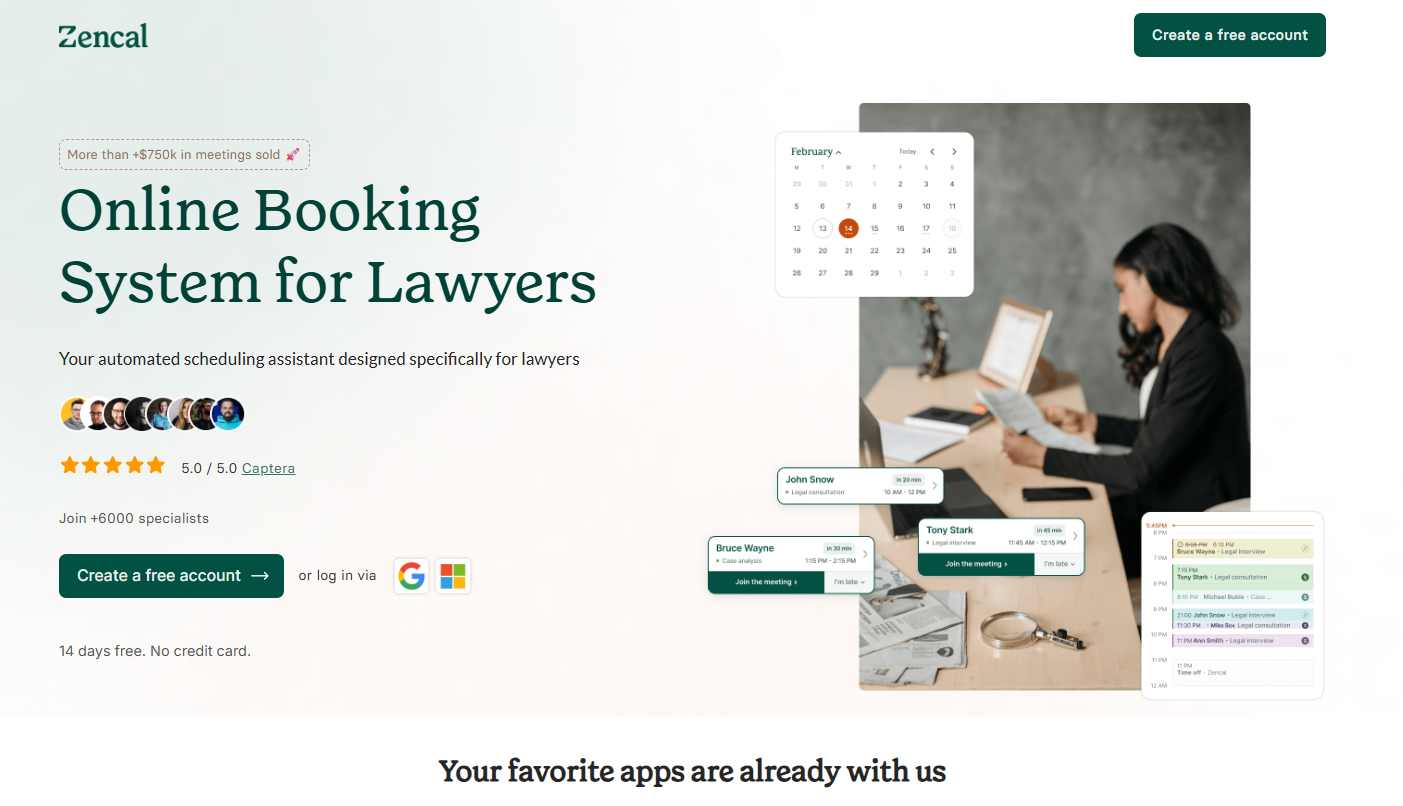
Let's take the tools I mentioned in this article, for example. With Zencal, you can create scheduling pages and see your schedule in your calendar.
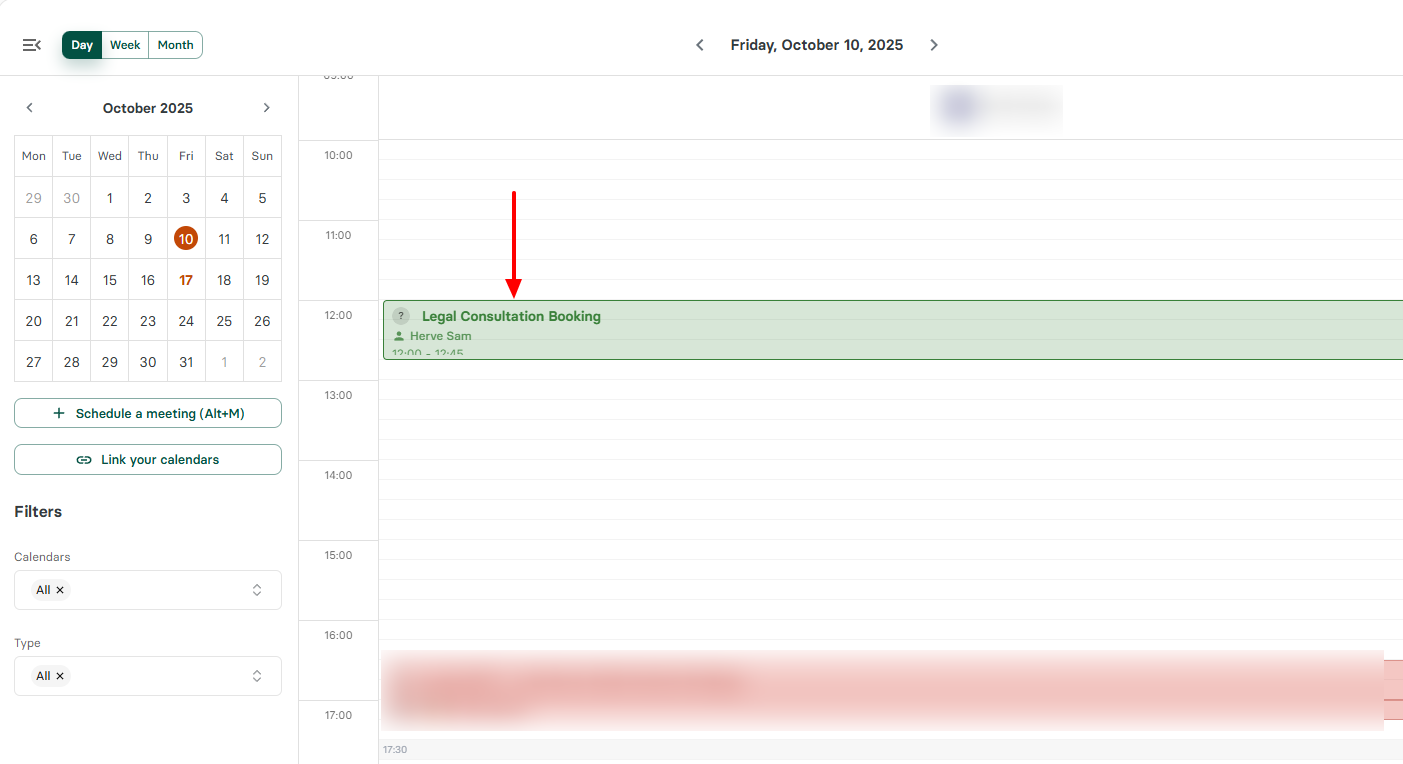
When I covered Practicepanther, I created a new client with their personal information.
And if you use Clio Manage, you can even create legal cases called matters.
Most of the time, as a lawyer, clients want to meet you: there are court dates to remember, documents to prepare, and bills to send. If you don't have any help, you will probably write down all these things in a notebook. And this can get messy over time.
And of course, these tools also work for small and large legal firms. You can add all your employees, see who's working on what, and what clients have paid.
If a lawyer is meeting a client outside, you can see it inside the tool. The good thing is you don't need to enter this information yourself. Your secretary can take care of it.
Start your 14-day free trial and automate your scheduling today.
How Much Does Law Practice Management Software Cost?
Law practice management software typically costs $30 to $100 per user, per month. It depends on the features and number of users.
Entry-level plans for solo practitioners often start around $39-$49 per user per month. Large firms that want enterprise-level tools can spend $100+ per user.
Many factors can influence its cost, among them:
- The size of the firm: A large firm would usually pay more because it needs more advanced tools as compared to solo practitioners.
- The features you need: Most of the time, all features are divided and placed in different tiers. You may need a feature that is on a higher-priced plan.
- Number of users: For most software, pricing is typically per user. This means that the more team members you add, the more the cost increases.
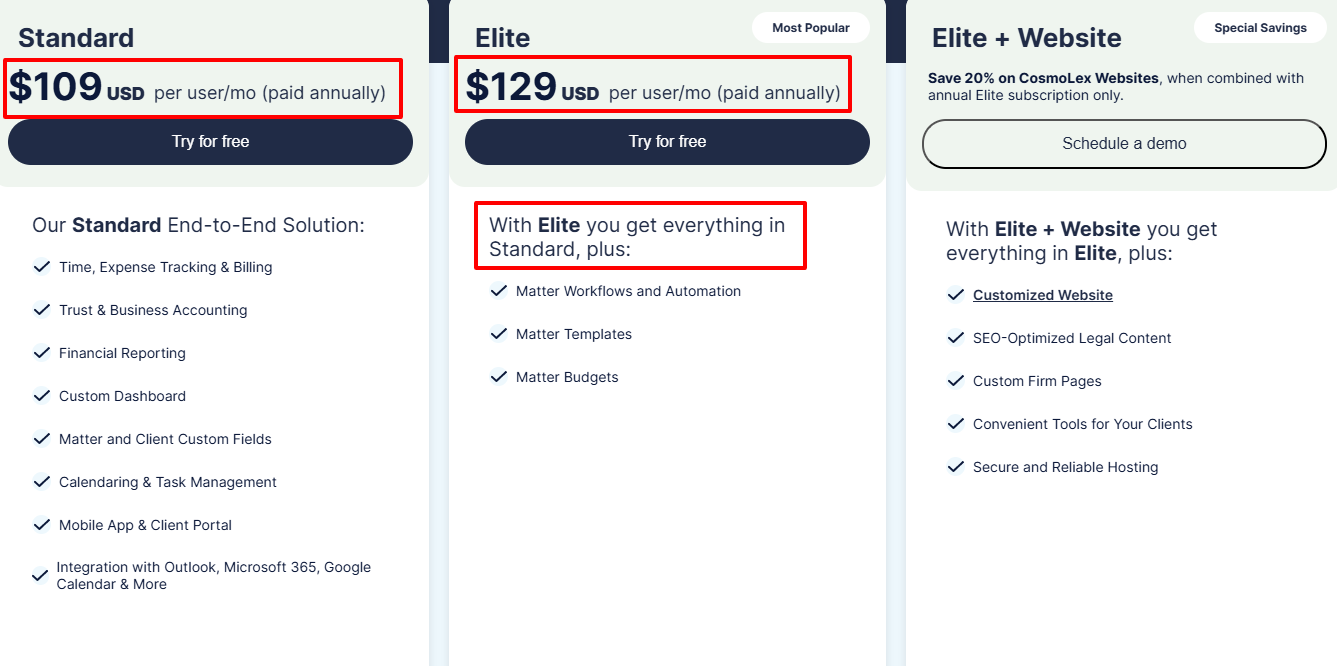
Cosmolex, for example, costs $109 per user, per month on its Standard tier. This means 10 users will cost $1090/month.
The next plan, Elite, costs $129 per user, per month, and gives you access to everything in the Standard tier, plus a few additional features.
The additional $20 is mostly due to the increase in features.
There are other factors we can still consider to determine the cost, like add-ons and integrations. The cost of a law practice management tool can go up as you integrate with other third-party apps.
Start your 14-day free trial and automate your scheduling today.
How to Choose the Right Law Practice Management Software
To choose the right law practice management software, you must consider the following:
- Ease of use
- Features you actually need
- Pricing and scalability
- Integrations with other tools
Let's discuss each one in detail.
1. Ease of use
As a law firm, you are already dealing with complexity daily: some cases are complex, and clients can be difficult. You don't want to add the complexity of the software you choose.
I came across research that says that 50% of law firms that purchase a SaaS product prioritize ease of use. And you are like one of them if you are reading this article.

What you want is a tool that your team won't struggle with, because if they do, then it won't be of much help.
Ease of use is not just about that learning curve. It involves many other aspects, such as:
- Simple navigation
- Clean design
- Quick task completion
- And client-friendly access
The above list is what I actually mean by ease of use.
You should be able to find easily what you're looking for; the platform's layout must not be confusing and too crowded, some common actions should only require a few clicks, and clients shouldn't get lost when accessing a portal.
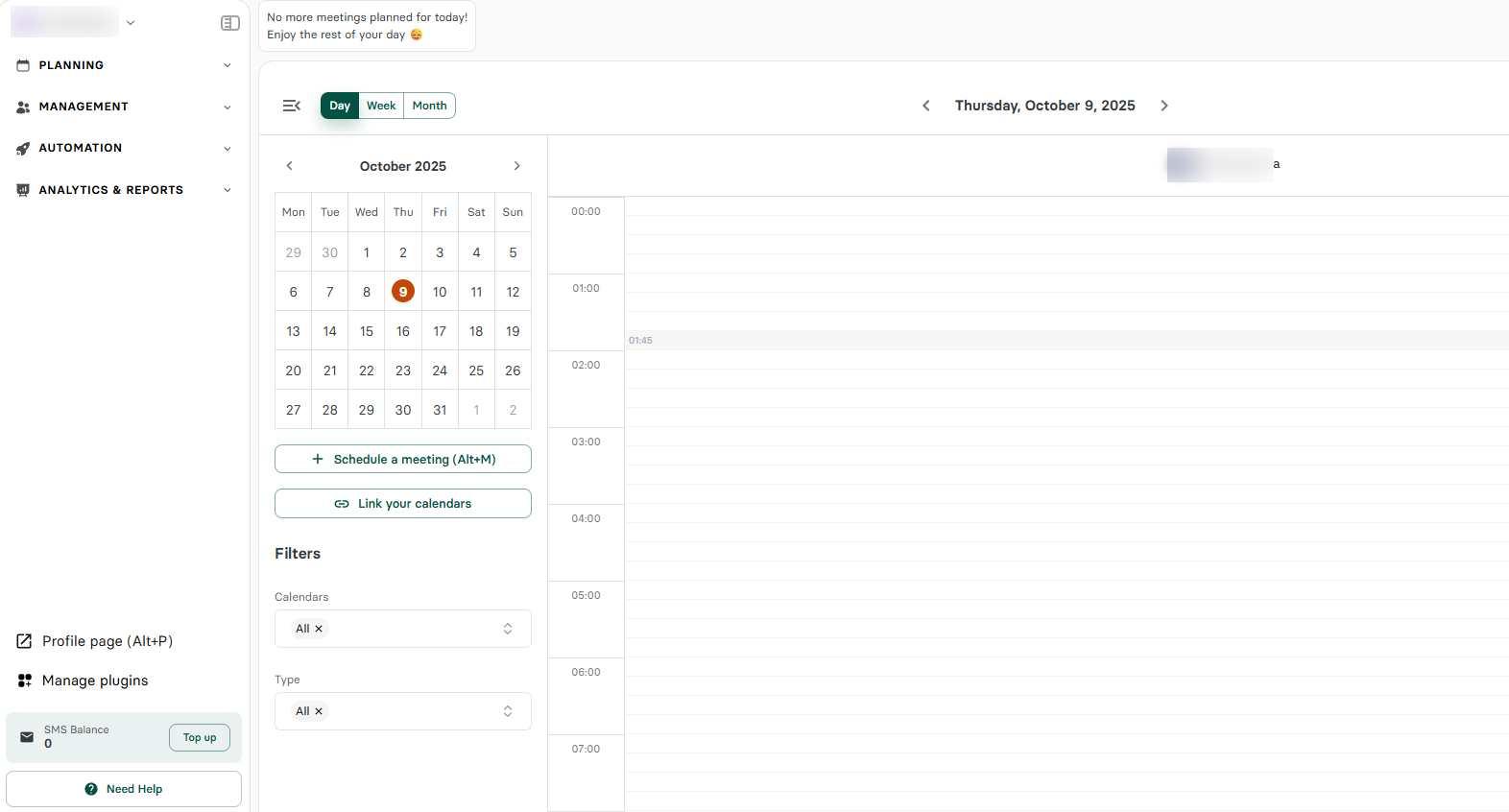
I can still go on, but you get the point now.
Let's look at Damian Sawicki, a renowned lawyer who uses our platform Zencal to manage his operations. He pointed out that the platform helps them save time by allowing clients and colleagues to book appointments directly.

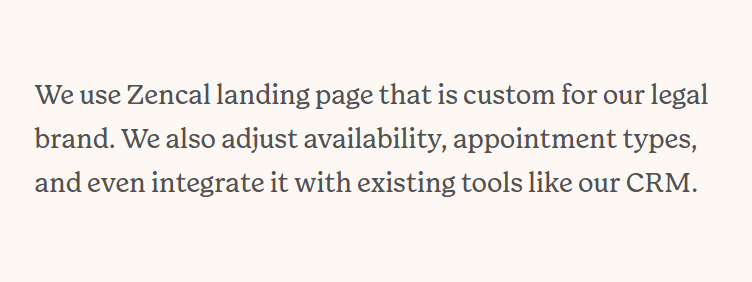
Regarding customization, they use Zencal landing page that is custom for their legal brand. In his words: "We also adjust availability, appointment types, and even integrate it with existing tools like our CRM."
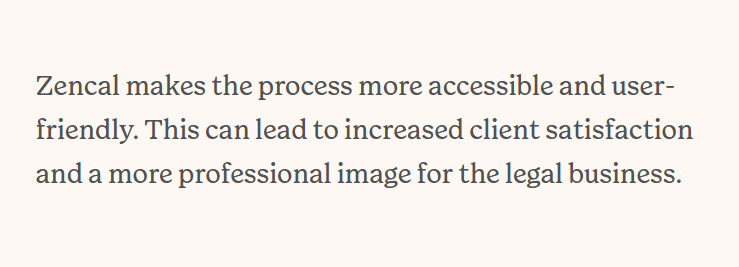
And from the client's perspective, which is one of the most important factors to consider, this is what Damian had to say: "Zencal makes the process more accessible and user-friendly. This can lead to increased client satisfaction and a more professional image for the legal business."
He ended with this conclusion: "For legal businesses with multiple parties involved, like notary publics, clients, counsels, Zencal helps us coordinate schedules and ensure everyone is on the same page."

If the platform you choose can't offer you the same experience it offered Damian in terms of ease of use, then you should probably think twice.
2. Features You Actually Need
Here, we are not discussing features. We are dealing with features you actually need. The reason is that every software comes with numerous features that are for specific needs.
If you purchase a software and never use 50% of its features, then you should agree with me that you made a bad investment. One that will cost you in the long term.
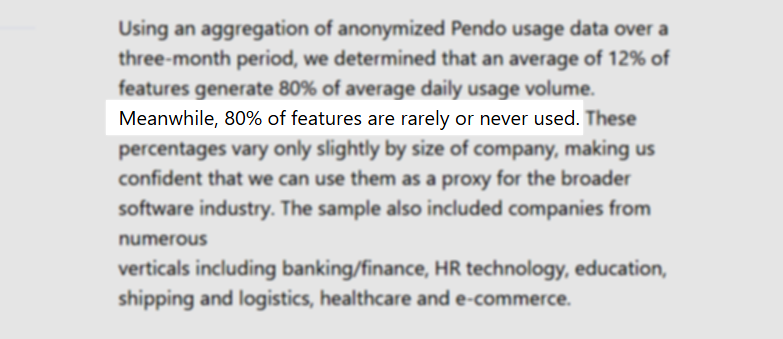
This point is very important, especially when research shows that 80% of features in the average software are rarely or never used.
To avoid falling into this trap and wasting your money, you need to identify non-negotiable features. The ones you ultimately can't do without.
I'd say, for example, a small law firm or solo lawyer doesn't need an endless list of advanced features such as enterprise analytics and complex KPI engines, or heavy role and permission systems.
What they need is a:
- Simple scheduling system
- Client management
- Billing
- Calendar
- Client portal
- Payment
- Reports & analytics
This list is not exhaustive, but it can do the job pretty well.
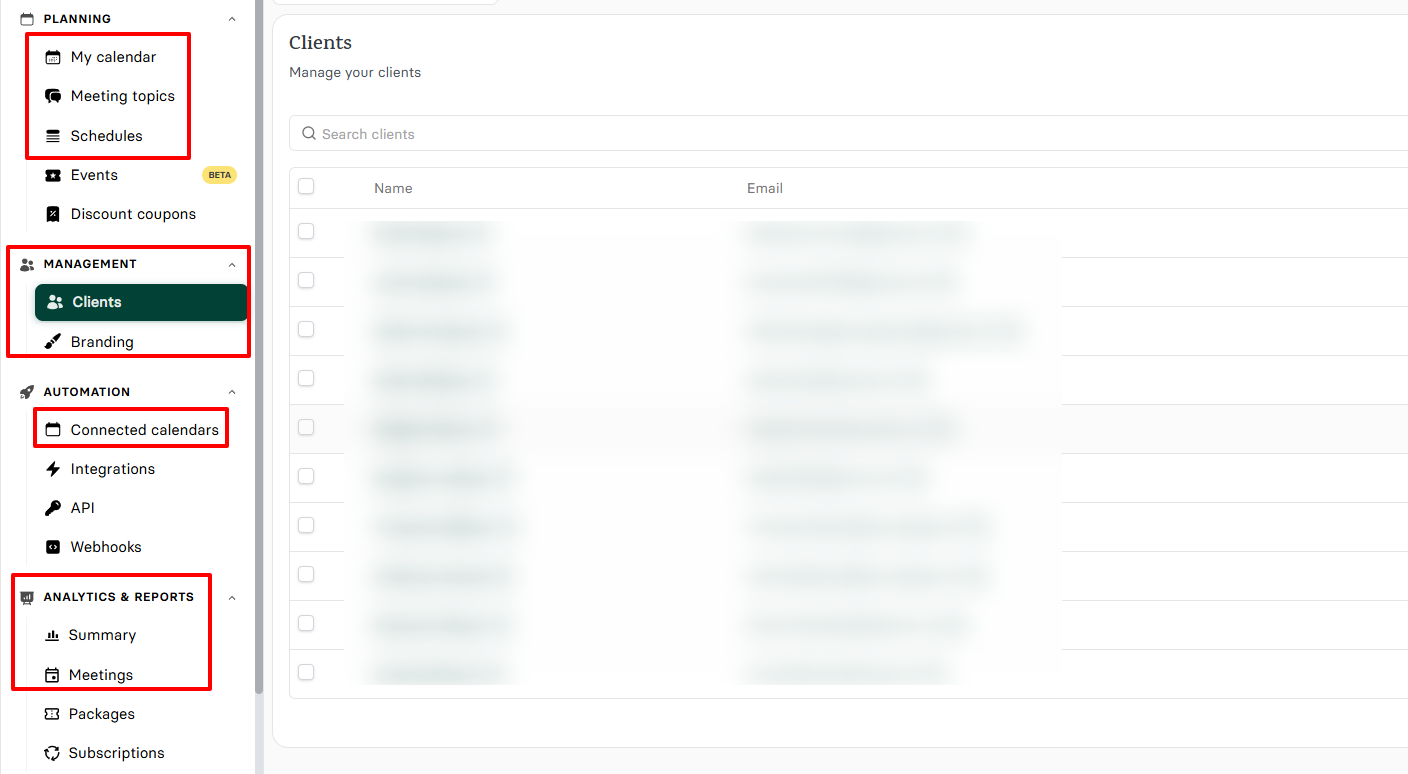
To go a little bit deeper, let's take the client management feature as an example.
When a recurring client reaches out to you, you must easily be able to access their basic information, such as name, email, and phone number.
It'll also be an advantage to know in advance about your upcoming meeting with them and view statistics on the number of scheduled and paid meetings, with the exact amount spent.
But let's say you're a lawyer who receives ten consultation requests a week.You take your time to prepare for each meeting but half never show up. That's wasted time.
A good law practice management software should let you make clients pay during the booking process. This way, only serious clients will book.
So, it's really essential to check out the features you actually need before choosing software.
3. Pricing and Scalability
Consider pricing and scalability to choose the right law practice management software.
As I mentioned earlier, your firm size, features you need, number of users, add-ons, and integrations can all influence the cost of your software.
However, prices differ from one software to another, and each offers different tiers.
For example, Clio Manage starts from $49 per user, per month to $149 per user, per month. With the basic plan, you can bill clients, track time, and manage documents.
LeanLaw's Core plan costs $55 per user, per month. It allows you to time tracking tools, receive payments, and access the dashboard.
Interestingly, Zencal's basic plan only costs $4 monthly when billed annually. And you can already create unlimited scheduling legal appointments and manage clients. Our Team tier is $20 monthly, billed annually. This is perfect if you already have a small team with you in your law firm.
My recommendation is to choose a platform that aligns with your present budget and that you can grow with.
4. Integrations With Other Tools
The very last factor to consider when choosing your law practice management software is checking integrations with other tools.
Your software should connect with other tools so you won't waste time switching between apps for every operation you may want to run.
Just picture this: you use one app to manage your clients, then you switch to another platform again to send them invoices. And when it's time to receive a payment, you must log into a different platform to collect it.
The process is just too exhausting.
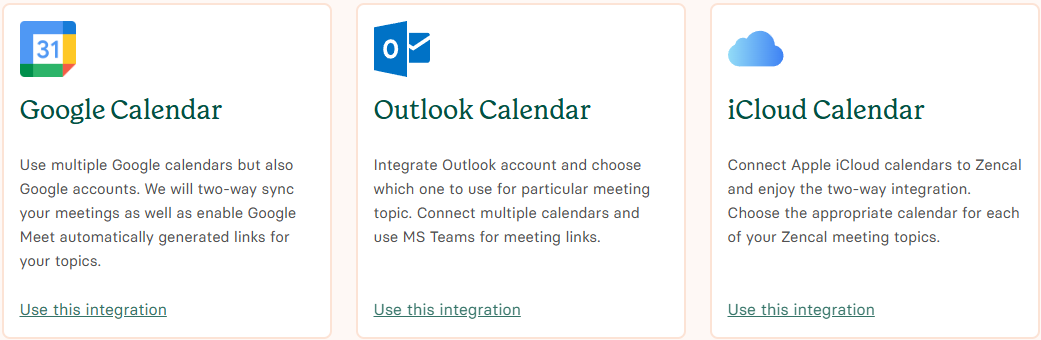
However, with a good law practice management software, you can integrate with calendars like Google Calendar, Outlook, and iCloud.
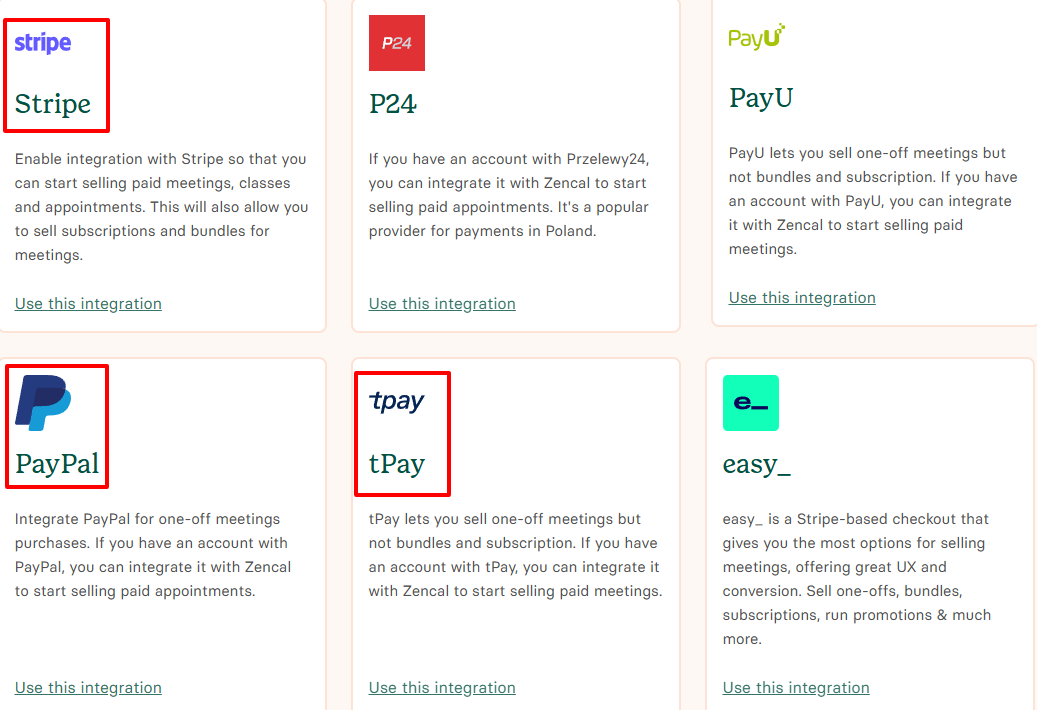
Clients must be able to pay online securely with payment processors like Stripe, PayPal, or tpay.
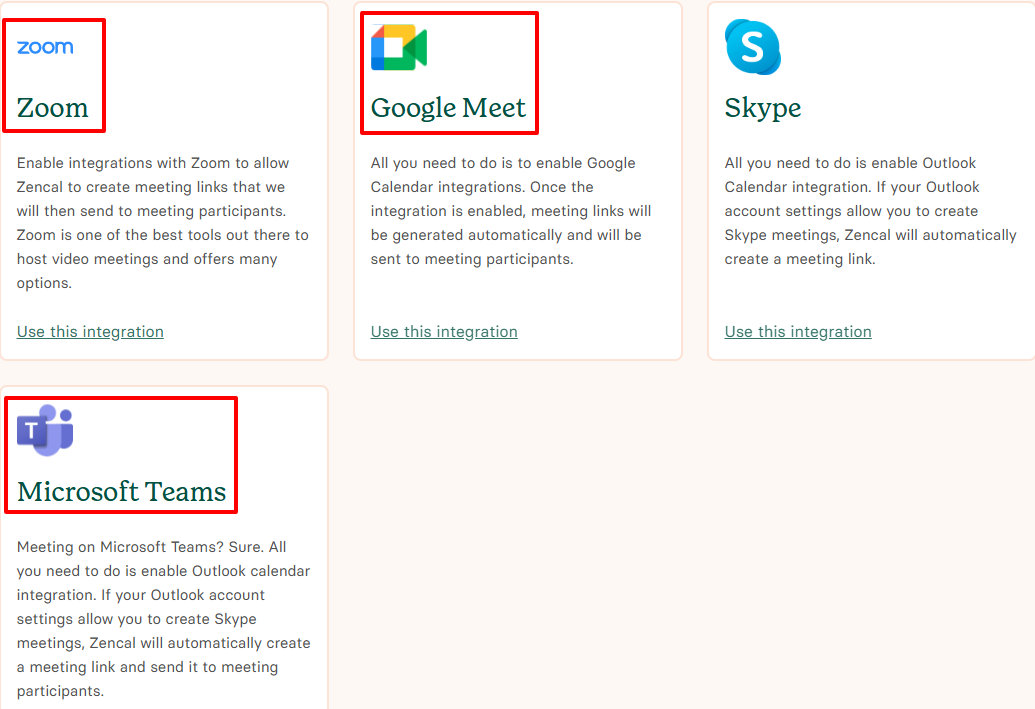
Your software must also integrate with video conferencing apps like Zoom, Microsoft Teams, and Google Meet. This way, you can meet with clients and colleagues remotely.
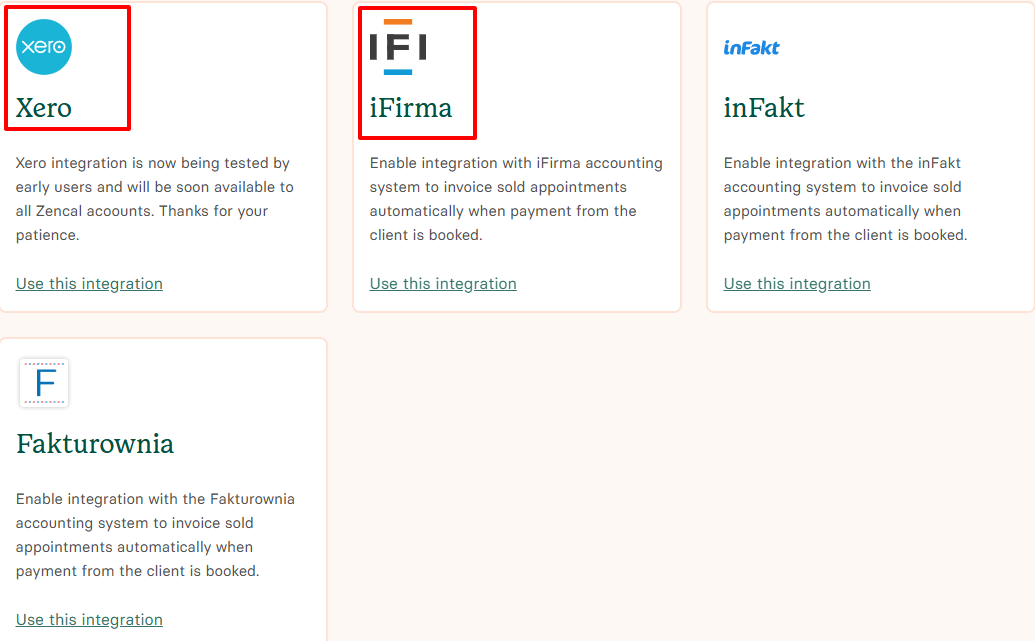
Law firms are always sending invoices. For that reason, your platform must connect with accounting and billing software like Xero or iFirma.
The point is, you can't do without integrations. Therefore, make sure the software you choose allows you to connect with your most important apps.
Start your 14-day free trial and automate your scheduling today.
Choose the Best Law Practice Management Software
All too soon! We've got to the end of our journey.
In this article, I shared with you my six best law practice management software, starting from Clio Manage, then Zencal, LeanLaw, Practicepather, Cosmolex, and Rocket Matter.
I reviewed their most interesting features and discussed what I loved vs what I did not love. I also gave you a guide on how to choose the software that best suits your needs.
The time has come for you to choose your best law practice management software.
Start your 14-day free trial and automate your scheduling today.
FAQ
Q: What are the best law practice management software?
Among the best law practice management software, we can count Zencal, Clio Manage, LeanLaw, and Practicepather.
Q: What law practice management software is best for scheduling Legal appointments?
Zencal is the law management practice software best for scheduling and legal appointments
Q: Which law practice management software is best for large law firms?
For large law firms, the best law practice management software is Practicepanther.
Q: Can law practice management software handle payments and billing?
Yes, they can handle payments and billing thanks to integrations with apps like Stripe, Xero, and QuickBooks
Q: Is there free law practice management software available?
Most law practice management software such as Zencal, Clio Manage, or PracticePanther, offer free trial versions.
Q: How do law practice management software manage security and privacy?
Law practice management software uses data encryption, secure cloud storage, user permissions, and multi-factor authentication to manage security and privacy.