6 Best Free Salon Booking Systems in 2026!
If you are a salon owner or you work as a beauty professional, one thing you want to do is give your clients the best service. But reaching that goal every time may not always be easy.
Especially when you're managing everything manually: clients, calls, bookings, staff, and payments. Perhaps you've already heard of salon booking systems, but what's holding you back is how expensive they are.
Now, this is a real problem. Salon owners and freelancers sometimes just need an easy, affordable booking system to manage their appointments.
In a recent survey we did, we noticed that our clients who switched from other platforms to Zencal, shared similar reasons. They wanted a simple booking system that would not break their bank at all.
If this also sounds like you, then keep reading!
I will share with you the best free salon booking systems available right now, and will only focus on what each free plan offers. This way, you can choose the one to start with or the one that fits your current business stage.
Comparison: Best Salon Booking Systems
| Salon Booking System | Features | Ease of use | Personal rating | Starting price | Best for |
|---|---|---|---|---|---|
| Zencal |
| Very easy | 4.5/5 stars | Free | Small salon owners and beauty professionals looking for an easy solution to manage appointments and clients. |
| Simplybook.me |
| Moderate | 4/5 stars | Free | Medium-sized salons with high booking volume seeking a tool to create an advanced booking website. |
| Koalendar |
| Easy | 3.5/5 stars | Free | Freelancers and solo beauty professionals seeking to create a booking page and track their bookings. |
| Square Appointments |
| Easy | 4/5 stars | Free | Medium salons looking for software to handle multiple locations and communication with clients. |
| Setmore |
| Easy | 4/5 stars | Free | Freelancers and solo beauty professionals seeking to create appointments with clients and receive payments. |
| Appointy |
| Moderate | 4/5 stars | Free | Medium and large multi-location salons seeking software to manage multiple team members and track their performance. |
Start your 14-day free trial and automate your scheduling today.
7 Best Free Salon Booking Systems
1. Zencal
| Personal rating: 4.5/5 stars |
|---|
| One of my favorite things about Zencal is how easy it is to set up booking pages. It's also simple to set payment and availability options so you never double-book or miss a client. |
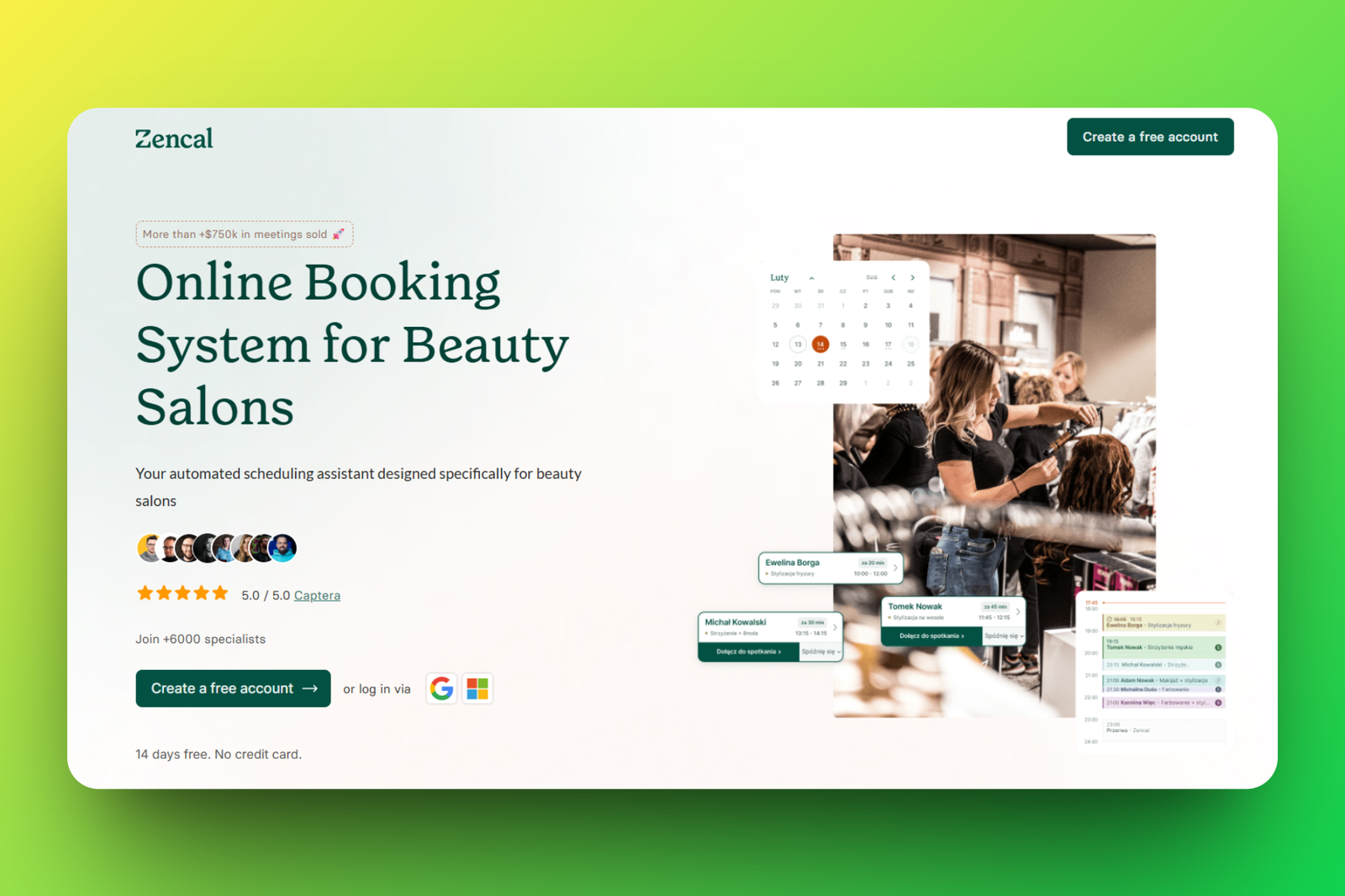
The first best free salon booking system is Zencal.
I highly recommend it to beauty professionals and small salon owners who want a simple, easy, and affordable booking system to manage their appointments.
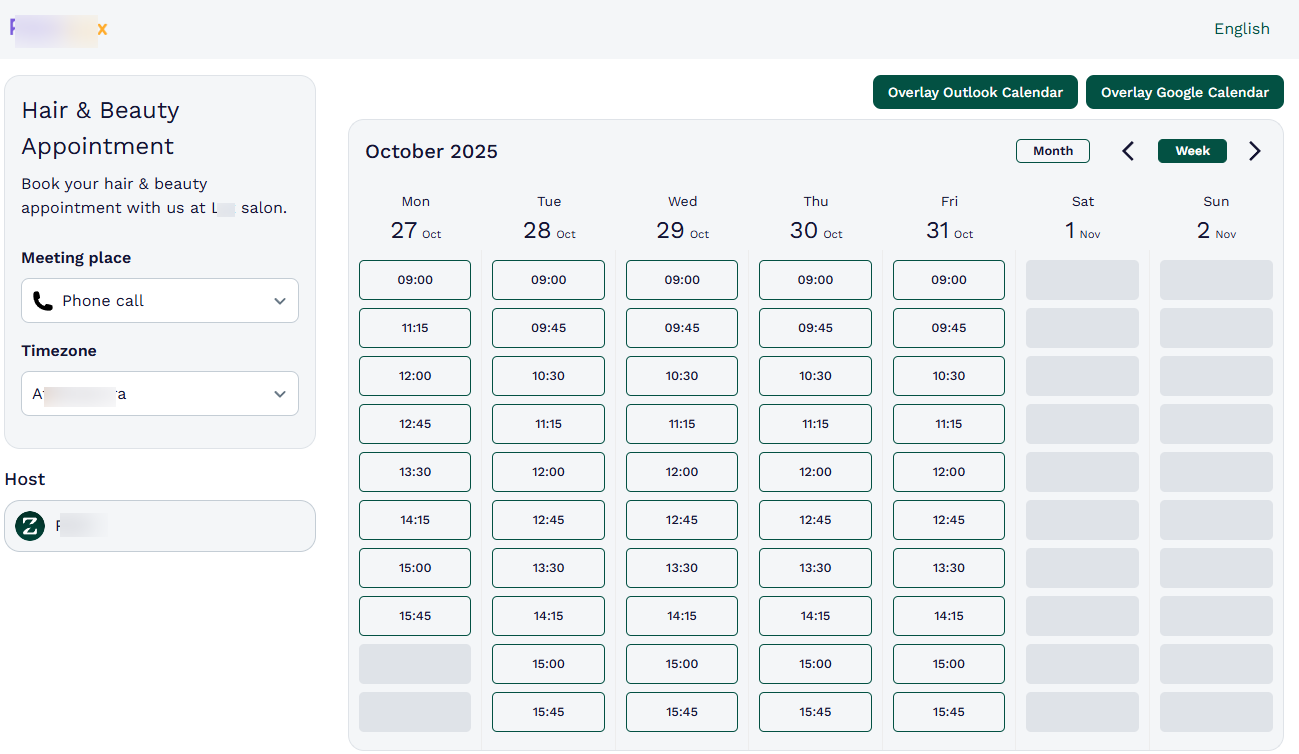
Anytime you want to create a booking page, I guarantee you won't spend 2 minutes. Simply name the booking page, add a clear description of what it is all about, then specify the duration and location.
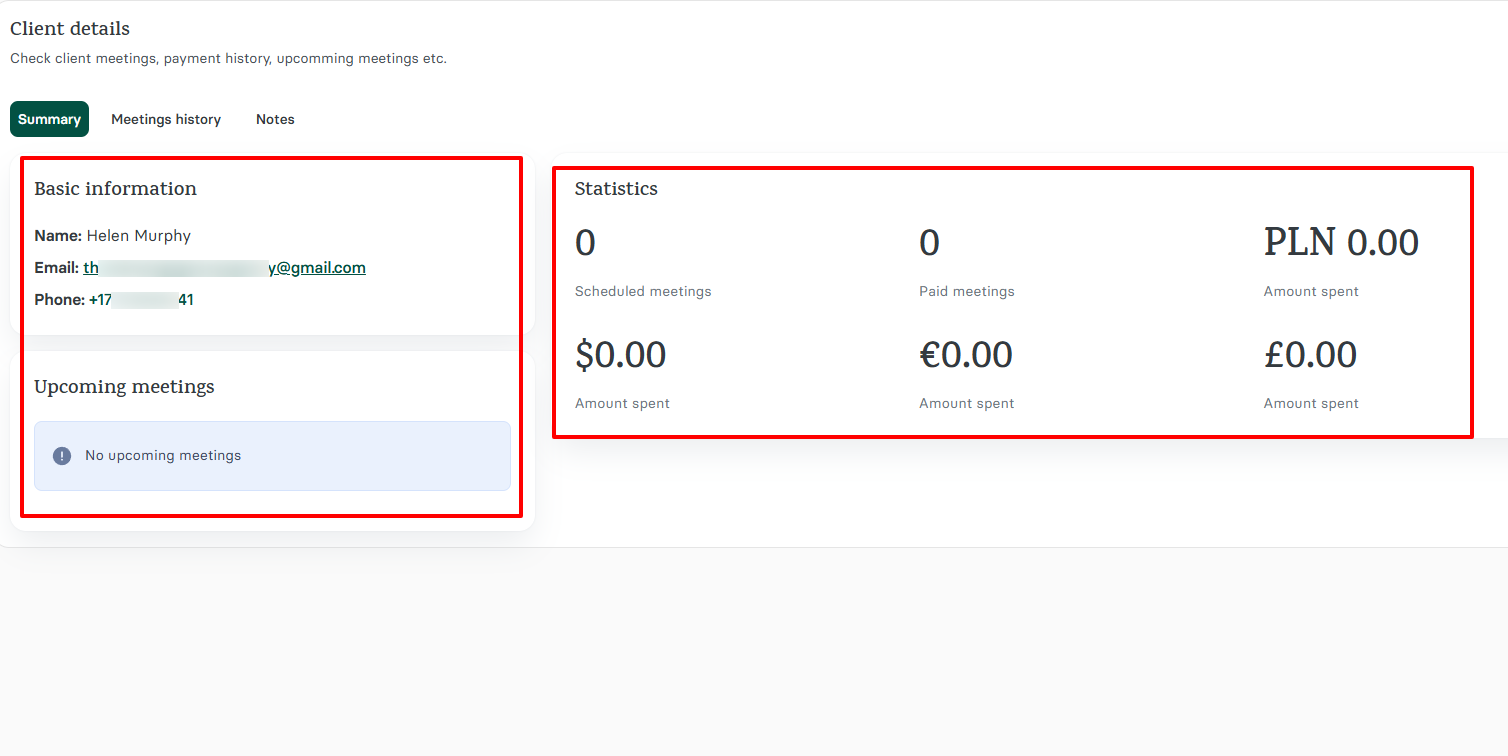
What is great about the client's data is that you can see their basic info and their past and upcoming sessions with you.
Now, if they pay for some of these sessions, you will see the amount they spend in dollars ($), euros (€), and pounds sterling (£).
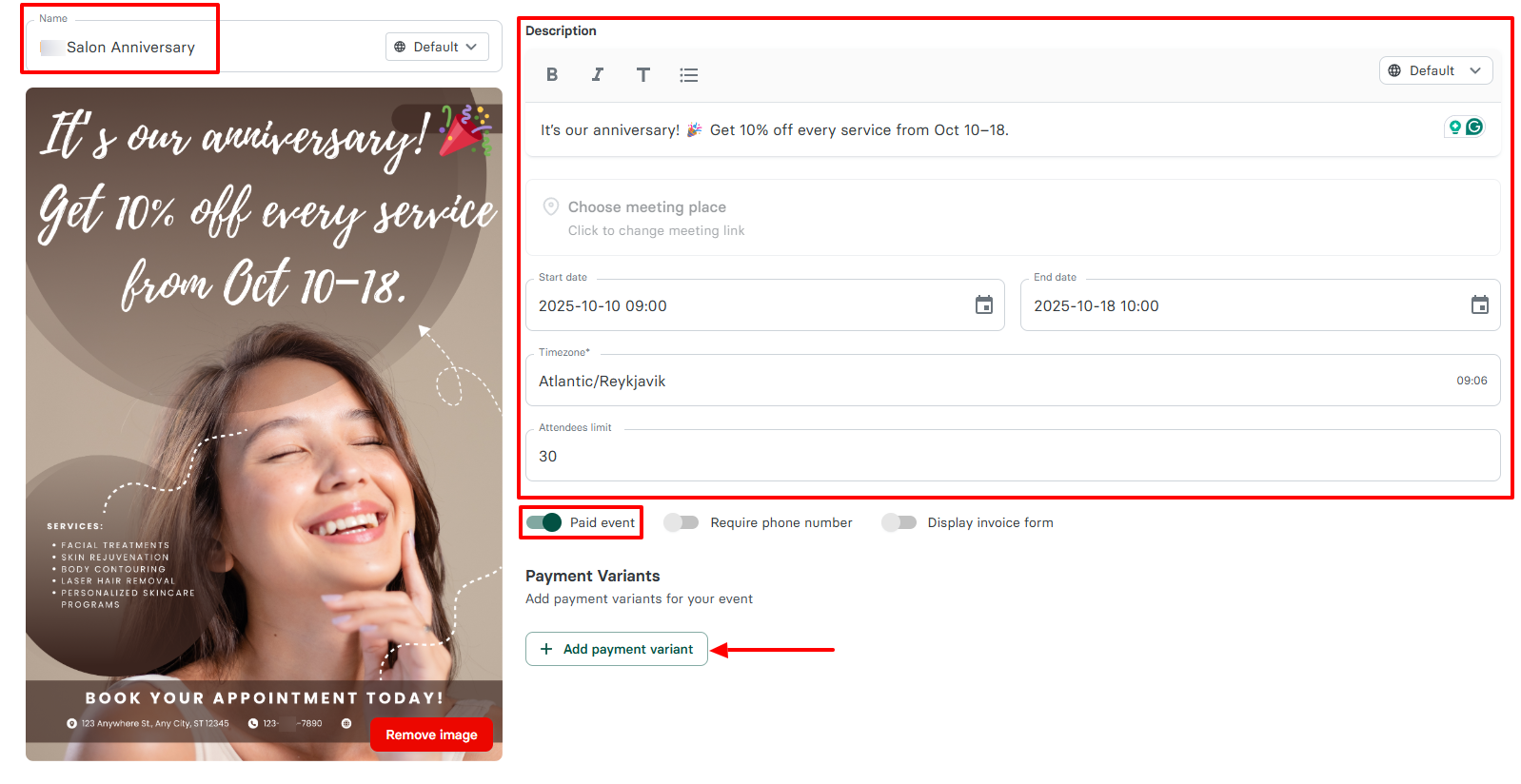
We wanted to allow salon owners and beauty professionals to create their own events and customize them however they want.
If you create one, simply name the event, upload the event image, add a description, and attendees limit. You can also require payment and add payment variants.
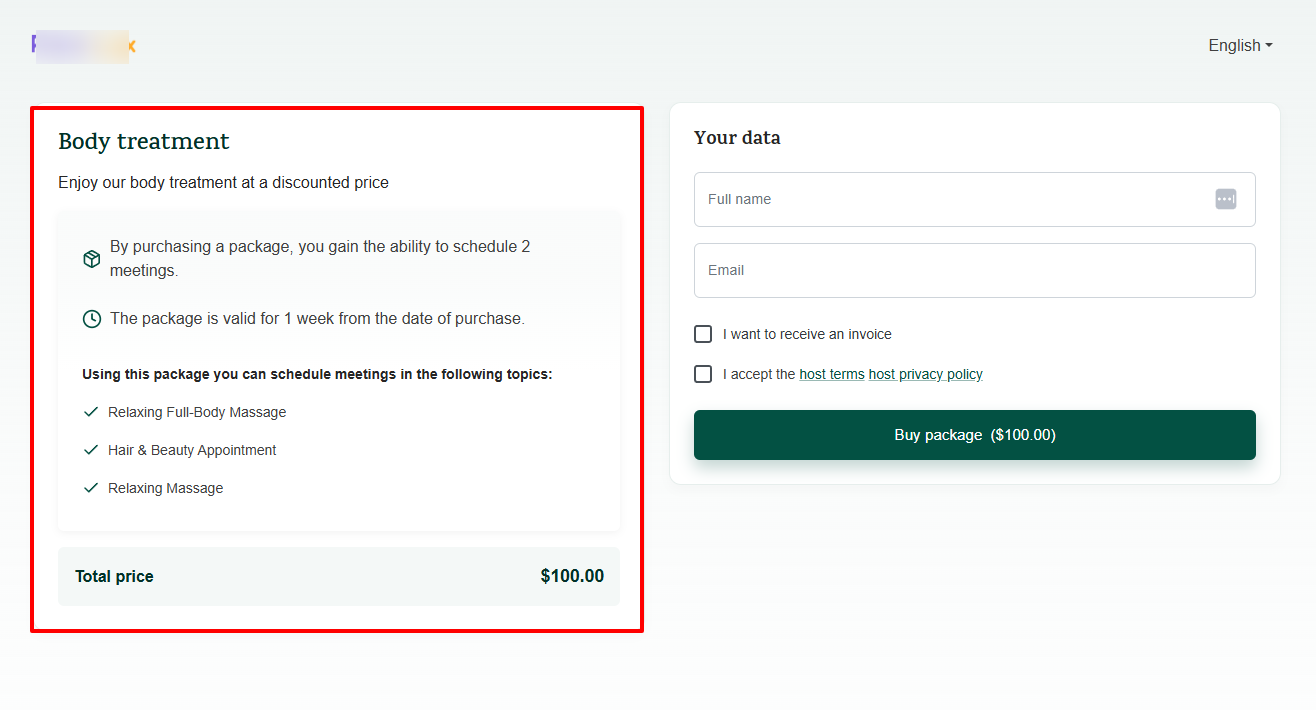
But there is more! If you want to offer more than one service at a time, you can simply create a package. Give it a clear name, add a description, set your different booking pages, and a price.
What I loved about Zencal
1 . Booking page
Clients are always ready to book, sometimes even after you've closed for the day. Having a booking page is necessary because it works like a digital front desk. They can book appointments with you at any moment.
I will show how to create an amazing booking page on Zencal.
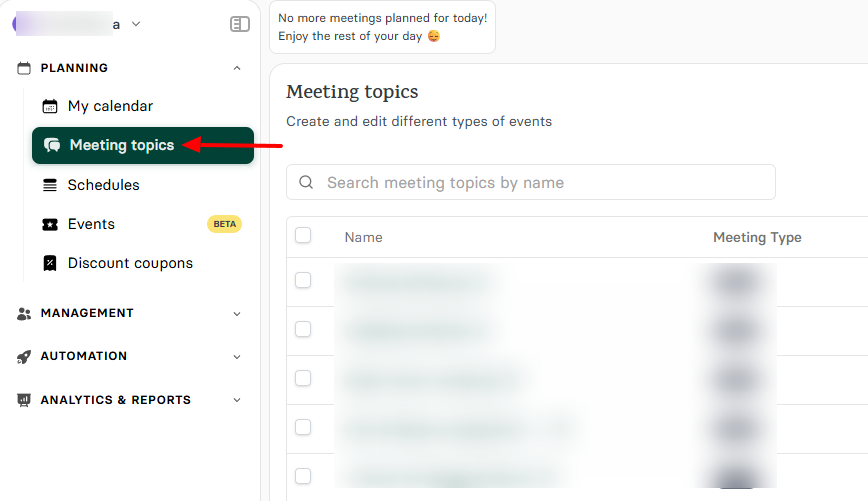
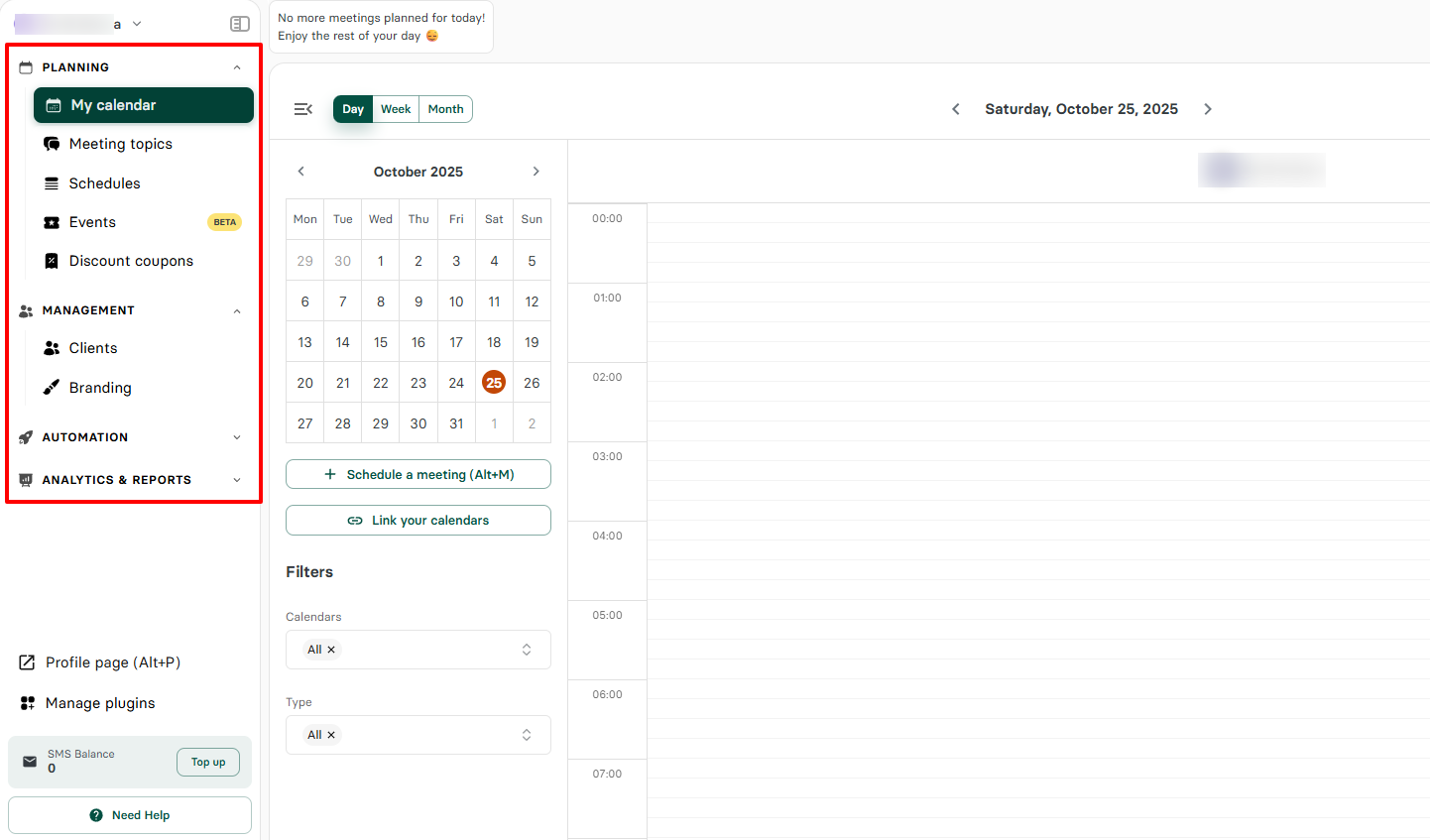
After you sign in, find Meeting topics on the sidebar.
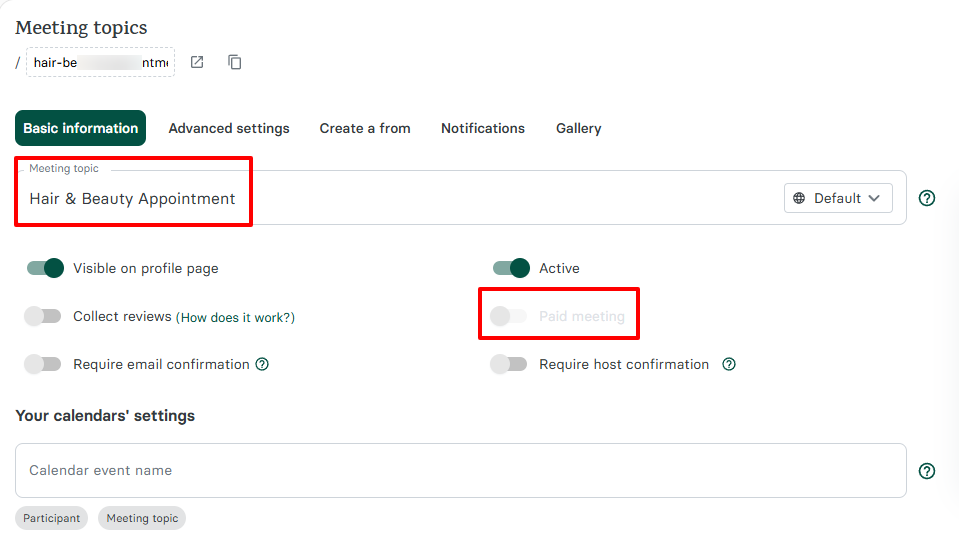
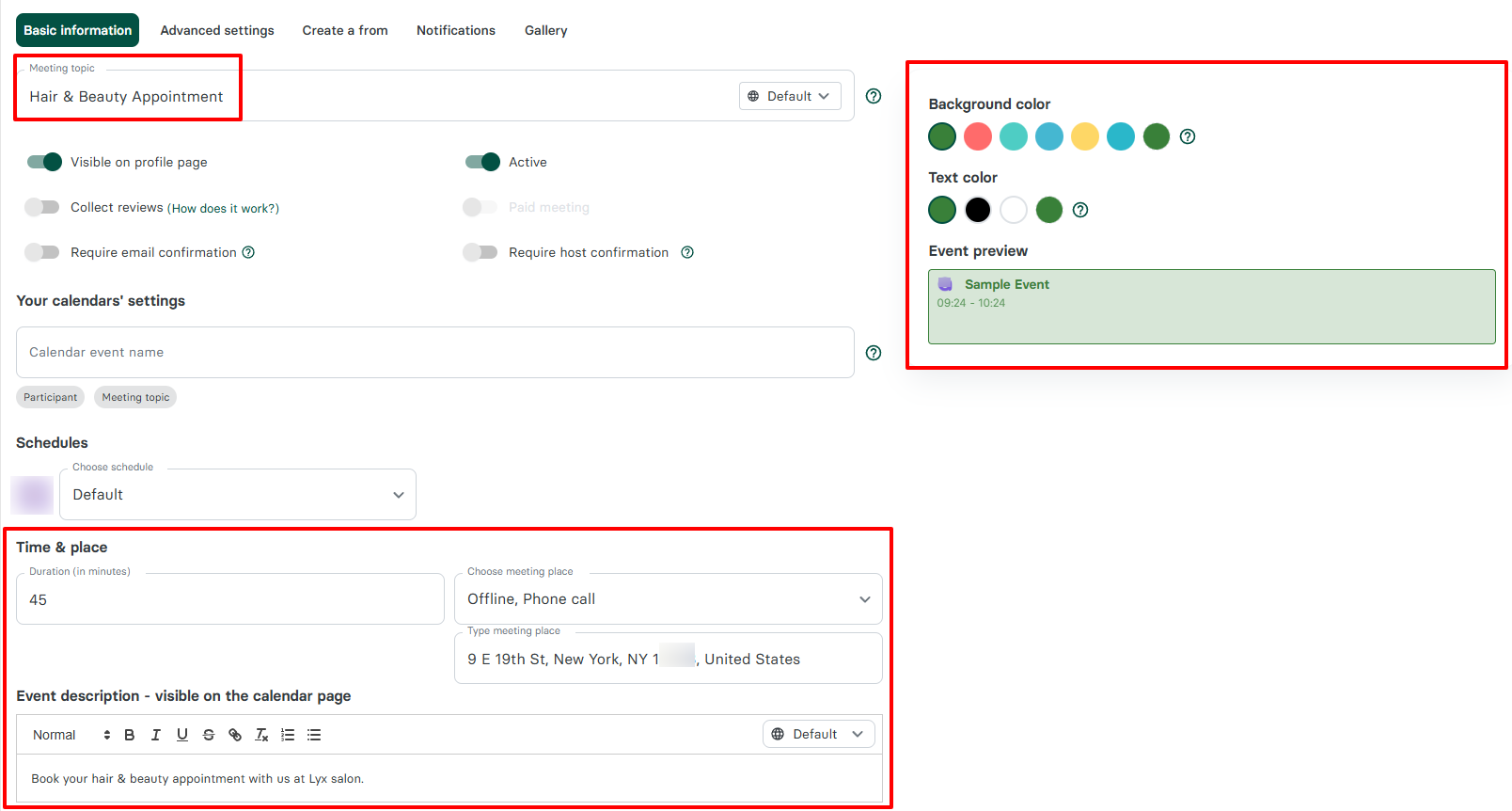
Next, give your booking page a name that reflects the service you offer, like "Hair & Beauty Appointment".
Now, you can come across some clients who book but never show. One way to avoid such a situation is to enable the Paid meeting option.
This way, clients will make a payment during the booking process. This can significantly reduce no-shows.
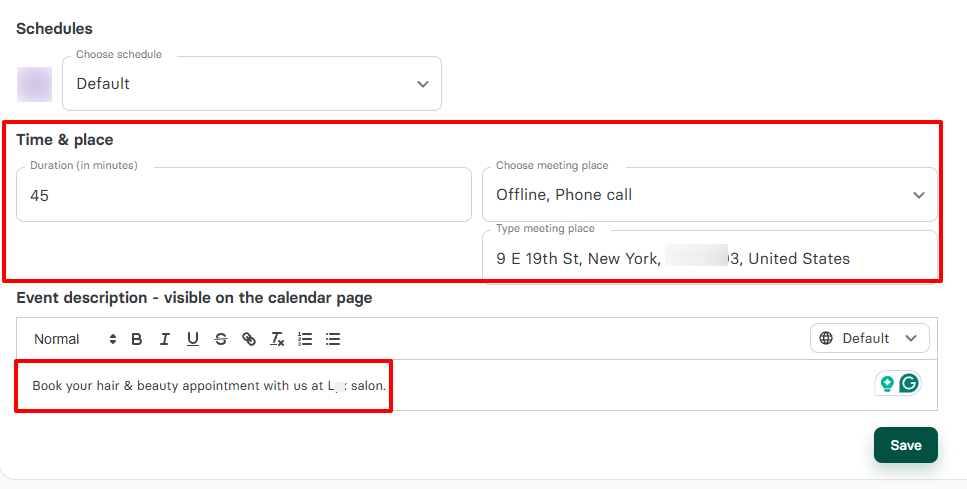
Below, you will specify a duration for your session, add your location, and a description.
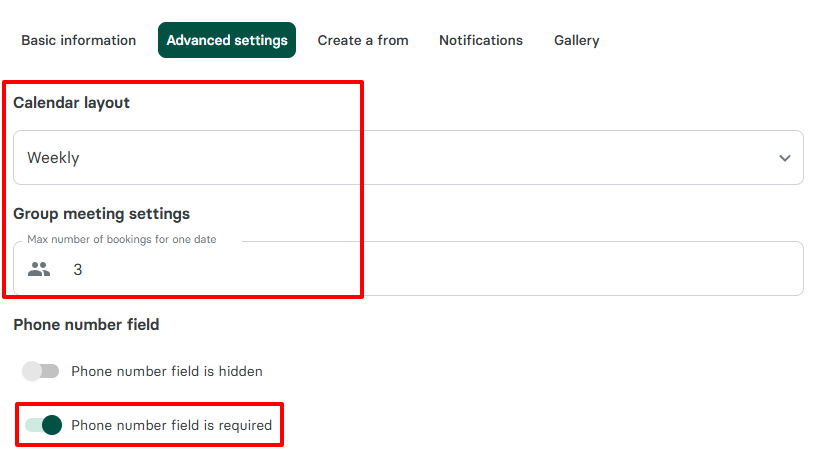
While creating the booking page, you can choose your calendar layout and the maximum number of bookings per date.
Aside from that, you can require your clients' phone numbers if you toggle on the Phone number field.
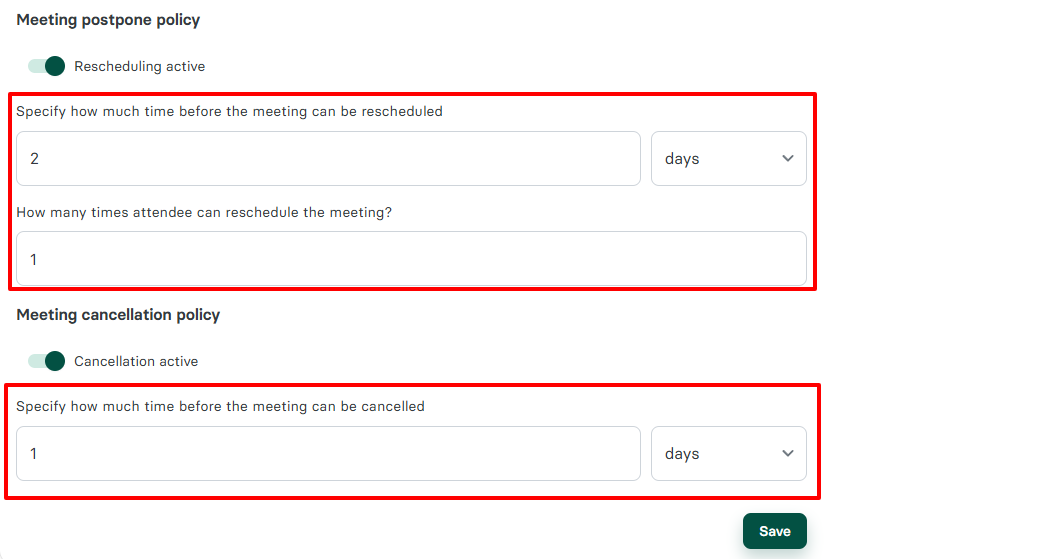
Now, here are two settings I love: the Meeting postpone policy and the cancellation policy.
Using these settings, you can specify how much time before the session can be rescheduled or cancelled. You can also set how many times attendees can reschedule a meeting.
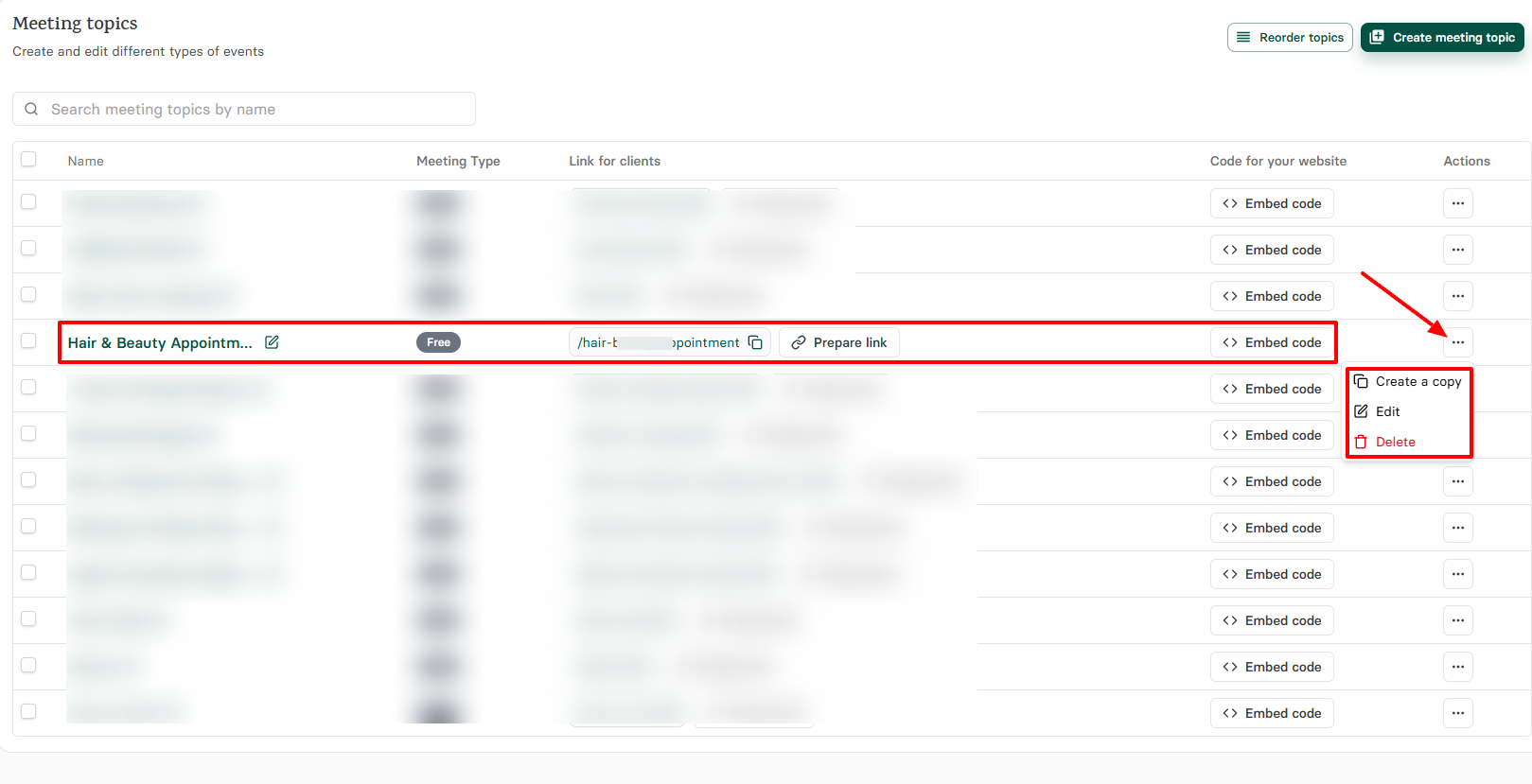
Once you save your settings, your booking page should be ready now! You can copy the link or embed the code. But if you click the three-dot menu, you can create a copy of the booking page link, edit it, or delete it.
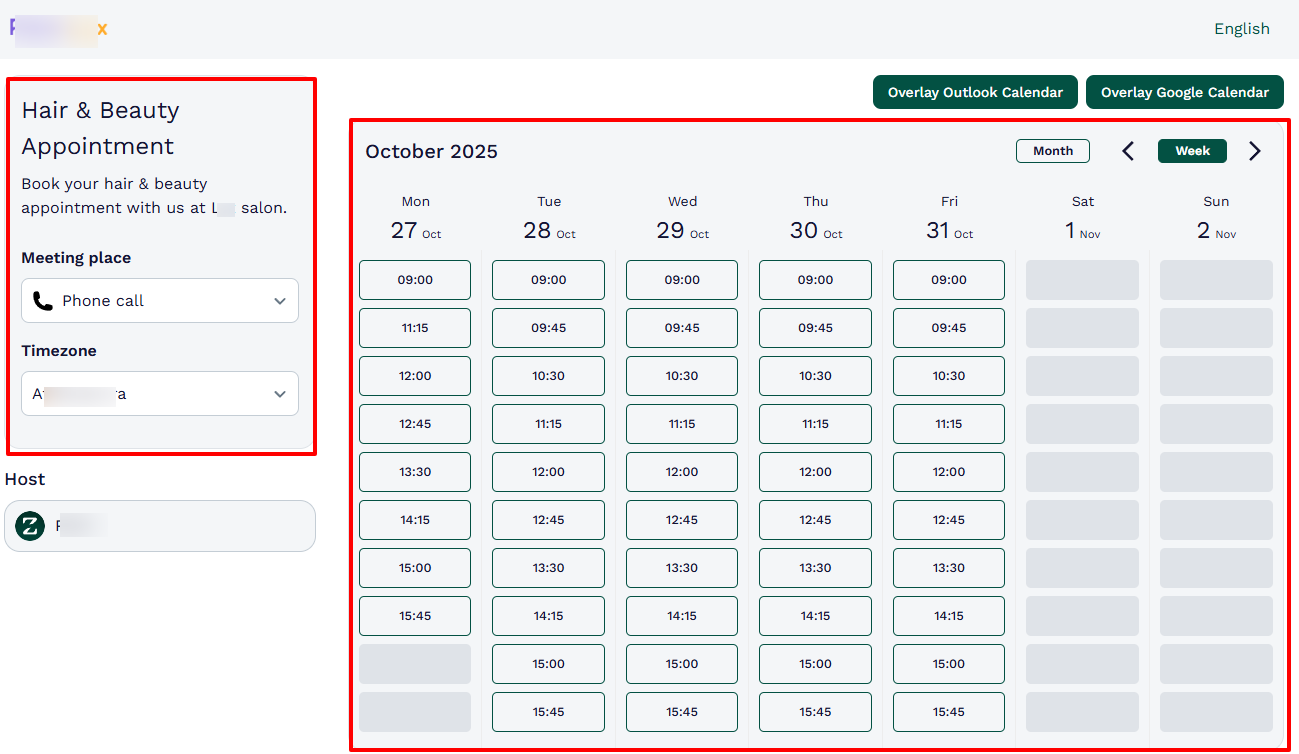
This is pretty much what your clients will see when booking.
2 . Client management
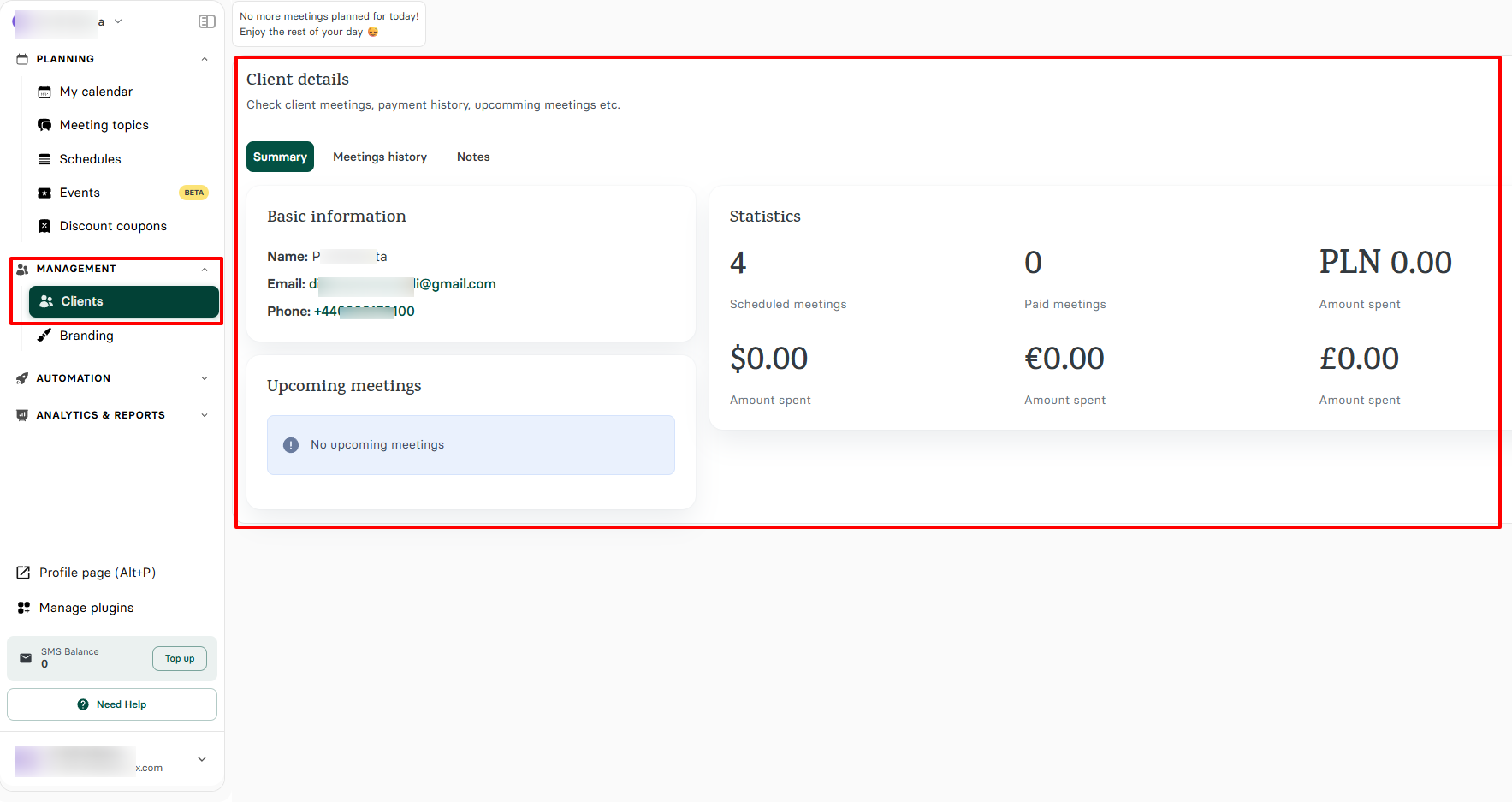
The client management feature is a great feature for handling all things client-related. This is where you can access all your saved client details, know how many times they book, and how much they spend.
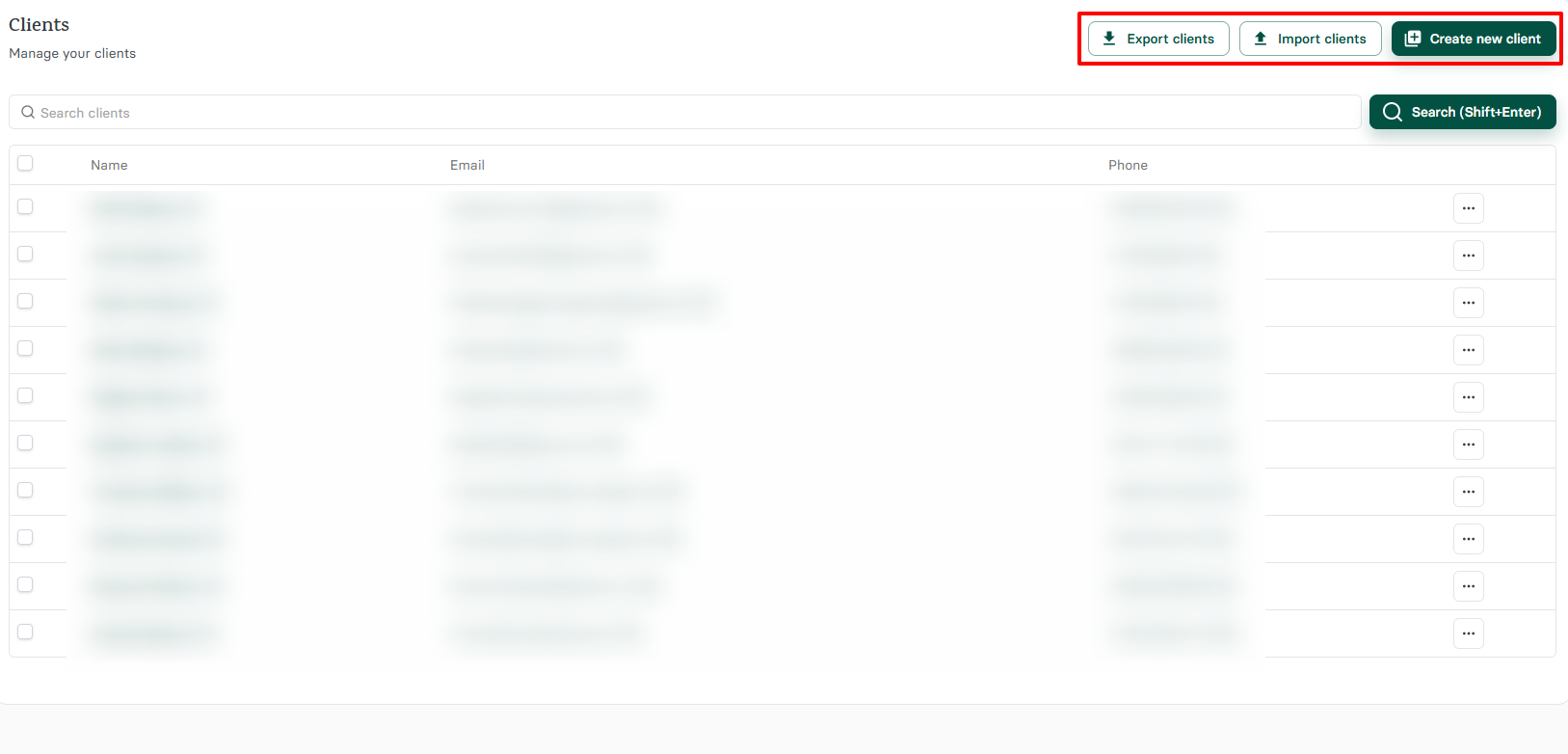
On your Zencal account homepage, head to "Management" on the sidebar and locate "Clients".
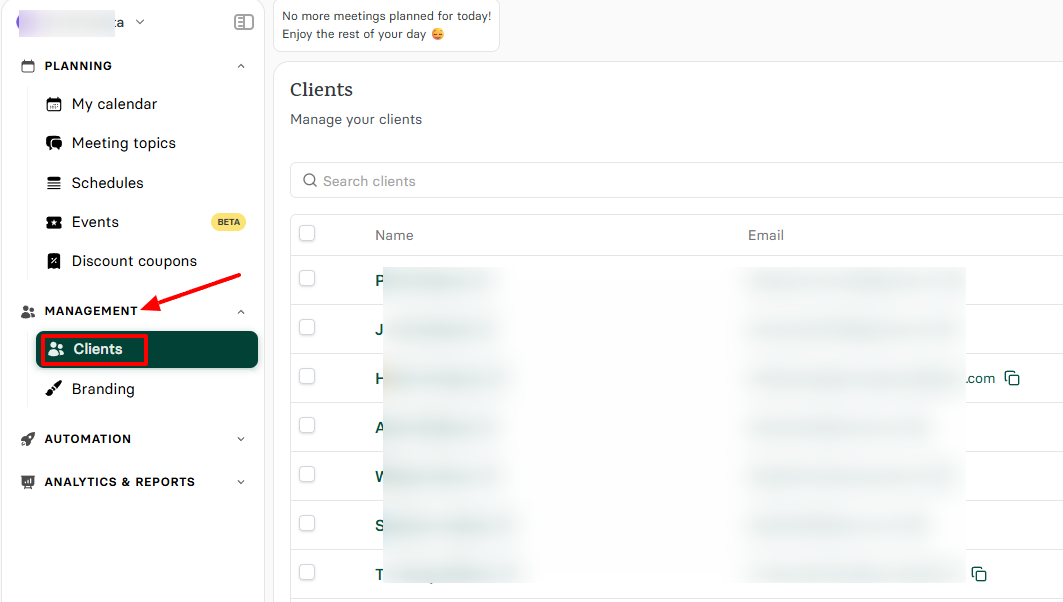
Here, you can export your client list, import a pre-existing one, or create a new client.
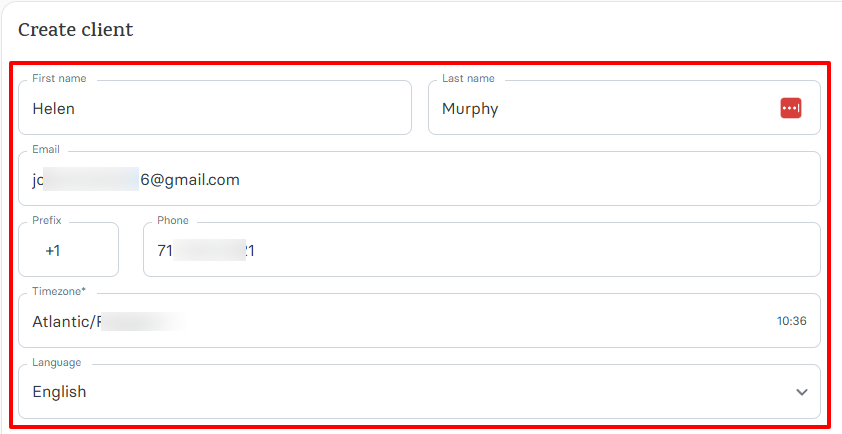
If you want to add a new client to your platform, this is what you will do: enter their first & last name, email address, phone number, preferred language, and then select a timezone.
There are still other actions you can take after you have added your clients. If you click the three-dot menu, you can either edit or delete them.
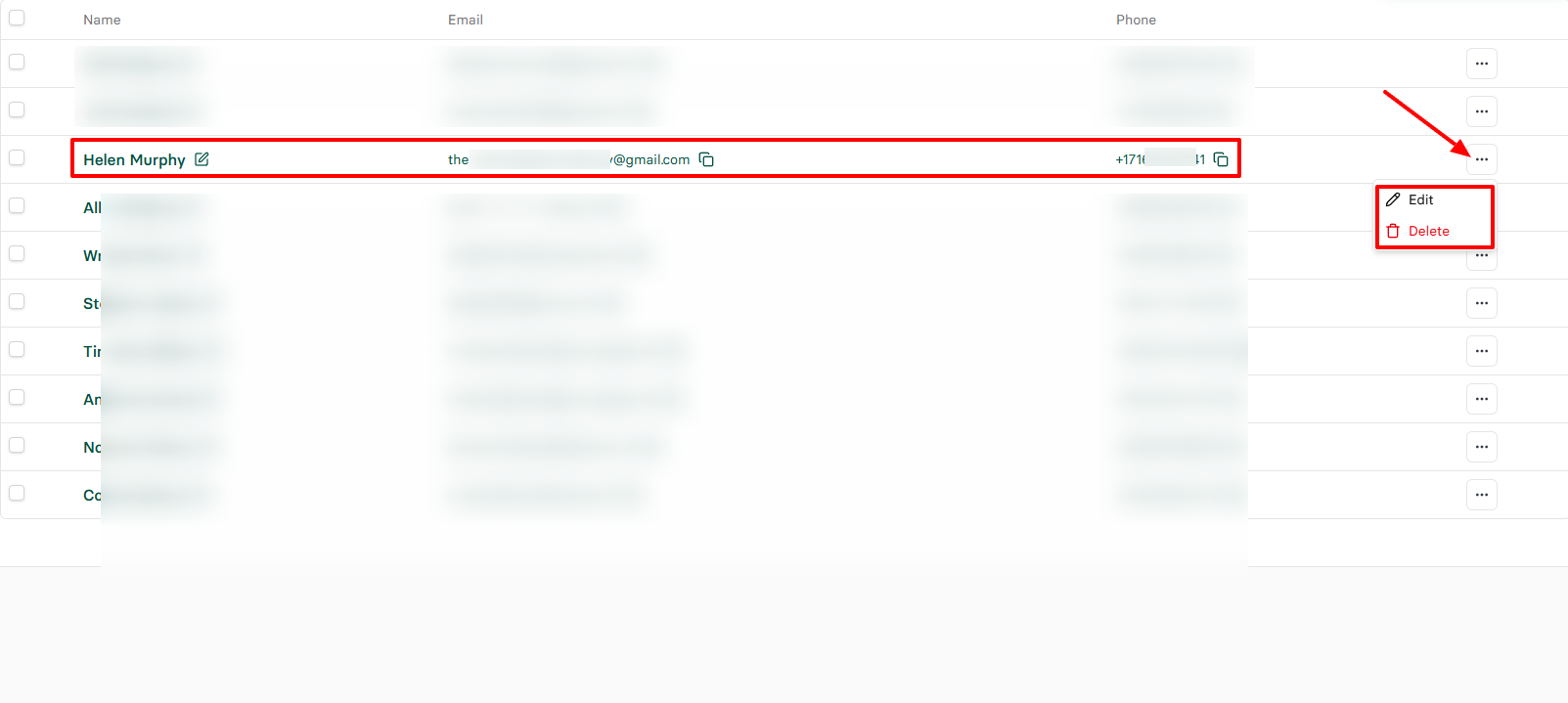
Moreover, if you click on a client's name, you can access their basic information, meeting history, and notes.
There's also a dashboard that displays statistics such as the number of scheduled and paid sessions. And if you offer paid sessions, you can see the amount of money a client has spent in dollars ($), euros (€), and pounds sterling (£).
3 . Events
Sometimes, in addition to the standard services you already offer, you may want to create special promotions for your salon. You will need the Events feature for that.
We thought of this when developing this feature. Now find it in the sidebar menu.
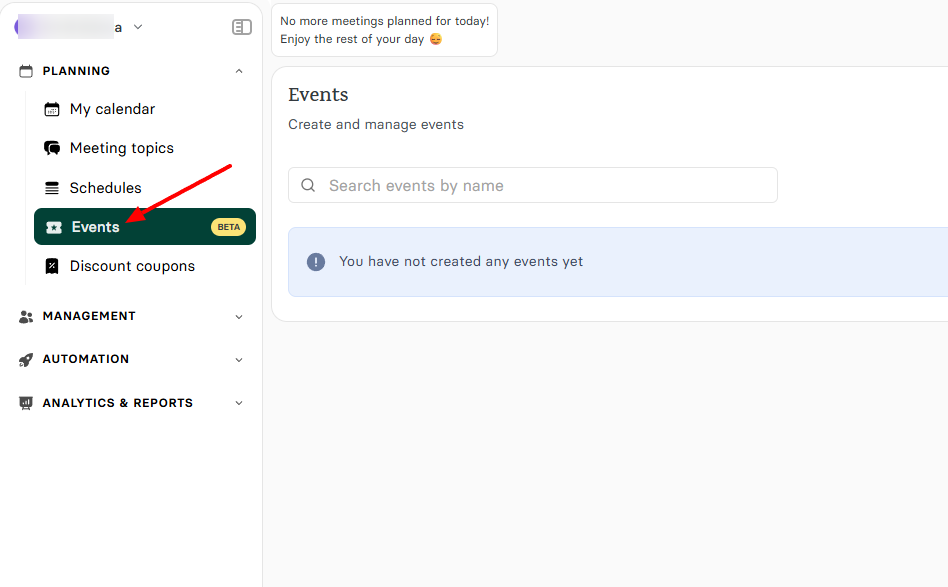
On the right side of the interface, click "Create an event".
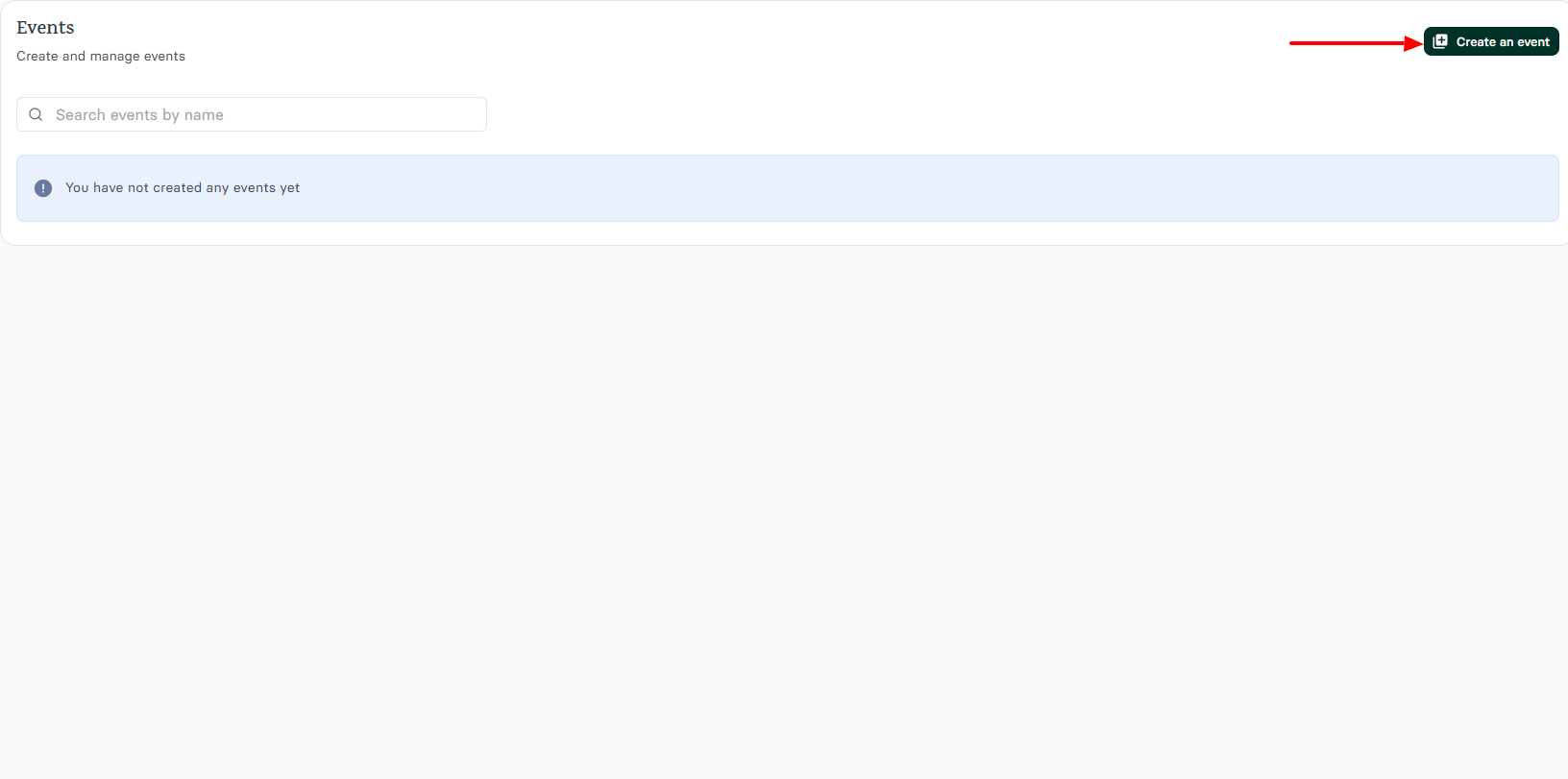
You may have a specific event you want to create for your salon. It can be in-person or virtual.
For example, if I want to create a salon anniversary event, this is exactly what I will do:
I will name it "Salon anniversary", upload the event image, add a beautiful description, and the event location. I will also adjust the start and end dates (in case I want it to be a period, not just a day).
I will then specify the attendee limit, turn on the Paid events option, and add my price variants.
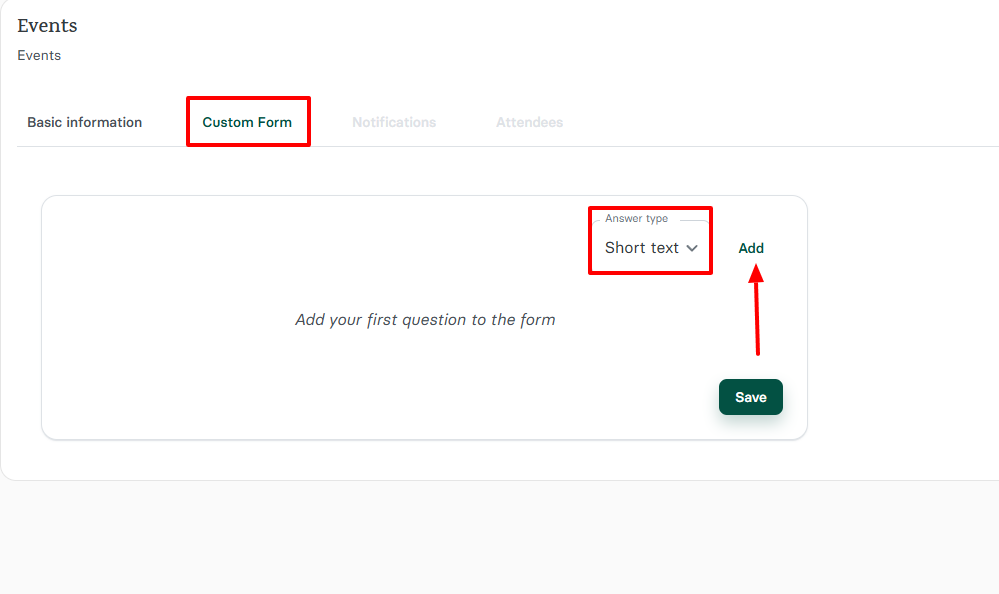
But that's not all! You can also create your custom form, where you can add your questions and choose the answer type.
This might help you filter out the kind of clients you may be targeting.
What I Loved and What I Struggled With
| What I Loved | What I Struggled With |
|---|---|
| ✅ Has a simple interface where you can find all the features on the left. ✅ Its free plan lets you create unlimited booking pages. ✅ Allows you to send alerts using Webhooks so clients never forget their meetings. ✅ Integrates with popular tools like Stripe, PayPal, Google Calendar, Outlook, Zoom, Teams, Google Meet, and Xero | ❌ The New Events feature is still in beta, but it works perfectly fine and continues to improve. |
Best for
- Zencal is best for small salon owners and beauty professionals looking for an easy solution to manage appointments and clients.
Pricing
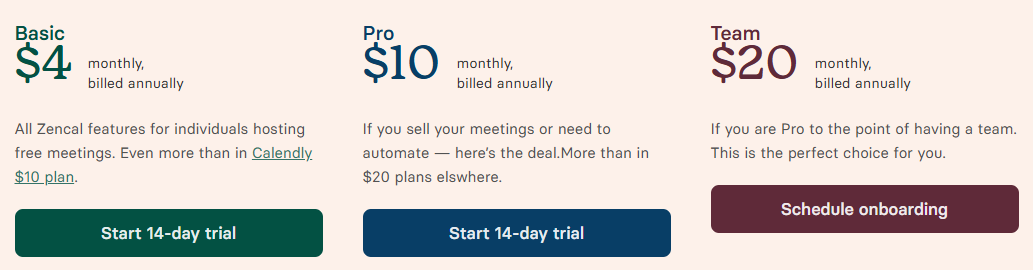
- Basic: $4/ monthly, billed annually
- Pro: $10/ monthly, billed annually
- Team: $20$/ monthly, billed annually
2. Simplybook.me
| Personal rating: 4/5 stars |
|---|
| I love that Simplybook.me lets you build a full booking website from a wide collection of available templates. |
Next on my list of the best free salon booking systems is Simplybook.me.
I recommend Simplybook.me to medium-sized salons that handle a high volume of bookings and need a booking website.
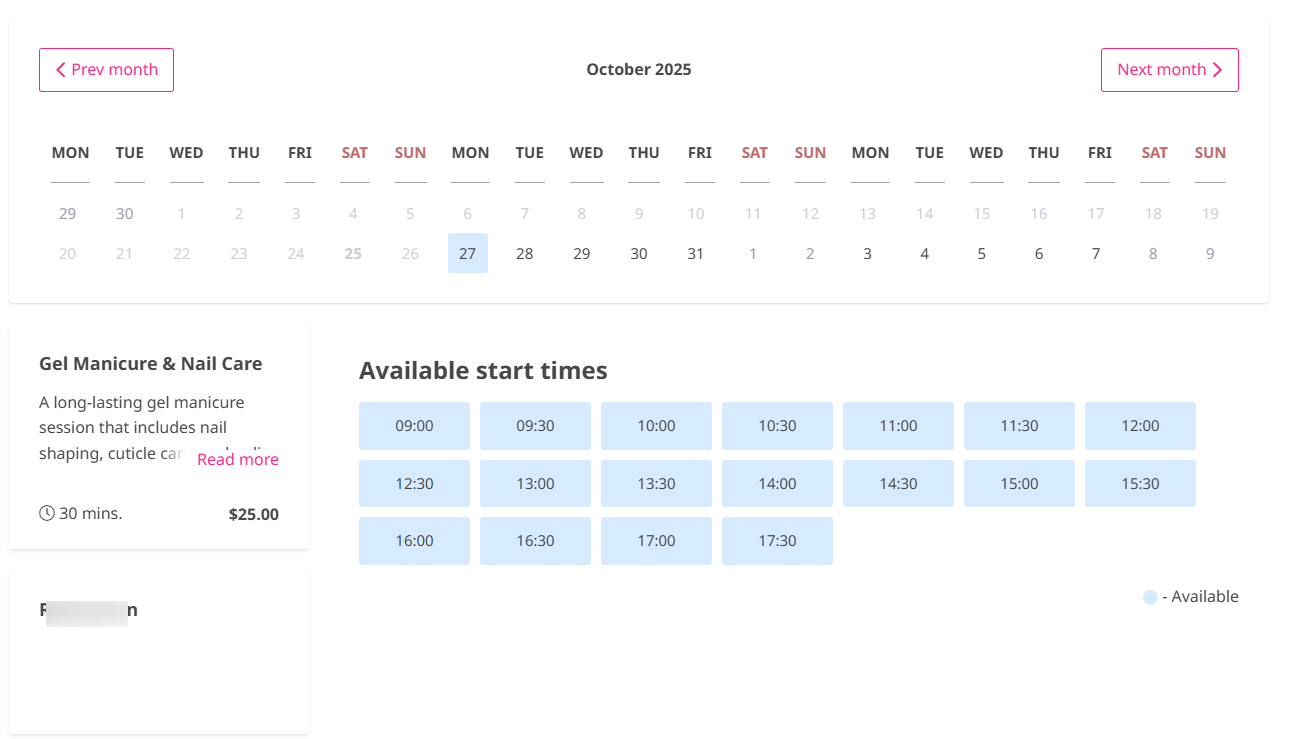
I can use Simplybook.me to add a range of services, such as manicures, hair care, or nail care, to name a few. To do that, I name the service, add a description, specify the service duration, and add my price.
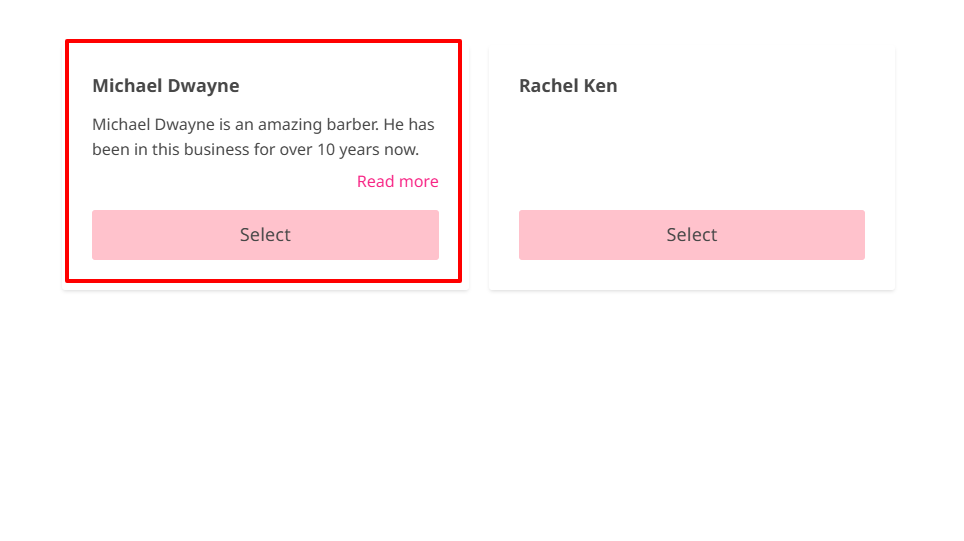
Furthermore, when I want to add a staff member, I enter their first & last name, phone number, and email. Then I add a short description to showcase them to my clients.
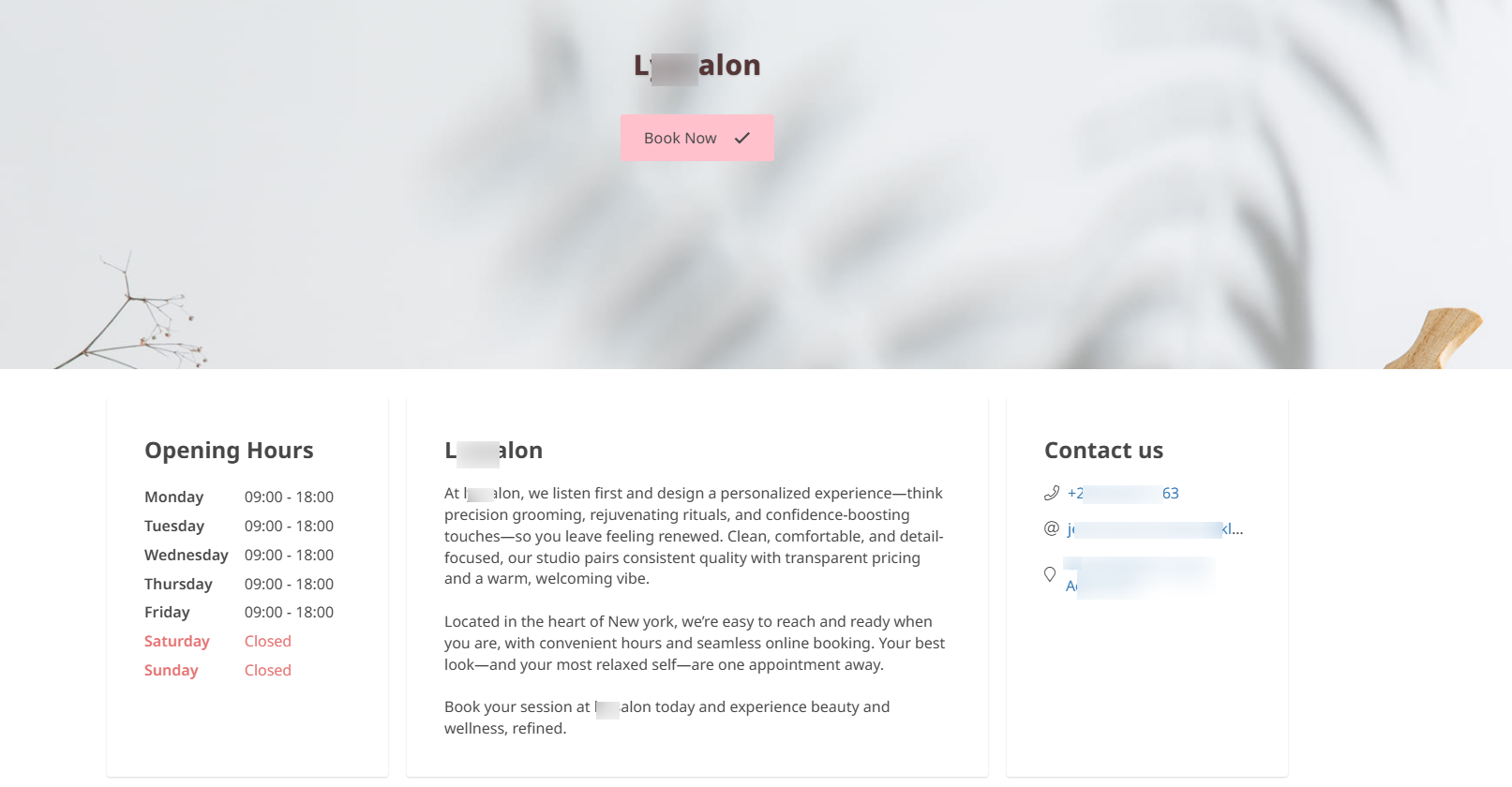
But I love the booking website. You can start creating yours by first entering your salon name. Then you can choose a booking website template, add a description for your salon, set your working hours, and enter your contact & location.
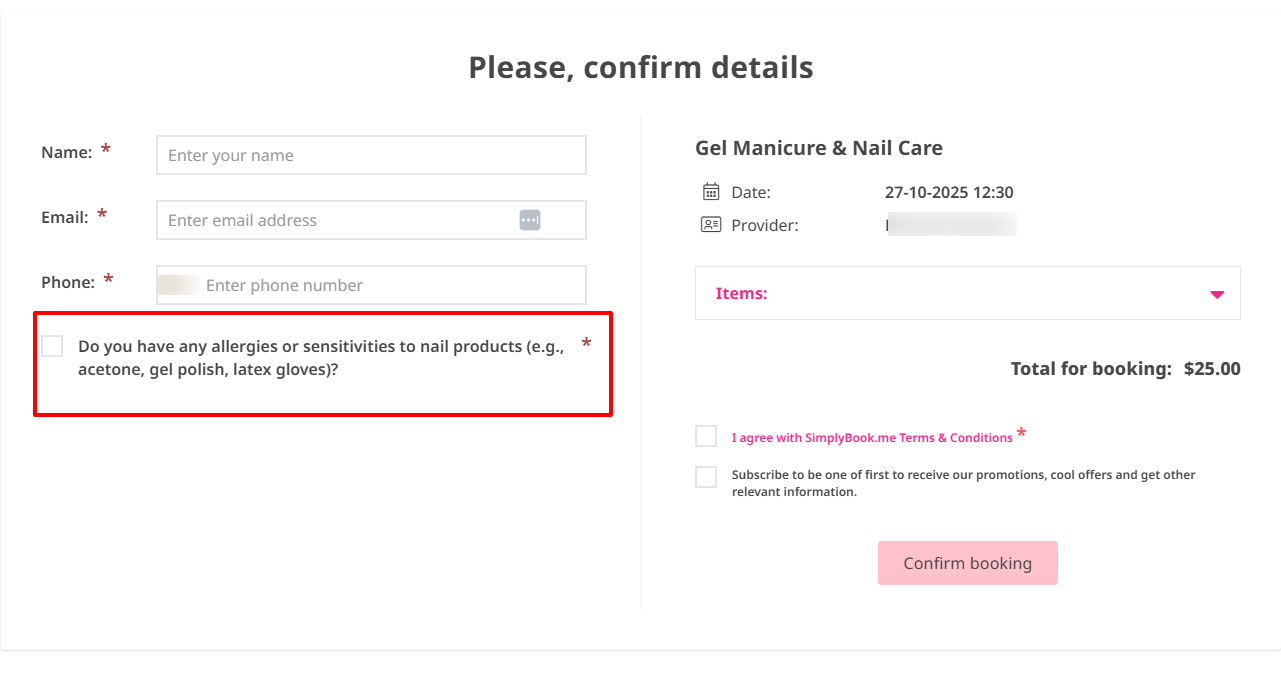
But what if I want to collect some crucial information from my clients during the booking process? I simply create an intake form, add my questions, choose an answer type, and attach it to a service.
What I loved about Simplybook.me
1 . Service
Within your salon business, you provide a range of services to your customers. And of course, depending on how you operate, your services may vary from time to time. You may even grow to add more services that you have specialized in.
Using Simplybook.me, you can always add a new service. I'll show you how.
First, I'll locate "Manage" on the sidebar, then go to Services.
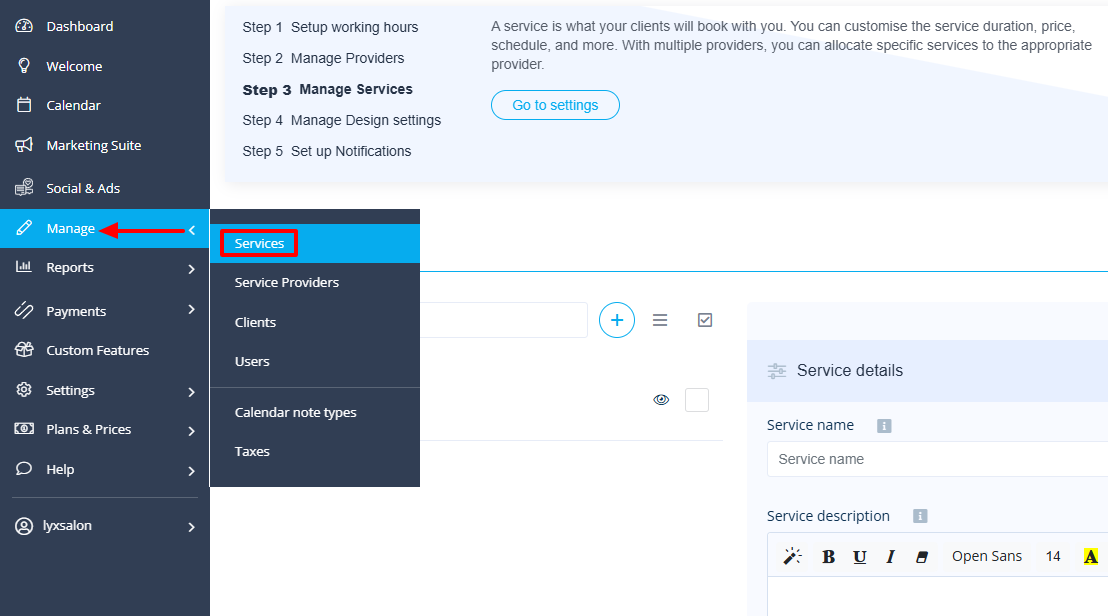
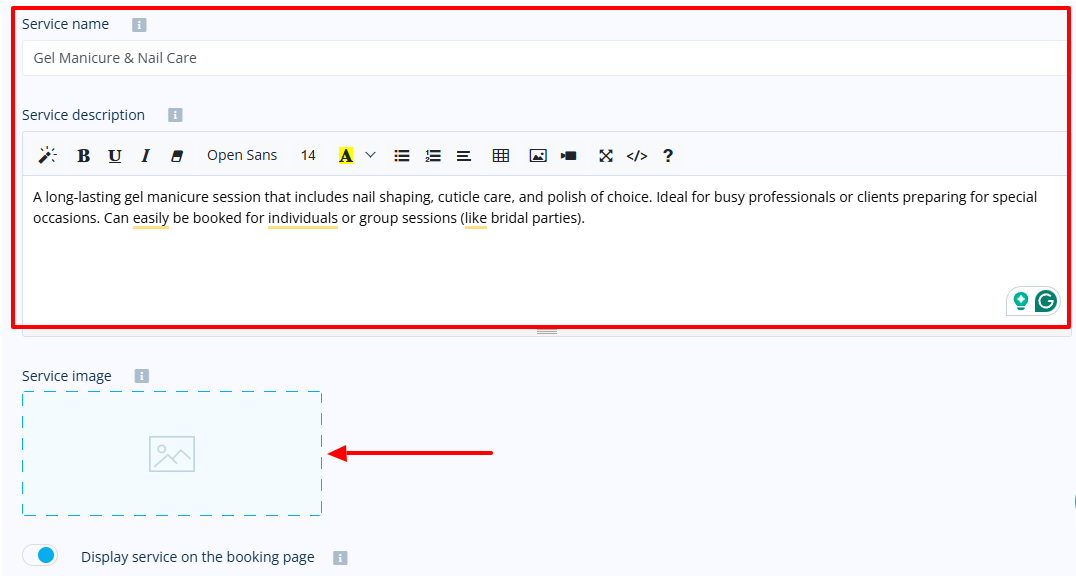
I will then name the service and add a description. Below, I can upload an image of the service.
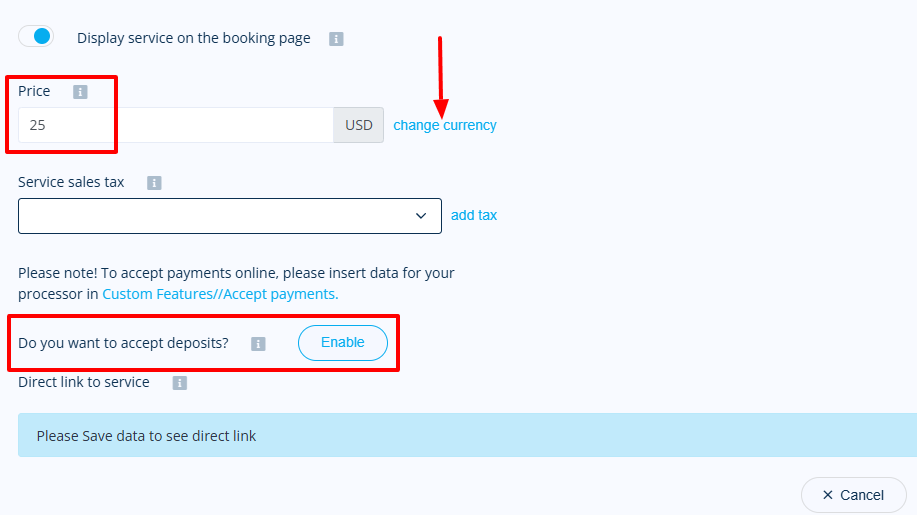
Next, I will add my price and select my preferred currency. Interestingly, you can enable the option that lets you accept deposits.
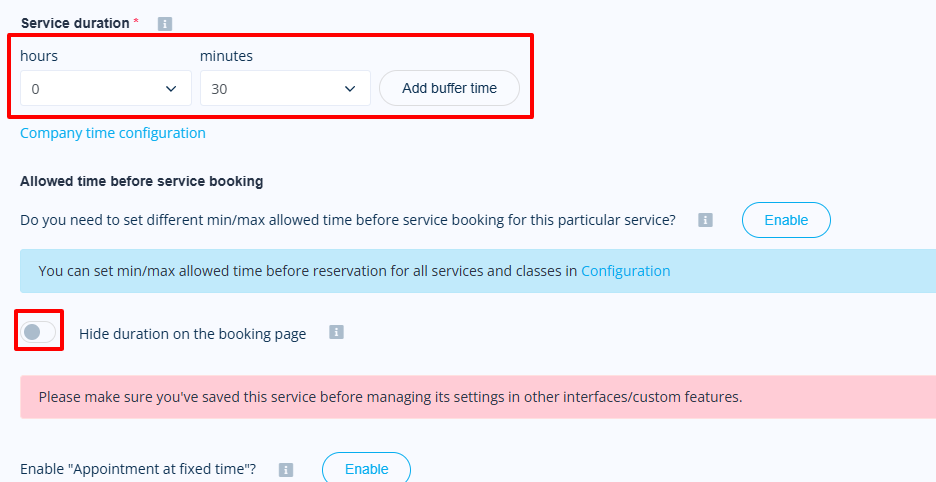
It's time to specify the service duration.
Here, I could hide the duration on the booking page. This is great, especially when you don't want to tell clients a particular service will last 30 minutes, but it actually takes longer due to other factors.
That's it. You have added a new service!
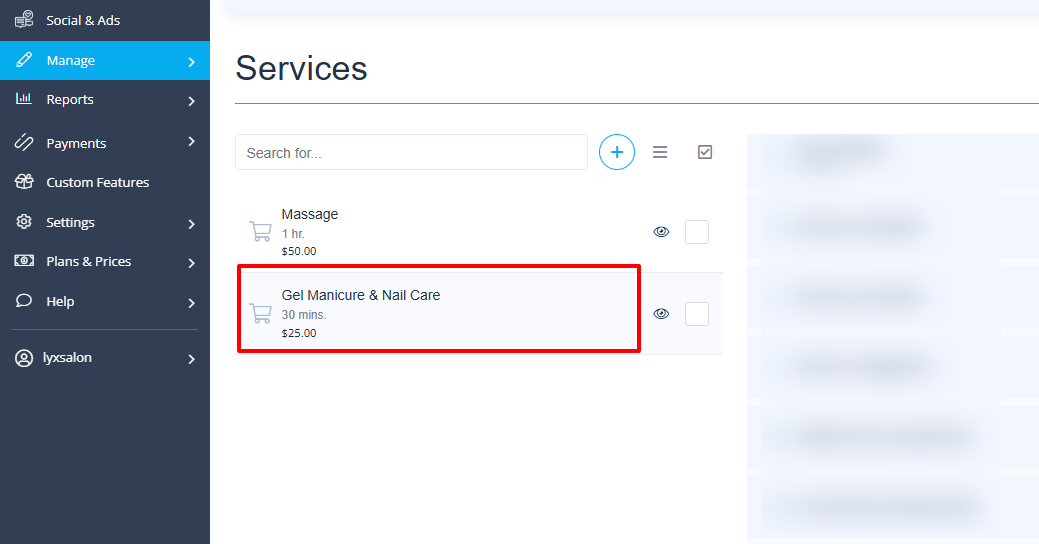
Clients will clearly see it when they book.
2 . Service Providers
Apart from adding services you offer in your salon, Simplybook.me also allows you to add service providers too. After all, without a service provider, there won't be anyone delivering these services to clients.
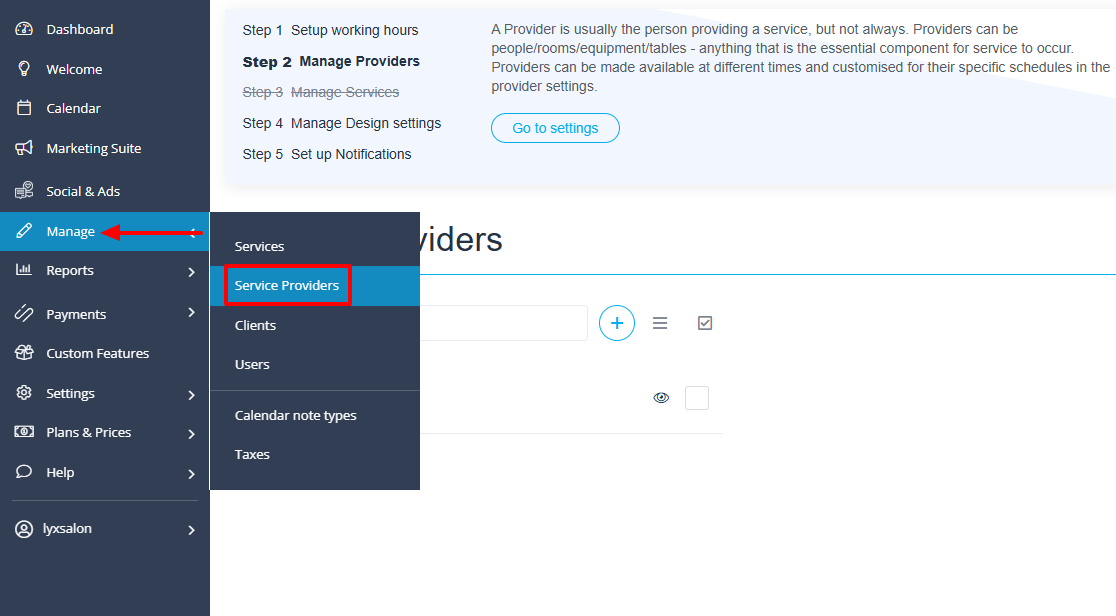
You can add a service provider by clicking "Manage" and selecting "Service Providers".
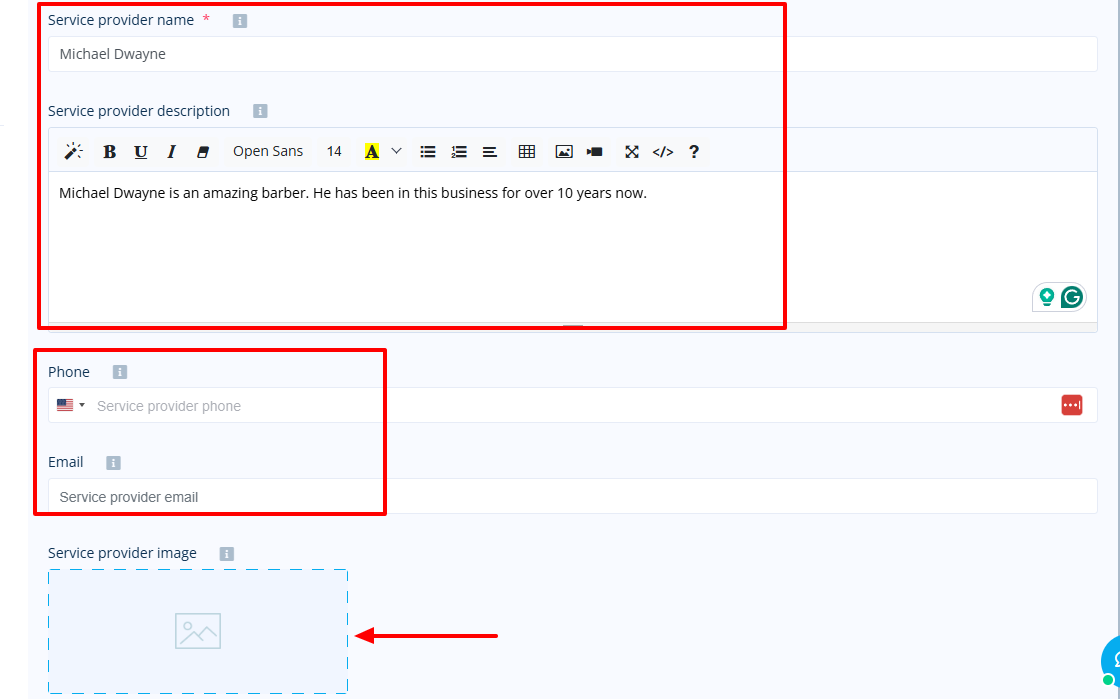
Say one of my service providers is Michael. I can add his name, description, phone number, and email address, and even upload his picture.
I can now set his working days and hours.
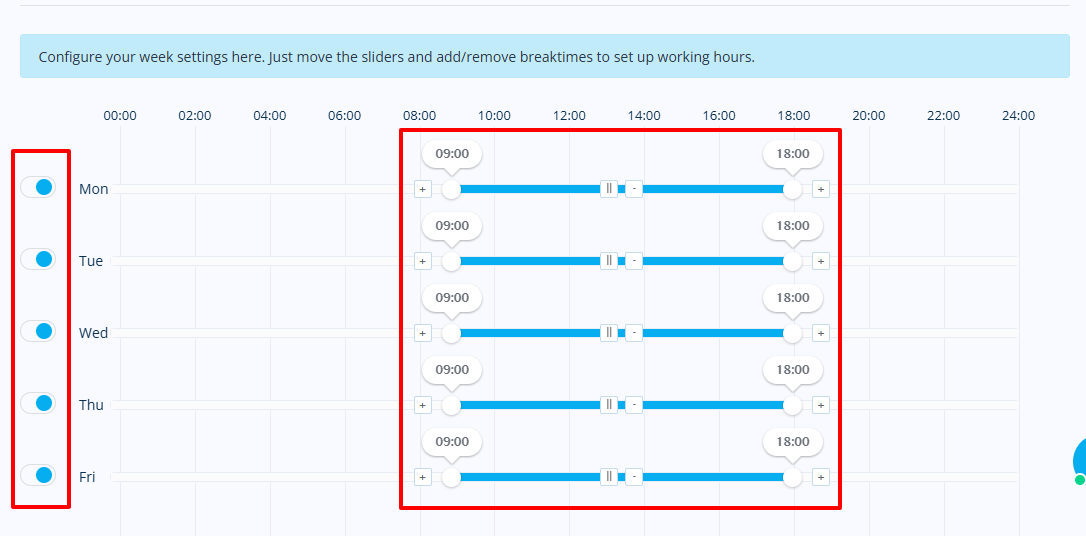
There you go! If you've gone through these steps, your new service provider should be added now.
3 . Custom features
"Custom features" is one of the features on Simplybook.me's free plan. It lets you add more sections to your booking website. These could be Intake forms, Service categories, News, or Photo gallery.
Let's try to add an Intake form. First, ensure that you have selected Intake forms.
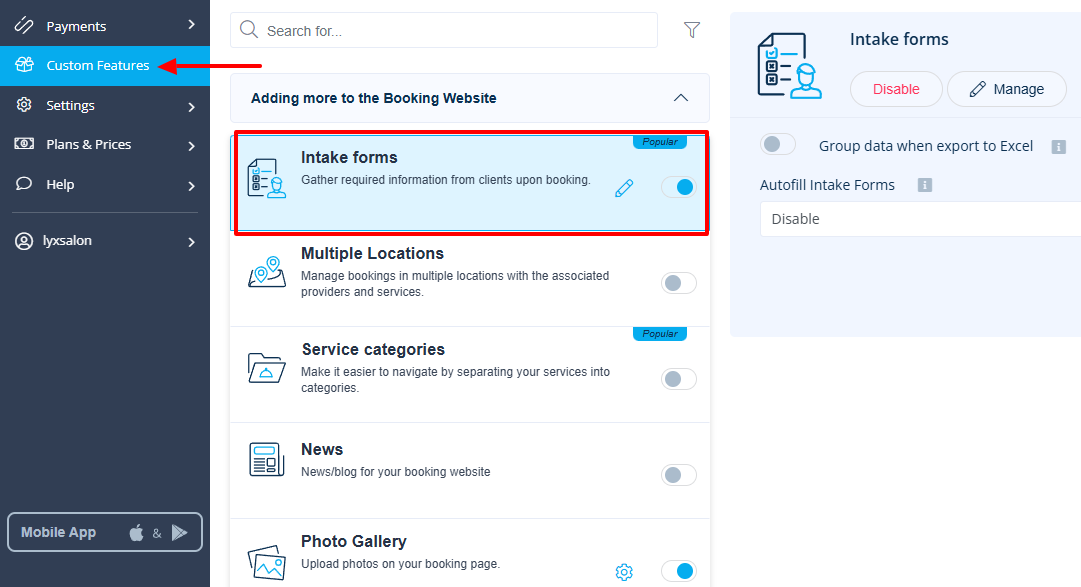
In the form, I will simply add my question, then choose a field type, and decide to make it visible on the booking page.
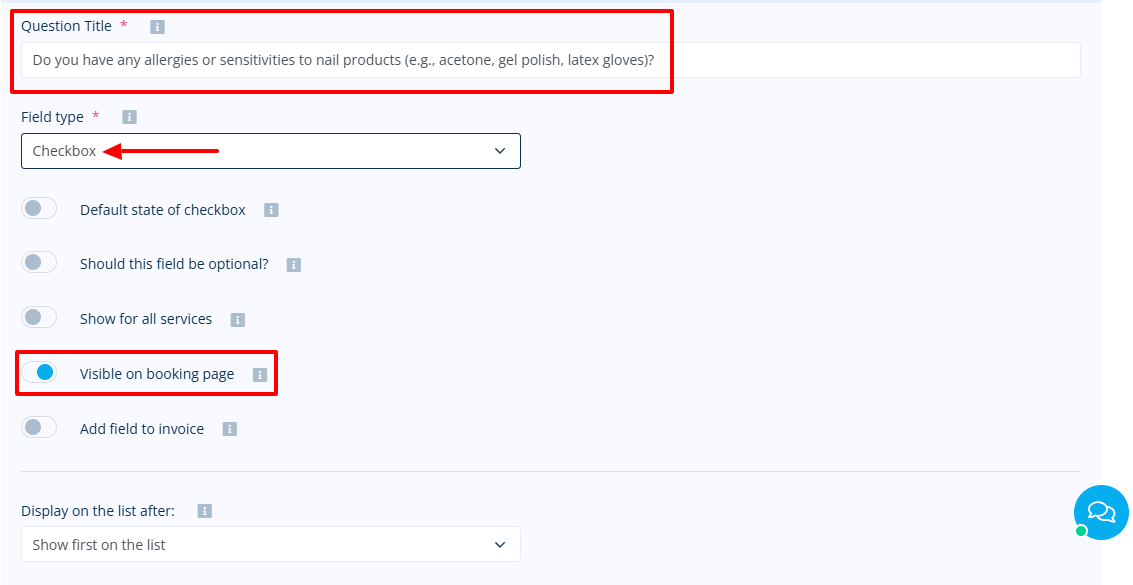
The last step is to choose the service I want the intake form to appear on.
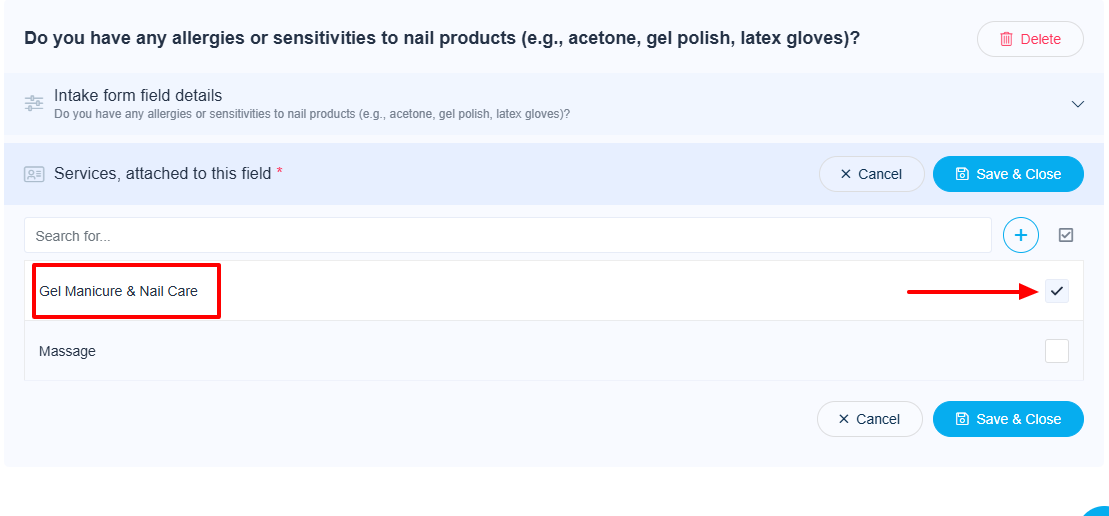
This way, when a client books the service I attached that intake form to, the question will just appear below.
What I Loved and What I Struggled With
| What I Loved | What I Struggled With |
|---|---|
| ✅ Can hide service duration on the booking page. ✅ Can attach intake forms to a service even on the free plan. ✅ Allows you to use one custom feature of your choice on the free plan: Multiple locations, Service categories, Photo gallery, or news, among others. ✅ Offers a booking website on the free plan. You can also customize it: select a theme, color, add images, etc.. | ❌The interface doesn't look intuitive. The design could have a more modern look. ❌You only have access to 50 bookings |
Best for
- Medium-sized salons with high booking volume seeking a tool to create an advanced booking website.
Pricing
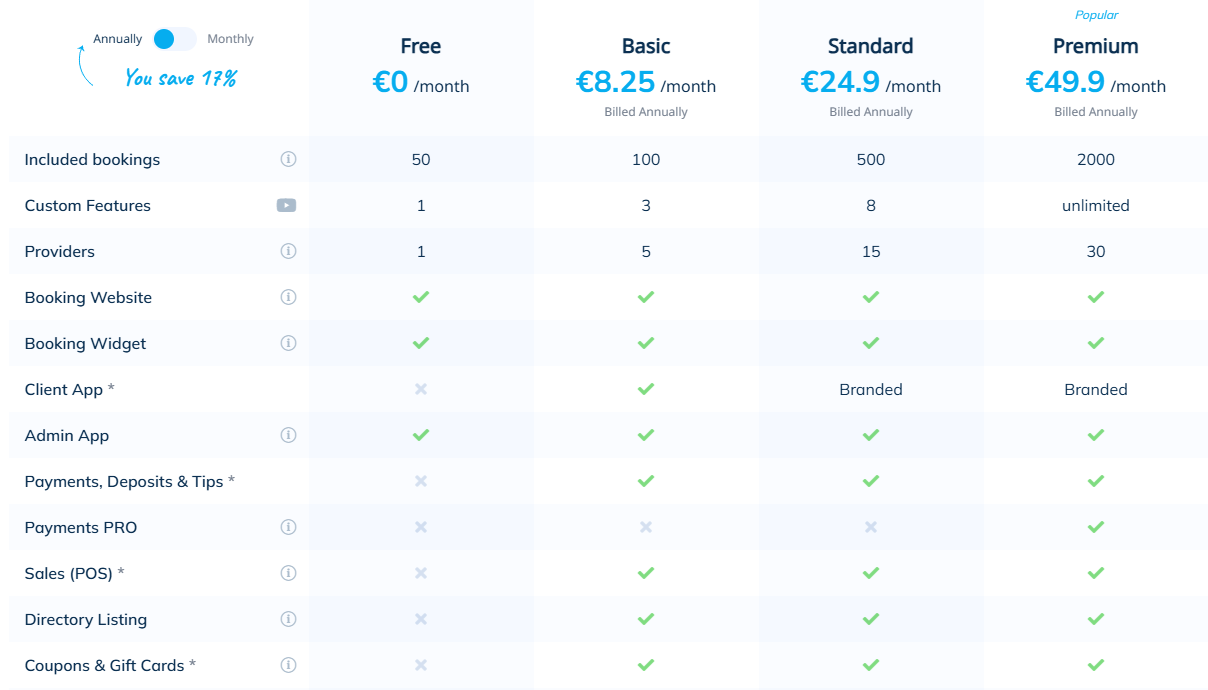
- Free: $0/ month, billed annually
- Basic:
- Standard:
- Premium:
4. Koalendar
| Personal rating: 3.5/5 stars |
|---|
| I particularly loved how simple it is to set up a booking page and track your number of bookings. |
We will continue with Koalendar.
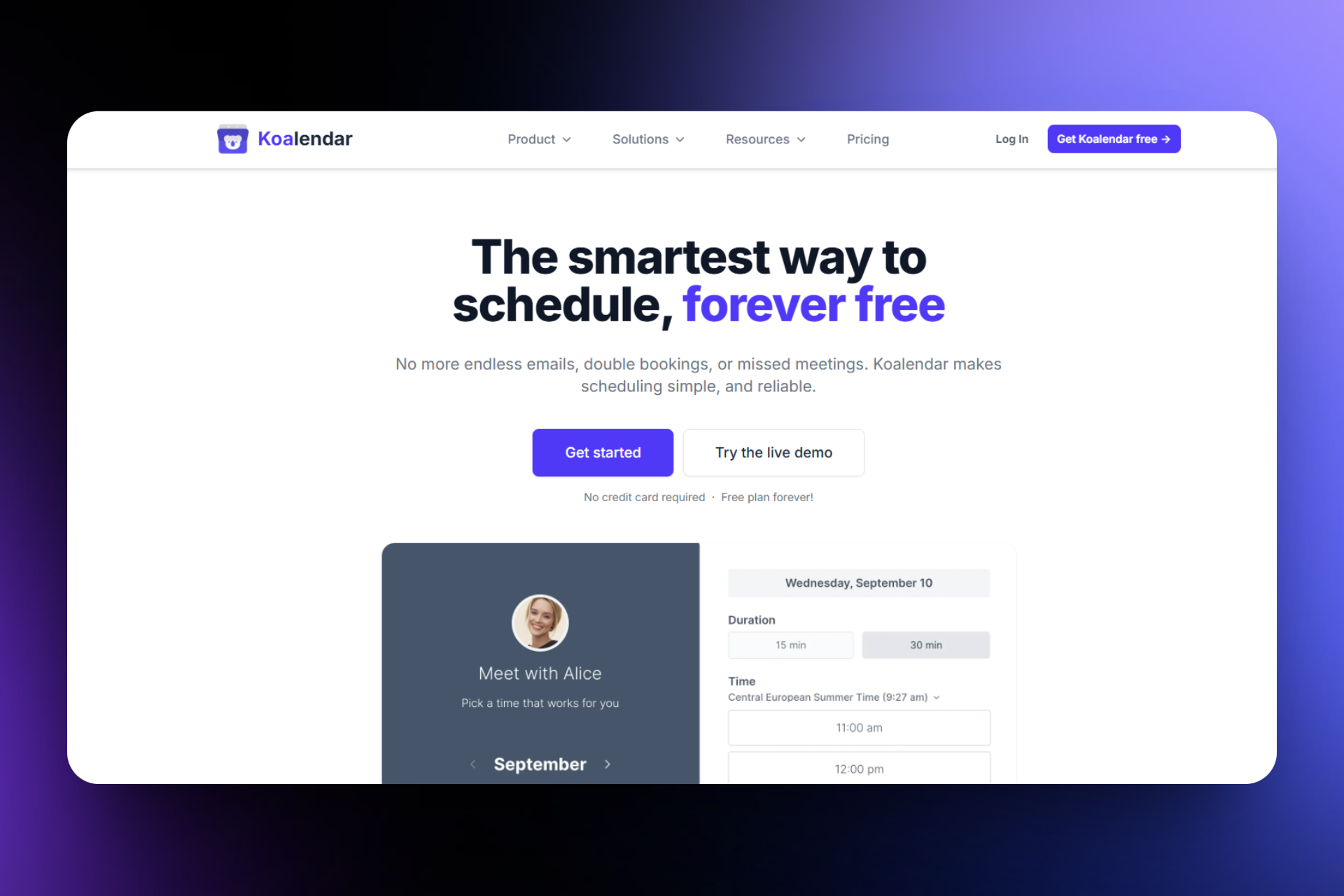
I recommend Koalendar to solo beauty professionals and salonists who want to create simple booking pages to share with their clients.
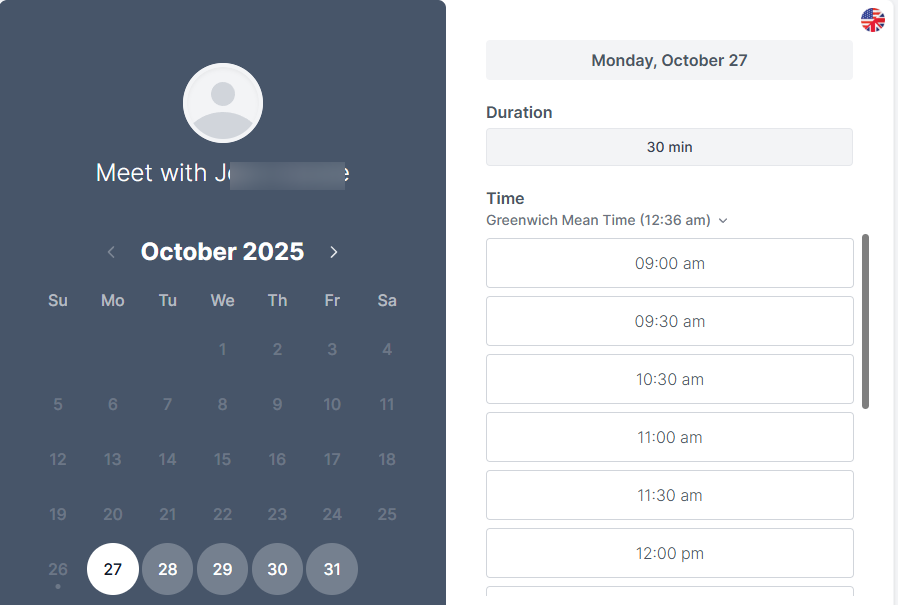
During my test, I could set up a booking page on Koalendar when I added a title, location, and description. I could also choose a language and upload an image.
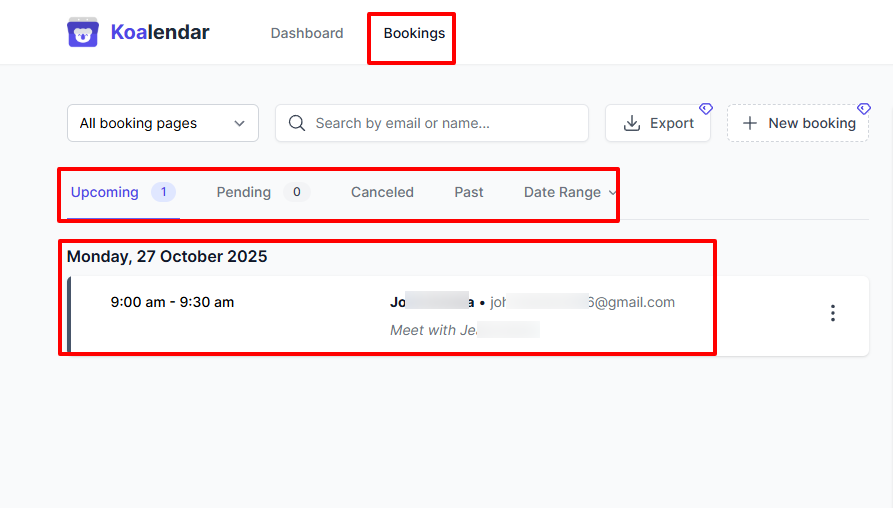
Under Bookings, you can see all your upcoming, pending, canceled, and past meetings. Aside from that, you can also view some details, such as the date, time, and organizer of the meeting.
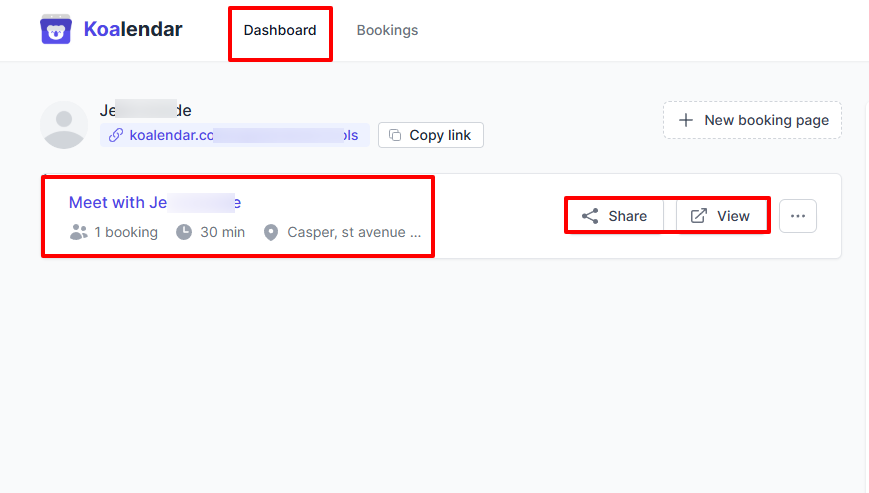
Koalendar's Dashboard displays details about your booking page. On the dashboard, I could see the number of bookings, the meeting duration, and the meeting location.
What I loved about Koalendar
1 . Booking page
If you are reading this article, you must now be familiar with what a booking page is. On Koalendar's free plan, you can also create a booking page, and this is what we are going to do.
The interesting thing is that creating a booking page is the first step you need to take when signing up for Koalendar.
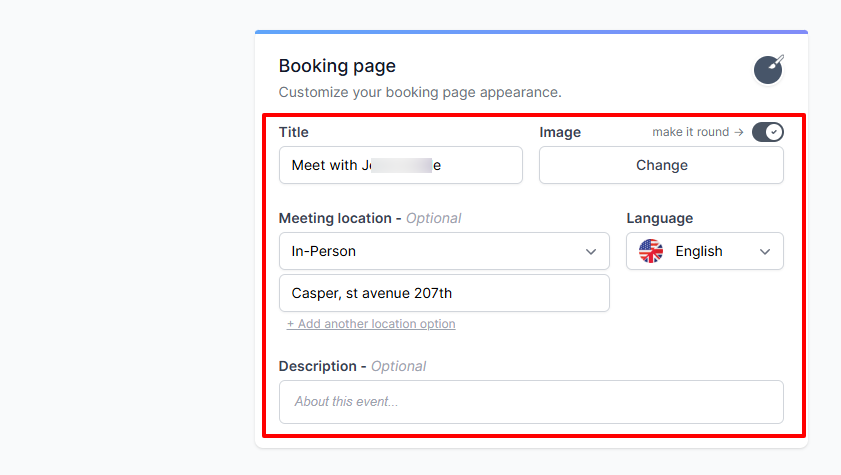
The platform will ask you to name your booking page, add a meeting location, description, and select your preferred language.
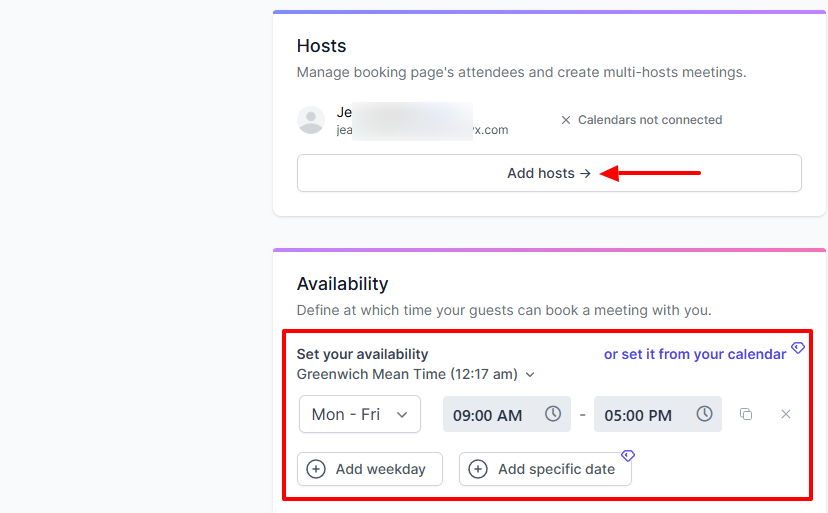
Then you can add hosts and adjust your availability right away or from your calendar.
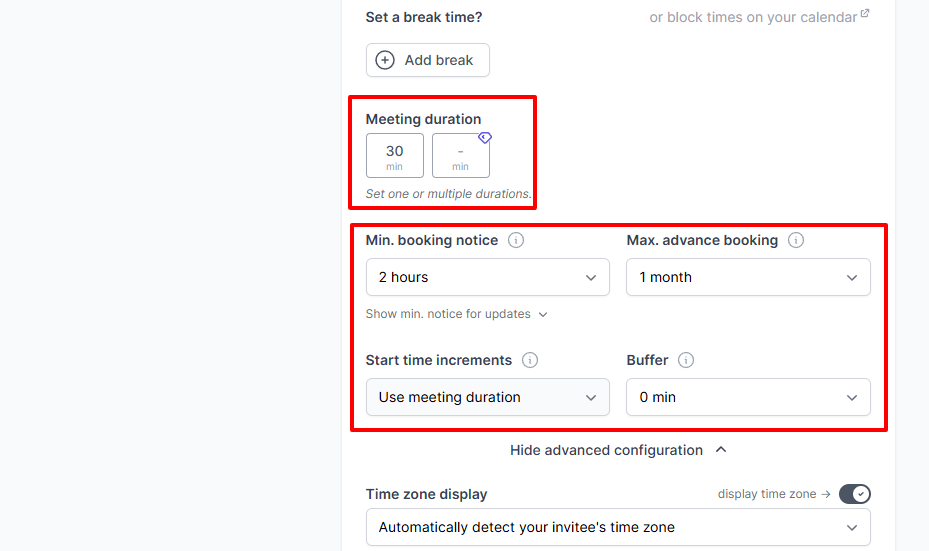
Below, I can choose the meeting duration.
I love that I could specify the minimum booking notice and the maximum advance booking. Having meeting postponement and cancellation options in addition would have been great.
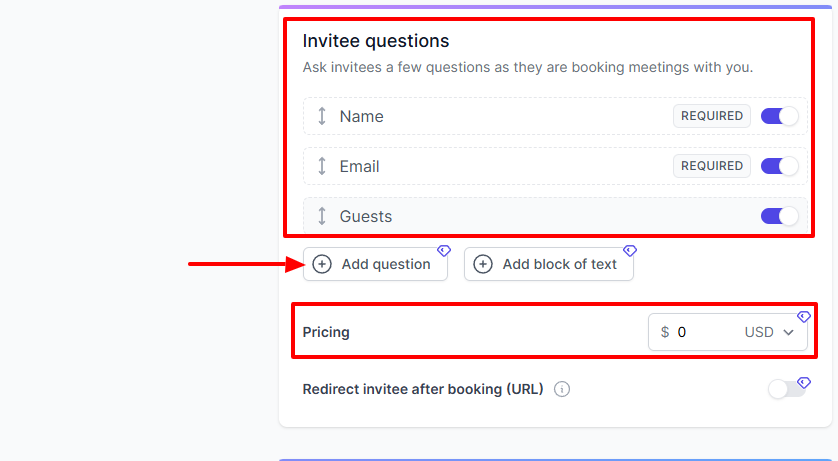
On the next setup page, you can ask invitee questions and collect information, such as name and email address. This is where you can add your price and choose the currency.
That's not all. With the additional options, you can customize your confirmation page, specify how many people can book the same time, add limits to your bookings, and even remove Koalendar branding from your booking page.
Unfortunately, you will need to upgrade to a paid plan to perform those actions.
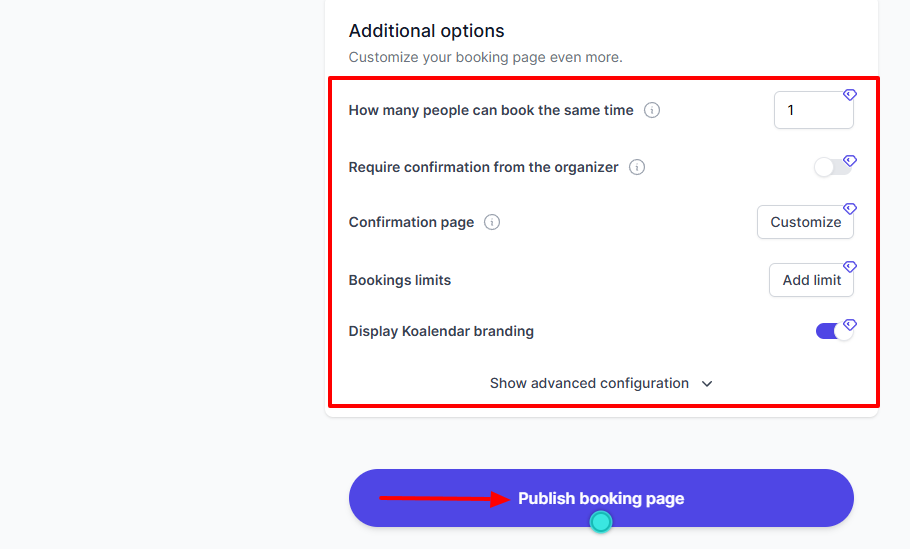
Nonetheless, this is what your booking page may look like.
2 . Bookings
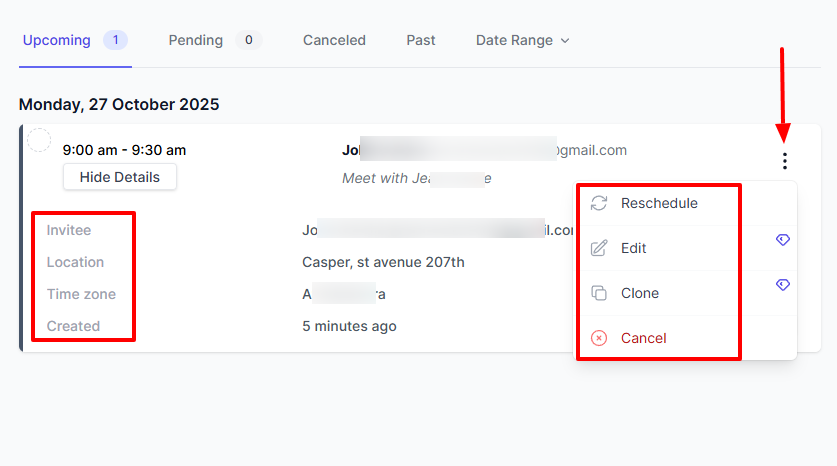
In Koalendar, the Bookings feature shows all your upcoming, pending, cancelled, and past sessions. The interface shows your meeting's exact date and time with the client's name and email.
It even shows more details, such as the location, timezone, and when the client booked. Now, by clicking on the three-dot menu, you can reschedule, edit, clone, or cancel the session.
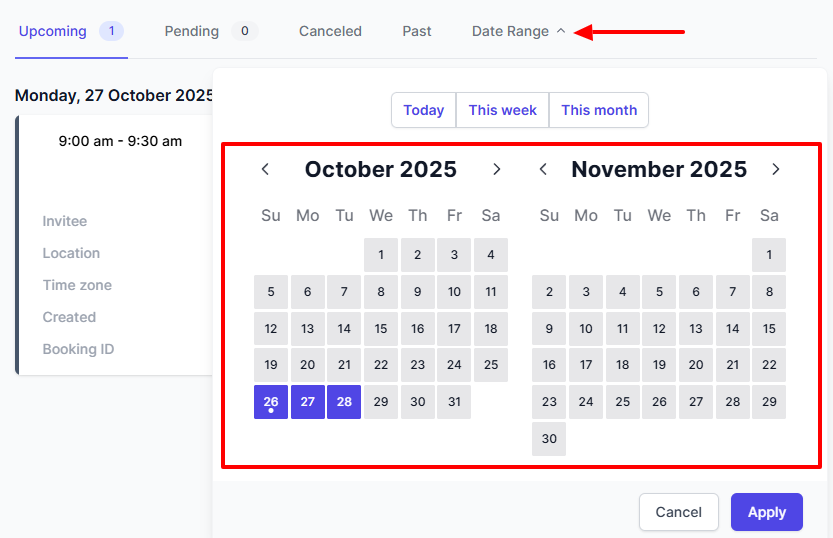
You can also select a date range in case you want to view certain session details over a specific period of time.
3 . Dashboard
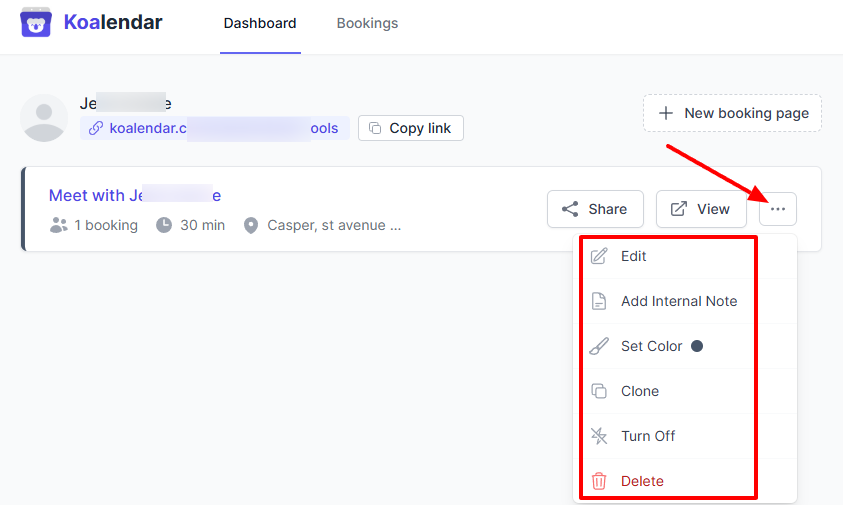
This is the next feature available on Koalendar's free plan. It's a dashboard that displays your booking page link that you can copy. You can also see your booking page details: number of bookings, duration, and location.
From there, you can decide to share or view the page.
By clicking on the three-dot menu, I can edit the booking details, add an internal note, set a color, and more.
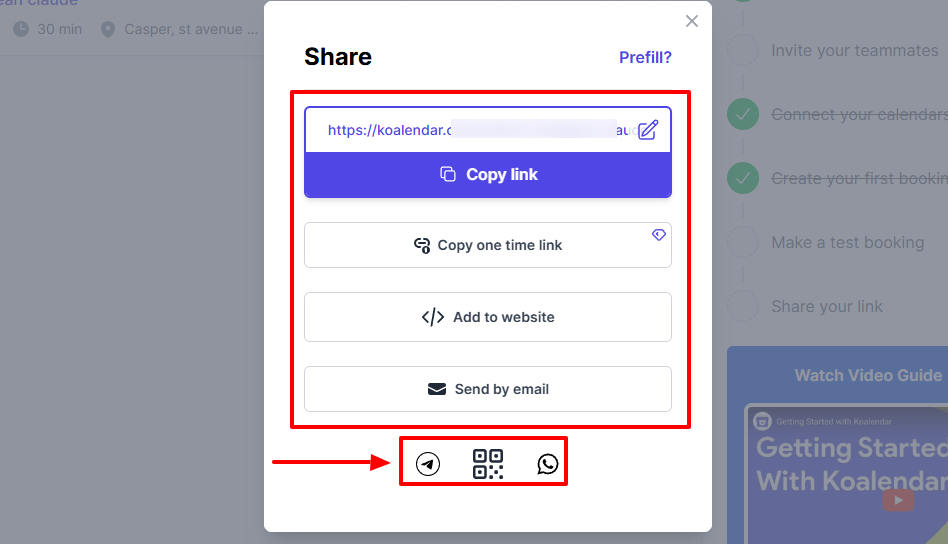
Once you click the "Share" button, you can take many actions, including copying the link, adding to a website, or sending by email. But what I loved is that I could send the link directly to my Telegram or WhatsApp.
What I Loved and What I Struggled With
| What I Loved | What I Struggled With |
|---|---|
| ✅ You can set up your whole booking page on one page. ✅ Loved that you can share your booking link directly to your WhatsApp or Telegram. ✅ Lets you turn on email & SMS reminders during the booking page creation | ❌The interface looks basic, displaying only two features: the dashboard and bookings. ❌The dashboard lacks key data, such as revenue insights. |
Best for
- Freelancers and solo beauty professionals seeking to create a booking page and track their bookings.
Pricing
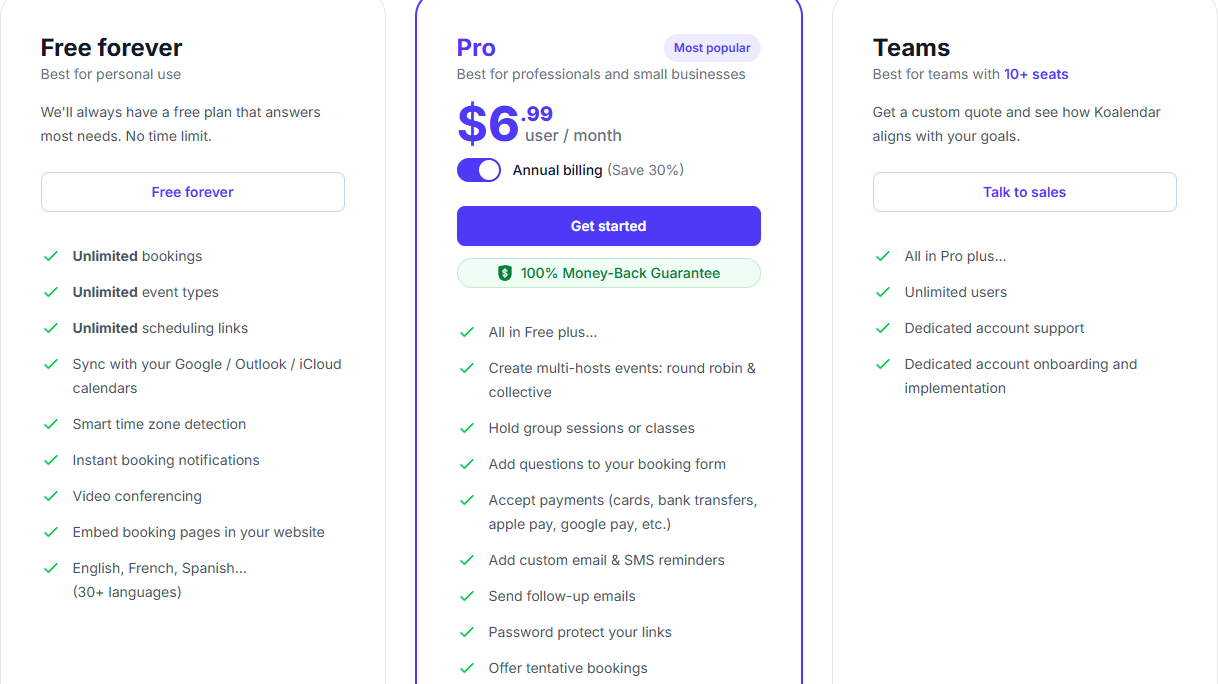
- Free forever
- Pro: $6.99/ month, billed annually
- Teams: Custom pricing
5. Square appointments
| Personal rating: 4/5 stars |
|---|
| I loved that, aside from booking appointments, you can send messages to clients via SMS right from within the platform. |
Moving on to Square appointments, our next free salon booking system.
I recommend Square appointments to small salons and solo stylists who already use Square and want to focus more on communicating with clients.
Among the many actions you can take with Square appointments is adding a customer to the platform. All you need to do was enter their name, phone number, email, and choose a timezone.
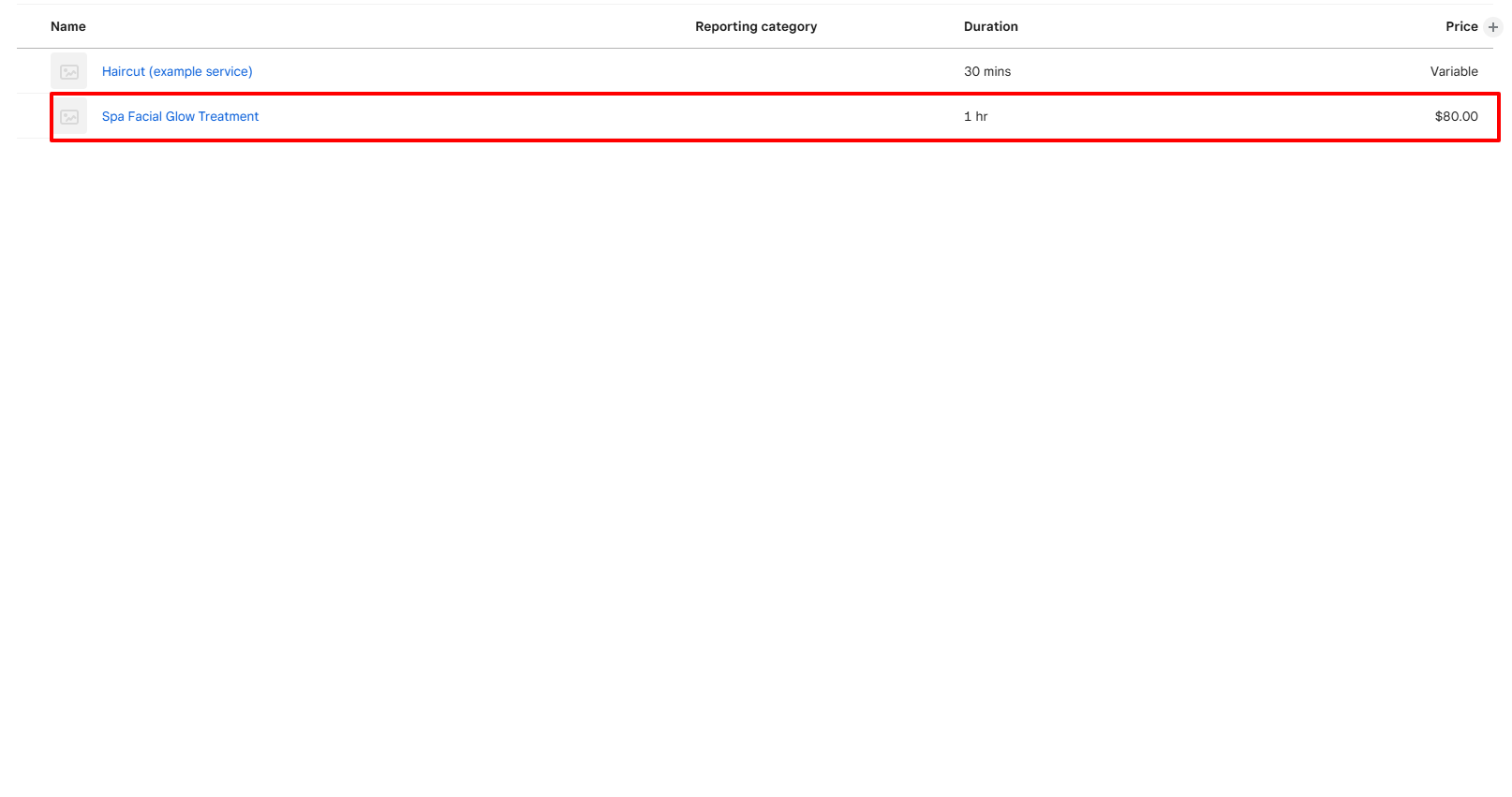
Moreover, you can add a service that customers can book or pay for. First, give it a name, then a description, specify its duration, and finally, add your price.
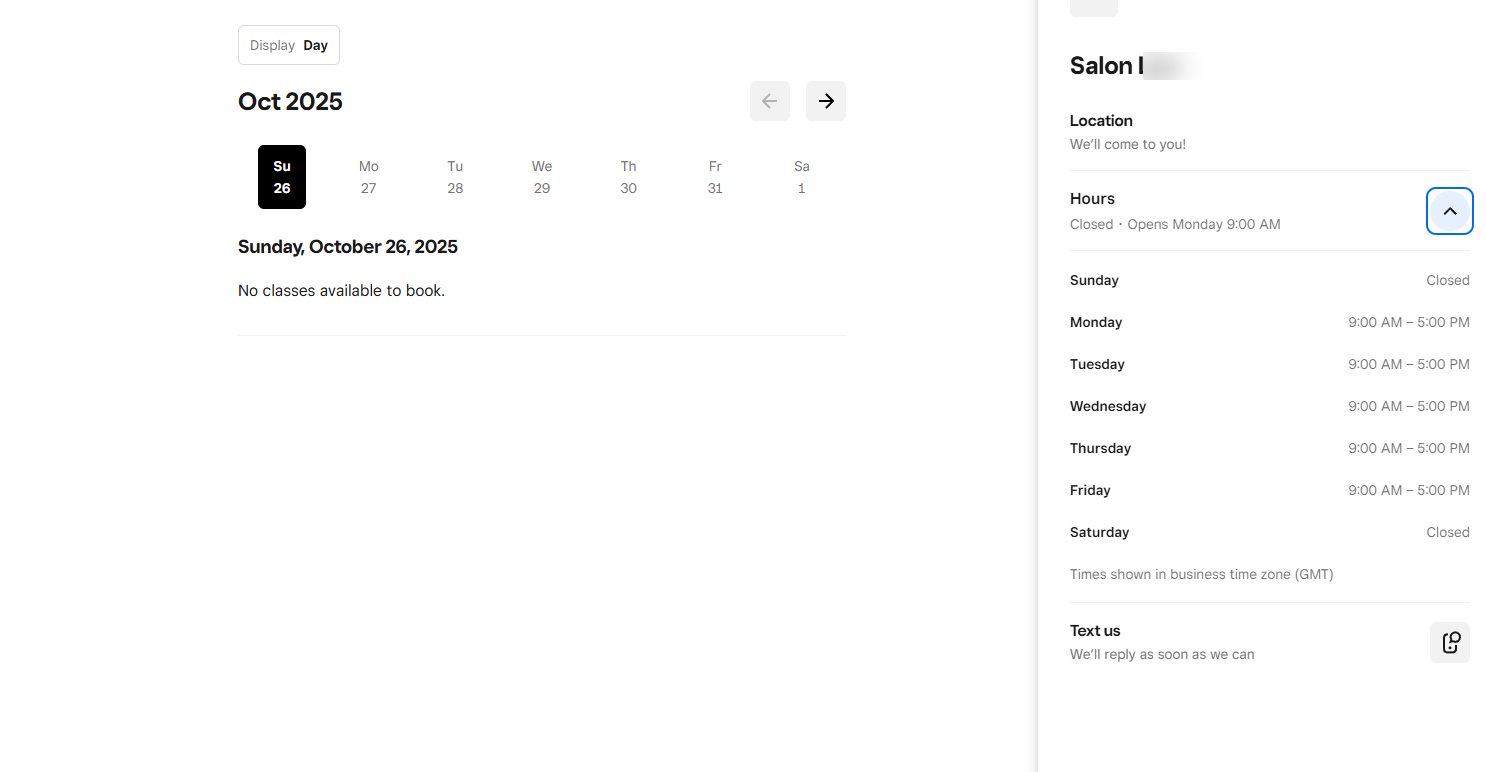
But of course, what is a salon booking system without the ability to set up online booking? With square appointments, you can name your online booking, set up your availability, and then add a location.
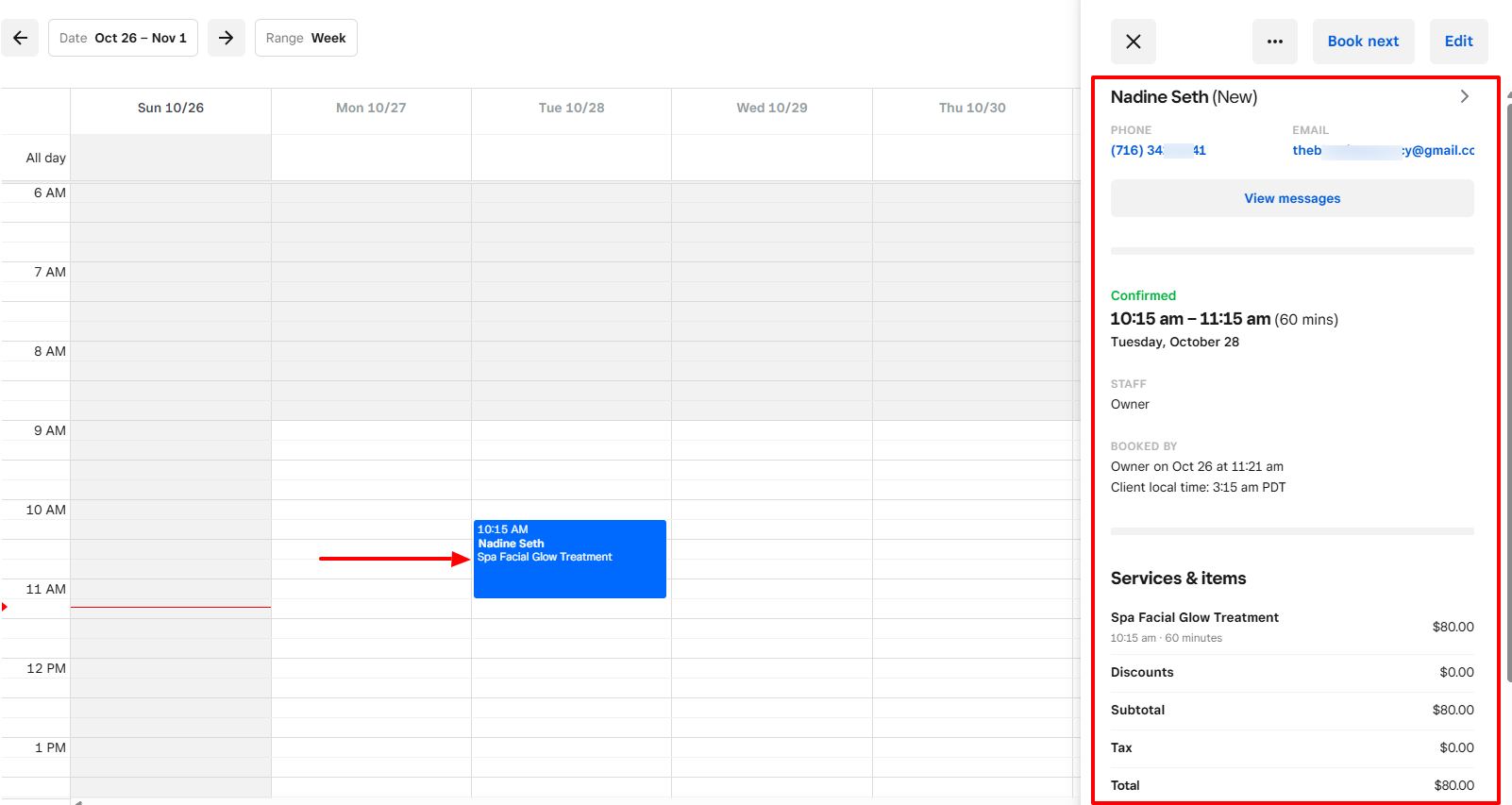
More so, you can use the calendar to create an appointment. Pick any time on the calendar, then choose the client, staff, and services for that appointment.
What I loved about Square appointments
1 . Customer
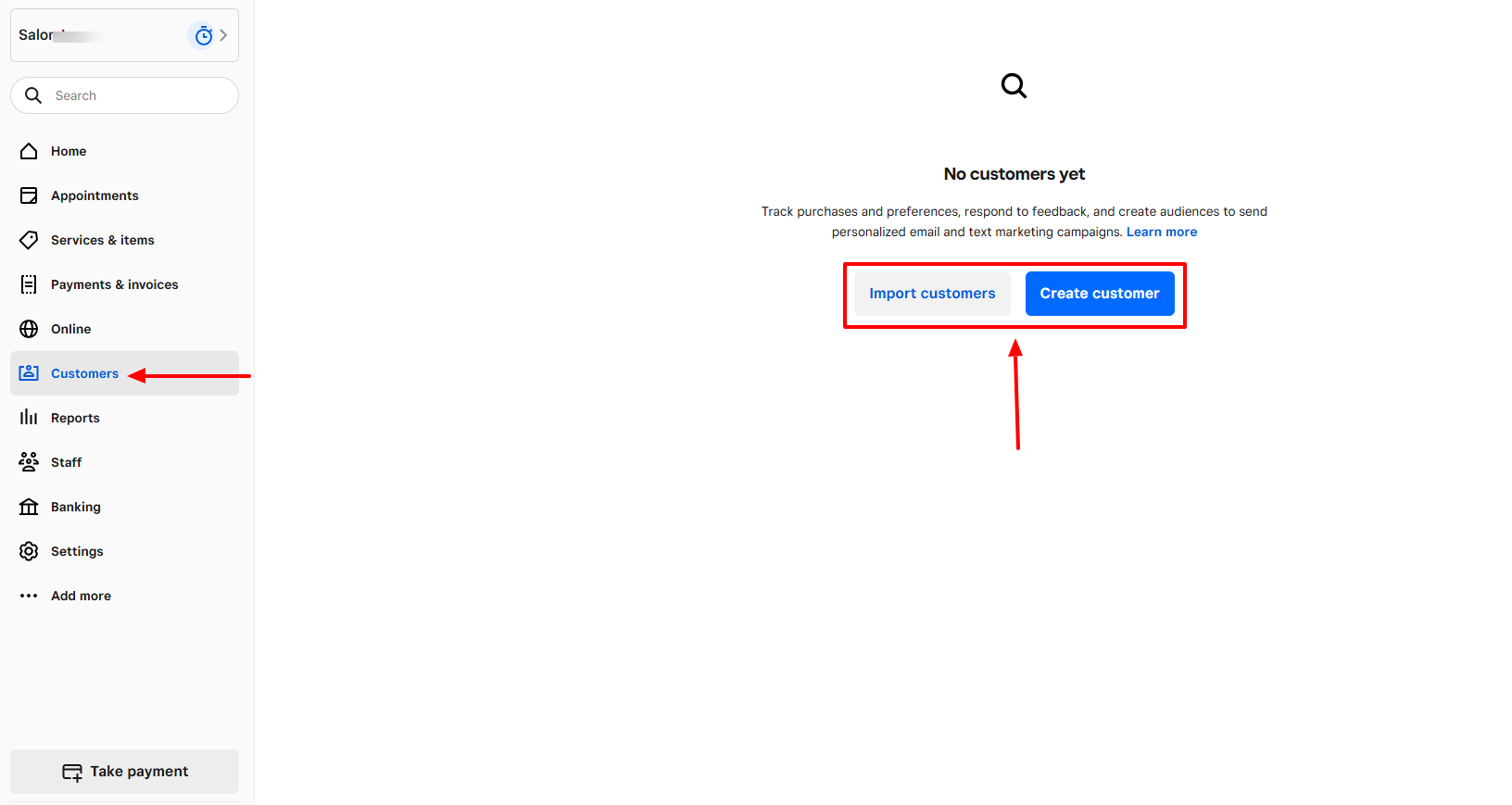
Having your database of customers inside the platform you use is very useful. What's more useful is if you can import a list of these customer details when migrating from one platform to Square. Square appointments gives you two options: Import or create a customer.
But let me show you how to create a customer manually in Square.
I will start with the first & last name of my customer, then phone number, email, and address.
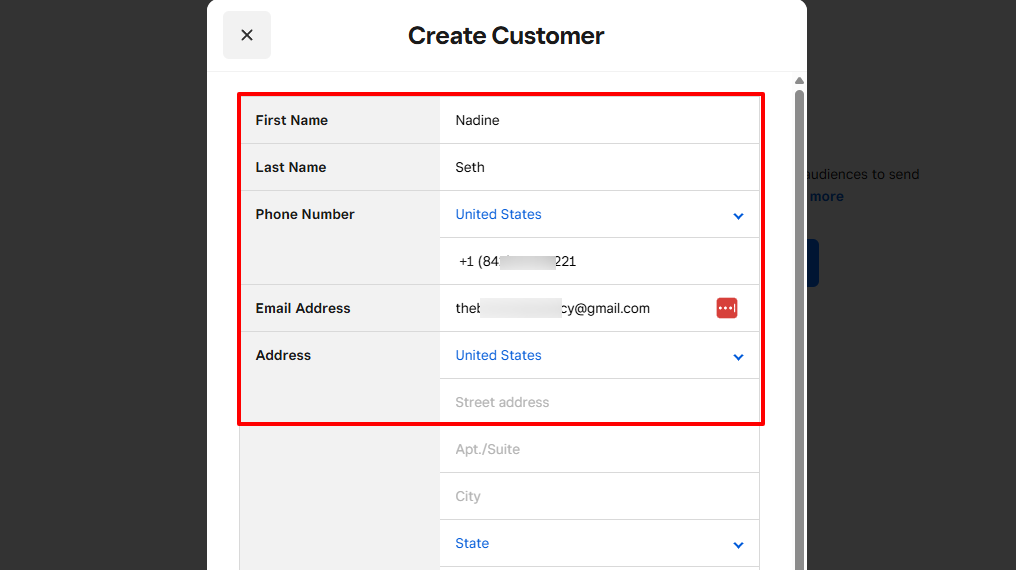
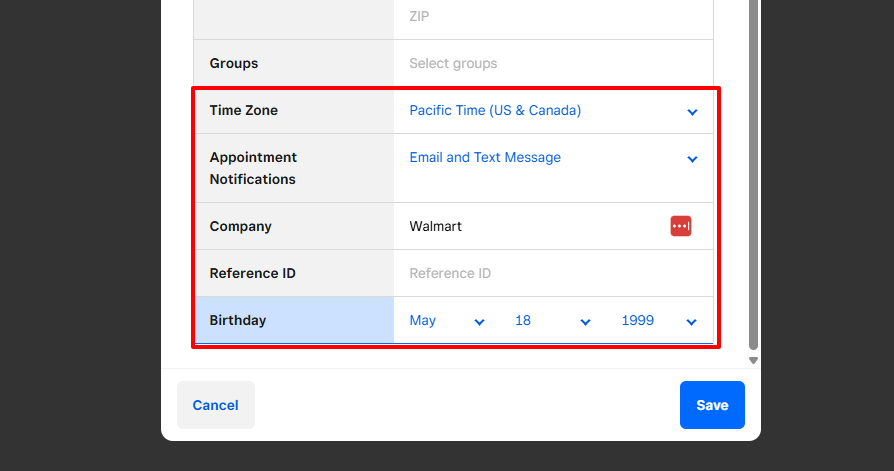
I will then select the timezone, choose the appointment notifications, and enter the customer's company and their birthday(which is optional).
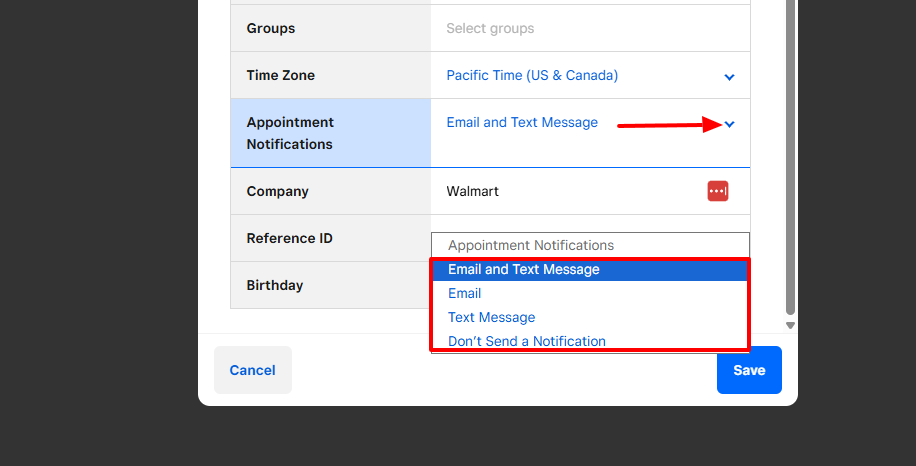
I mentioned "Appointment notification" earlier. This simply means you select how you want the client to receive their appointment notifications.
It could be through email and text message, either email or text message, or none.
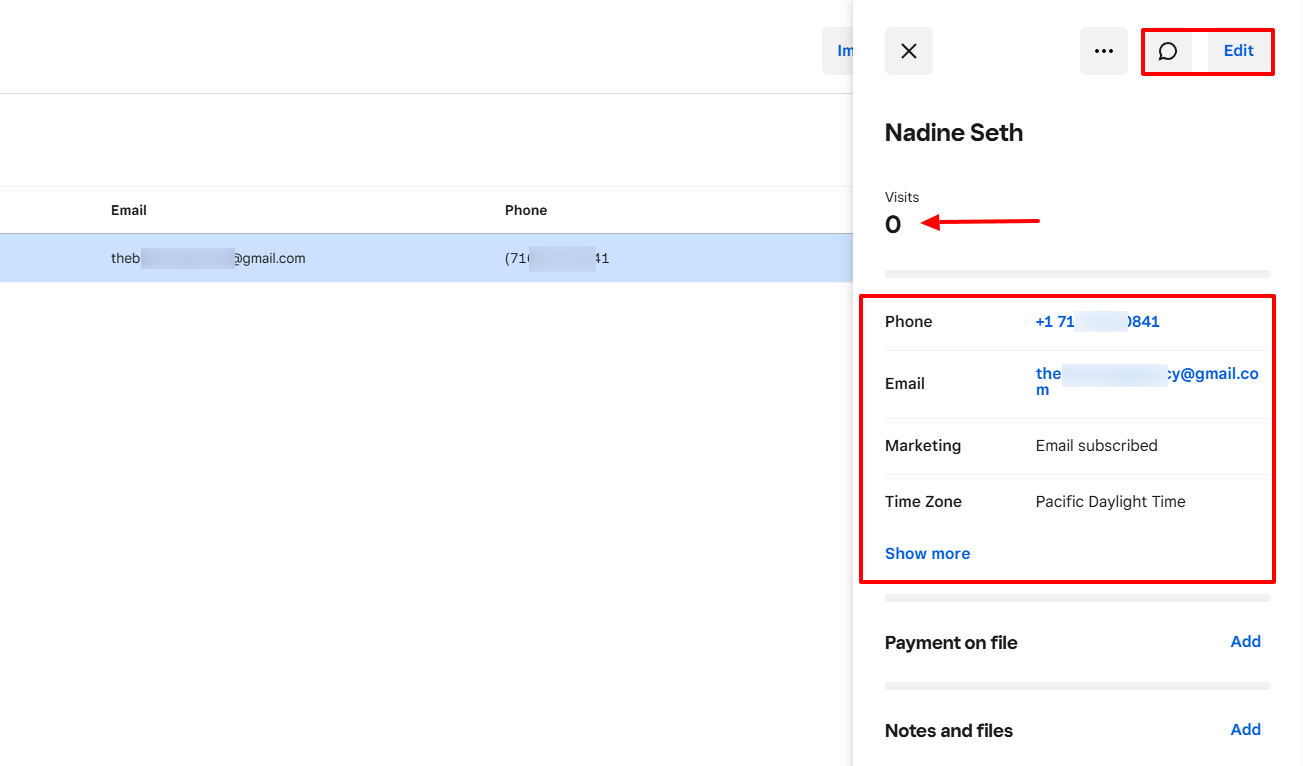
With that out of the way, you have a new customer! At the top, you can spot the "Edit" button, which means you can edit the customer's details. There is also the "Message icon," which indicates you can reach out to the client via SMS.
Below, you can view how many times the client has visited your salon and all their details: phone, email, and timezone.
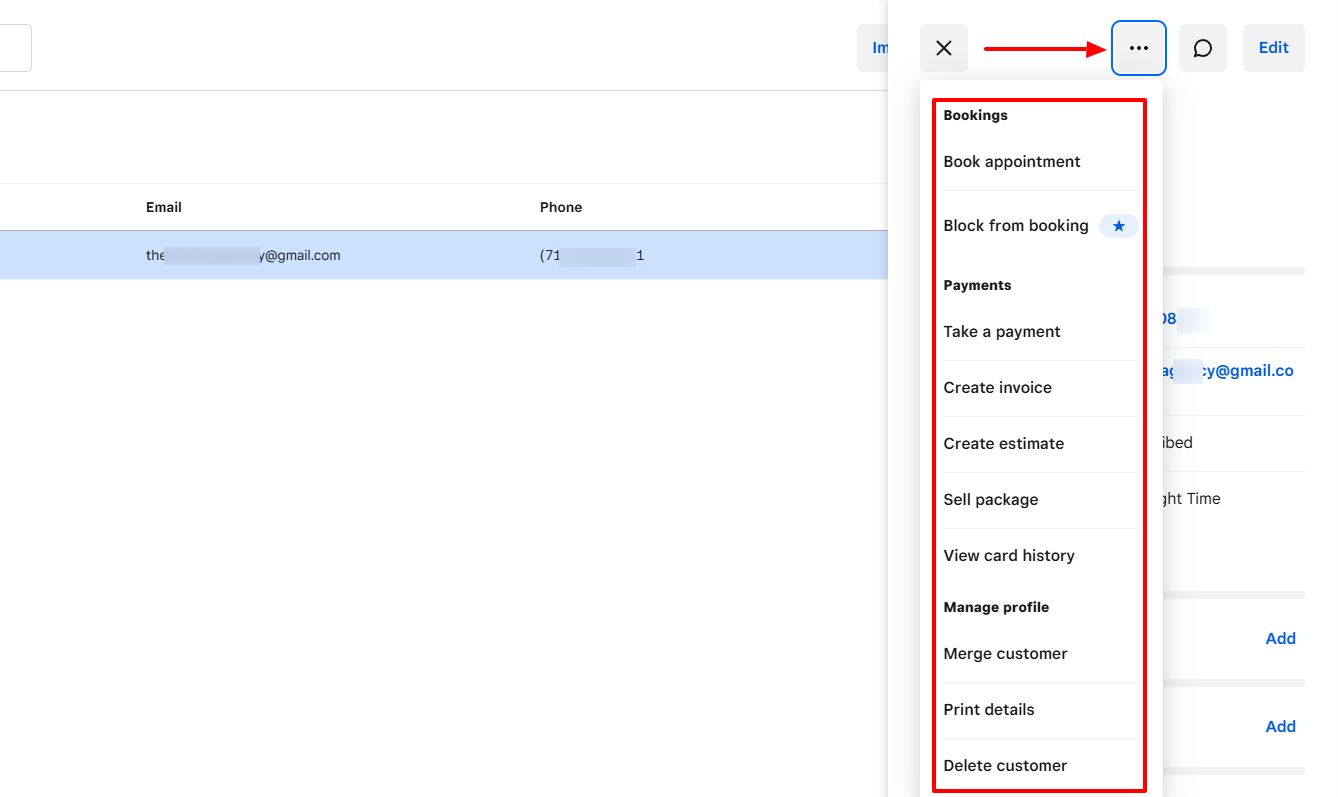
I was a bit more curious and clicked the three-dot menu located before the "message icon".
It brought up a list of actions I could take: book an appointment, block the customer from booking, take a payment, create an invoice, view card history, just to mention a few.
2 . Services & Items
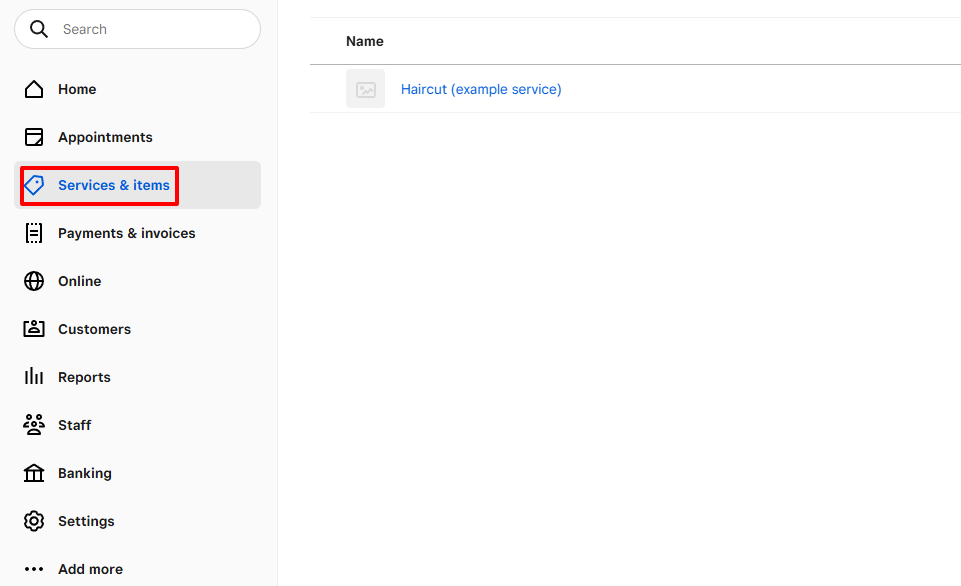
Since the Services & Items feature was available, I gave it a try. I wanted to test how to create and add a service in Square Appointments.
You will find this feature on the sidebar menu.
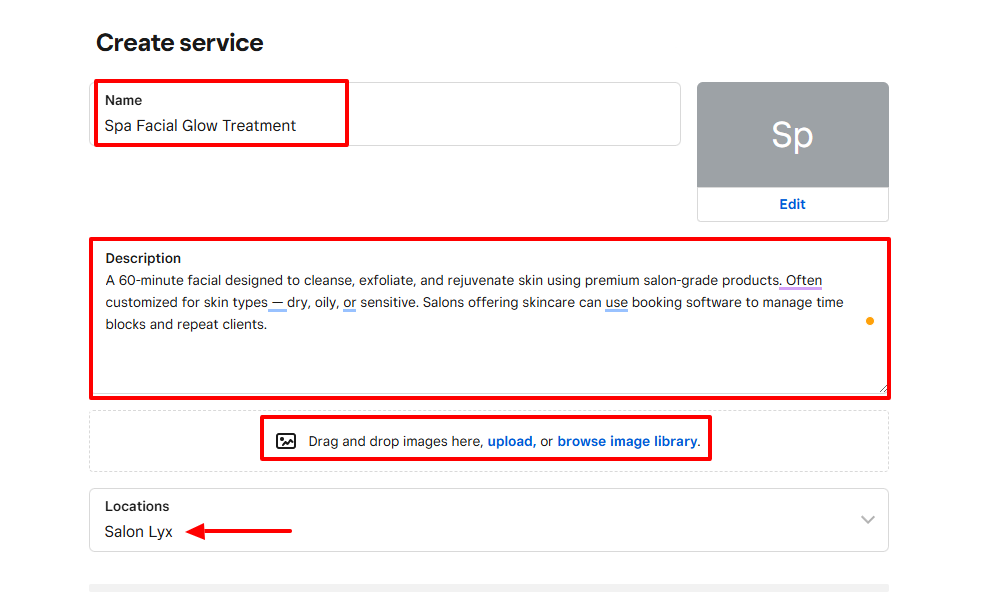
I added my service name, a clear description, and chose a location. I could also drag and drop images related to the service there.
Next, I chose a price type and added my price. Below, I specified the service duration as 1 hour.
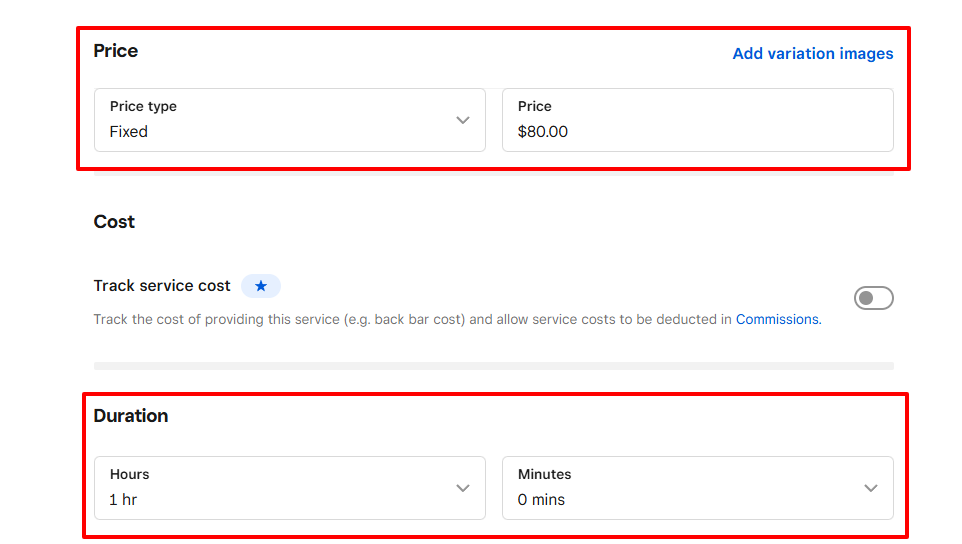
That's how I created my service.
3 . Calendar
The Calendar is one of the fastest ways to create an appointment, task, reminder, or event. When I was reviewing Square appointments, I located the calendar under "Appointments".
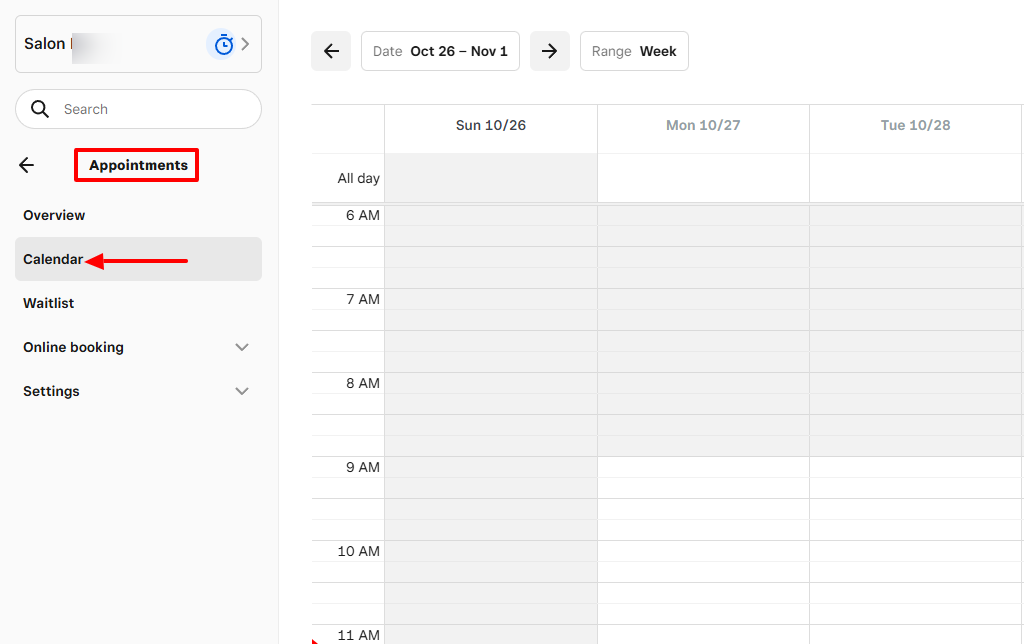
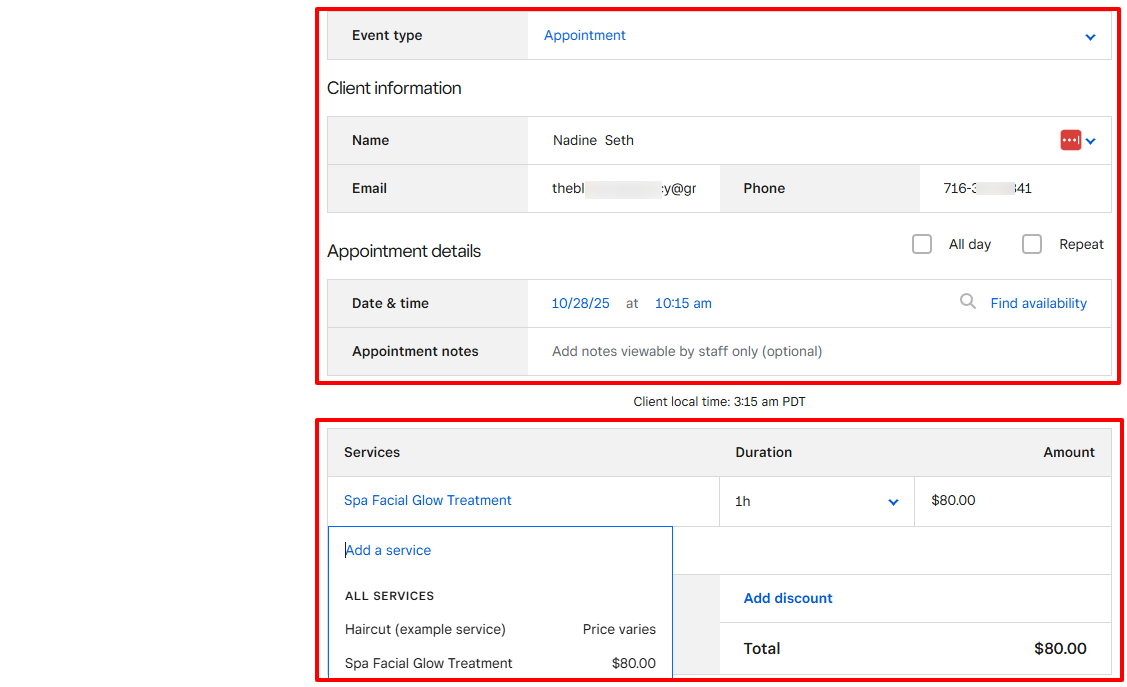
I wanted to create an appointment, so I simply selected a date inside the calendar and that was it. The next step was to choose the event type, the client, adjust date & time, and, if possible, add appointment notes.
Below, I could also select a service, duration, and amount.
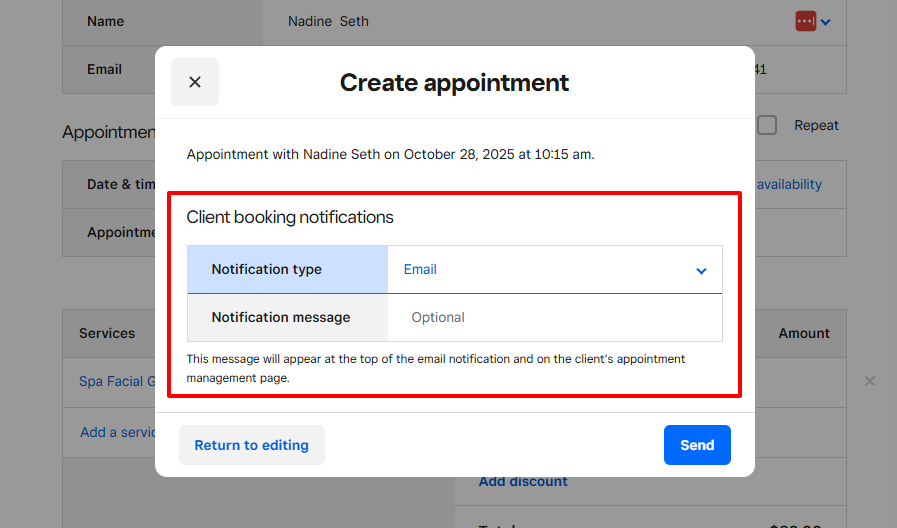
Now, I had to choose how I wanted my client to be notified. I went for "Email'.
I could also possible add a notification message.
The appointment appeared right in the middle of the calendar, and I could click it at any time to view all the details.
What I Loved and What I Struggled With
| What I Loved | What I Struggled With |
|---|---|
| ✅ Offers Photo studio for iPhone users, a photo app where you can quickly snap pictures and edit them. It syncs directly with the platform. ✅ Can send messages to clients via SMS directly from the platform ✅ Shows both your timezone and that of the client | ❌ There are a lot of subfeatures, under other subfeatures, which can be confusing when looking for a particular feature. ❌Can't use the meeting cancellation options on the free plan. You need a paid plan to allow your customers to cancel appointments |
Best for
- Medium salons looking for software to handle multiple locations and communication with clients.
Pricing
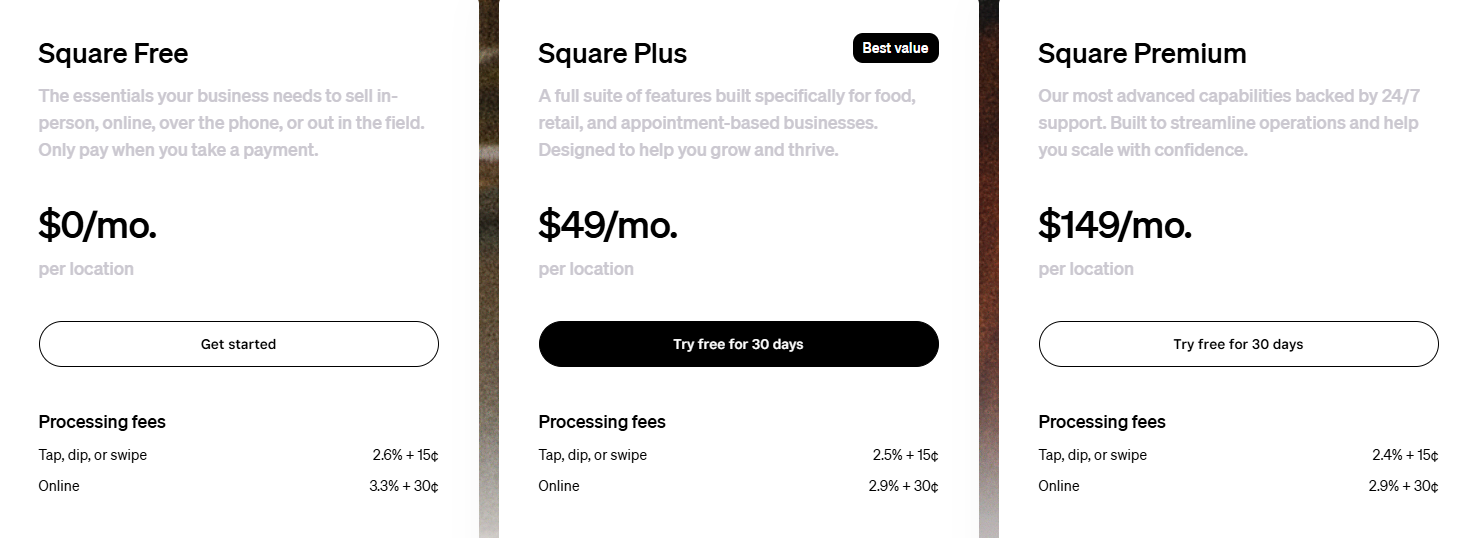
- Square free:$0/ month
- Square Plus: $49/ month, per location
- Square Premium: $149/ month, per location
6. Setmore
| Personal rating: 4/5 stars |
|---|
| I loved that it's very easy to add customers and create appointments with them using the calendar tool. |
Next on our list of the best free salon booking systems is Setmore.
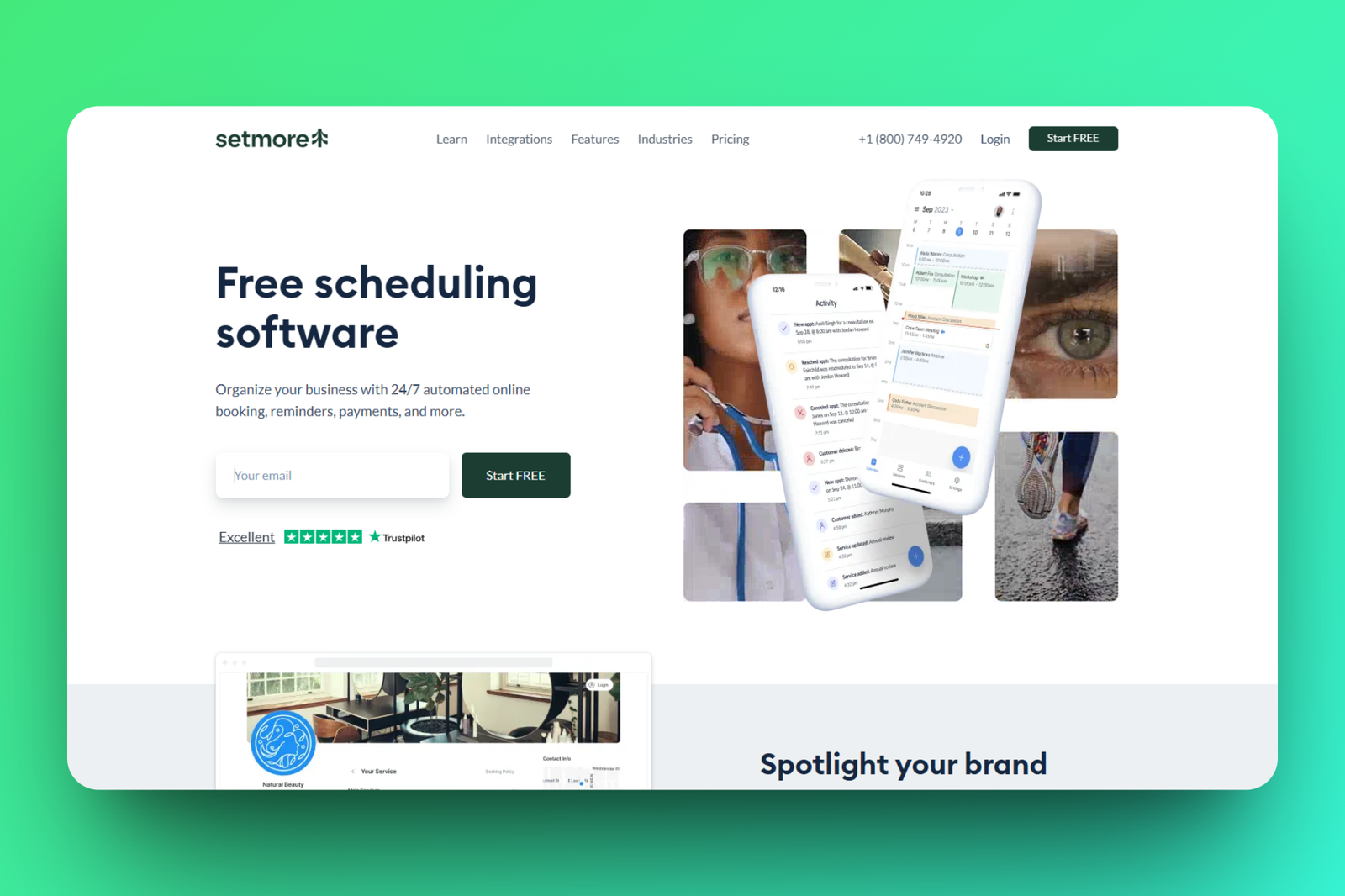
I recommend Setmore to freelancers and solo beauty professionals who are just starting and want to create appointments and receive payments.
Like with the other tools in this list, It's not hard to add a customer on Setmore. You just have to enter your customer's name, company name, location, phone number, and email address.
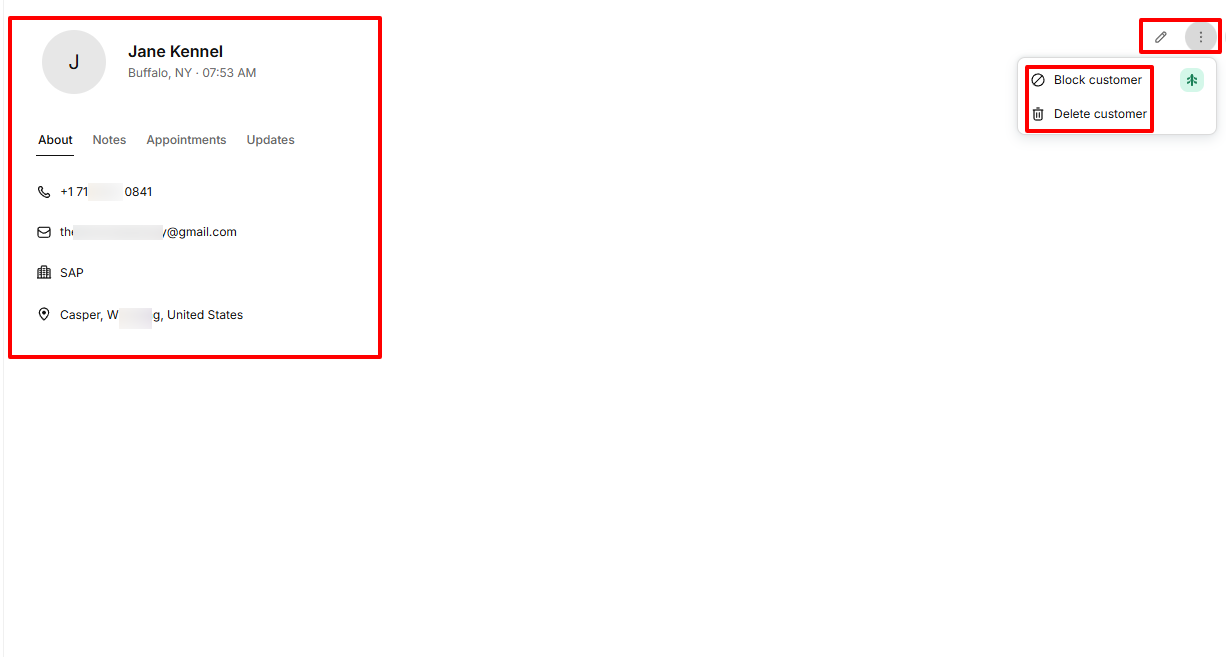
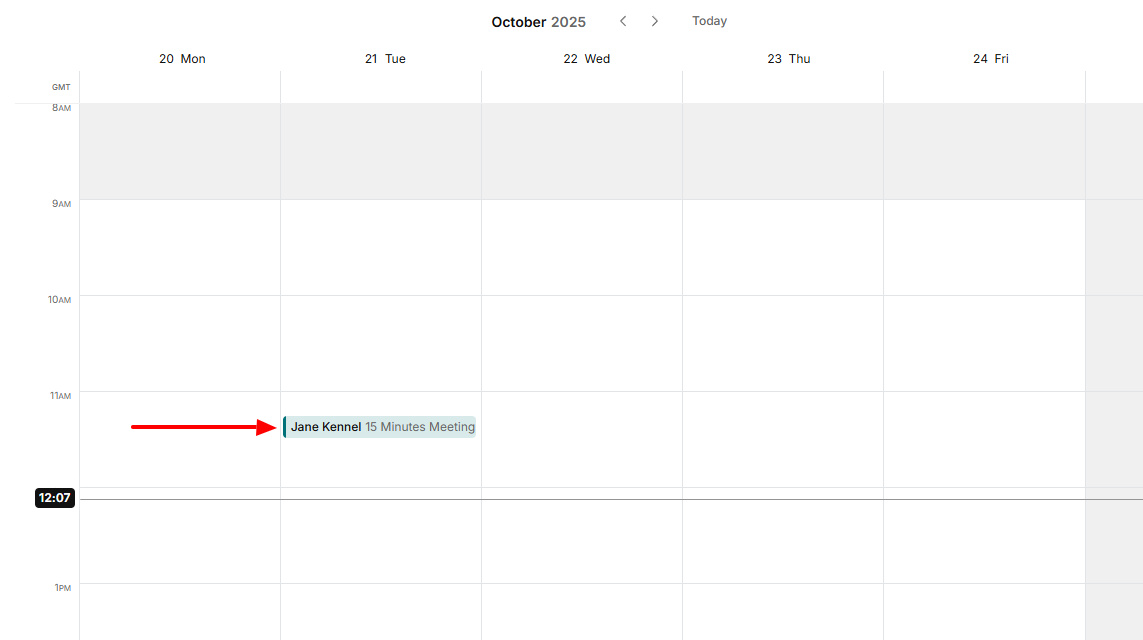
If you want to create an appointment faster, you can use Setmore's Calendar feature. You will choose the service, date & time, and customer. And if it is a paid appointment, you can add a price to it.
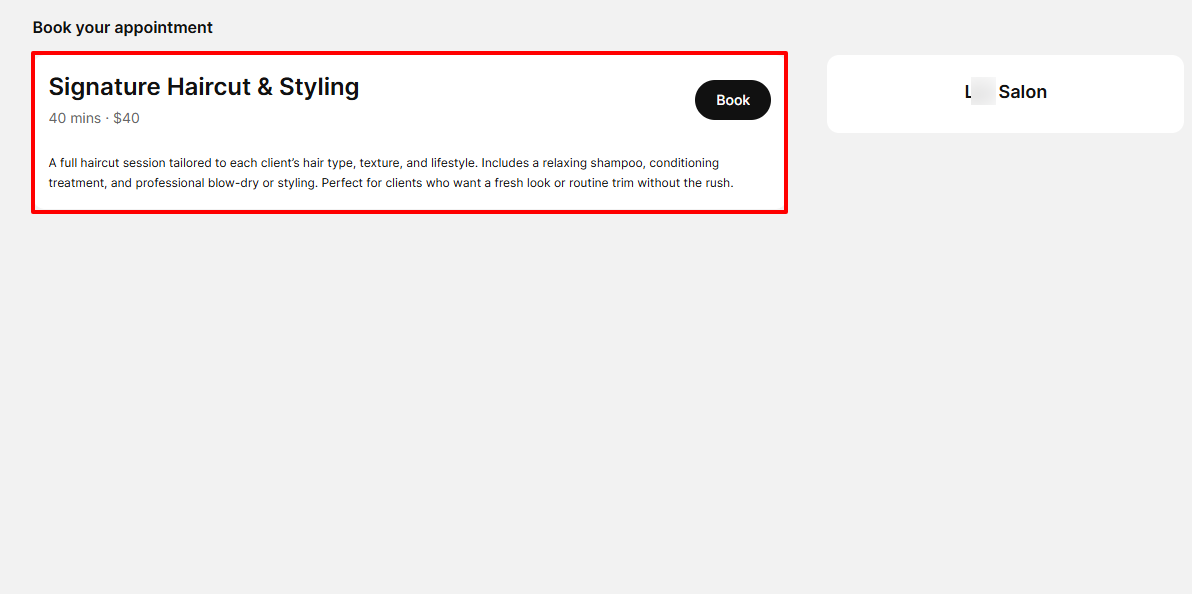
However, you can also add a service. Come up with a clear name and description, add the service duration, and price. When it's time to book an appointment, your service will be listed.
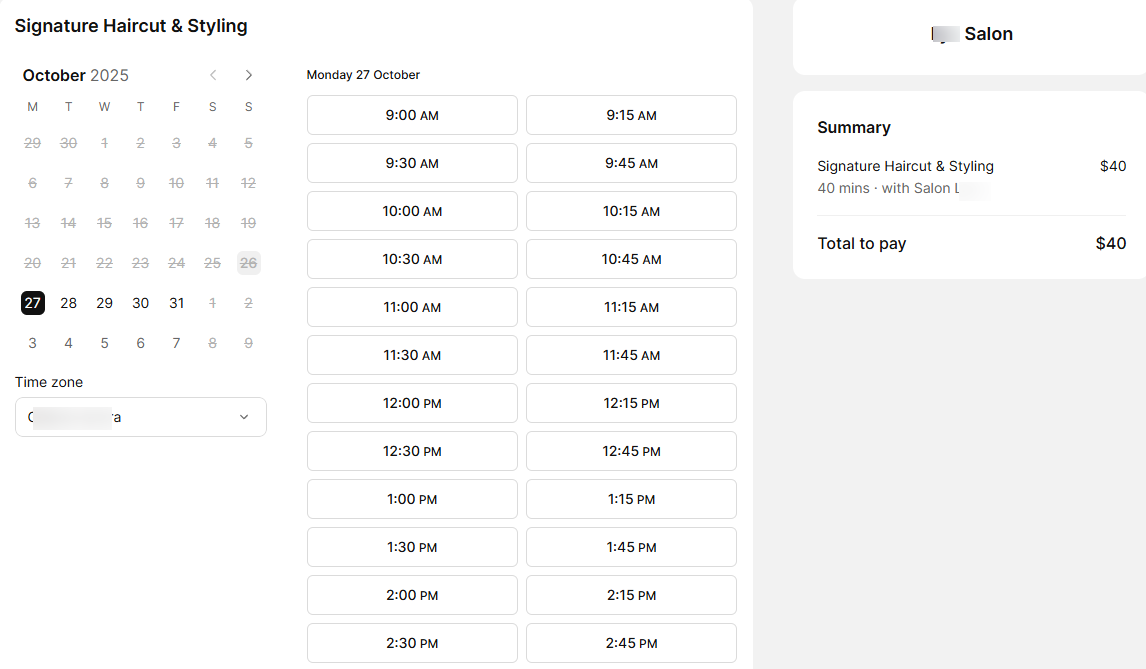
Last but not least, I can also create a booking page for customers and clients by naming the page, adding a description, selecting a duration, and entering your price.
What I loved about Setmore
1 . Customer
Setmore also comes with the Customer feature. When I spotted it on the sidebar, I knew I simply had to review it as well.
Let's get into it. After you have selected this feature from the sidebar, click "Add customer".
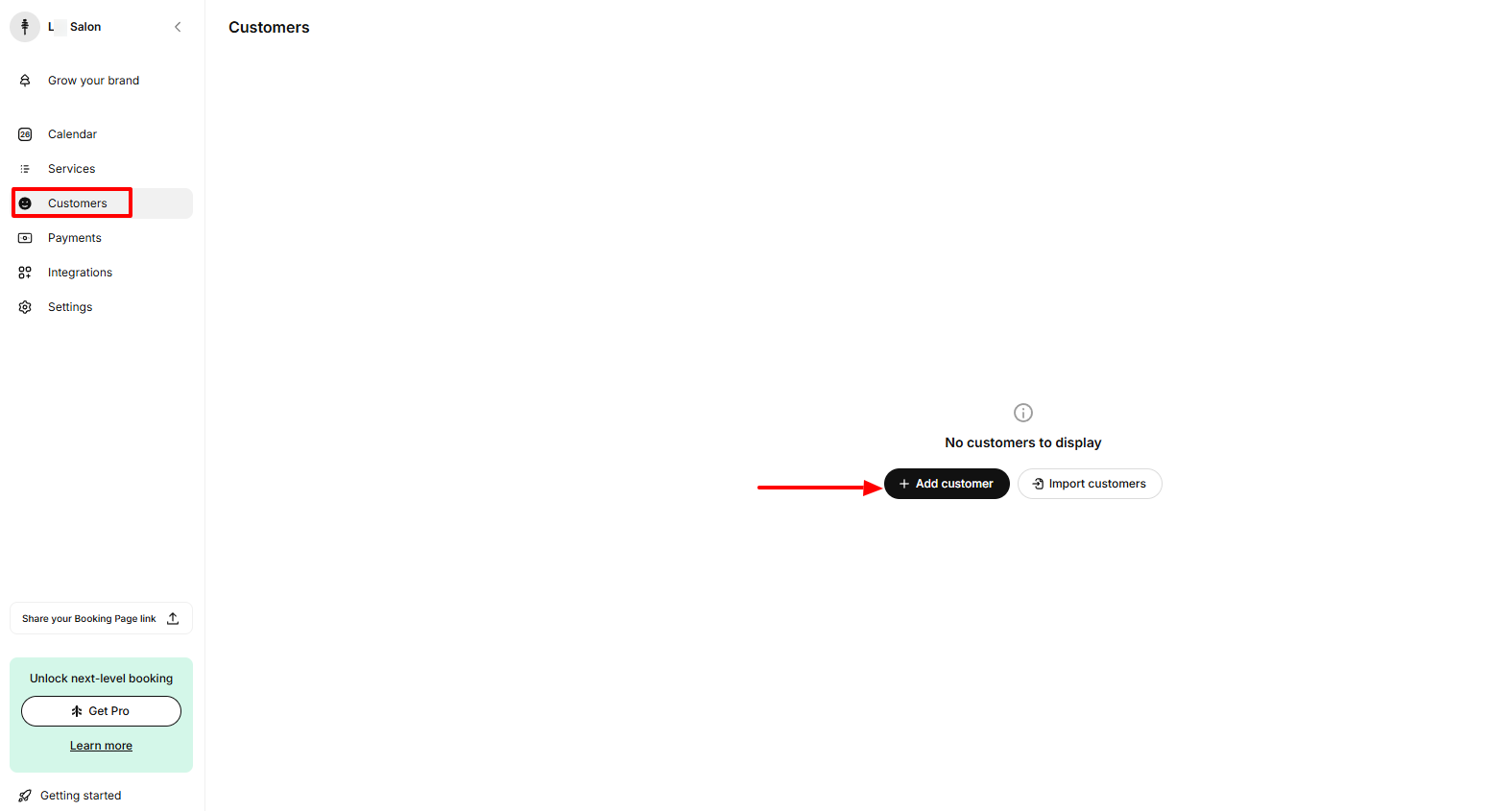
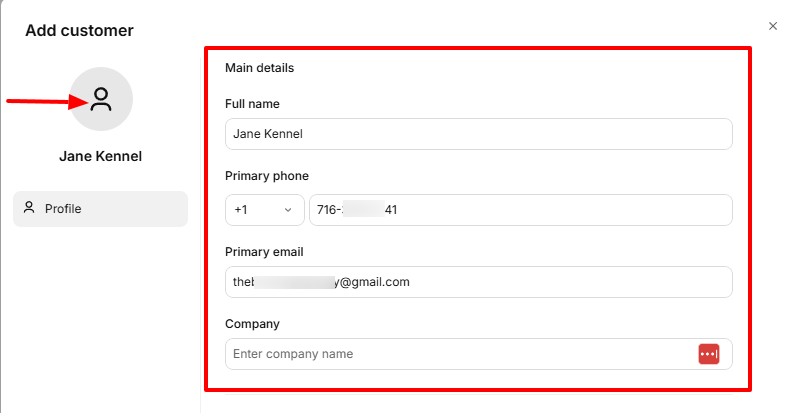
Next, enter the customer's name, phone number, primary email, and company. Uploading their photo is also possible.
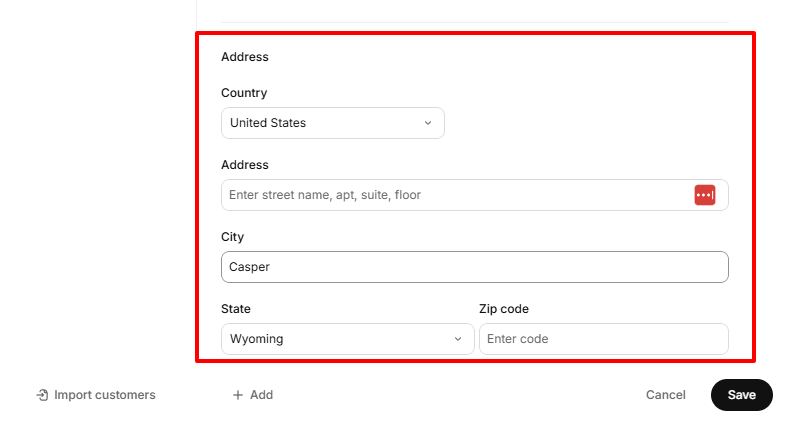
Then, choose their country, address, city, and state.
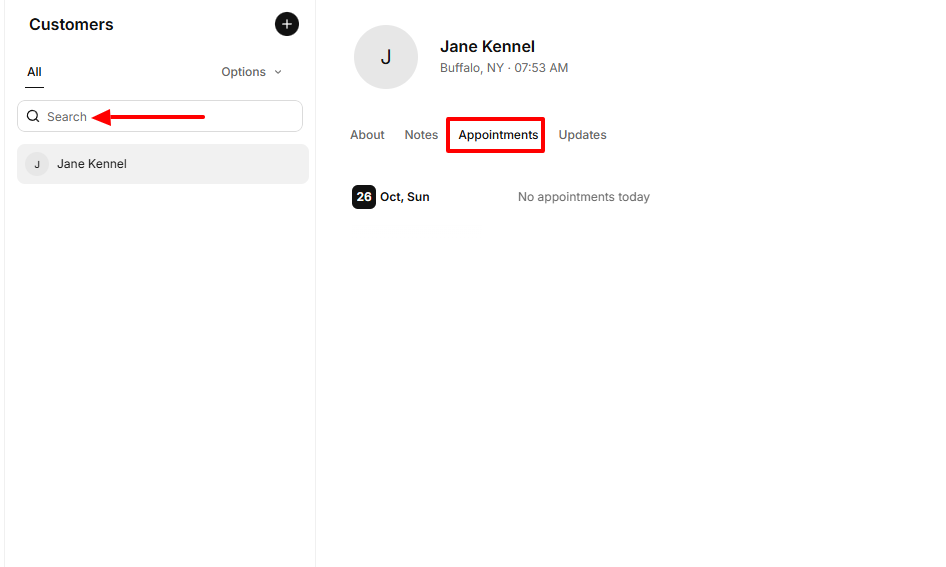
Having followed these steps, you will have created your new customer. On the far right of the interface, you can edit, block, or delete the customer.
Now, in case you have a long list of customers on the platform, you can use the search bar to find the one you're looking for. And anytime you have an appointment, it will appear under the customer's name.
2 . Calendar
The next feature I tested on Setmore is its Calendar. Without wasting time, let's see how it works.
On the calendar interface, you can select a time slot to create an appointment.
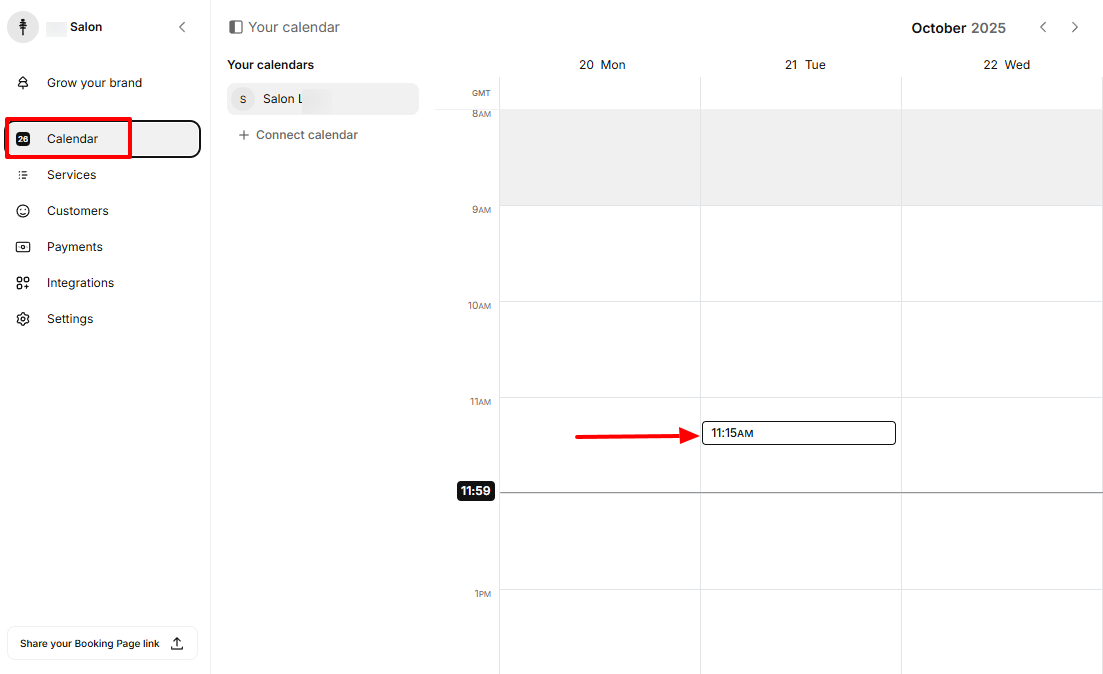
Right on there, you can choose the duration, cost, date, and time for the appointment. Afterwards, you can select the customer you want to schedule an appointment with and specify the location.
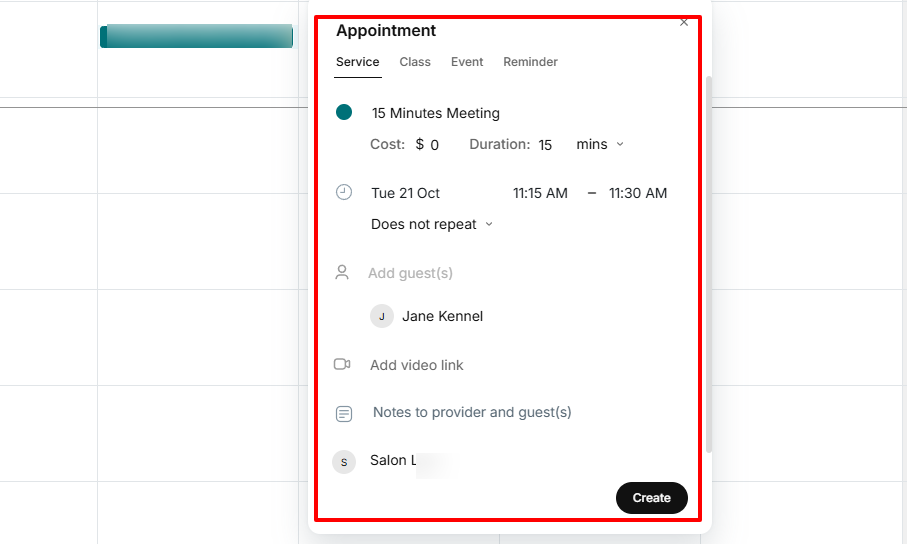
Once done your appointment will pop up in the calendar.
3 . Services
I've already created multiple services on the other platforms. But this did not discourage me from doing the same with Setmore.
Let me walk you through how I created a new service.
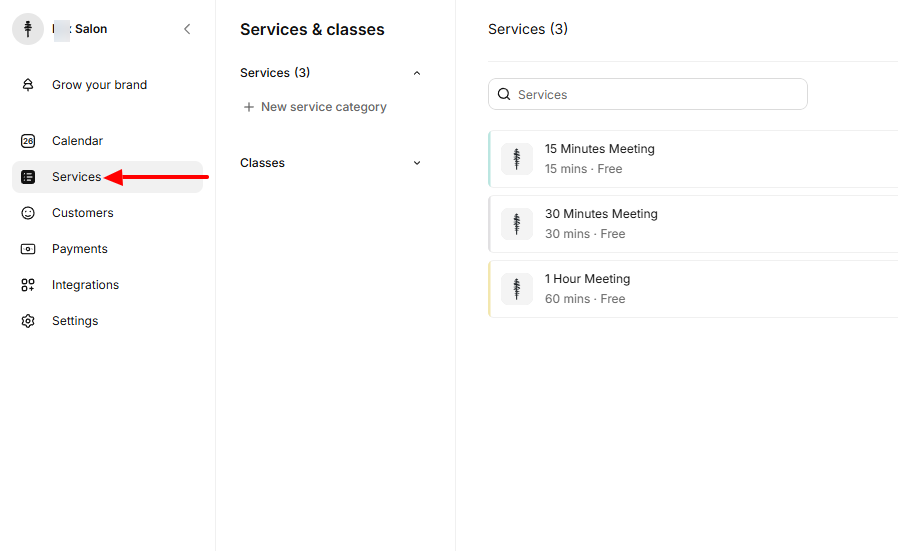
To begin, I selected "Service" on the sidebar.
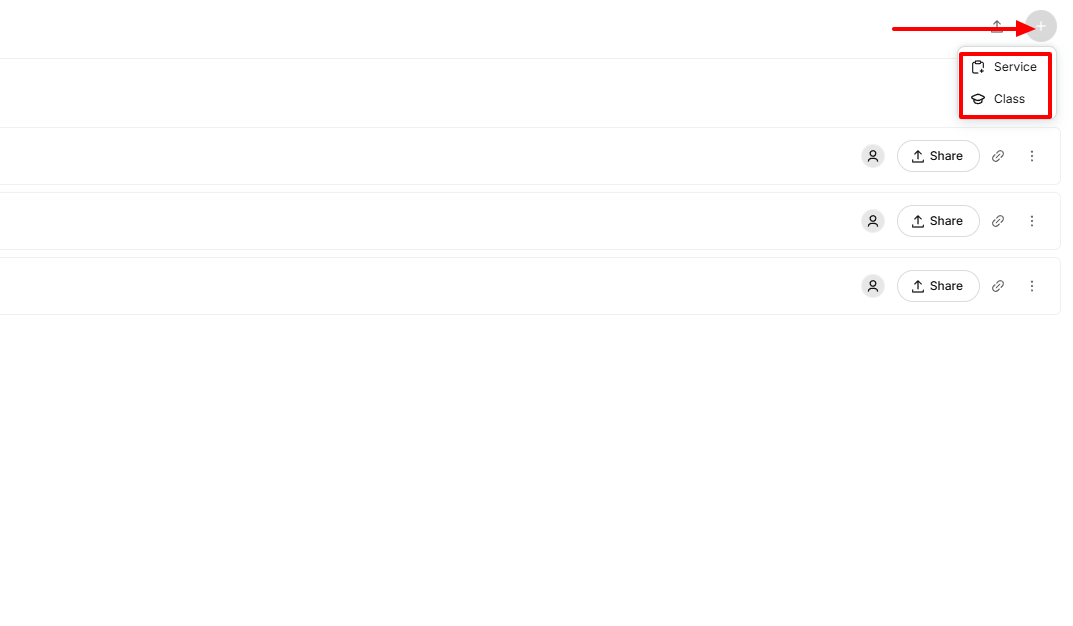
On the far right, I clicked on the "+" icon. This revealed two options: "Service" and "Class". I chose "Service".
I added my service name, description, duration, and cost. I also selected the location and could even add my service image.
On the right side in the service details window, I had to specify who would provide the service.
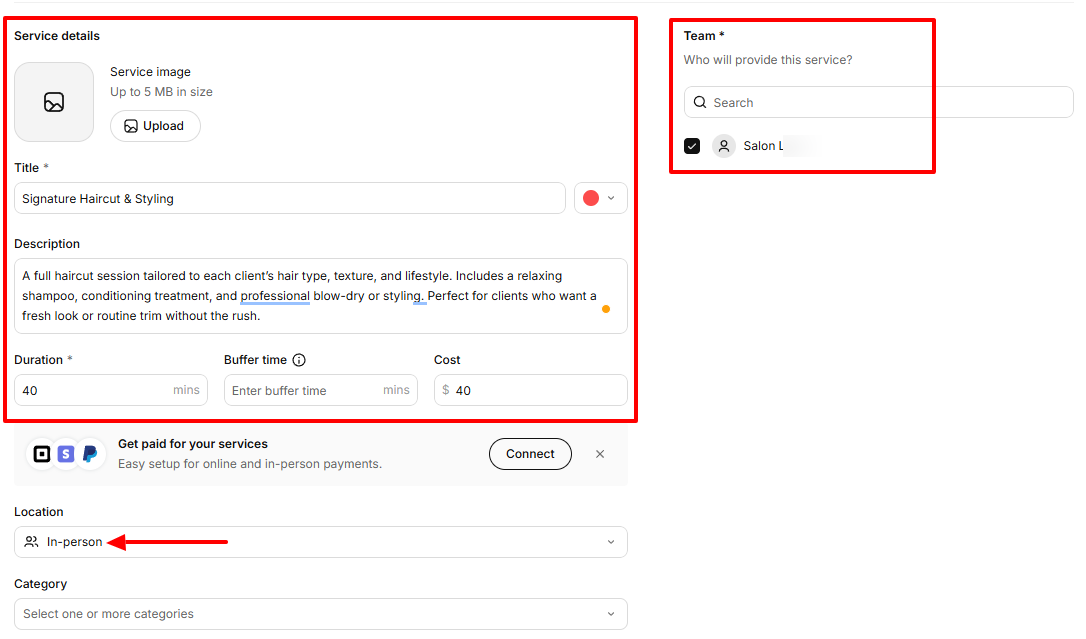
After that, I saved the service and it was ready to be booked!
What I Loved and What I Struggled With
| What I Loved | What I Struggled With |
|---|---|
| ✅ Comes with a mobile application, even on the free plan ✅ Can create various appointments through its Calendar: for service, class, event, or reminder. ✅ Can add customers' personal social handles such as YouTube, Twitter, or Facebook | ❌ Hard to read certain features since the text font size used is small. A setting to change that would have been great. |
Best for
- Freelancers and solo beauty professionals seeking to create appointments with clients and receive payments.
Pricing
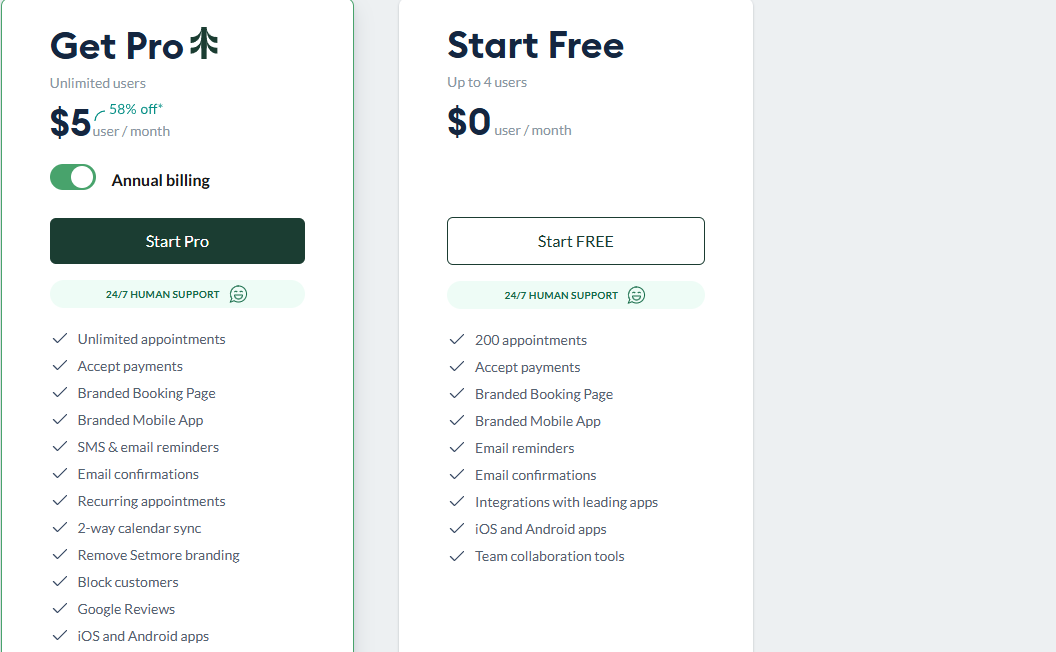
- Start free: $0/ user/ month
- Get Pro: $5/ user/ month, billed annually
7. Appointy
| Personal rating: 4/5 stars |
|---|
| One thing I love about Appointy is how the platform displays all your appointments in the Home interface. This makes for easy viewing any time you sign in. |
Appointy is our next best free salon booking system.
I recommend Appointy to medium and large salon businesses that manage multiple locations and team members.
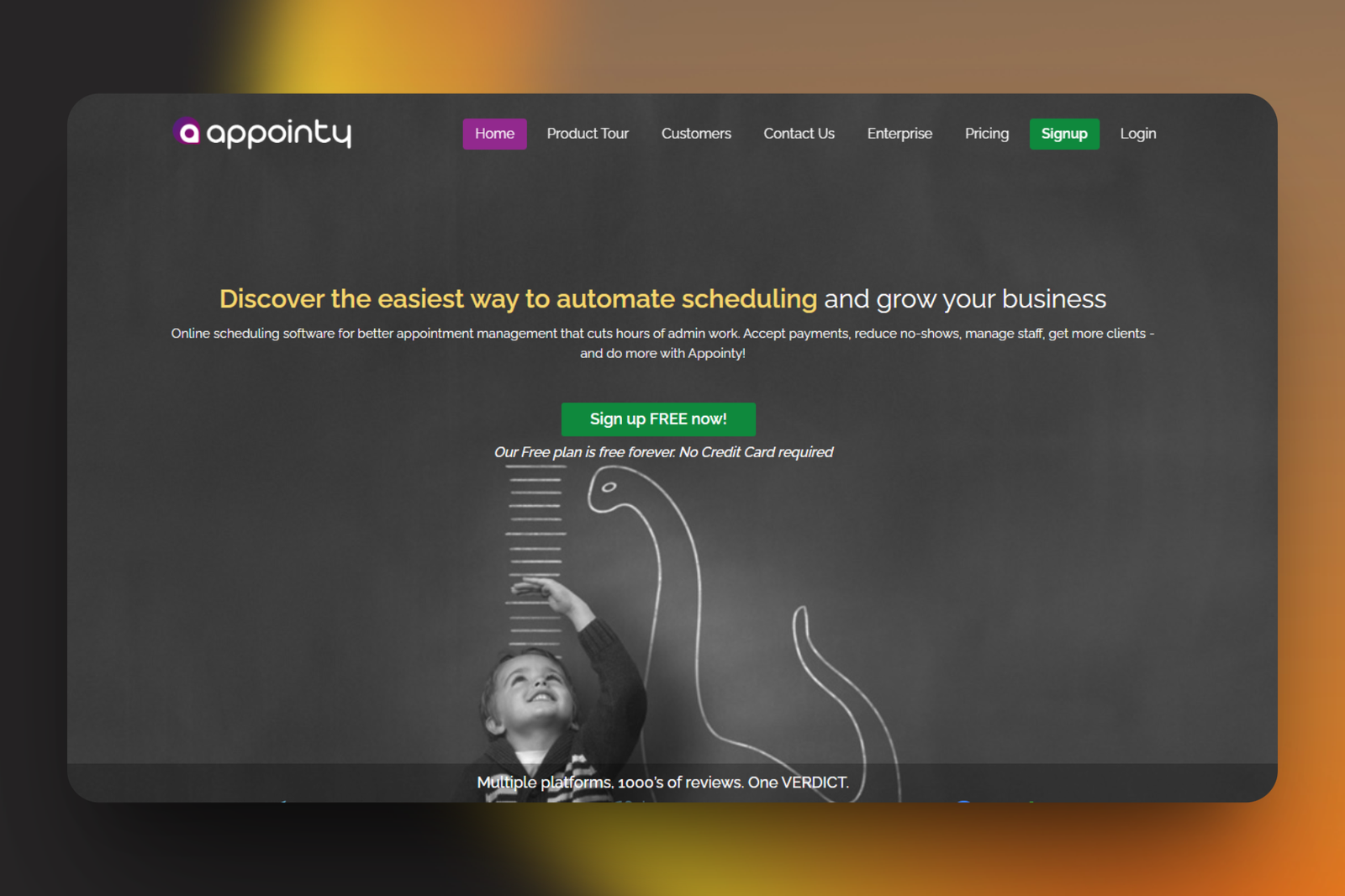
With Appointy, I don't need to do much when I create an appointment. I select my preferred service, service provider, date & time, and the customer's email address.
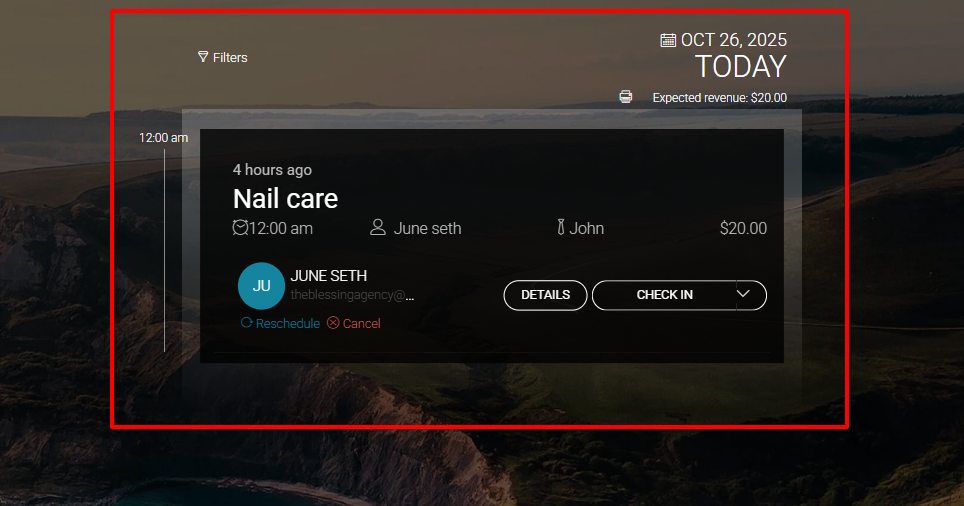
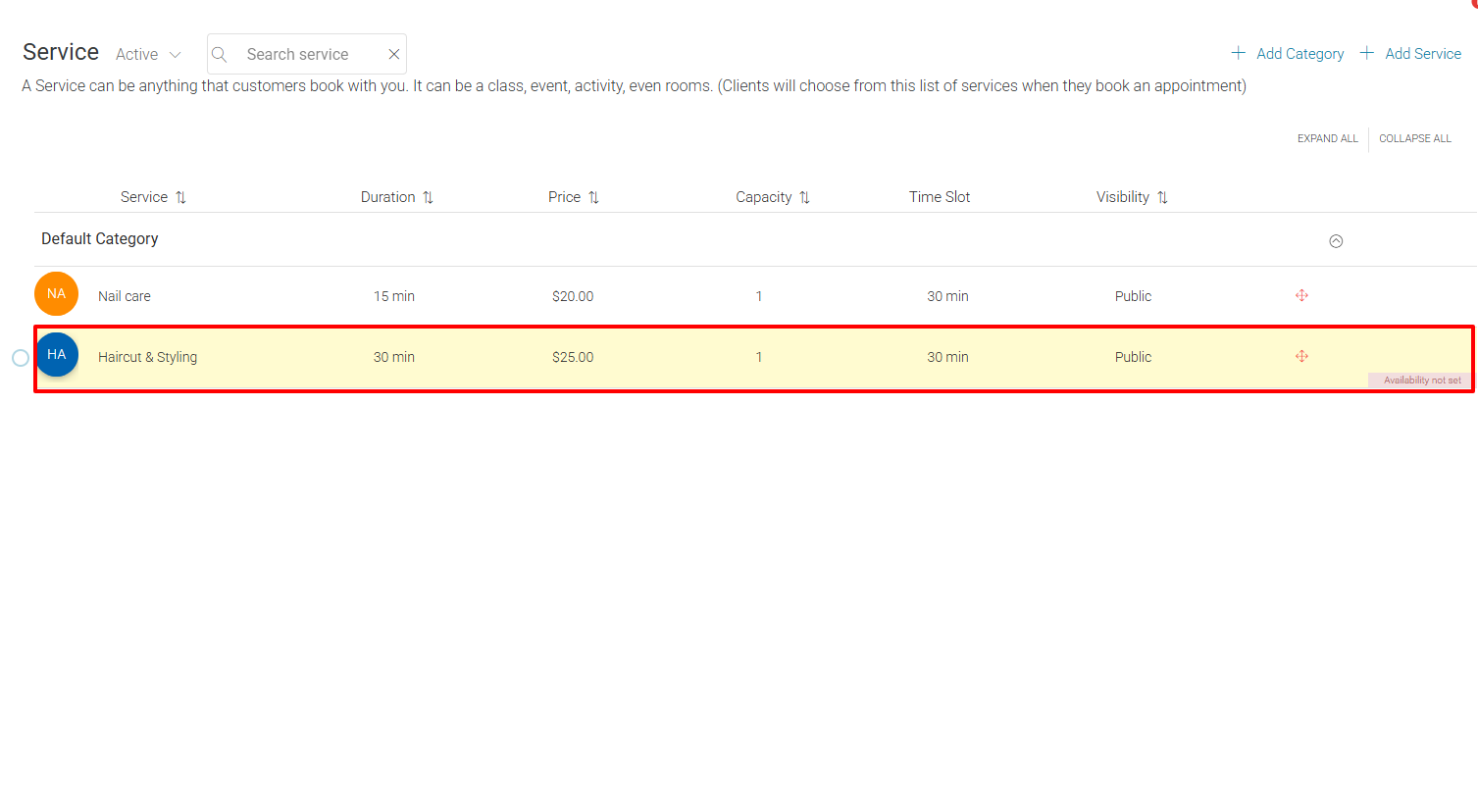
When it comes to adding services, I simply start with a service name, a duration, a price, and a specified time slot. I can also set the service's visibility.
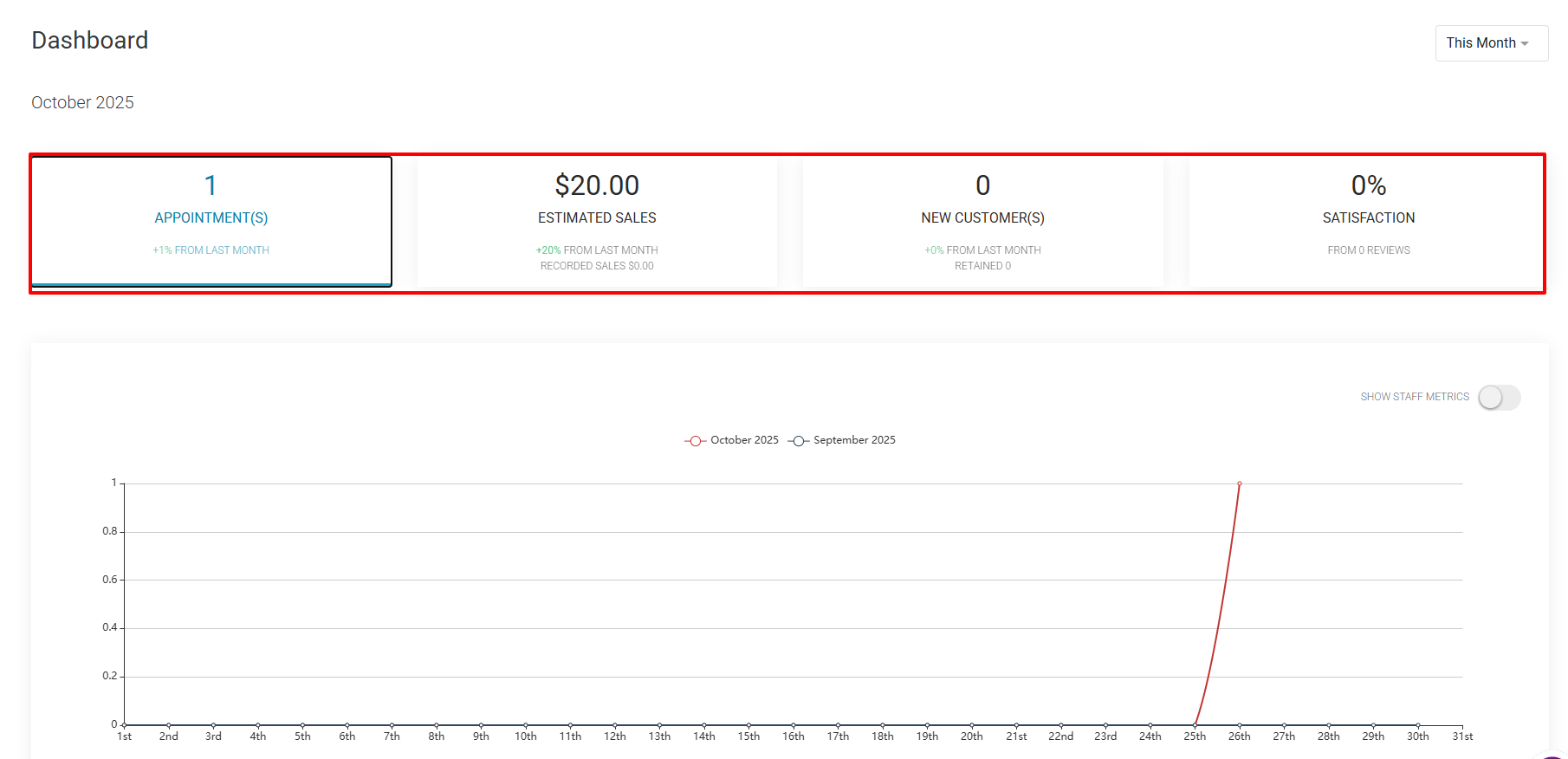
But I love how the Dashboard displays my number of appointments, estimated sales, new customers, and customer satisfaction levels.
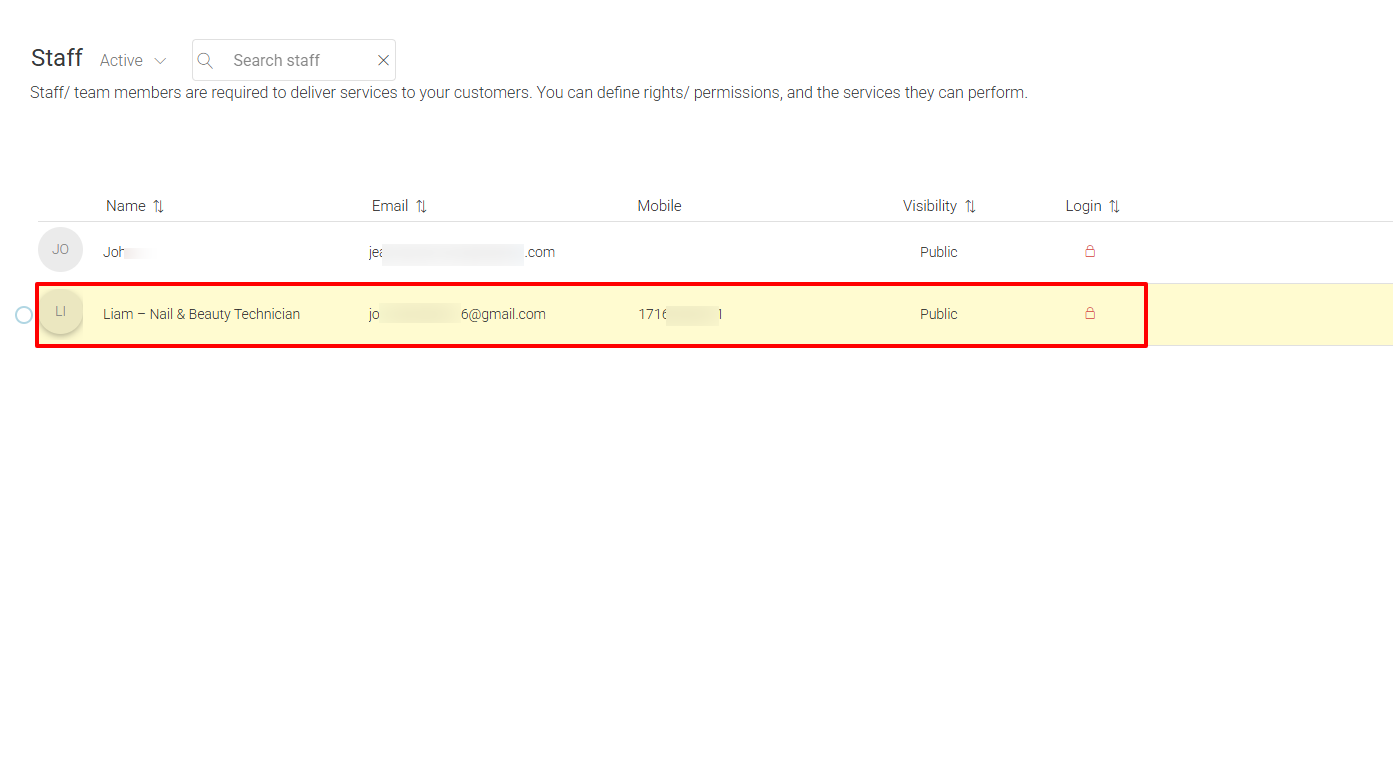
And in case I want to add a staff member, I make sure I enter their name correctly, add a description, email, phone, and specify their services.
What I loved about Appointy
1 . Appointment
The name of this tool, "Appointy", is not far from the word Appointment. Perhaps Appointy's creators drew inspiration from there.
Whatever the case, let's see what creating an appointment in Appointy looks like.
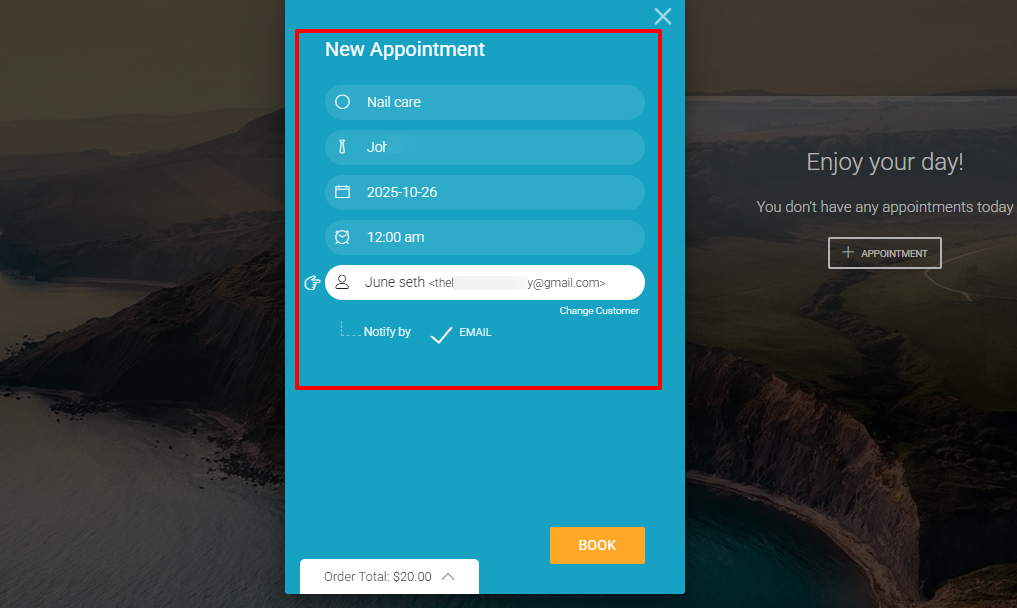
On the sidebar, select the briefcase icon and then click the "+Appointment" button.
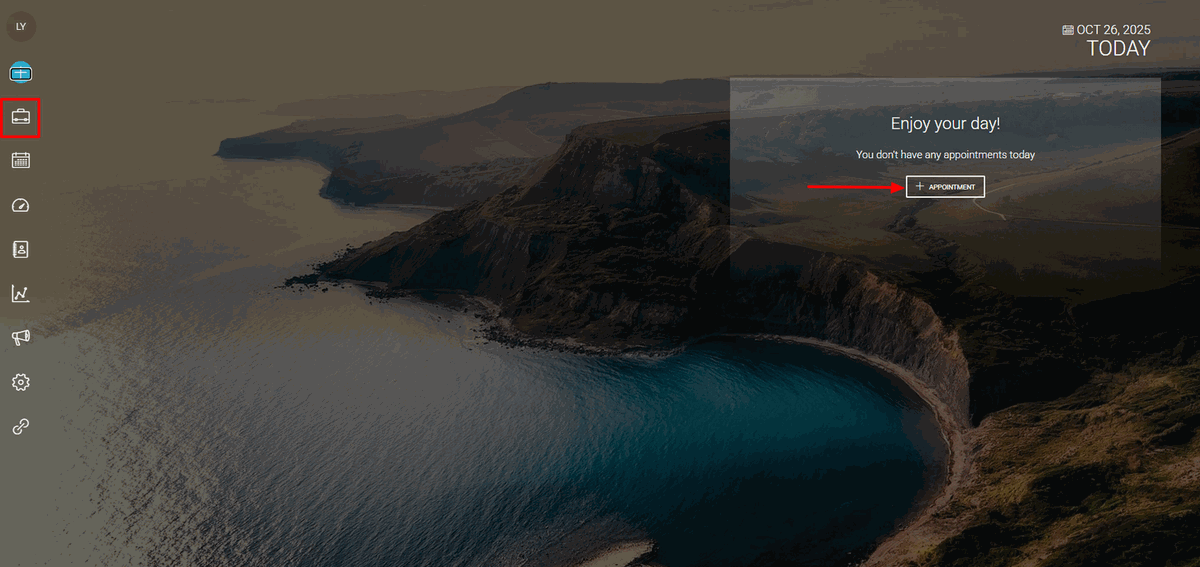
For my new appointment, I will choose the service, service provider, date & time, and the customer's email address.
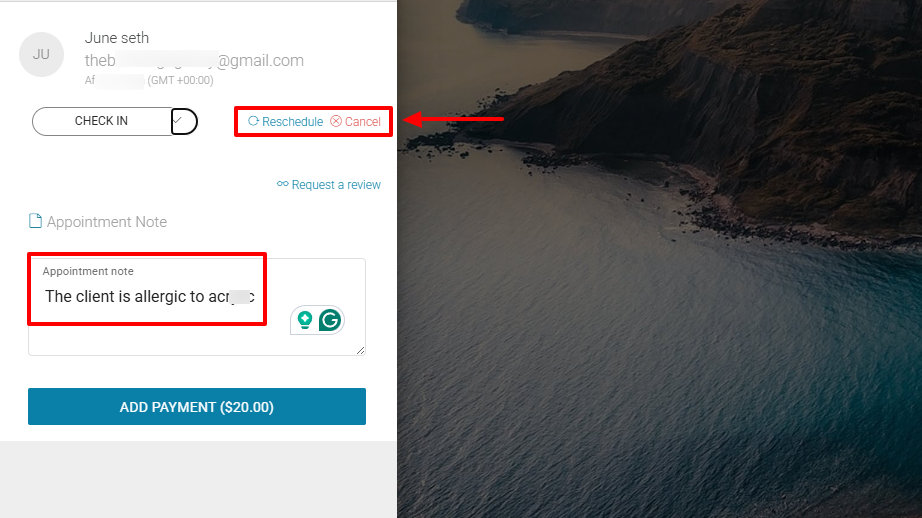
Once done, I could reschedule or cancel the appointment.
But that's not all! I could even add a note for my client.
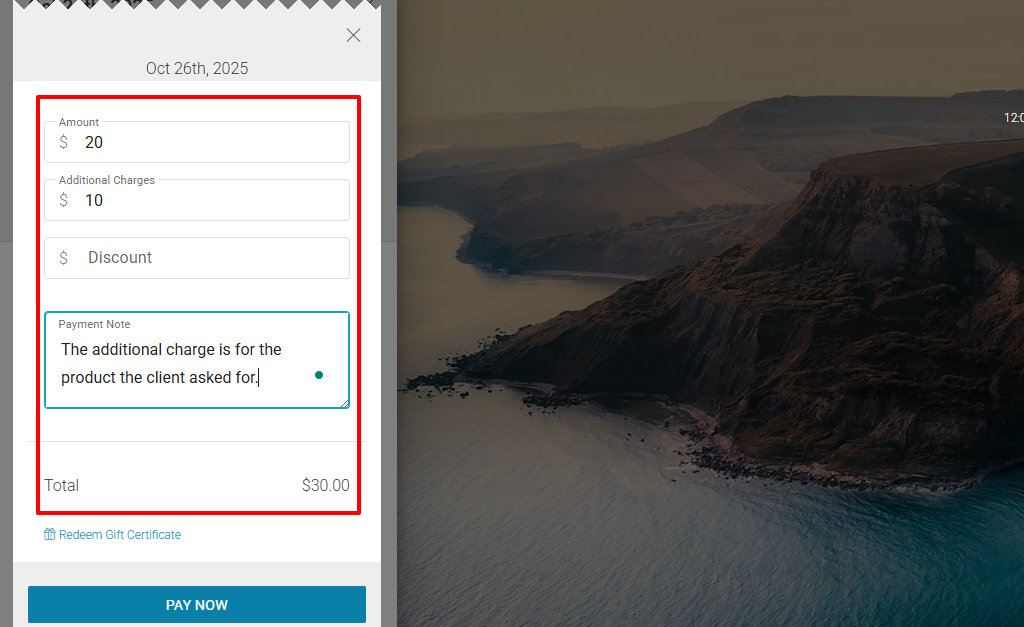
Aside from the amount that comes straight with the service you choose, you can add additional charges or a discount. You can also leave a payment note.
The appointment will clearly appear on the Homepage interface.
2 . Service
Since we are discussing salon booking software, checking out the service features to understand how they work is a great way to know what each platform offers.
I'll now review how to create a service in Appointy.
To start, go to "Service" after clicking the "+" button on the sidebar.
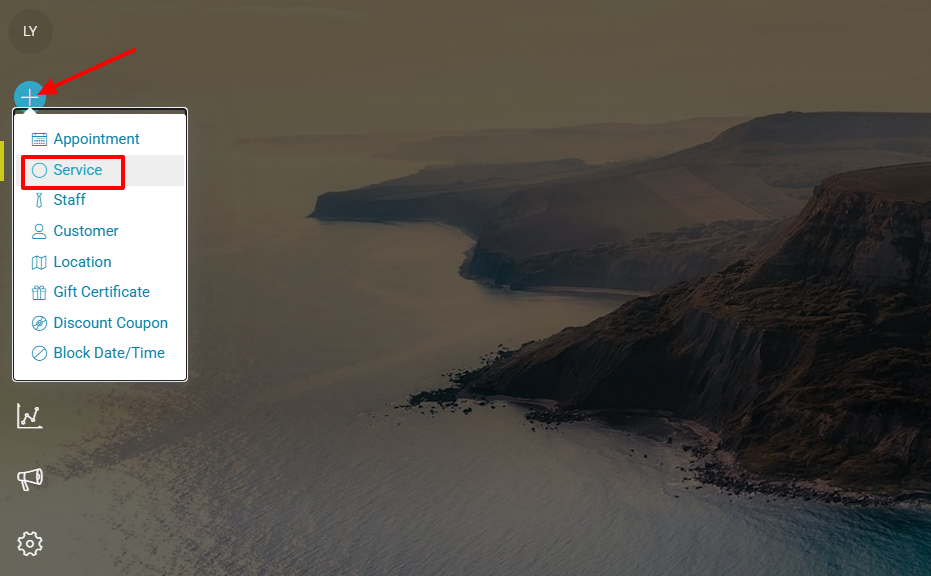
Select the category, name your service, add a duration, price, and description. Once done, click "Add".
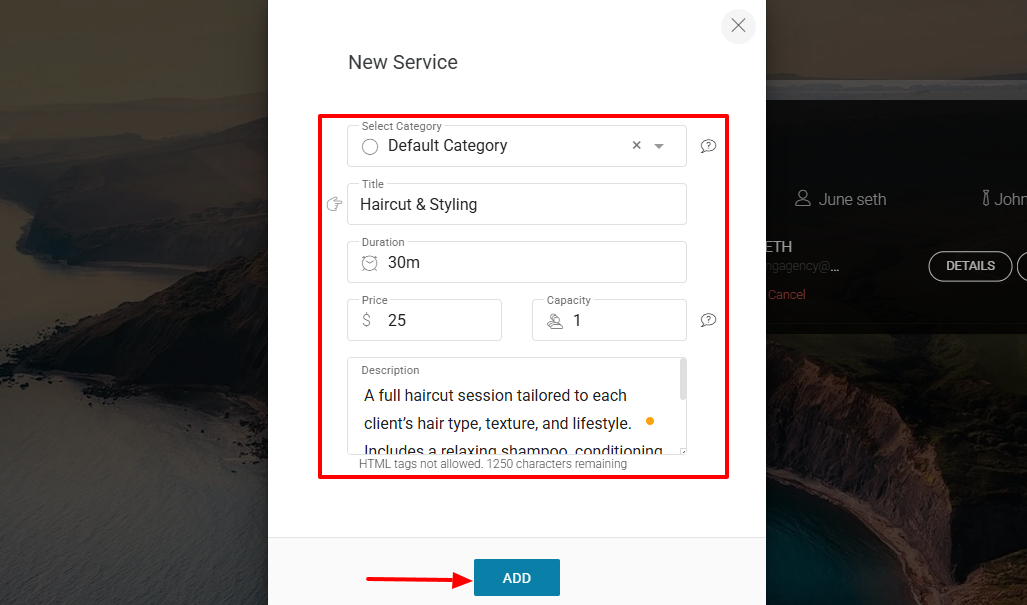
There you go. You've created your newly available.
3 . Staff
Adding your staff to your salon booking platform helps you know who does what and when. You can easily track them and assign services.
We will add one by clicking the "+" button and going to "Staff".
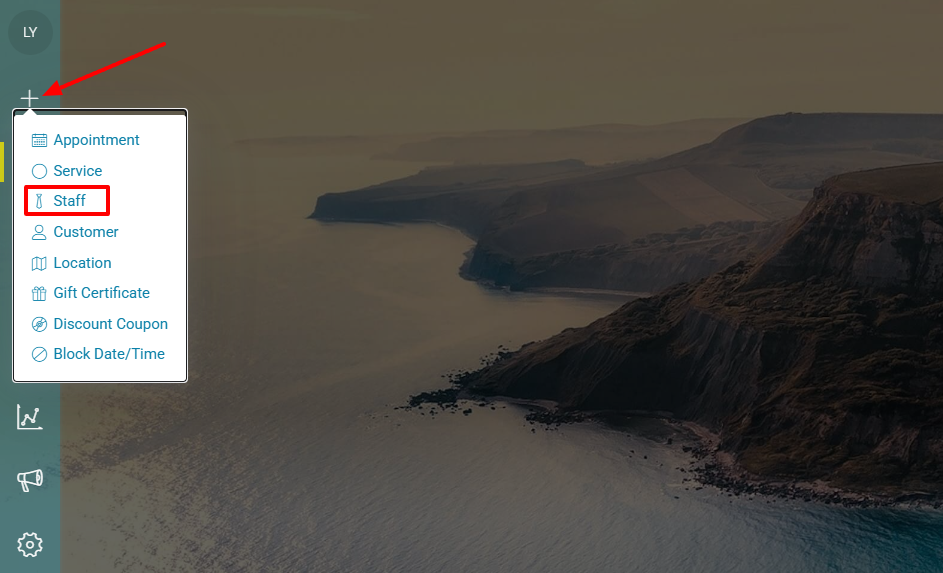
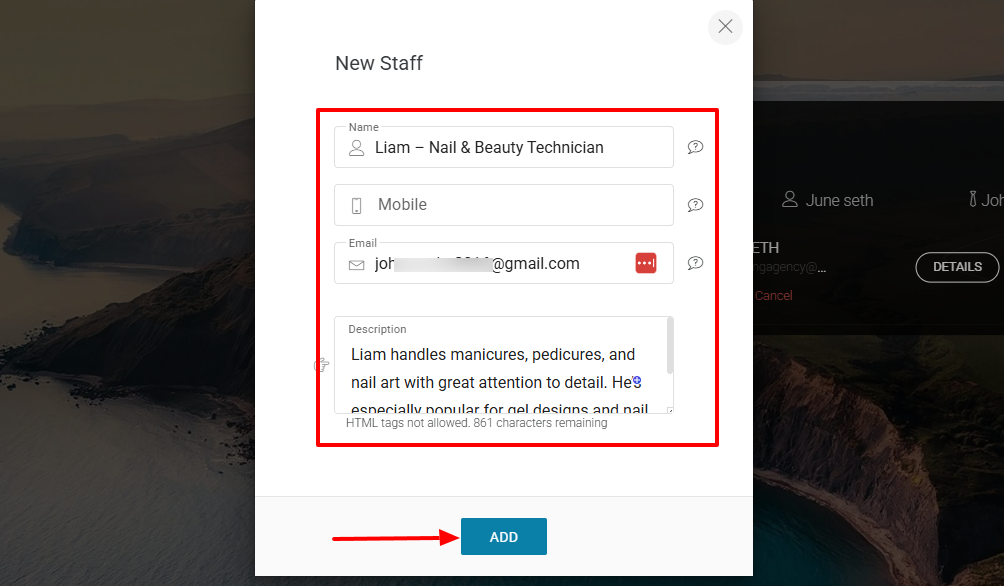
You can add a name, contact, email, and a description about your staff.
After adding your salon staff, you should be able to view them in the staff list.
What I Loved and What I Struggled With
| What I Loved | What I Struggled With |
|---|---|
| ✅ Can upload personal background image to replace the default platform image. ✅ Displays all your appointments on the Home interface, which is the first thing you see after signing in ✅ Can filter appointments by type, arrival status, staff, or service ✅ Shows staff metrics such as the number of appointments they accumulate | ❌Took some time before I could locate the services and staff features. It wasn't clearly visible on the main interface, but inside the settings ❌Can't use the Intake form on a free plan |
Best for
- Medium and large multi-location salons seeking software to manage multiple team members and track their performance.
Pricing
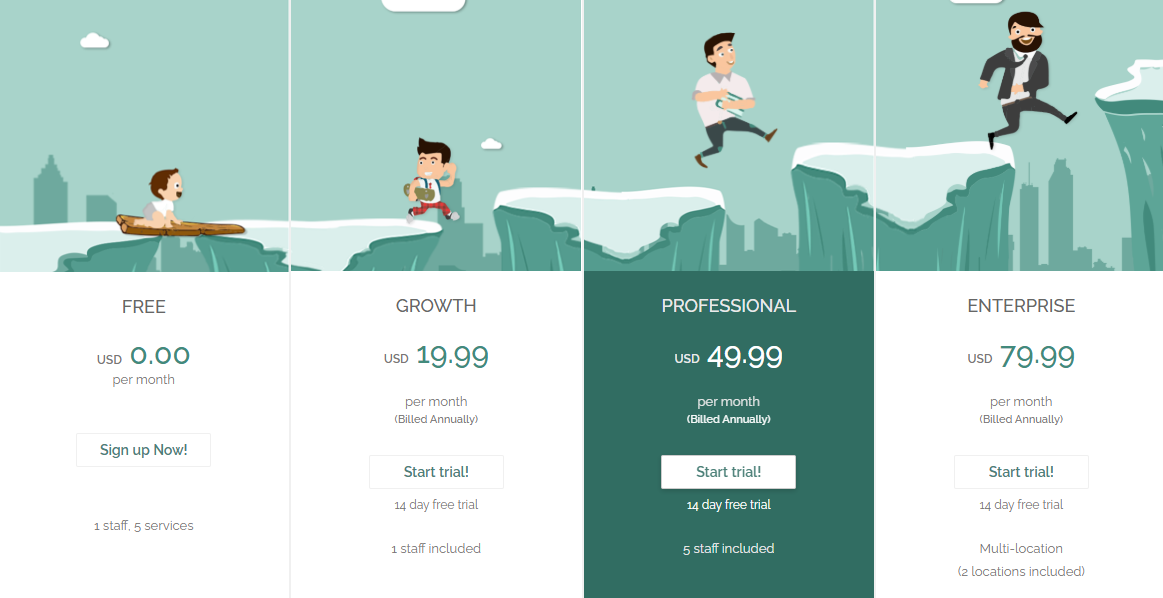
- Free: $0
- Growth: $19.99/ per month, billed annually
- Professional: $49.99/ per month, billed annually
- Enterprise: $79.99/ per month, billed annually
Start your 14-day free trial and automate your scheduling today.
How To Choose a Good Free Salon Booking System
To choose a good free salon booking system, you must consider the following:
1. Ease of Use
2. Core Features
3. Salon-Specific Features
4. Free-plan Trade-offs to Assess
5. Growth and Scalability
Now, I will discuss each one in depth.
1. Ease of use
This is the first aspect to consider before choosing a good free salon booking system.
If you are looking for a free salon booking system, you'll probably prefer one you can start using right away and keep using in the long run.
For that matter, the first impression is key. You should be able to create a scheduling page in 2-3 clicks, like some beauty professionals do with Zencal.
We made it so intuitive that you can add all the information you need in only one page: name of the scheduling page, description, duration of the session, and location. And you can even choose your branding colors so you feel like it's truly yours.
A free salon booking system shouldn't give you a headache. Imagine spending hours trying to locate features! Meanwhile, it is the first thing you should spot right after you sign in.
And your clients shouldn't need more than one minute to understand your scheduling page and how to book. They must clearly see the name, description, location, and the available time slots.
After all, excellent service won't be enough to stand out from the competition. Your competitors are also using salon booking systems.
You must make sure you understand the one you choose and that your customers and clients can easily book your services with it.
2. Core Features
You determine how good a free salon booking system is by the features it offers.
Many systems have a long list of features. However, when it comes to a free salon booking software, you should make sure it offers core features such as:
- Online booking page
- Client management
- Staff/service management
- Calendar sync
- Client reminders
Now, listed like this, you may not get the full picture, so let me add more details.
1 . Online booking page
You probably have a physical location, but the online booking page is basically your digital front desk. Clients should be able to book appointments at any time, even after you've closed for the day. That's why your page should clearly display your service, location, and time slots.
2 . Client management
I added it to this list because almost everything you do revolves around clients. Therefore, you must be able to store client details, view their meeting history, and see how much they spend on the services you offer.
3 . Staff/service management
This is also another core feature, and it is very useful, especially if you already have a big team and offer many services.
For example, you can have a stylist, barber, and technician in your salon. They can have their own schedule, and clients can choose their preferred person or service.
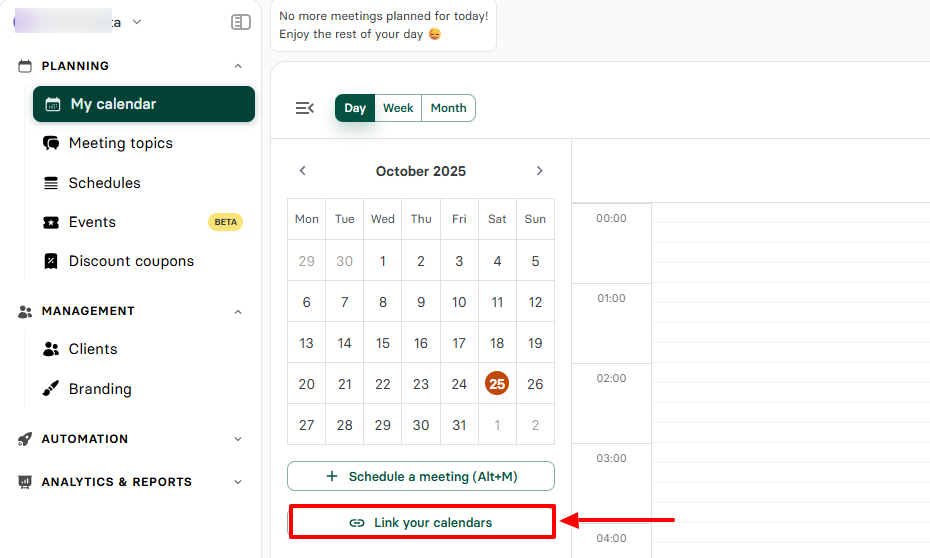
4 . Calendar sync
This is very important because there could be a case where two of your clients book a session for the same day and time. You will be forced to confirm one of them and ultimately cancel the other one. This can frustrate the client.
To avoid that, the system must sync automatically with your calendar.
5 . Client reminders
Lastly, client reminders help you reduce no-shows and eventually retain your customers. No beauty professional wants their client to book a meeting with them and then not show up on the day of the appointment.
With this feature, you can send automated reminders to your clients and let them reschedule or cancel appointments.
3. Salon-Specific Features
We discussed earlier the core features of a free salon booking system. Now, there are also salon-specific features. A couple of these are:
- Chair/ booth allocation
- Multiple teams/staff
- Different services
The list can go on, but these are the main ones.
1 . Chair/booth allocation
Say you are a salon with many chairs, and private rooms like massage and spa rooms. When someone books a session online, you need to make sure the system reserves a physical resource for that client.
If not, you may double-book a chair and schedule a stylist who needs a spa room that's already used.
2 . Multiple team/staff
The software you choose should reflect your physical salon.
If you run a large salon of 10+ staff, the system should help you manage each one. You can create their profiles on the platform, assign them services, and manage their availability.
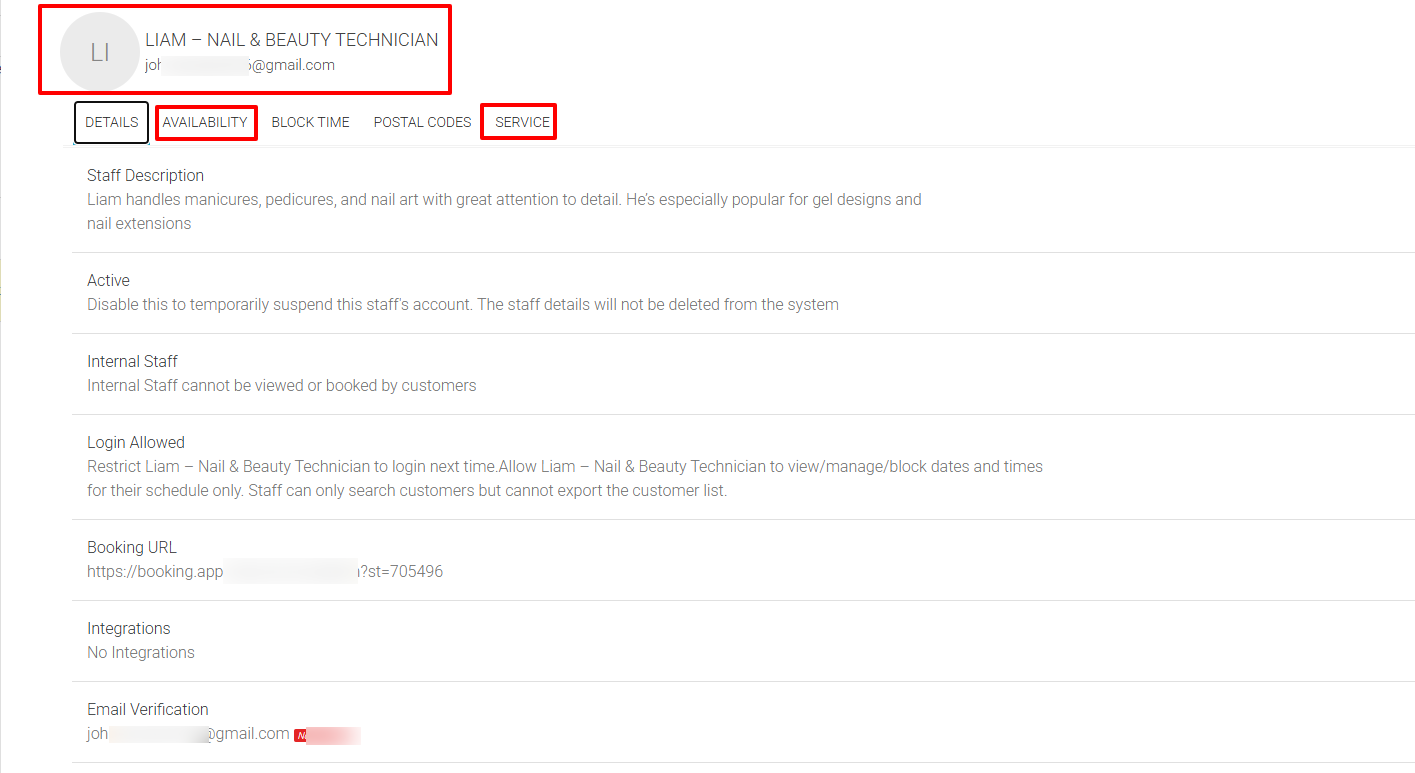
But of course, there are still other aspects to consider: staff permission, staff commission, and even substitution rules.
3 . Different services
Since you likely offer many services in your salon, the platform you choose should be able to show that to customers.
A good salon booking system should let you create a service catalog and add all your services, such as manicures, facials, or haircuts. You should also be able to add a description, duration, price, and service provider.
4. Free-Plan Trade-offs to Assess
Again, before choosing a good free salon booking system, you should understand that every free plan comes with limits. You need to know what those limits are before you invest your precious time setting everything up.
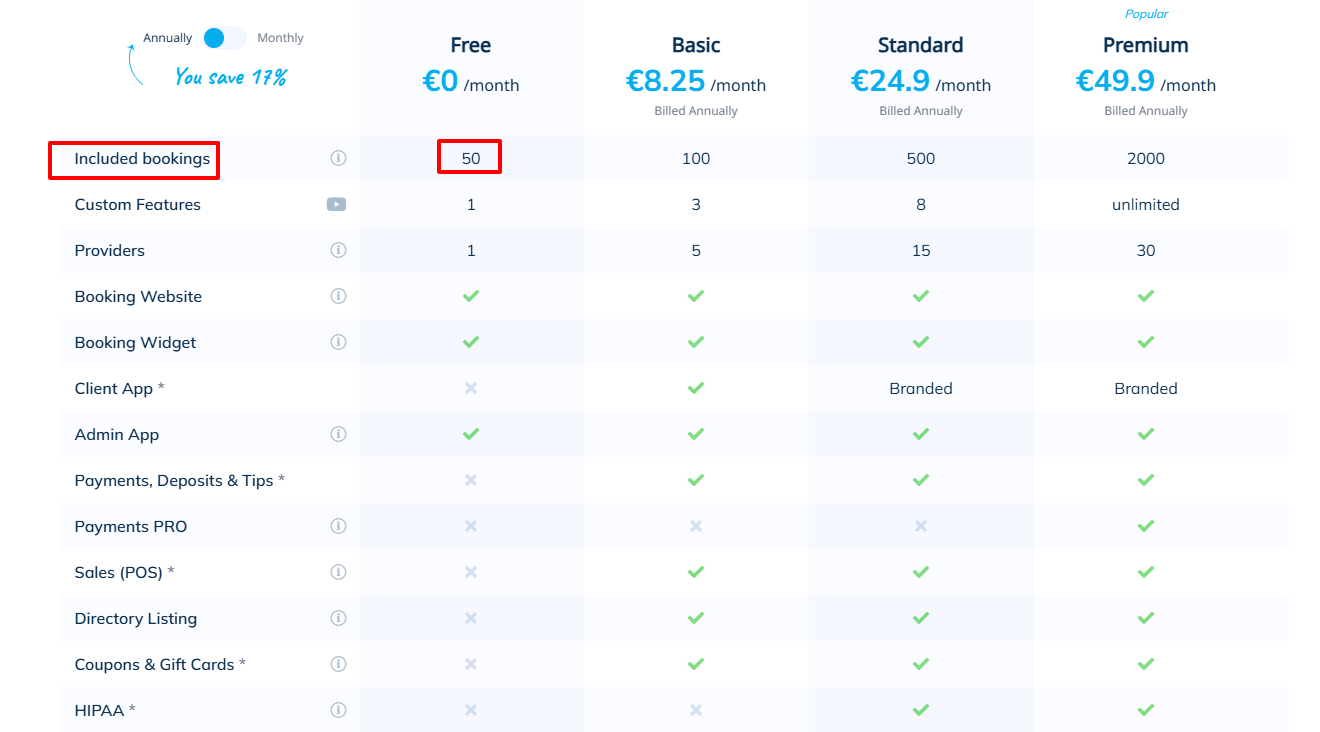
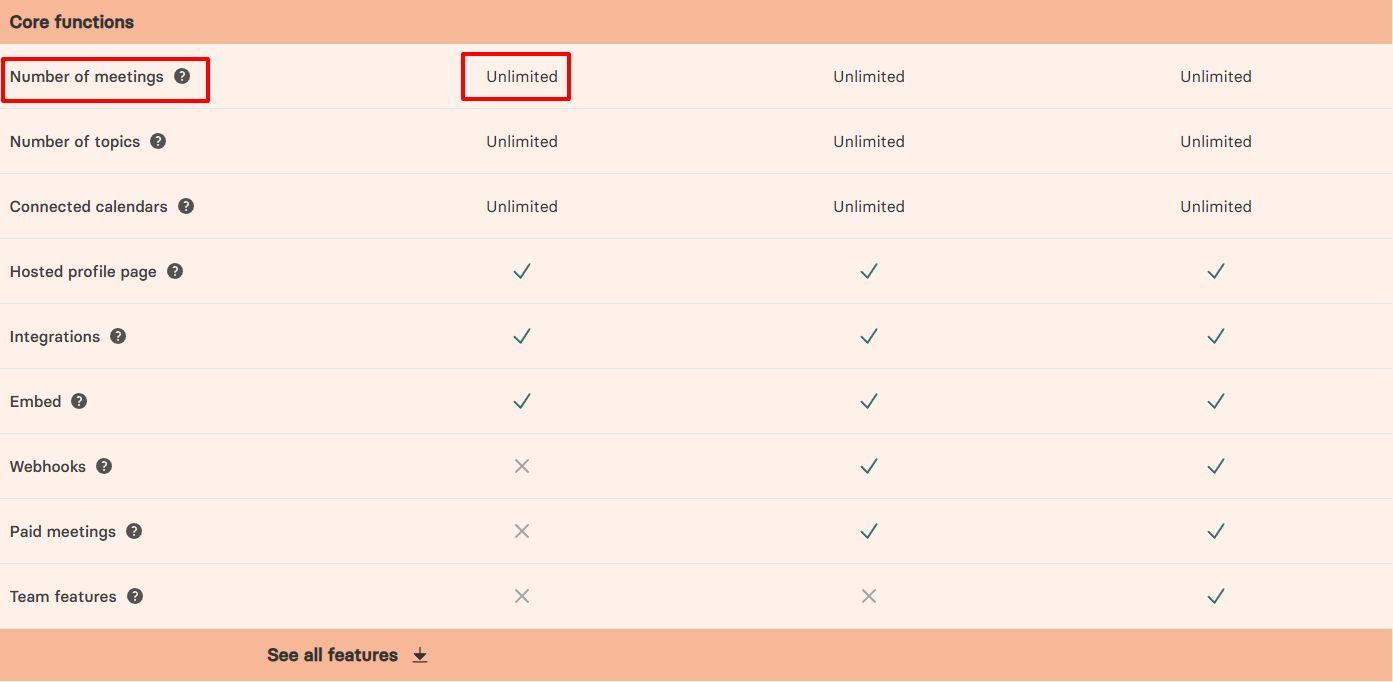
Now, one of the trade-offs you must be aware of is the number of bookings allowed.
This is very important because you can already have 100 clients in your database, but the platform might allow only 60 bookings per month. This means 40 of your clients will not have the chance to book every month.
Let's take the example of Simplybook's free plan. It allows 50 bookings per month, so anything beyond that won't work.
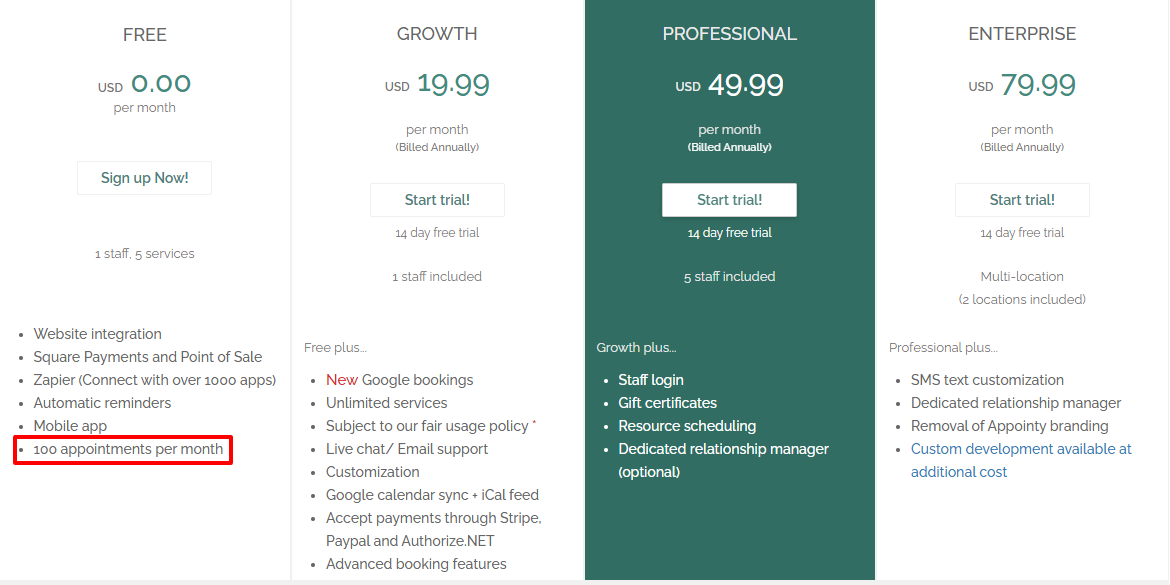
You also have Appointy's free plan, which allows 100 bookings/month. That's twice the limit for Simplybook.me.
But with Zencal, you have unlimited bookings, which means there is no limit to the number of bookings you can have.
Now, limited bookings are not the only trade-off. You should also look at the branding options.
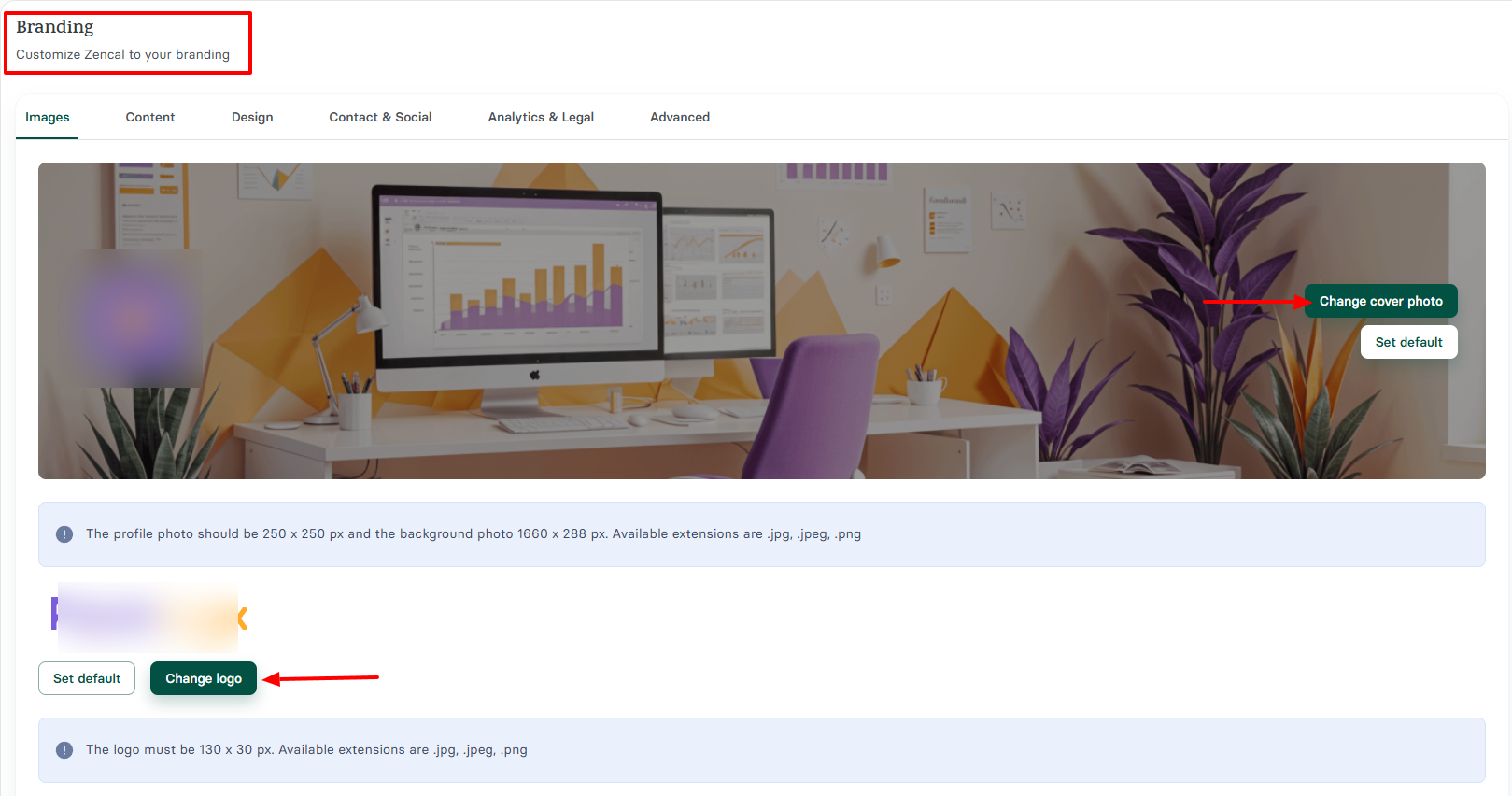
Some platforms will include their own logo on your booking page or emails when using the free plan. This might make your business look less professional.
I believe it's important for your brand that you upload your own logo and cover image even when using a free salon booking system.
Now, the last trade-off I will mention is integrations.
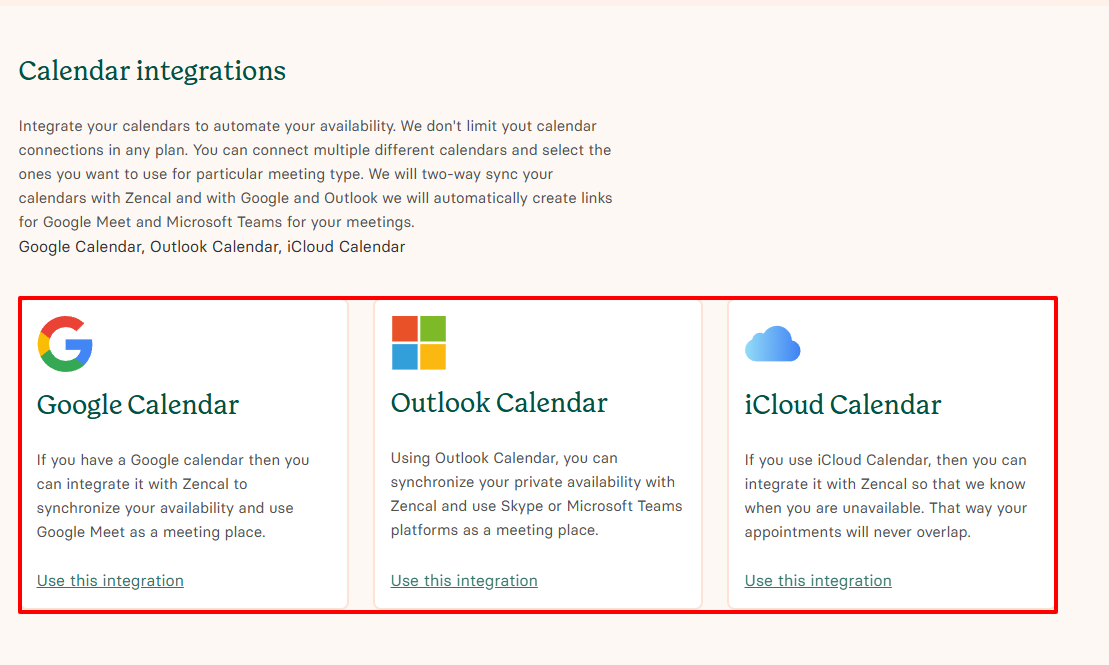
Not all free salon booking systems offer the strong integrations you love in their free plan. Knowing this, you must consider what they offer before making your choice.
For example, calendar integration should be non-negotiable. Though you are on a free plan, you must be able to connect all your calendars: Google, Outlook, or iCloud.
I can keep listing more integrations under accounting, automation, or CRMs, but you now clearly see the point.
You cannot choose a free salon booking system without looking at its free-plan trade-offs.
5. Growth and Scalability
You might just be starting as a salonist or freelance hair stylist, but the goal is to grow your business.
To choose a good salon booking system, you should look beyond what works right now and ask yourself if the system can grow with you.
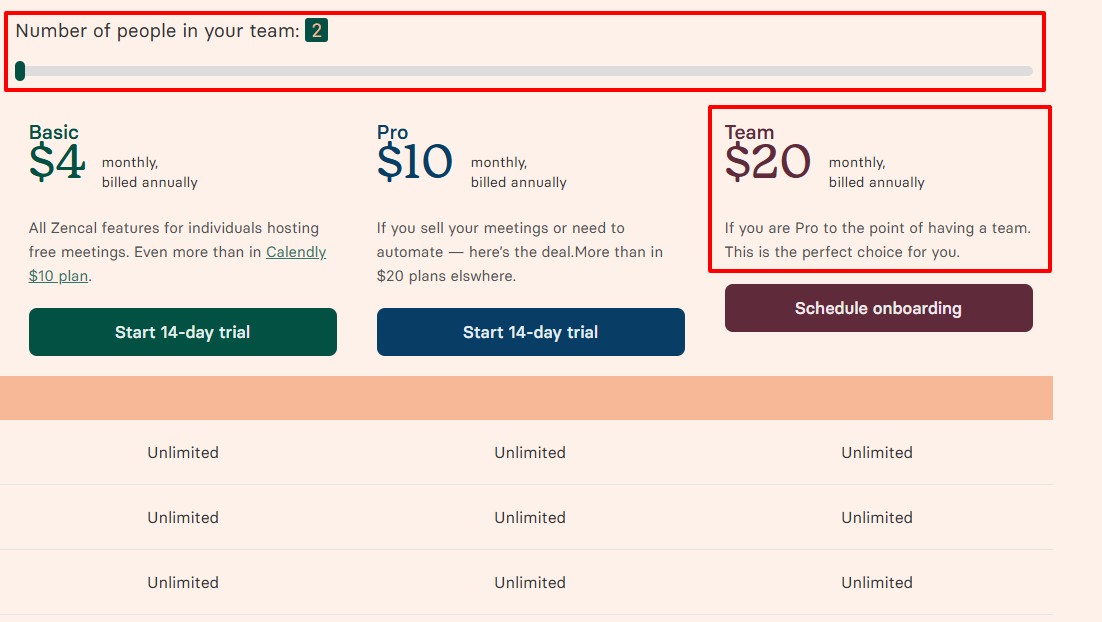
For instance, if you are a solo beauty professional today, and use a free plan. In the next 6 months, if you add two more team members to your business, the platform you use should let you add them too without disrupting your workflow.
As you grow your business, you will need to access Analytics & Reports features, gain insights into all your meetings, and sell packages and subscriptions.
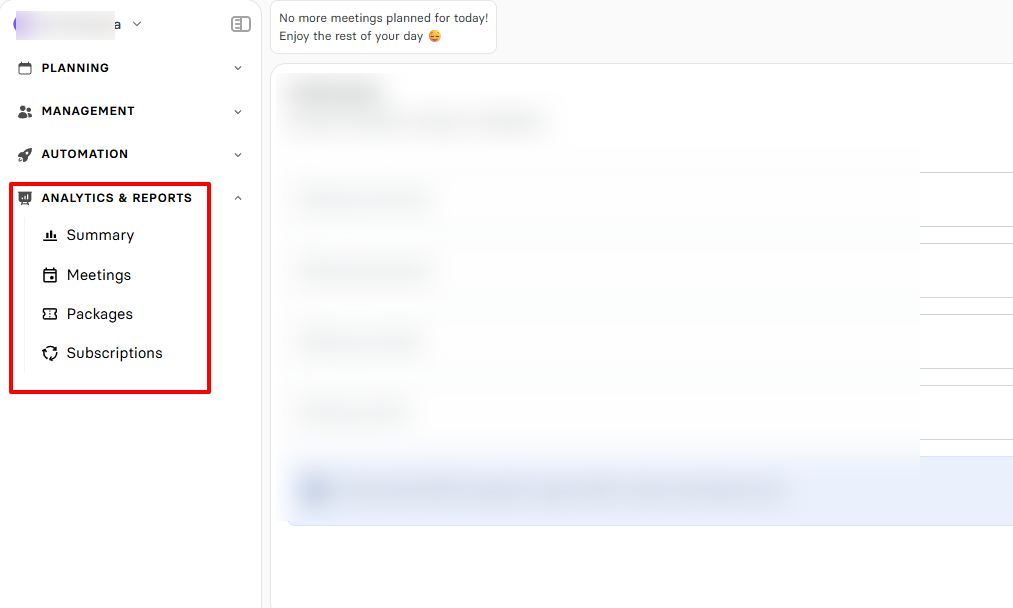
The truth is, growth changes everything: it affects your booking limits, requires more integrations, advanced features, and advanced dashboards, just to name a few.
So, at some point, you may need to access team features because you're no longer a solo worker.
On Zencal's Team's plan, for example, you can add your team members or staff. Whenever you create a booking page, you can list them as available organizers. This way, when a client books a session, they can see every staff member alongside their availability, and then choose the one they want.
But you can also turn on the round robin meeting. Now, when the client wants to book, the system will rather look for the staff available and assign them the meeting.
Video here from this page
Here's my recommendation: look beyond your present when you choose your salon booking software.
Start your 14-day free trial and automate your scheduling today.
Choose The Best Free Salon Booking System For Your Business
Choosing a good free salon booking system is not easy. You must go through all the steps I listed above before making your choice.
Throughout this article, I've discussed my top free salon booking software, starting from Zencal, then Simplybook.me, Koalendar, Square appointments, Setmore, Appointy.
I reviewed each feature that their free plans offer and shared what I loved vs. what I struggled with.
After going through this article, choosing the best salon booking system for your business should no longer be a problem.
FAQ
Q: What is a salon booking system?
A salon booking system is software that helps you manage your appointments, clients, payments, and reminders.
Q: What are the best salon booking systems for medium-sized salons?
The best salon booking systems for medium-sized salons are Zencal, simplybook.me, and Square Appointments.
Q: Will using a booking system reduce no‐shows and improve client loyalty?
Yes. Using a booking system can significantly reduce no-shows and improve loyalty thanks to features like automatic reminders and rescheduling options.
Q: Can I manage multiple branches with a salon booking system?
Yes. Some salon booking systems, like Appointy, let you manage multiple branches. You can assign staff, track their performance, and view reports per branch.
Q: Can I connect my booking system to Instagram, Facebook, or WhatsApp?
Yes. You can add a booking link directly to your social media profiles so clients can book instantly.
Q: Can clients book recurring or repeat appointments automatically?
Yes. Many booking systems, like Zencal, allow clients to book recurring or repeat appointments automatically.