
If you think Zencal is just an online booking tool, you're missing a big part of what it can do.
You can collect payments, manage clients, sell subscriptions, run events, send reminders, and coordinate your team from the same platform.
In this guide, we explain the main Zencal features, what they do, and how you can use them in your business.
Let's begin.
1. Let clients book appointments online
Zencal gives you a booking system where clients can choose an available time without emailing or calling you first.
You can create different meeting topics for different services. For example, a consultant could offer a 30-minute discovery call, a 60-minute strategy session, and a two-hour workshop. Each meeting topic can have its own duration, description, location, availability, and booking rules.
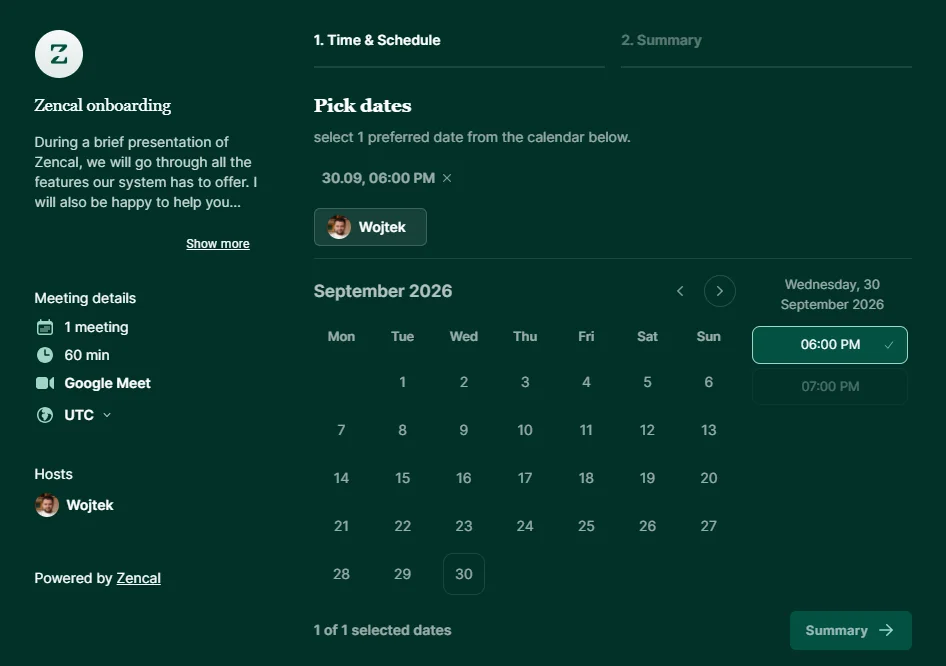
You can then share a direct link to a specific meeting topic or send people to your main profile page, where they can choose from many services.
With Zencal, you can also add the booking widget to your website. This way, your clients can schedule without leaving your site.
2. Connect Google Calendar, Outlook, and iCloud
You can connect Zencal with Google Calendar, Microsoft Outlook, or iCloud Calendar.
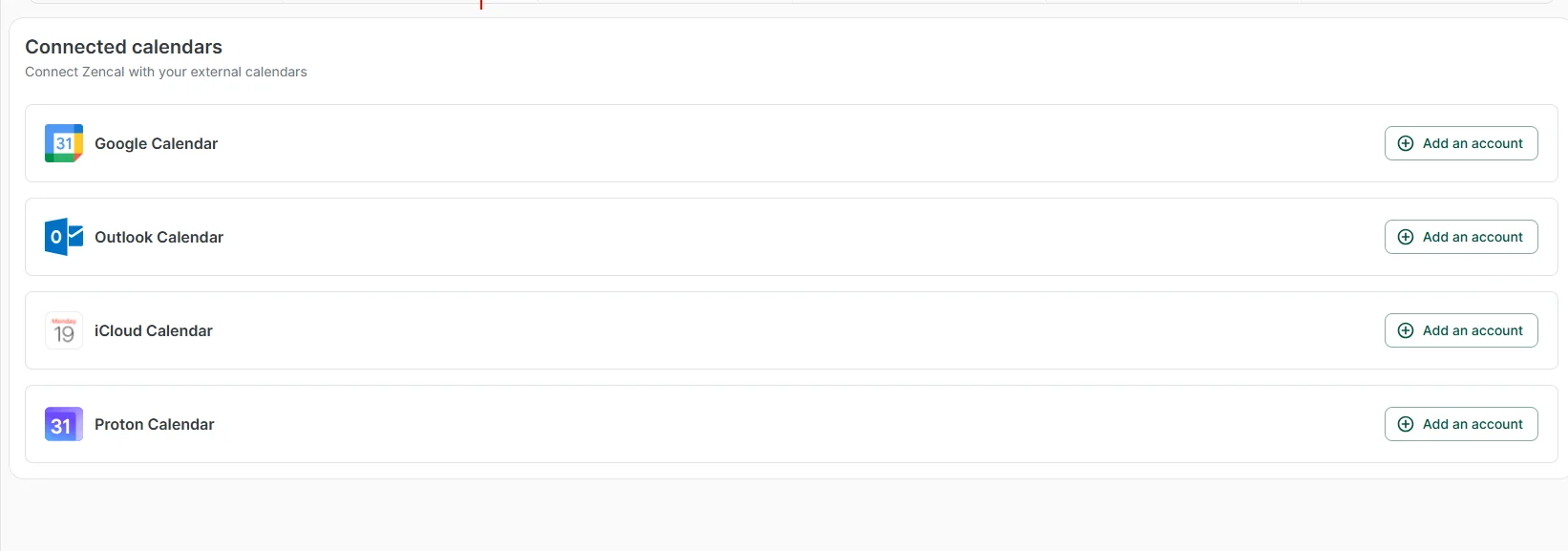
Once you connect a calendar, Zencal checks your existing events before it offers appointment times. If another calendar already contains an event at 2 p.m., Zencal can stop clients from booking that time.
New Zencal appointments will also appear in your personal calendar (like Google Calendar), so you do not need to maintain two separate schedules.
Users also love the My Calendar area inside Zencal. You can see Zencal appointments alongside events from connected calendars and filter the view by calendar, meeting type, or team member.
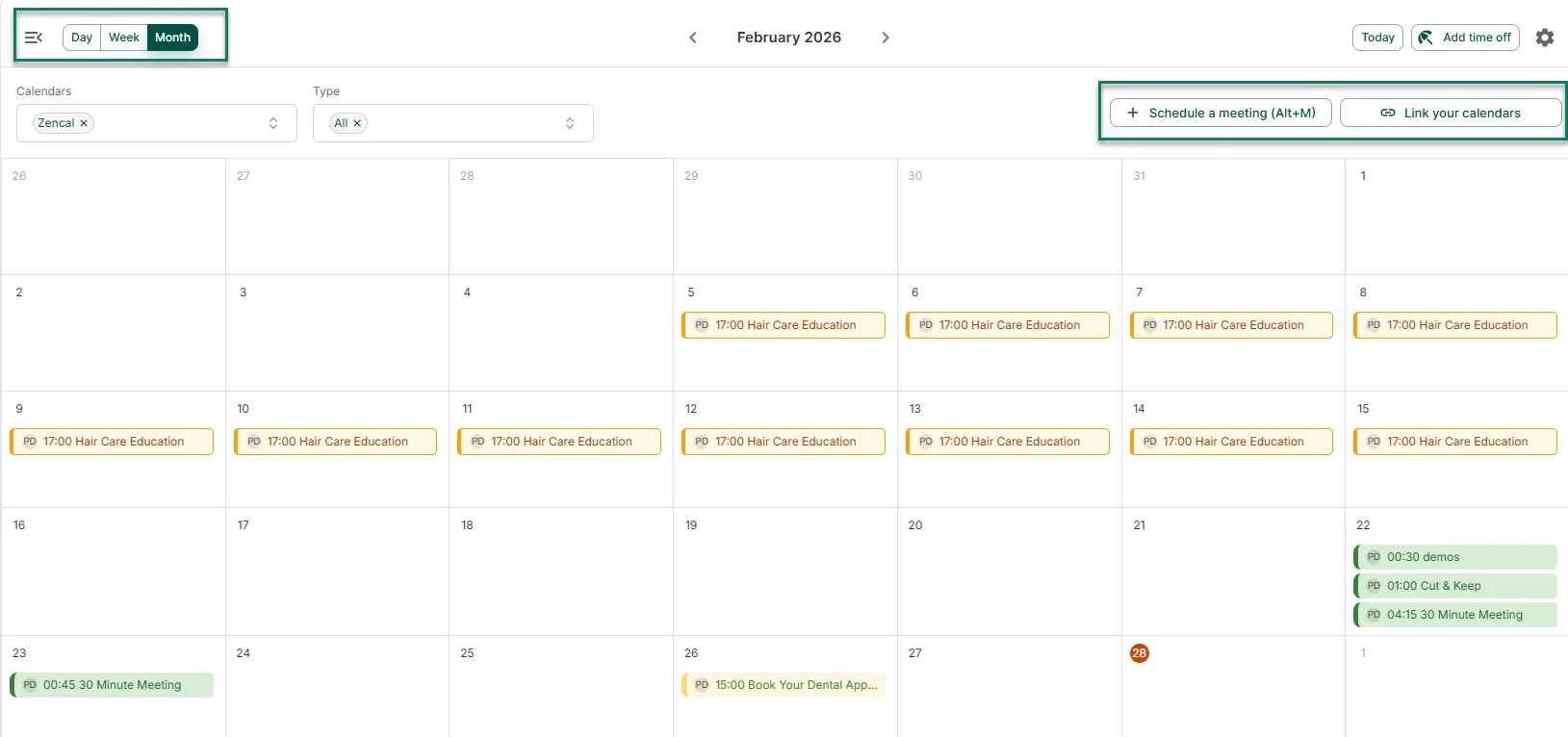
You can also connect multiple calendars when you need to keep personal, work, or separate business calendars in sync.
3. Create online meetings automatically
Zencal connects appointment scheduling with video conferencing tools.
The platform works with tools such as Google Meet, Microsoft Teams, Zoom, and Webex. When a client books an online appointment, Zencal creates the meeting details and includes the correct link in the booking information.
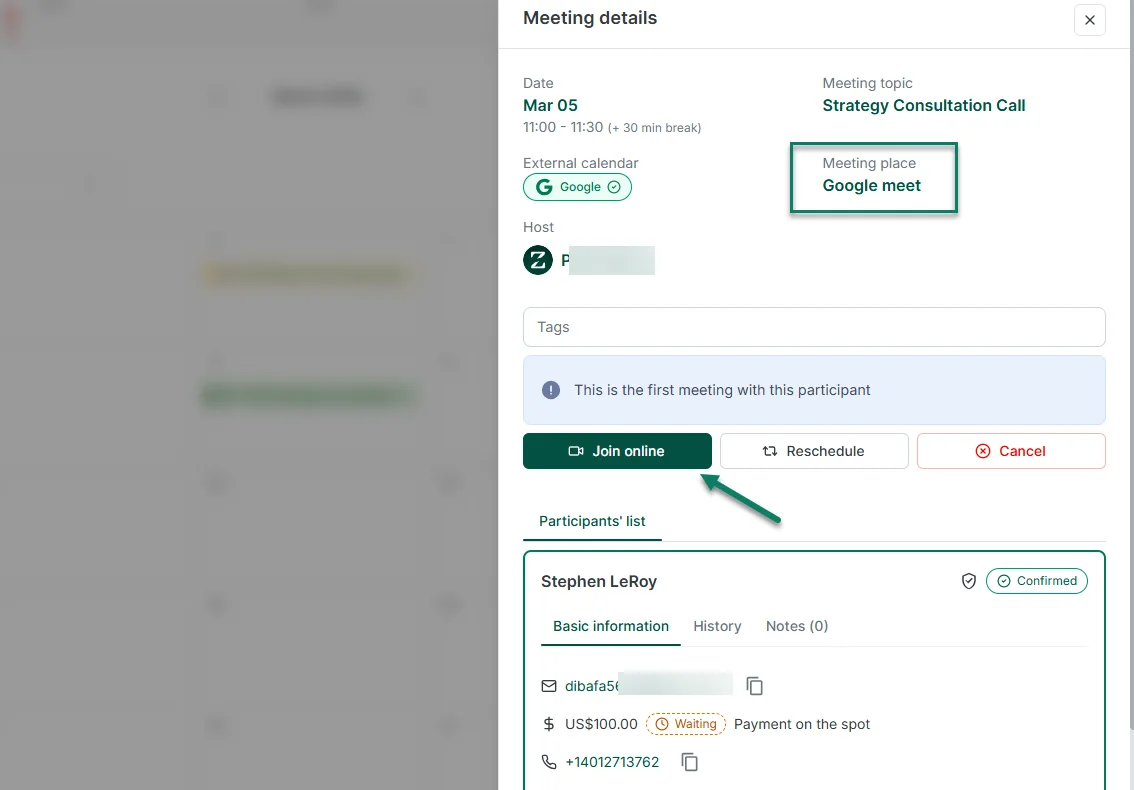
For example, if you connect Zoom and choose Zoom as the location for a service, Zencal creates a unique Zoom meeting for each booking. If the client reschedules, Zencal updates the meeting. If someone cancels the appointment, Zencal can remove the corresponding Zoom meeting as well.
Manually sending meeting links is annoying when you handle many appointments every week. With Zencal, you do not have to create a video call manually and send the link after every booking.
4. Sell paid appointments
You can also charge clients while they book.
Create a paid service, choose its price, and set its duration. The client then chooses an appointment time and completes the payment.
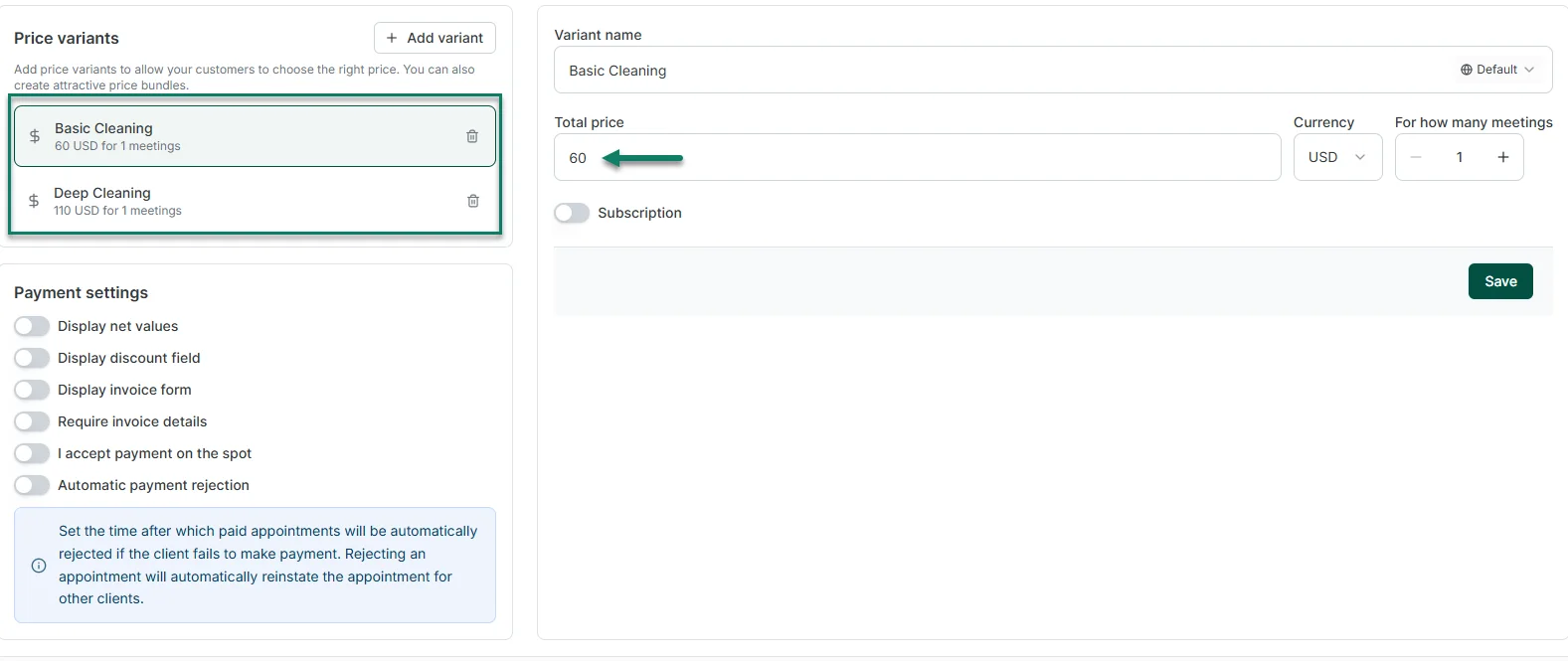
Zencal tracks both the booking and payment status. It also lets you decide how the system should handle unpaid reservations. For example, you can tell Zencal to release a reserved slot when a client fails to pay within a certain period.
You may create different pricing options for the same service too. Each option can have its own name, price, currency, and number of sessions.
What payment providers does Zencal support?
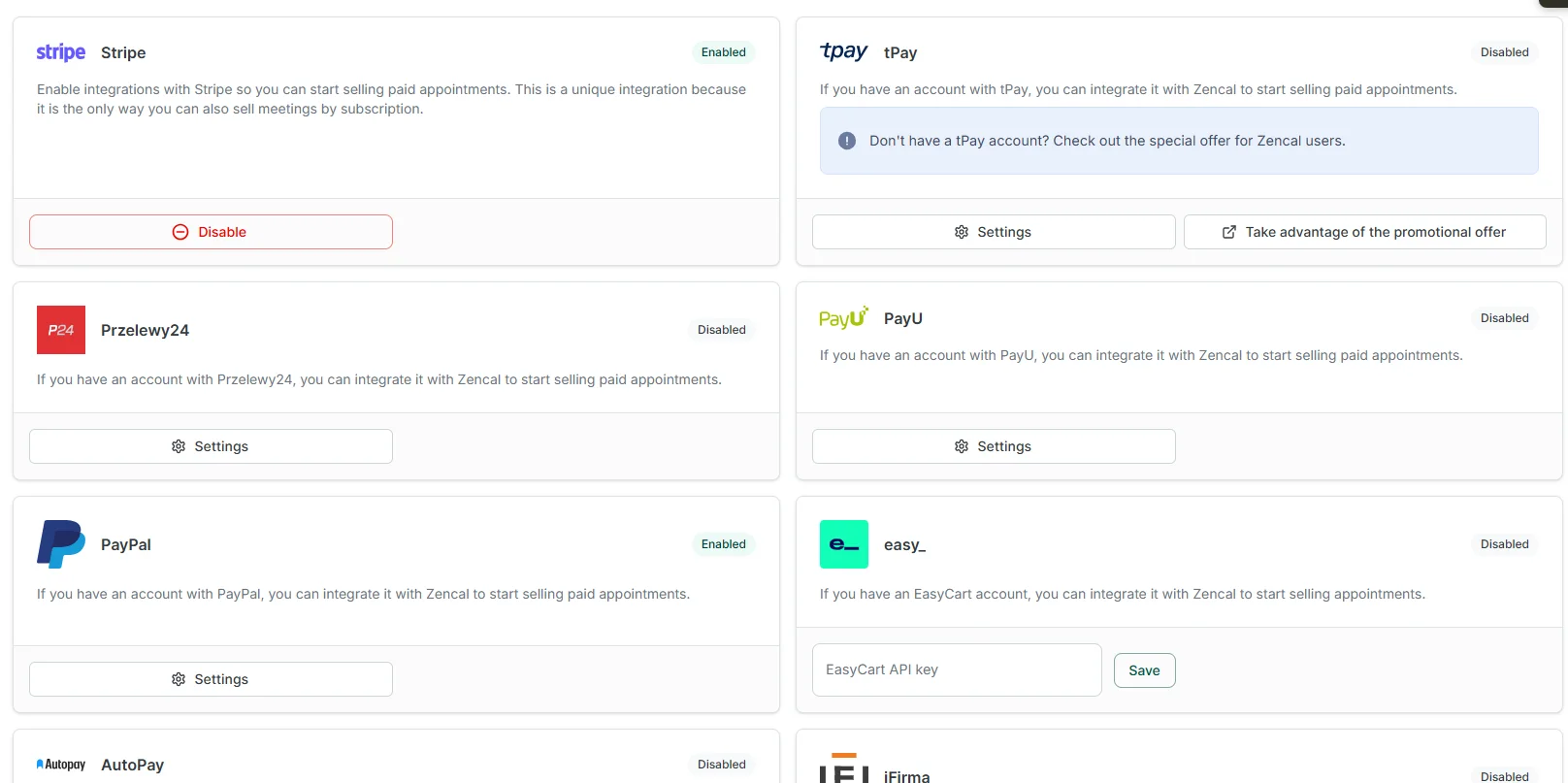
Zencal currently supports payment providers such as Stripe, PayPal, PayU, Przelewy24, tPay, AutoPay, and Easy. Zencal itself charges 0% commission when a client pays, although your payment provider can still charge its own processing fees.
5. Sell bundles of multiple appointments
Some services make little sense if they are isolated appointments.
For example, as a therapist, you may want to sell a block of sessions. A coach may offer a three-month program. And a consultant may sell ten advisory calls as one engagement.
Asking your clients to book every single session is painful and can make you lose a lot of income.
That's why Zencal lets you create bundles.
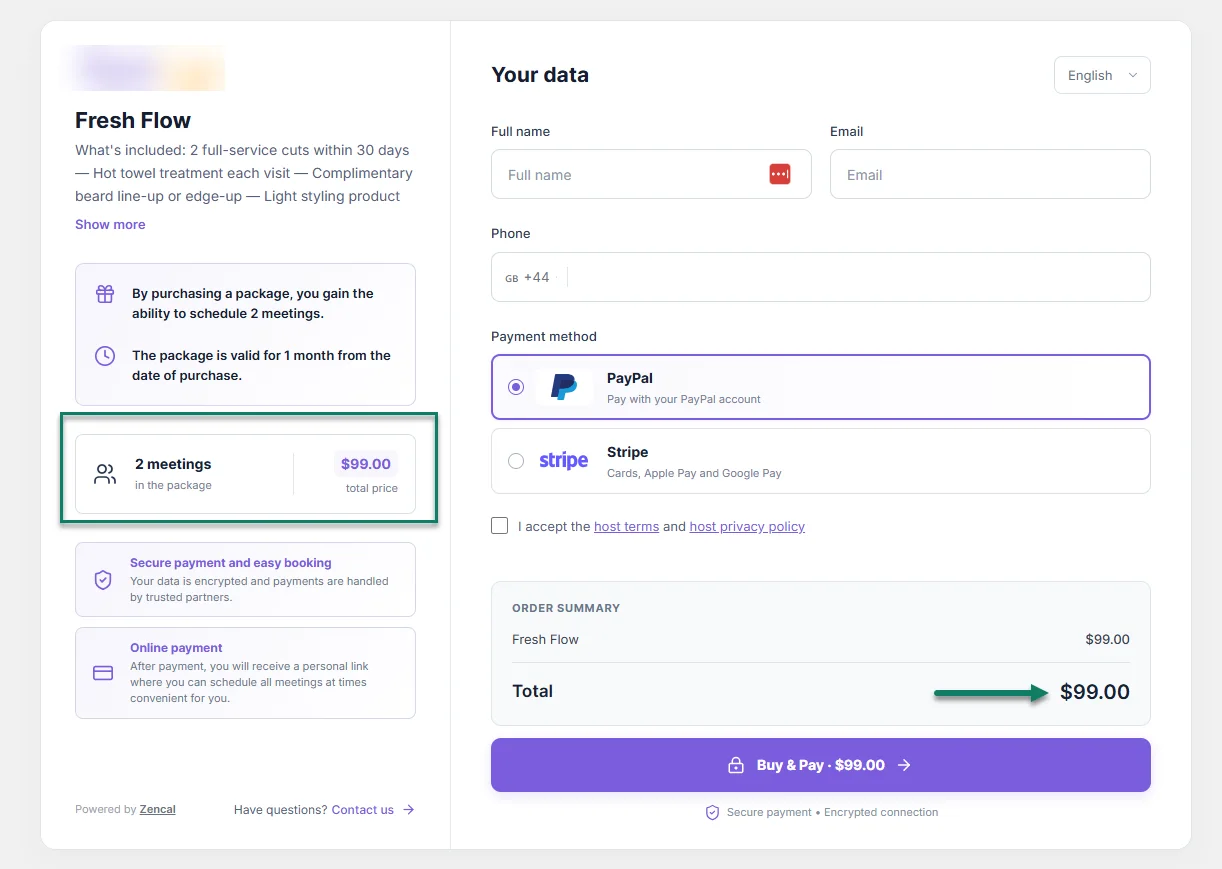
You choose the number of appointments, total price, services the bundle covers, and how long the client has to use it. The client pays once and receives a private link that they can use to schedule the included sessions.
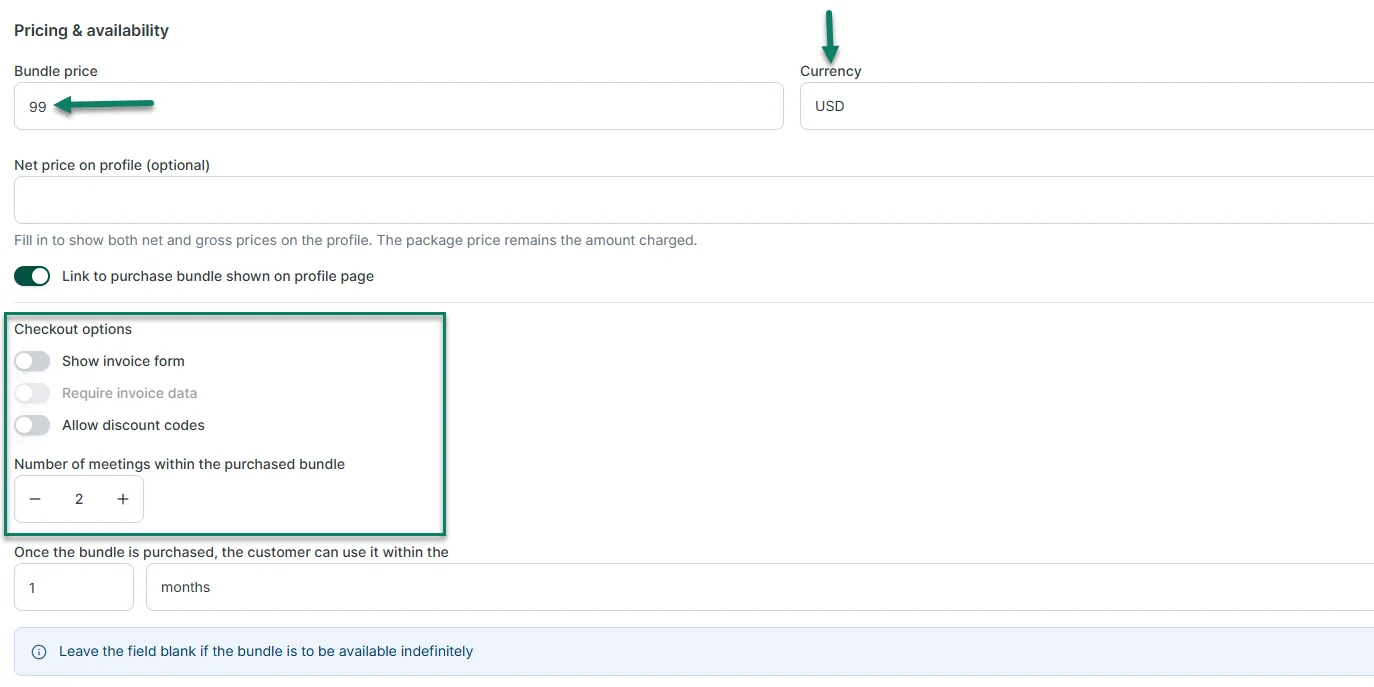
Zencal then keeps track of how many sessions the client has already used and how many remain. It also checks the bundle's validity period.
That means you do not need to maintain a spreadsheet showing that one client has six sessions left while another has two.
6. Create recurring subscriptions
What if your business sells recurring services?
In this case, use the Subscription feature, with weekly or monthly appointments. Here is how it works: The client chooses a recurring appointment time, and Zencal connects the schedule with recurring payments through Stripe.
Instead of asking the client to make another booking and another payment each month, you can create the arrangement once. Zencal then manages the recurring appointments, payments, and notifications.
Isn't a bundle the same thing as a subscription? What's the difference?
A bundle sells a fixed number of sessions that the client can use within a set period. A subscription supports an ongoing relationship with recurring billing and recurring appointments.
7. Organize workshops, webinars, courses, and other events
Let's talk about other Zencal features.
The Events module lets you create webinars, workshops, courses, training sessions, and other events where many people attend the same session.
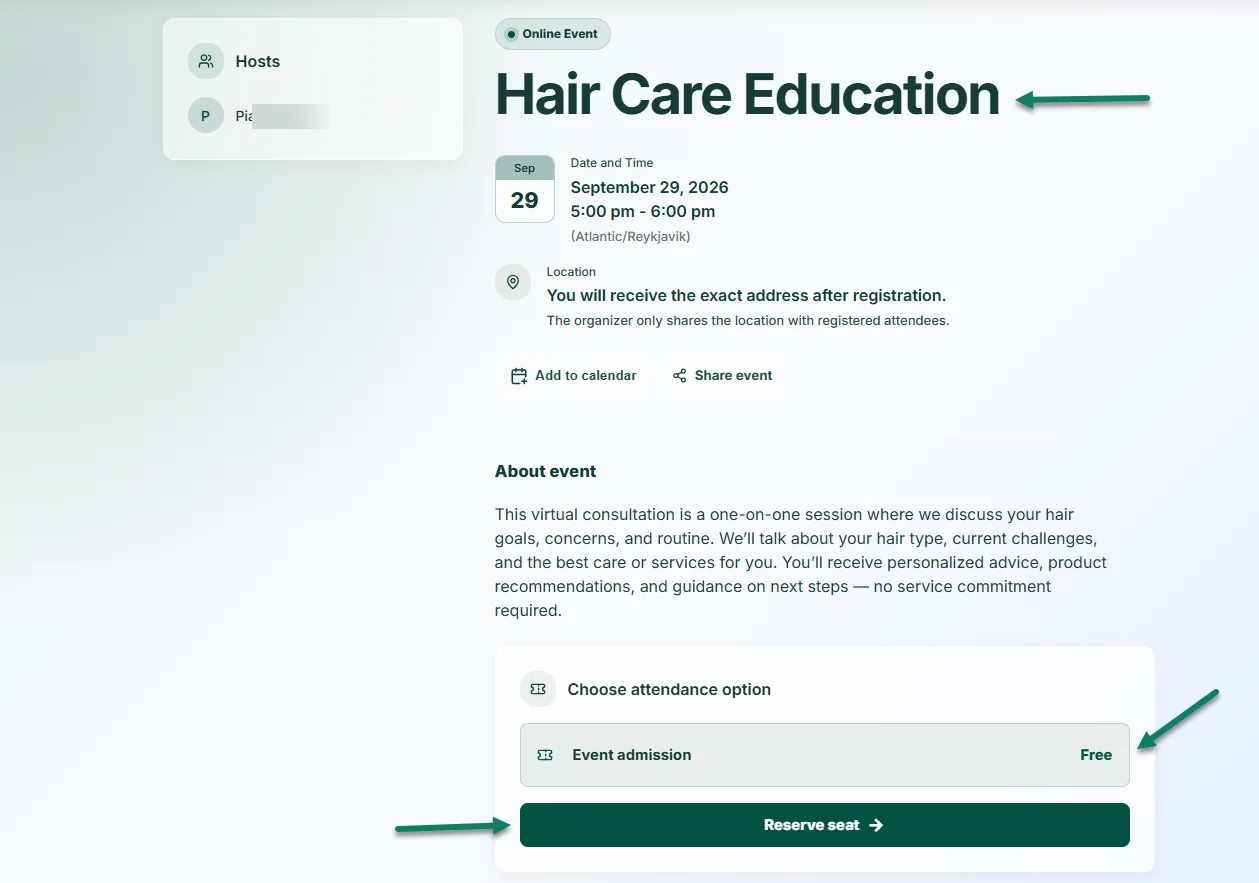
You set the event name, description, image, date, location, time zone, organizers, and participant limit. You host it online or provide a physical address for an in-person event.
And just like for appointments, you can also create free or paid events. For paid events, you can set different ticket options and let someone buy multiple admissions in one transaction.
The attendee area gives you a list of registered participants, while custom registration questions help you collect additional information before the event.
You can also control event capacity so registrations stop when you reach your limit.
8. Automate confirmations, reminders, and follow-up messages
I want to mention one of my favorite features: Scenarios.
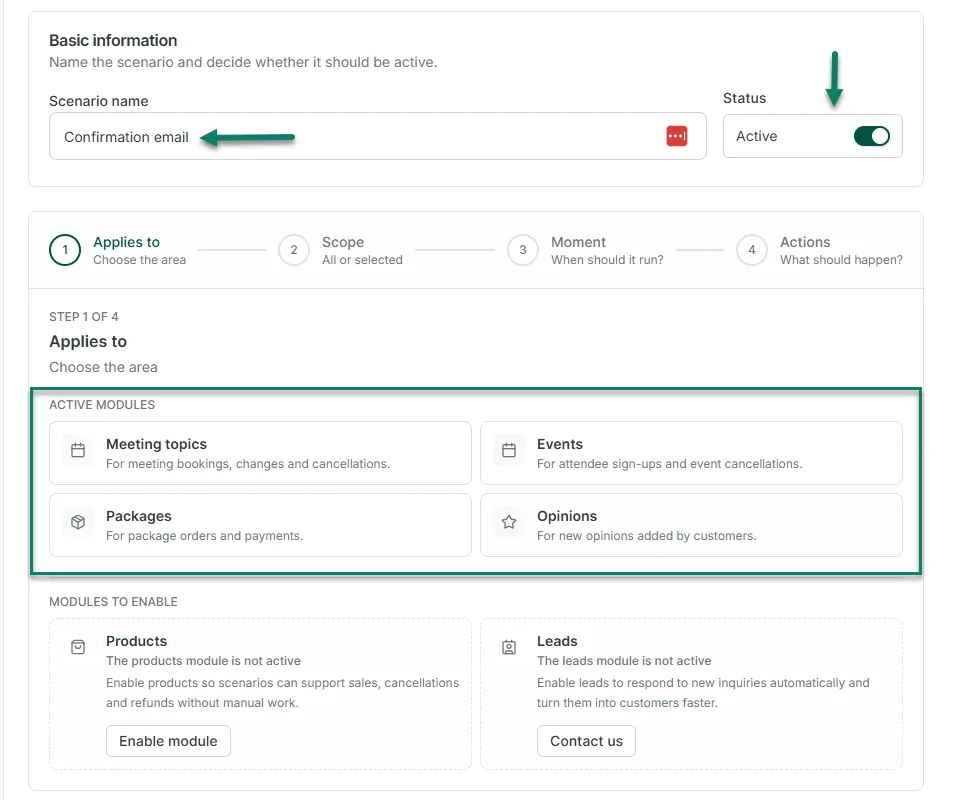
You create a Scenario once and let it send messages whenever a specific event happens.
For example, tell Scenarios to send a confirmation immediately after someone books. Tell it to send another message (email or SMS) one day before the appointment and a follow-up after the session ends.
You can also choose which services, bundles, or events should trigger each automation.
The system gives you more control than a basic appointment reminder. You can create different messages for new customers, returning customers, first appointments, or later appointments. It's powerful.
9. Manage your clients inside Zencal
Now, let's manage your clients like a pro.
Each client has a profile containing contact information, appointment history, payment history, activity, and other relevant details.
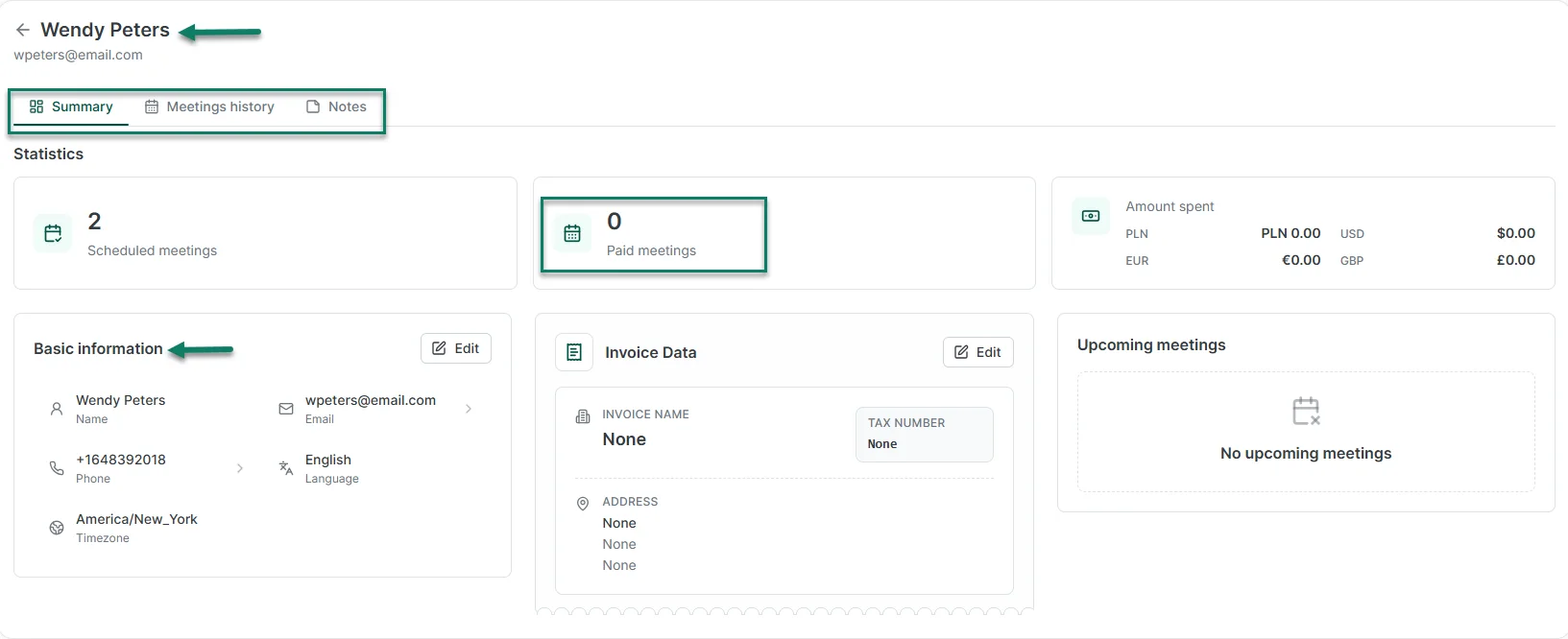
Zencal creates client profiles from bookings, or you can import an existing client database.
You can also add private notes to a client profile, or block a client when you no longer want them to book your services.
10. Manage several specialists with team scheduling
Zencal can manage scheduling for a team rather than one individual.
Each specialist can maintain their own calendar, services, and availability while the business presents one booking process to clients.
You can let clients choose which specialist they want, or you can let Zencal assign appointments automatically. Its round-robin system can consider team availability and distribute bookings between specialists.
Administrators can view appointments across the team, while regular team members can focus on their own meetings.
This setup suits businesses such as clinics, consultancies, coaching companies, and other organizations where several people provide similar services.
11. See bookings, sales, conversions, and team performance
Zencal's analytics features connect operations with performance and revenue.
Track sales and revenue, compare specialists, analyze marketing campaigns, and look at traffic and checkout conversions.
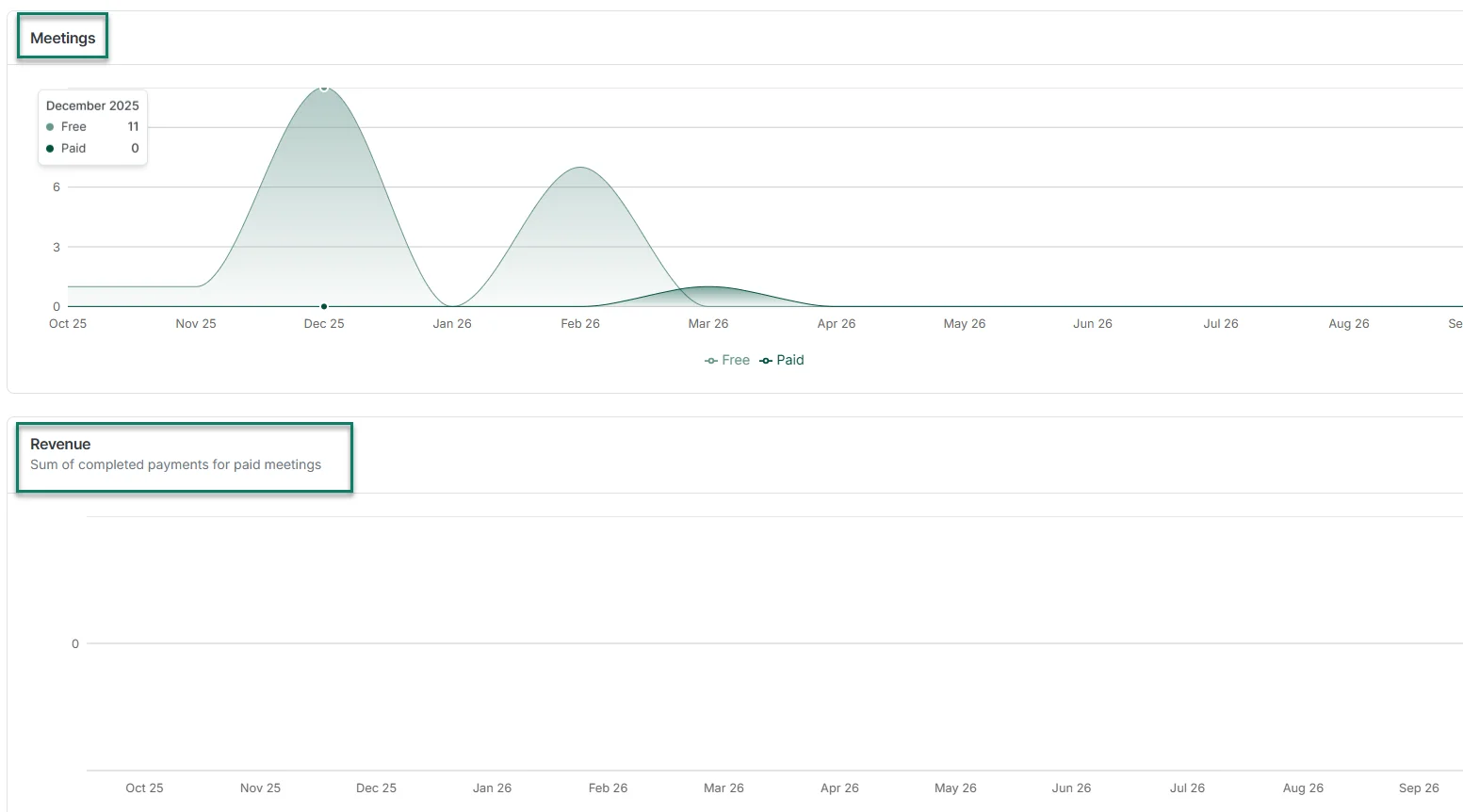
Because Zencal already connects bookings, clients, services, and payments, its reports show relationships that basic calendar statistics cannot.
For example, appointment volume alone might tell you that one service attracts plenty of bookings. Revenue data could tell you that another service earns more despite attracting fewer clients.
And there is more. Teams can also compare specialist performance and review where sales come from.
Zencal's reporting is incredible. It shows which offers and acquisition channels contribute to sales, rather than simply counting appointments.
12. Connect Zencal with the rest of your software
And if you already use various software? Simply integrate them with Zencal.
Along with calendar, payment, and video meeting integrations, Zencal supports connections with tools such as HubSpot, Woodpecker, Make, and Zapier. The platform also provides API access and webhooks.
Grow your business with Zencal
Zencal gives you the tools to manage appointments, payments, clients, events, subscriptions, reminders, and team schedules in one place
You can start with simple online booking and use other Zencal features as your business grows.
The best way to know which features fit your workflow is to try them yourself. Start a free Zencal trial and see how it works for your business.